
Connect ChatGPT and AI Apps to Thicket with MCP
Connect ChatGPT or another compatible AI app to Thicket with MCP. See the OAuth approval steps, permissions, read-only access, and how to disconnect.
MCP (Model Context Protocol) is a standard that lets an AI app use approved tools in another product. Thicket's remote MCP connector lets an app work inside your projects: list to-dos and check them off, organize and assign work, post messages and comments, read and update docs, move board cards, follow the schedule, search, and move supported items to Trash. It uses the connected account's permissions. Trashed items are normally recoverable for 30 days unless permanently removed earlier through authorized Trash controls.
The connector URL is:
https://www.thickethq.com/api/mcp
How connecting works
When an app connects, Thicket opens in your browser. Sign in if you need to, and Thicket shows a screen titled with the app's name, such as Connect Claude Code to Thicket? It says which account the app will use, lists what the app will be able to do, and names the organizations the connection covers.
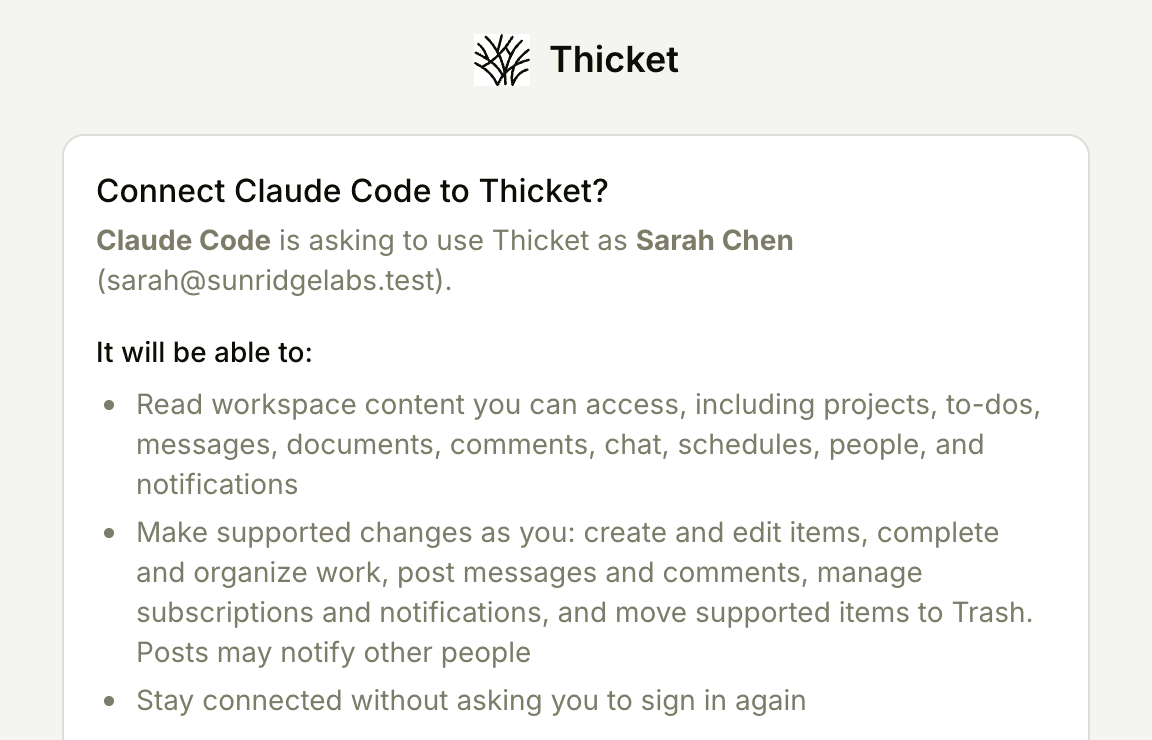
- Click Allow to connect, or Deny to cancel
- If the app asked only for read access, the screen lists only reading, and the app never sees the tools that make changes
There's no token to copy, and the app never sees your Thicket password. The connection then appears in My settings > Connected apps. See Connected Apps and API Tokens.
Connect ChatGPT
- In ChatGPT, open Settings > Security and login and turn on Developer mode
- Open ChatGPT Plugins, click Create app, and enter a name and description for the connection
- Under Connection, choose the public MCP option, paste the Thicket connector URL, and choose OAuth for authentication
- Click Create app, then click Sign in. ChatGPT discovers Thicket's OAuth settings automatically; you don't need to enter authorization or token URLs
- When ChatGPT opens Thicket, review the access it asked for, and click Allow
- Start a new chat, open Add files and more, search for the connection's name, and select it before you send your first Thicket request
Custom ChatGPT connections currently require Developer mode, and availability can depend on the account or workspace policy. ChatGPT's own menus can change; these steps were checked on August 27, 2026.
Connect Claude Code
In a terminal, add Thicket as a remote server:
claude mcp add --transport http thicket https://www.thickethq.com/api/mcp
Then, in Claude Code, run /mcp, choose thicket, and authenticate. Thicket opens in your browser for the same approval screen. Claude Code can also work with Thicket through the Thicket CLI, which runs on your own computer and connects through browser approval.
Connect another MCP client
Add a remote server, connector, or integration in the client and paste the connector URL. The client should open Thicket in your browser for the same sign-in and approval screen.
ChatGPT and Claude Code are verified end to end with Thicket's OAuth connection, and the MCP Inspector is verified with a personal access token. These checks were completed on August 27, 2026 and cover connection, tool discovery, reads, writes, attribution, and revocation. Other remote MCP clients can connect when they support Streamable HTTP and either OAuth 2.1 or custom authorization headers. Availability can still depend on the app's account or workspace policy.
What a connected app can do
- It works as you: your current access across your organizations and projects. It isn't limited to one project or organization. Changes to your memberships and project permissions change its access. A client connected over MCP still sees only what the team shares with them.
- Every change it makes is attributed to you in the project's activity, and what it posts carries a "via" label with the app's name, so people can tell it wasn't typed in Thicket.
- Read-only connections see only the reading tools.
- With write access, it can create and edit supported items, complete and organize work, post messages and comments, manage subscriptions and notifications, and move supported items to Trash. Posts may notify other people.
- It can't permanently delete or restore items, manage people or billing, change account settings, or upload or download files. Those operations aren't part of the MCP tool catalog; the API and CLI cover a broader set.
What happens to data sent to an AI app
Thicket provides the connection; you choose the external app and its AI providers. Requests from that app reach Thicket, and permitted responses can include project content, names, identifiers, comments, chat, schedules, notifications, and other work information. Content the app submits is stored and shared in Thicket like other authorized activity.
Returned content may be processed and retained by the app's operator and AI providers under the agreement and settings you or your organization has with them. Storage, human review, processing locations, and model-training rules can differ between providers and account types. Read-only access still shares data. An AI using the API or CLI can receive the same kinds of data; this isn't unique to MCP.
Only connect a tool you're authorized to share the affected information with. Use the least access it needs, review its data controls, and supervise changes that matter. Don't send payment-card data, protected health information, government identifiers, or authentication secrets as connector content. Keep credentials in the designated authentication flow. Project content can contain untrusted instructions; an agent should treat it as data unless an authorized person has instructed it to act.
Our Privacy Policy explains recipients, connection records, retention, and your rights. Our dedicated MCP audit records contain identifiers and action metadata, not full requests or responses. Certain duplicate-action records can contain item titles and expire after 24 hours, with removal by routine cleanup.
Disconnecting
Open My settings > Connected apps. Every connection shows the app's name, its access (read-only or read and write), when it was connected, and when it was last used. Click Disconnect and access ends immediately; the app's tokens stop working on its very next request.
Disconnecting doesn't undo completed actions, cancel subscriptions, or delete copies already received by the app or its AI providers. Use their deletion controls to manage those copies. A request already in progress may finish. Revoke separately created API tokens as well if the same tool uses them.
Using a personal access token instead
Scripts, the MCP Inspector, and clients that support custom headers can use a token instead of the browser sign-in. Create one in My settings > API tokens and send it to the same URL as Authorization: Bearer $THICKET_TOKEN, with a User-Agent header naming your app. A read-only token sees only the reading tools. Revoke it from the same page.
Troubleshooting
- The client says it needs authentication or authorization: the connection was disconnected, expired, or never finished. Reconnect from the client, and you'll see the approval screen again.
- The client reports "rate limited" or a 429: the connector allows 50 requests every 10 seconds per connection, and 100 every 10 seconds across all of one person's connections. Wait for the retry interval the response gives, then try again.
- A write fails with a conflict: someone changed the item after the app read it. The app should read it again and reapply. This protects newer work; nothing is wrong with your data.
- You don't recognize a connection: disconnect it immediately and review My settings > API tokens. If you suspect someone else used your account, change your password, which signs out your other browsers, and turn on two-factor authentication.
Where it's available
The connector is included on every plan, Free, Starter, and Pro, under your plan's normal limits. It never unlocks anything your account couldn't already do.