
The Thicket CLI
Install the thicket command, sign in through your browser, and work with projects, to-dos, and messages from a terminal or an AI coding agent.
The Thicket CLI is the official command-line tool for Thicket. Use it in a terminal, in scripts, or through an AI coding agent such as Claude Code, which can run commands for you. It works with your projects, to-dos, messages, docs and files, boards, chat, search, reports, notifications, and cheers, all as you. It's open source, at github.com/thicket-hq/thicket-cli.
What you need
- Node.js 20 or newer
- A Thicket account, on any plan
Install it
npm install -g thicket-cli
The command it installs is thicket. To try it without installing, run npx thicket-cli instead.
Sign in
thicket auth login
The CLI opens Thicket in your browser (or prints a link to open if it can't). Sign in if you need to, and Thicket shows Authorize the Thicket CLI, naming your computer and the access the CLI asked for. Click Approve to finish, or Cancel if you didn't start this yourself.
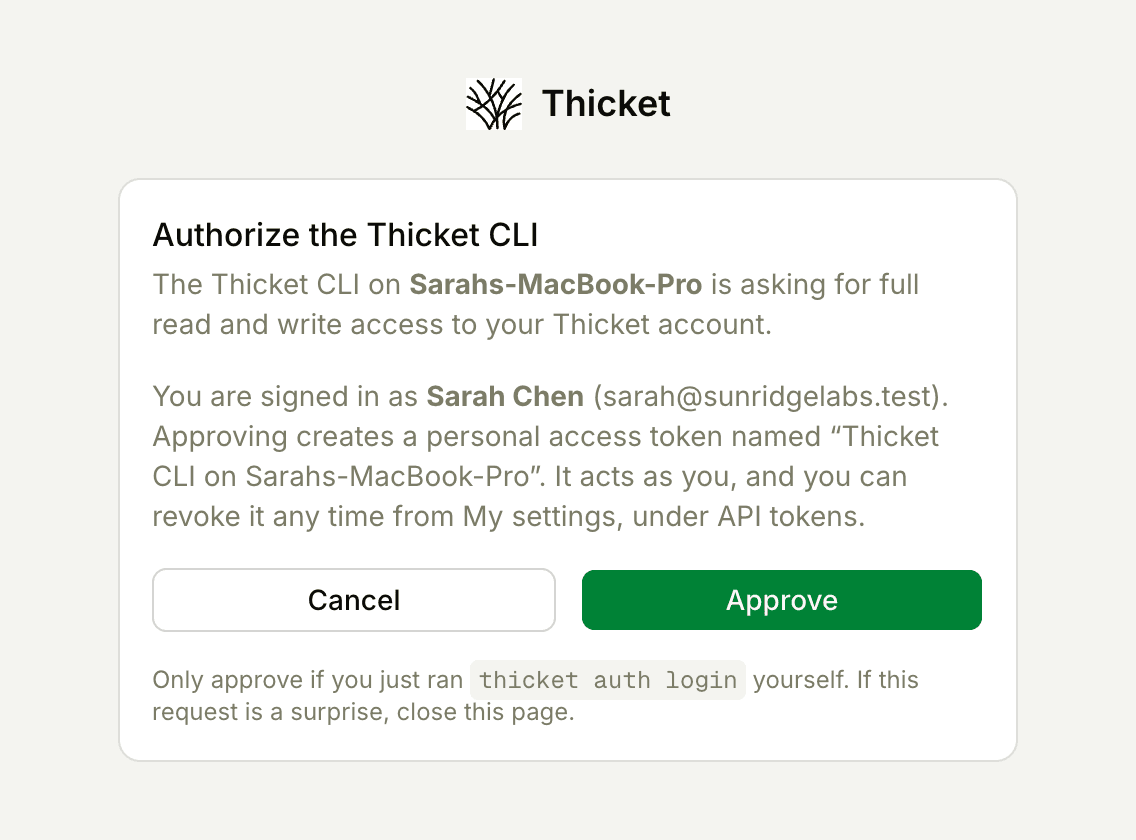
Approving creates a personal access token named after your computer, such as "Thicket CLI on Sarahs-MacBook-Pro". The CLI stores it in the macOS Keychain or the Linux Secret Service, or in a private file in your home folder when neither is available. Your password never passes through the CLI.
- The default is read-only. To create, complete, or post things, sign in with
thicket auth login --scope full. thicket auth statusshows who you're signed in as.thicket auth logoutremoves the token from this computer, but the token stays valid until you revoke it in My settings > API tokens. See Connected Apps and API Tokens.- No browser available? Create a token in My settings > API tokens, then pipe it in:
printf '%s' "$TOKEN" | thicket auth login --with-token. - Several organizations? Pass
--orgwith the organization's slug, or save a default once withthicket orgs use.
Everyday commands
thicket projects                                # list your projects
thicket todos --in "Website Redesign"           # a project's open to-dos
thicket todo "Send the preview" --in "Website Redesign" --due friday --assignee me
thicket done <id>                               # complete a to-do
thicket message "Weekly update" --content "All **green** this week." --in "Website Redesign"
thicket comment <id> "Looks good, @Priya"       # comment on anything
thicket search "launch checklist"               # search every project
thicket assignments                             # your open work
thicket inbox --unread                          # your notifications
A few things make these quicker:
- Projects, lists, and people can be named instead of looked up by id. If a name matches more than one thing, the CLI lists the choices.
- Anywhere an id is expected, you can paste the item's link from your browser instead.
- Dates accept plain words such as "tomorrow", "friday", or "next monday".
- Message and comment text is Markdown, and @ followed by a name mentions that person.
thicket commandslists every command, and adding--helpto any command explains it.
Use it with Claude Code and other AI agents
Any AI agent that can run shell commands can use the CLI. For Claude Code, install the Thicket plugin:
thicket setup claude
claude plugin marketplace add thicket-hq/thicket-cli
claude plugin install thicket@thicket-hq
thicket setup claude installs two skills that teach Claude how to use Thicket, and the plugin adds a line at the start of each Claude Code session saying who is signed in. Then ask in plain words, for example "What's overdue in Website Redesign?" or "Turn these meeting notes into to-dos in the Launch list". Claude runs thicket commands to do it. For changes, the CLI needs a token with full access (--scope full).
For Cursor, Codex, and other agents, thicket skill prints the same instructions to add to that agent's setup. The repository's install guide covers each one.
An AI agent can also be a member of your team that people @mention and assign work to. thicket agent watch runs on your own computer as that agent, listens for mentions and assignments, and hands them to a coding agent like Claude Code. See AI Agents as Members of Your Team.
Output for scripts
In a terminal the CLI prints readable, formatted output. When its output is piped to another program, it switches to JSON. You can also choose:
--jsonfor the full JSON response--quietfor the data alone--ids-onlyfor one id per line, or--countfor a number--jqwith a filter, to pick values out of the JSON
Errors come back as JSON too, with a stable exit code for each kind of failure, so a script can tell a missing item from a network problem.
Troubleshooting
- Run
thicket doctor. It checks your Node version, your token, whether Thicket is reachable, and which organization you're using. - "The token did not authenticate": the token was revoked or expired. Run
thicket auth loginagain. - A change is refused: you signed in read-only. Run
thicket auth login --scope full. - Rate limited: each token can make 50 requests every 10 seconds. Wait a moment and try again.