
Connected Apps and API Tokens
See and disconnect the AI assistants and apps connected to your account, and create or revoke personal access tokens for scripts and tools.
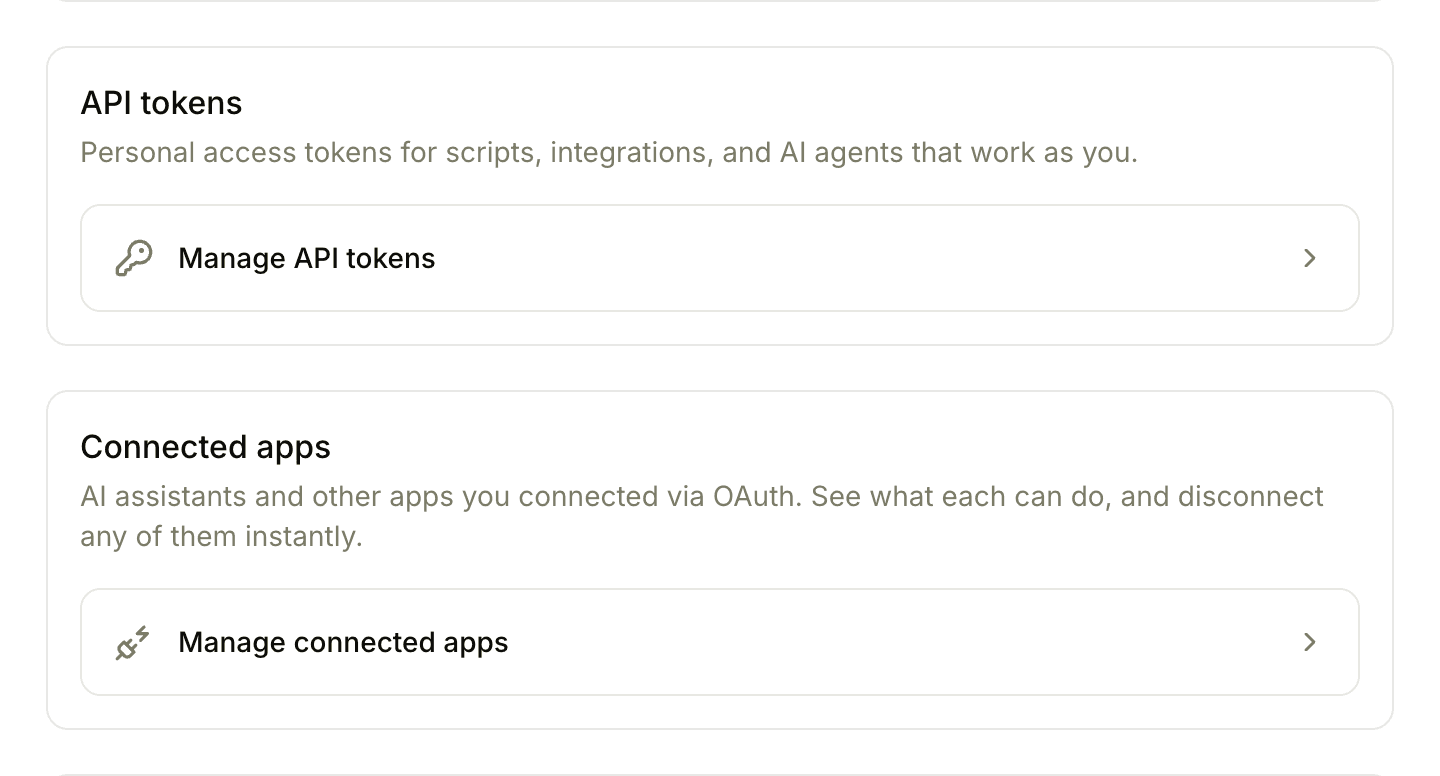
Two pages in My settings control what can use Thicket on your behalf outside the Thicket apps:
- Connected apps lists the AI assistants and other apps you approved through Thicket's sign-in screen, such as ChatGPT or Claude Code connected over MCP.
- API tokens lists the personal access tokens you created for scripts, the Thicket CLI, and other tools that call the Thicket API.
To open either page, click your name at the bottom of the sidebar, choose My settings, and click Manage API tokens or Manage connected apps.
What they can do
A connected app or a token works as you:
- It reaches every organization you belong to, with the same project access and permissions you have. If your access changes, so does its access.
- It's either Read-only or Read and write. A read-only one can look but never change anything.
- What it posts appears under your name, with a small label saying how it got there: "via API" for a token, or "via" and the app's name for a connected app, such as "via Claude Code". That way nobody mistakes it for something you typed yourself.
Anyone can connect apps and create tokens for themselves, on any plan. Tokens for AI agent members are different: owners and admins mint those in Admin > AI agents (see AI Agents as Members of Your Team).
Connected apps
Each connected app shows its name, its access (Read-only or Read and write), when you connected it, and when it was last used.
To cut one off, click Disconnect. Its access ends right away: the app's next request is refused. It moves to a Disconnected list below, and to use it again you connect it again from the app.
Disconnecting doesn't undo what the app already did, and it doesn't delete copies of your data the app or its AI providers already received. To connect a new app, see Connect ChatGPT and AI Apps to Thicket with MCP.
Personal access tokens
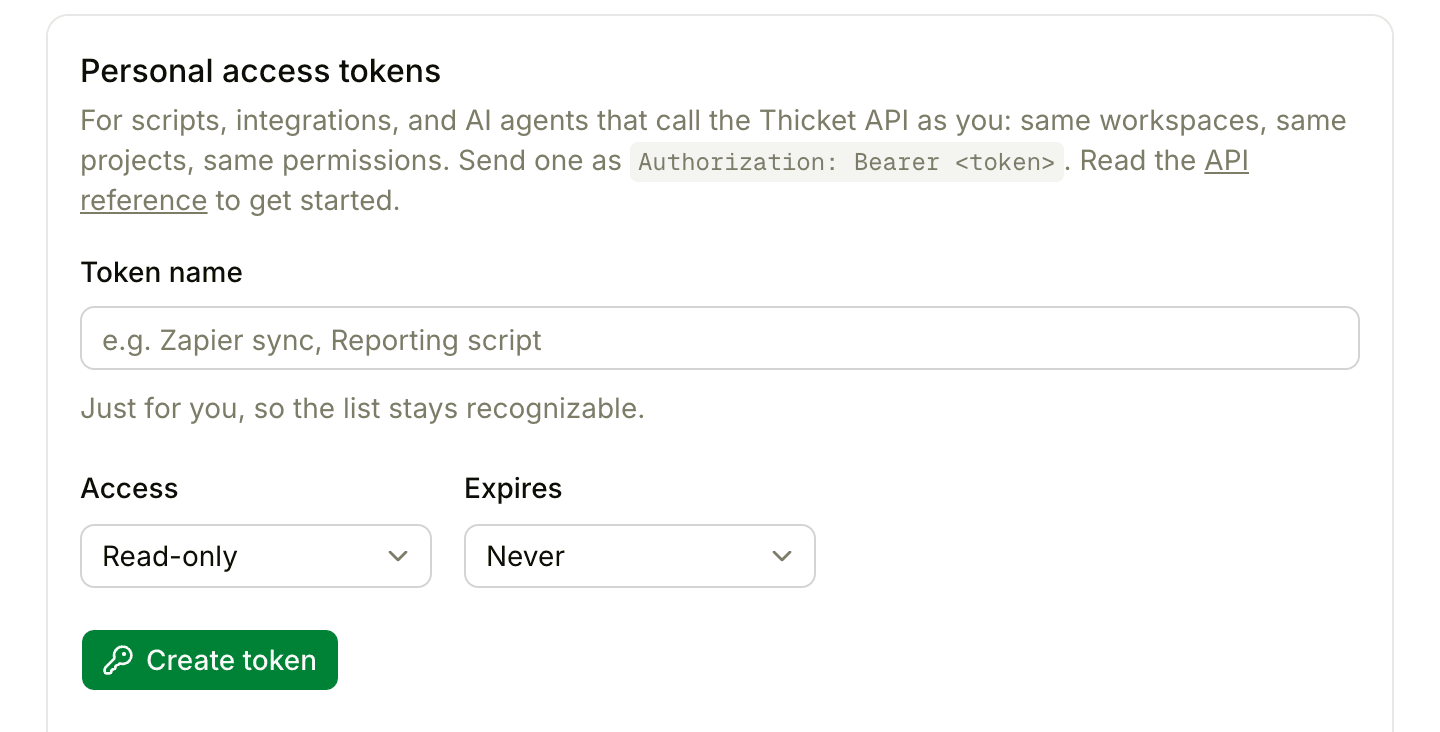
A personal access token is a password-like key a script or tool sends with each request to the Thicket API. To create one:
- Under Token name, name it after what will use it, such as "Reporting script"
- Choose its Access: Read-only (the default) or Read and write
- Choose when it Expires: Never, In 30 days, In 90 days, or In a year
- Click Create token
- Copy the token from the Copy your new token window and store it somewhere safe, then click Done
Thicket shows a token only once. If you lose it, revoke it and create a new one. Tokens start with thicket_pat_, and a tool sends one in an Authorization: Bearer header.
Each active token is listed with its name, its access, the start of the token, when it was created, when it was last used, and when it expires. Click Revoke to stop it: requests that use it stop working immediately. Revoked tokens stay listed under Revoked tokens for your records.
A few rules keep tokens safe:
- You can create and revoke tokens only while signed in to the web app. A token can't be used to create another token.
- A read-only token can only read. Anything that would change something is refused.
- Each token can make 50 requests every 10 seconds. A tool that goes faster is asked to wait and retry.
When you sign in to the Thicket CLI with thicket auth login, it creates a token for you named after your computer, such as "Thicket CLI on Sarahs-MacBook-Pro". It appears in this list like any other.
Keeping your account safe
- Treat a token like a password. Keep it in a password manager or your tool's secret settings, never in a project post, a chat, or a shared document.
- Give each tool its own token, choose Read-only unless it needs to make changes, and set an expiry when you can.
- Revoke tokens and disconnect apps you no longer use.
- Changing your password signs out your other browsers, but it doesn't revoke tokens or disconnect apps. Do that here.
If you find a token or connection you don't recognize, revoke or disconnect it, change your password, and turn on two-factor authentication.