Features

What Thicket does, screen by screen

Each project keeps its message board, to-dos, docs and files, calendar, boards and chat together on one page. Across projects, Thicket adds check-ins, client access, timesheets, reports and a roadmap. This page shows each part, in a demo account.

On every plan, Free included. Paid plans from $25/month, no per-user fees.

Free plan. No card required. Includes a 30-day Pro trial.

The Website Redesign project page: the letterhead with an On track health chip, the date tracker from Sep 15 to Nov 11 and the hours logged, the seven people on the project, then the six tool windows, Message Board, To-dos, Calendar, Docs & Files, Boards and Chat, each showing its newest items, and the project's latest activity below

The project page for everything in the project

Every project has its own page with its tools on it: Message Board, To-dos, Docs & Files, Calendar, Boards and Chat, plus Check-ins and Clients when you turn them on. Each tool's window shows what is newest, so the page reads as the project's status. Invite colleagues, clients and contractors, drag the tools into the order you want, and put links to GitHub, Figma or Google Drive under them.
Creating and setting up a project

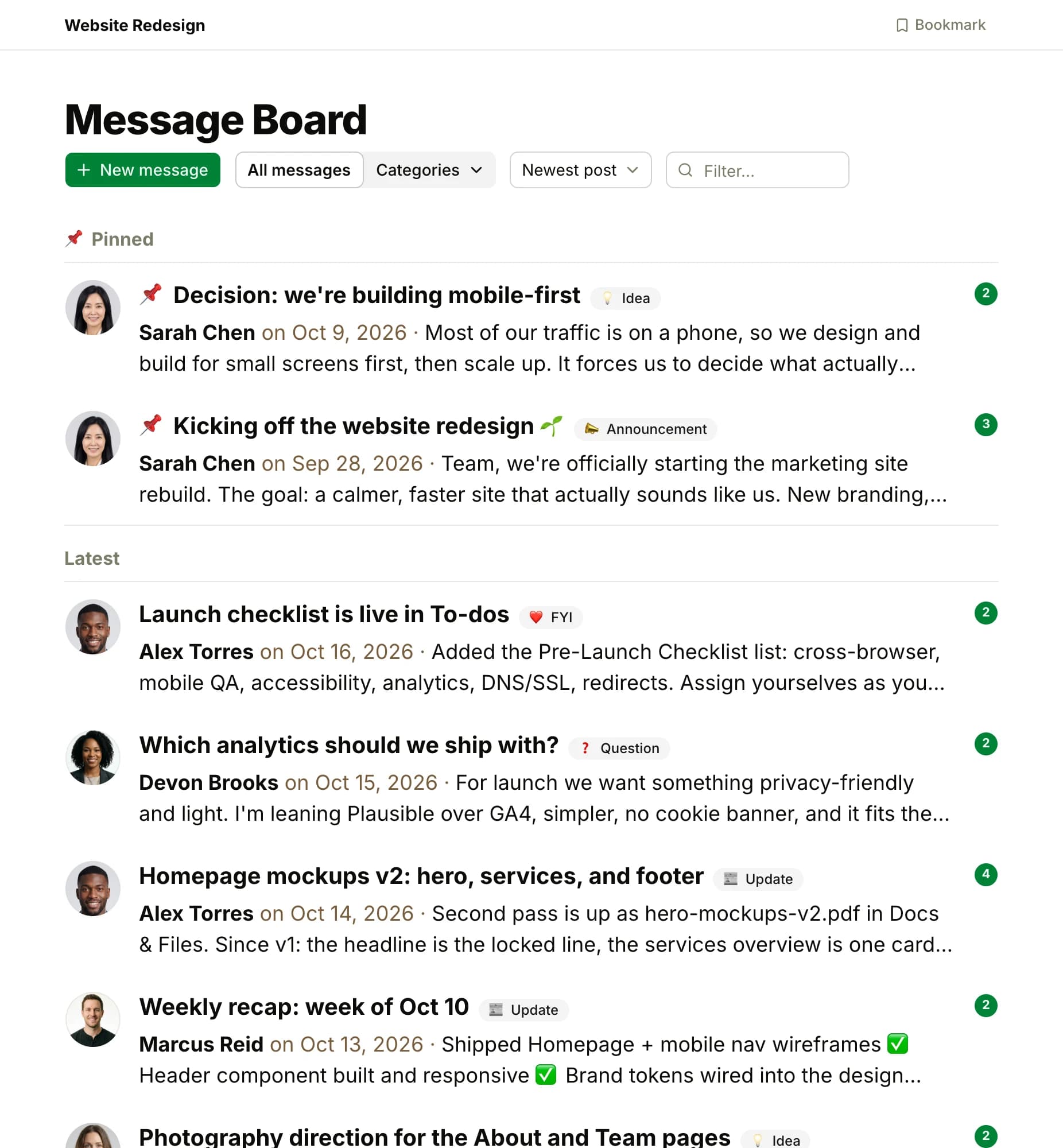
The Message Board of the Website Redesign project: two pinned posts at the top, a decision and the kickoff announcement, then the latest posts, each with the author's face, its title, a category chip, the author and date, its first lines and the count of comments

Message Board for announcements and discussions

Post an update, a question, an announcement or a decision, and the replies stay under it. Categories sort the board, a pin keeps a post at the top, and you choose who is notified. Save a draft to finish later, or schedule a post for a date and time. A post keeps its comments, so a decision and the discussion that led to it stay together.

Message boards

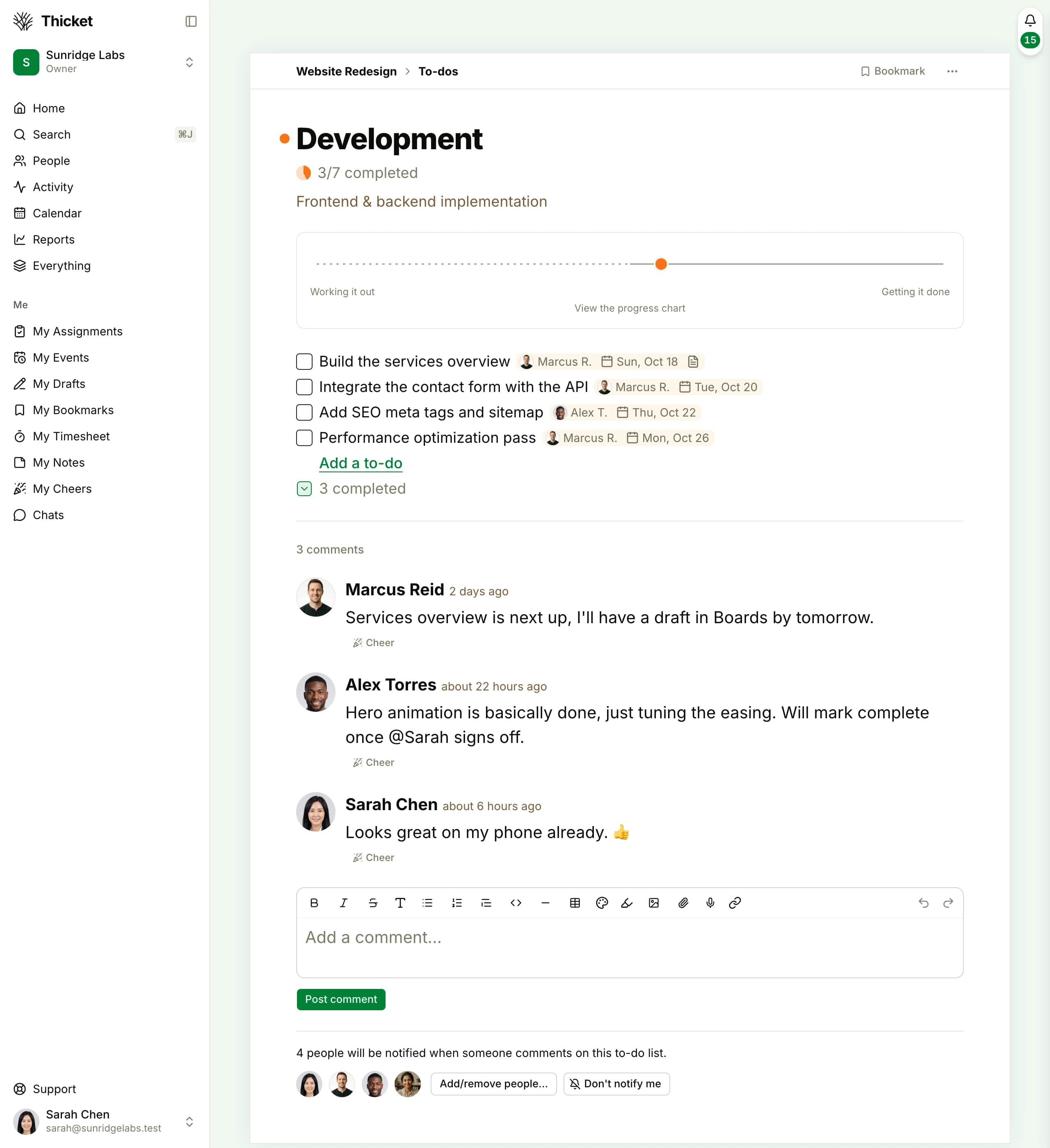
The Development to-do list, 3 of 7 completed: its progress chart, then four open to-dos with their assignee's face and due date, a collapsed row of completed to-dos, three comments under the list and the box for a new one, and the people notified about the list

To-do lists for tracking the work

Make a list, add to-dos, assign each one to a person with a due date, and check it off when it is done. A to-do carries notes, files, comments, subtasks and a repeat schedule. Group to-dos inside a list, drag them into order, and see what is open and what is done. Anyone in the project can see who is doing what, by when.

To-dos and lists

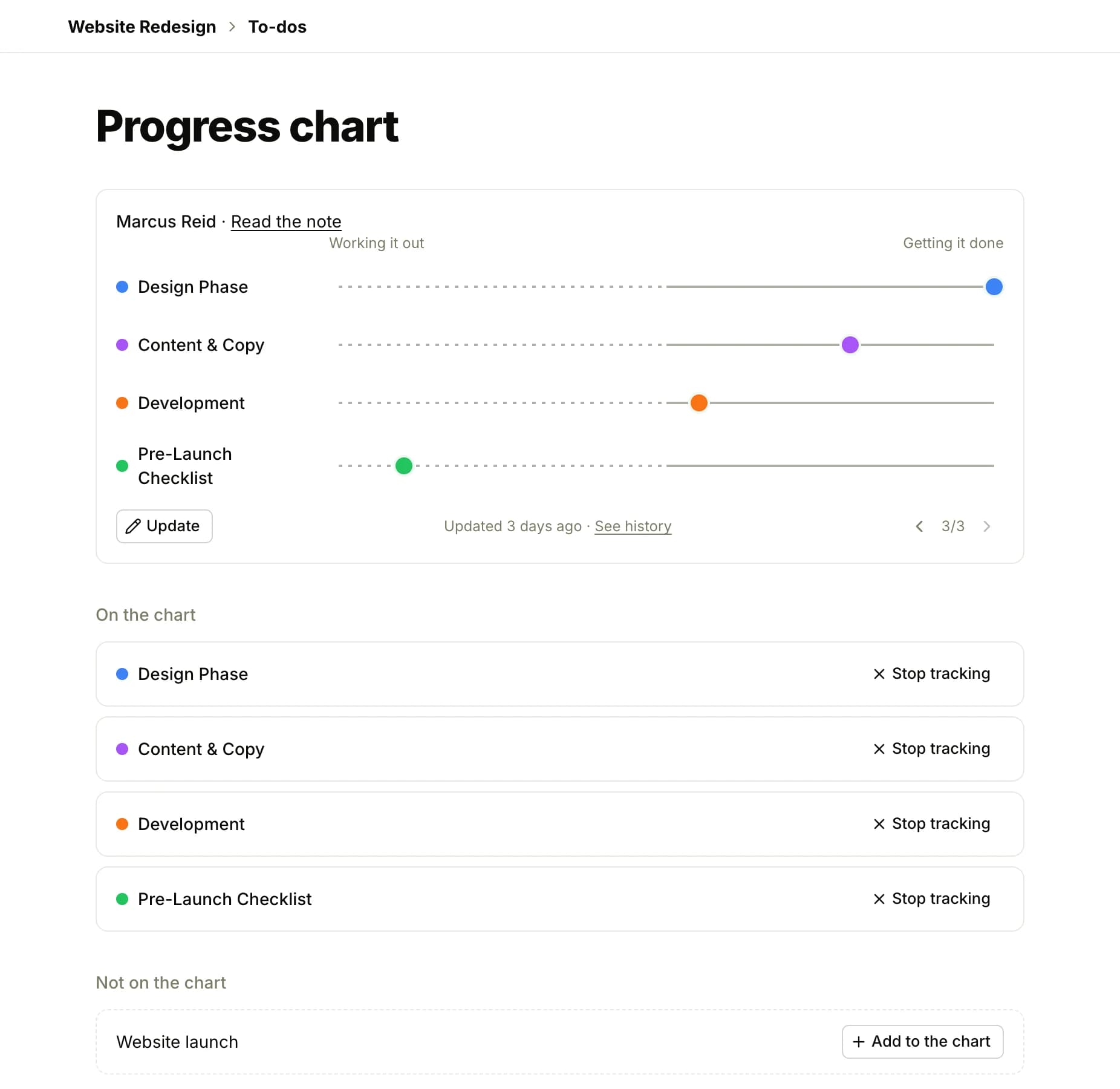
The project's progress chart: four to-do lists as colored dots between Working it out and Getting it done, Design Phase at the end, Content & Copy and Development on the way down and Pre-Launch Checklist just starting, with the latest update's author and note, the history link, and the lists on and off the chart below

Progress charts for where each list stands

Track a to-do list on a progress chart and drag its dot to where the work stands: still being figured out on the way up, being finished on the way down. Save an update with a note, and every update is kept, so the chart's history reads as the story of the project. The Progress overview report shows every chart that moved in the last three months.

Progress charts

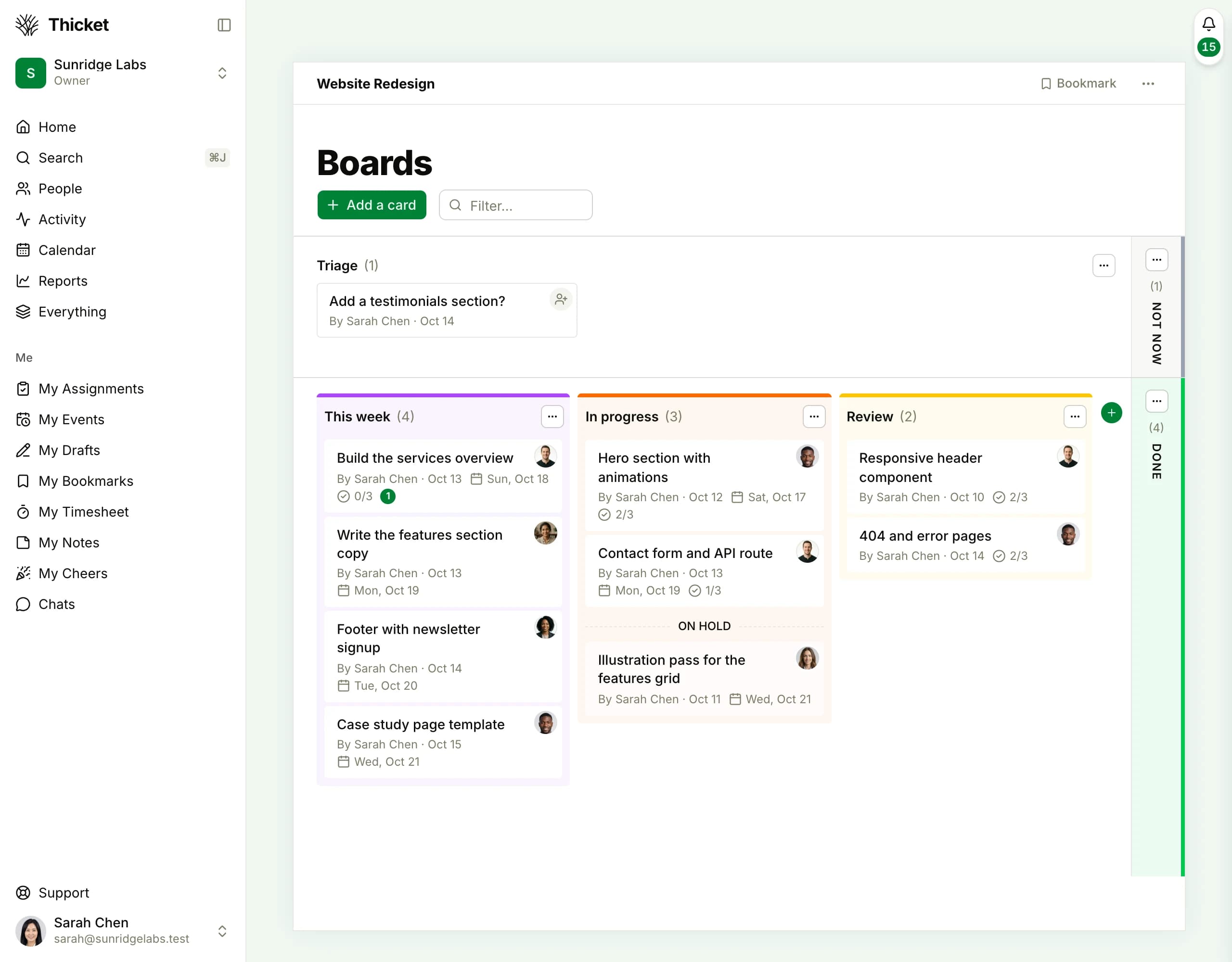
A board in the Website Redesign project: cards in the Triage, Not now, This week, In progress, Review and Done columns, each with an assignee and a due date, and a card on hold in its own section

Boards for work that moves through stages

A kanban board with cards in columns, from Triage to Done. Each card has an assignee, a due date, a description, steps to tick off and its own comments, and an On hold section keeps parked work in view without blocking the column. Name the columns for your own process: bugs, a production pipeline, a hiring round.

Boards

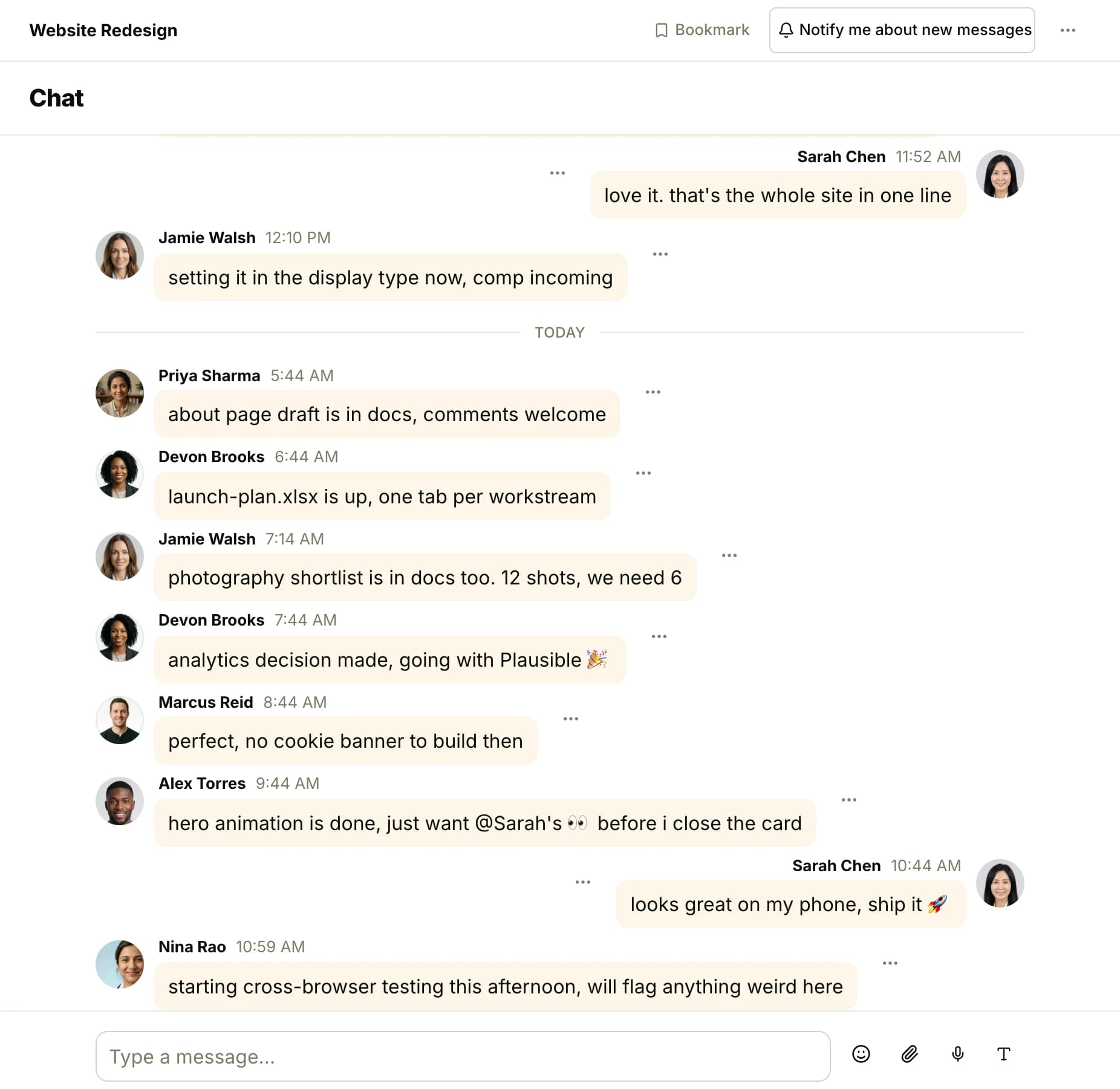
The Website Redesign chat room: two days of lines from the team with their faces and times, including an @-mention, and the box for a new line at the bottom with the emoji, attachment, voice note and formatting buttons

Chat for quick conversations

Every project has a chat room, so quick questions stay next to the work they are about. Start a direct message with one person or a small group for anything private. Share a file, @-mention someone, react with a cheer, and find a line again later with search. Each chat has its own files page, so a file shared in passing is easy to find.

Group chat and direct messages

The Calendar page: the next six weeks with every project's events on their days, colored by project, timed events with their hours and all-day events as bars, today marked, with the All projects, Calendar or Agenda, Mine or Everyone and Events or Events + tasks controls and the Subscribe button at the top

Calendar for dates and deadlines

Each project has a calendar for events, milestones and meetings, with repeats, reminders and the people invited. The Calendar page puts every project's events on one month. An iCal feed puts Thicket's events in Google Calendar, Outlook or Apple Calendar, so the team's dates show up where everyone already looks.

Calendar and events

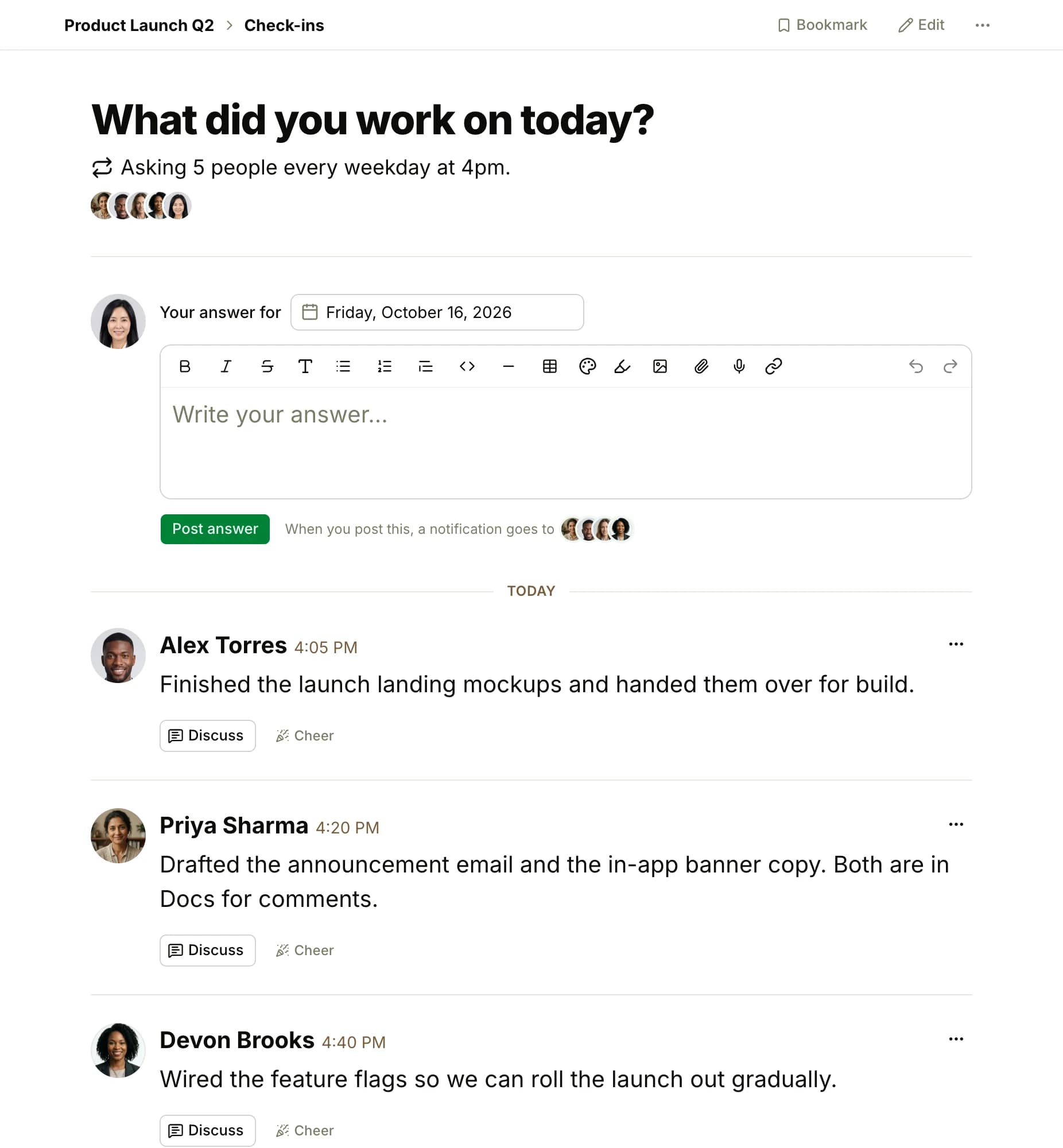
The question What did you work on today? in the Product Launch Q2 project, asking 5 people every weekday at 4pm: the box for today's answer, then the day's answers, each a person's face, name, time and answer with Discuss and Cheer under it, one already cheered

Automatic check-ins for recurring questions

Ask the team a question on a schedule: what did you work on today, what is blocking you this week, what did you learn. Thicket asks each person at the time you set and collects the answers on one page, by day. Each answer takes comments and cheers like any post, and the thread stays with the project, so the whole week is there to read back.

Automatic check-ins

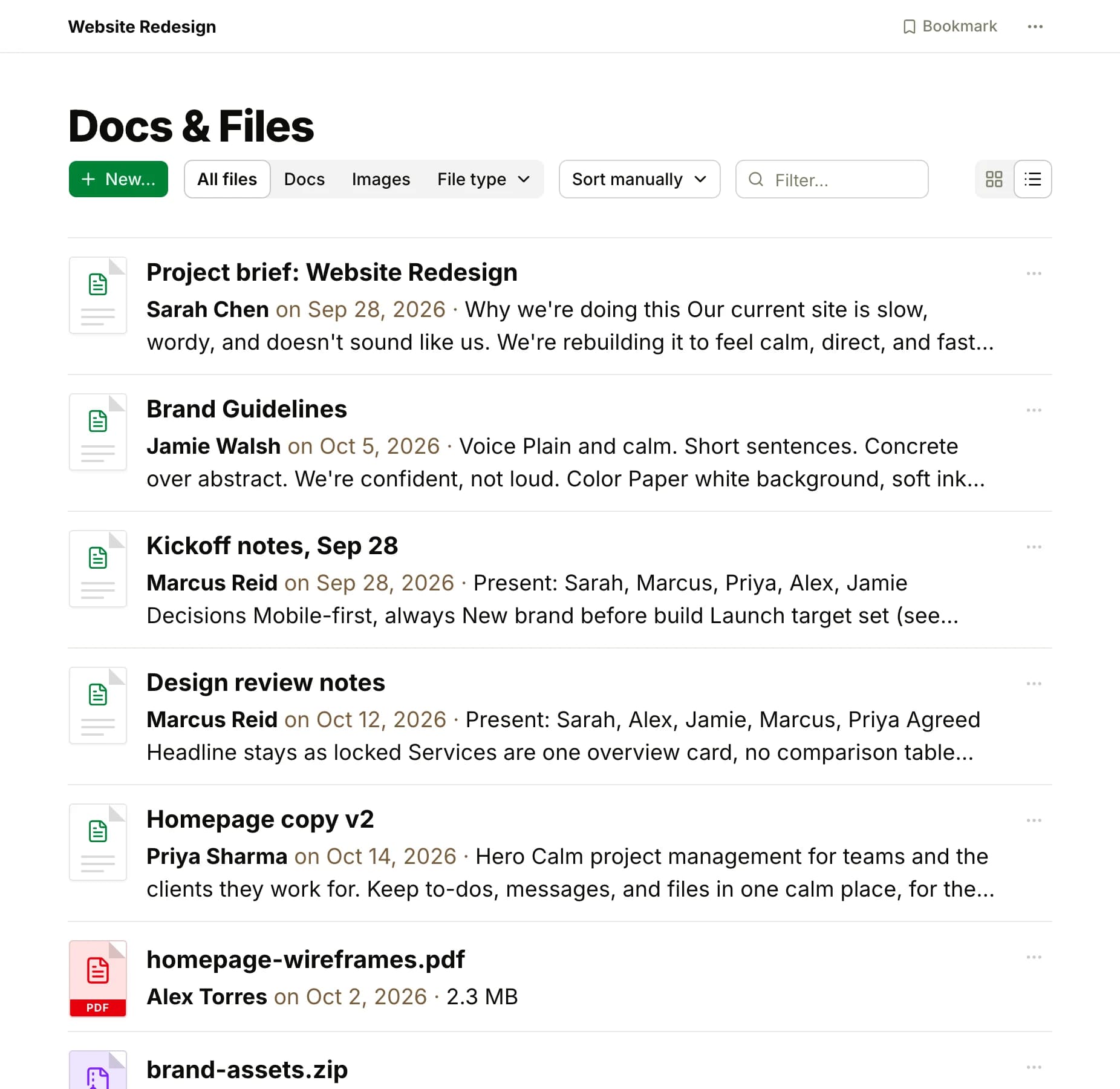
Docs & Files in the Website Redesign project in the grid view: docs as cards with their author, date, title and first lines, and files as PDF, ZIP and XLSX tiles with their name, author, date and size, with the New button, the Docs, Images and File type filters, the sort and the grid or list toggle at the top

Docs & Files for reference material

Write docs with headings, lists, tables, images, code and embeds. Upload files of any kind, preview them in the browser, and replace a file with a new version while its comments stay. Link to files that live on Google Drive, Figma or Dropbox. Organize it all in folders, view a folder as a list or a grid of thumbnails, and add a second Docs & Files tool when a project needs one.

Docs and files

Home for Sunridge Labs: the New project, Add a folder, Invite people and Admin buttons, seven project cards with their names, descriptions and the faces of their people, and the latest activity across the projects beside them with the people active in the last 24 hours

Home for every project at a glance

Home lists every project you are in, with its people and its latest activity. Star the projects you work in most so they stay at the top, give each one a color, group them in folders, and start a new project or invite someone from the same screen.

The Home screen

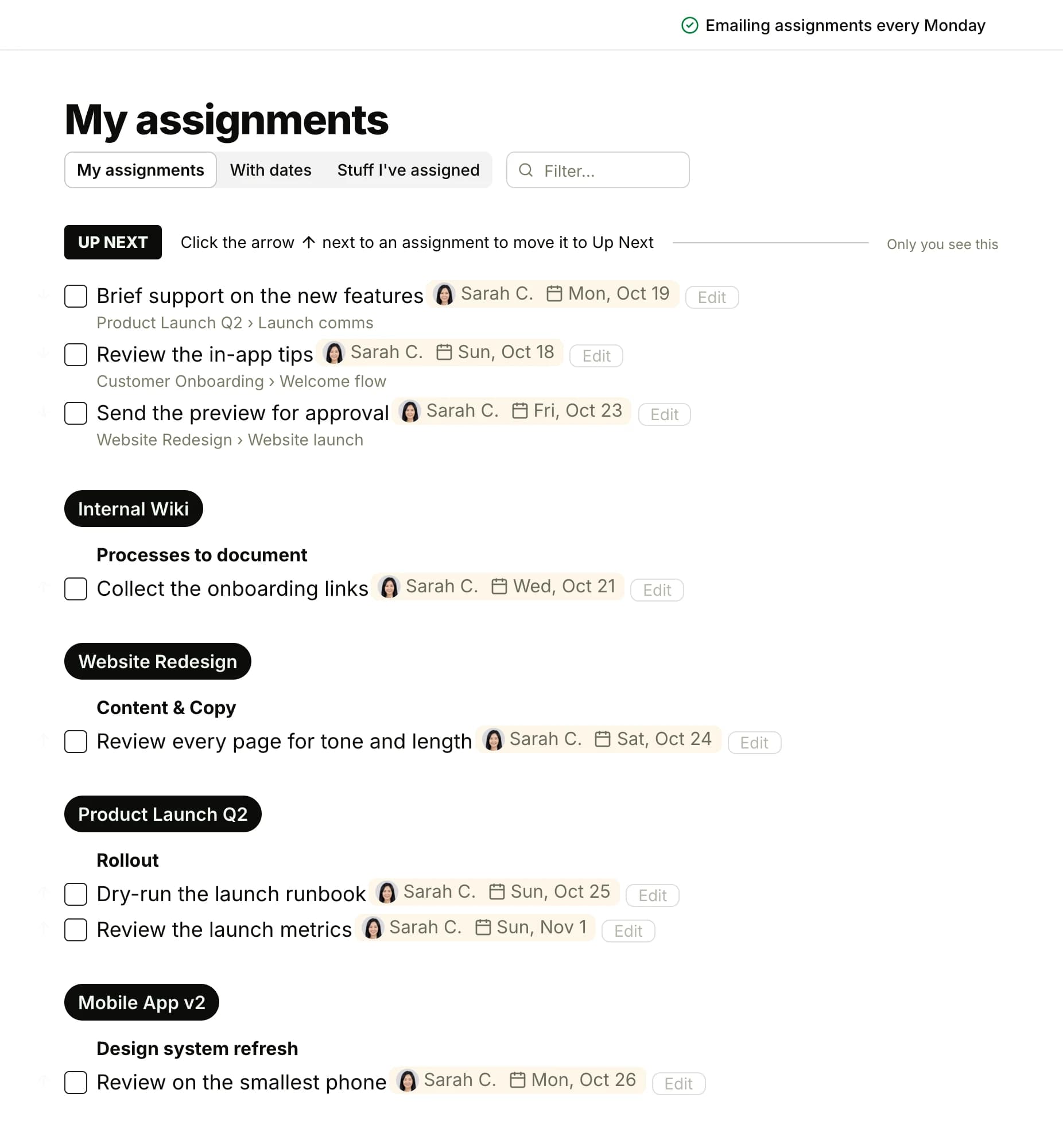
My Assignments for Sarah Chen: an Up Next list of three to-dos, then her other assignments grouped by project and list, each with her face, a due date, an Edit button and a checkbox, with the With dates and Stuff I've assigned tabs and the Monday email switch at the top

My Assignments for your own work across projects

My Assignments lists every to-do and card assigned to you, across every project, by project or by due date. Move what matters most to Up Next and work from there. A second tab shows the work you handed to others, so you can follow up. A Monday summary arrives by email, and the Me section of the sidebar also holds your events, drafts, bookmarks, private notes, cheers and chats.

My Assignments

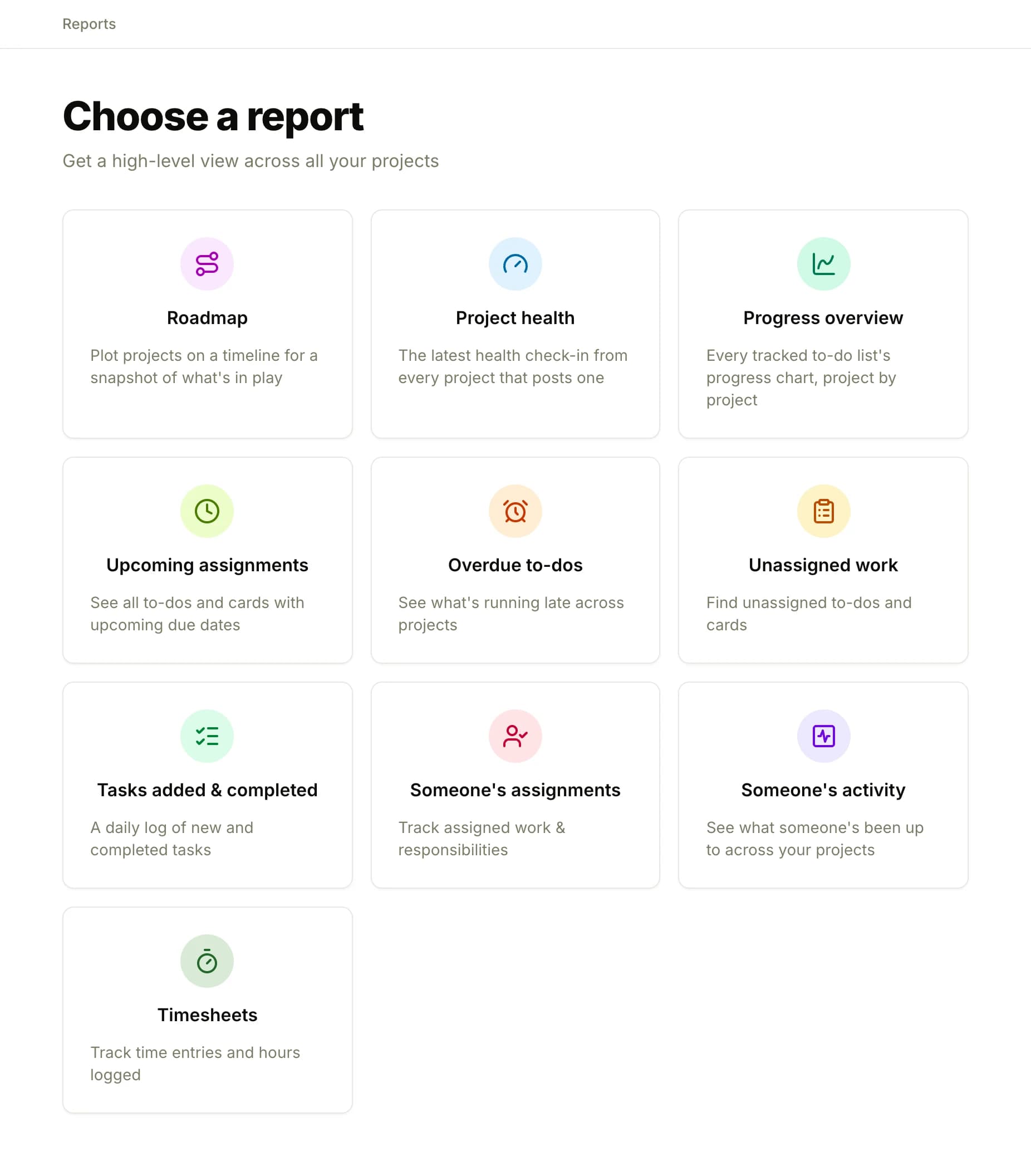
The Reports page: ten tiles, Roadmap, Project health, Progress overview, Upcoming assignments, Overdue to-dos, Unassigned work, Tasks added & completed, Someone's assignments, Someone's activity and Timesheets, each with a line on what it answers

Reports for the view across projects

Ten reports read across every project at once: upcoming assignments, overdue to-dos, unassigned work, tasks added and completed by day, someone's assignments, someone's activity, the Progress overview, Project health, the Roadmap and Timesheets. Each one is a page with filters, so the answer to "what is late?" or "what is Priya on this week?" is a click away.

Reports

The Everything page's All messages list: every message board post across the projects as a row with the author's face, the title, its project, the author, the date and its first lines, newest first, with a filter box at the top

Everything views for one kind of thing

See every message, doc, file, comment or check-in answer across your projects on one page, newest first, and narrow it with the filter box. When you remember the file but not the project, Everything is where to look.

See everything in your projects

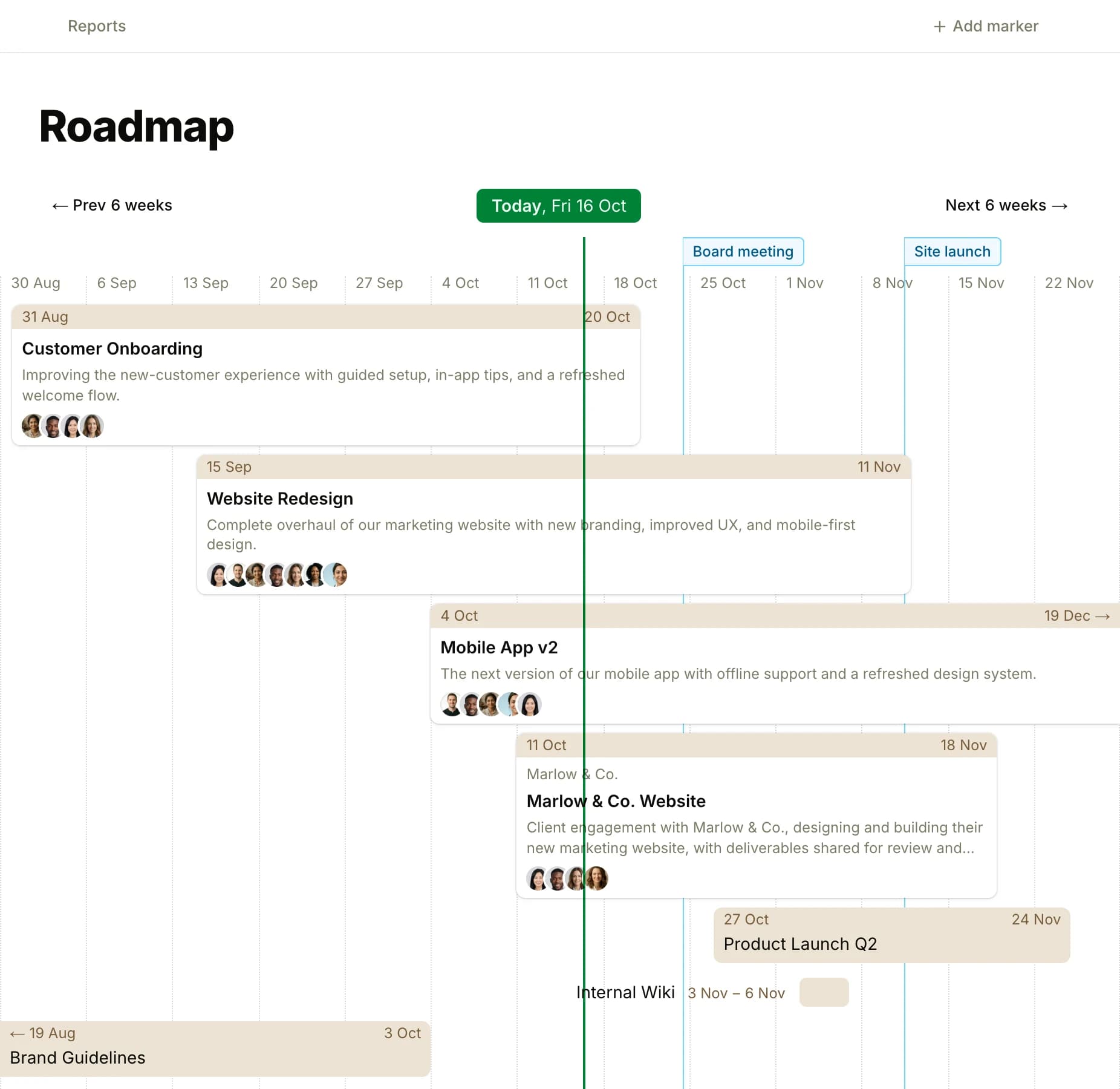
The Roadmap: a 13-week timeline with today marked, a bar per dated project with its dates, name, description and the faces of its people, four in progress, one upcoming, one too short for its name and one that ended, with markers for Board meeting and Site launch

The Roadmap for projects on a timeline

Give a project a start and an end date and it appears on the Roadmap, a 13-week timeline of every dated project: what is in progress, what is coming, where projects overlap and who is on each. Drag a bar to change its dates, and add a marker for a date the whole team works toward.

Roadmap

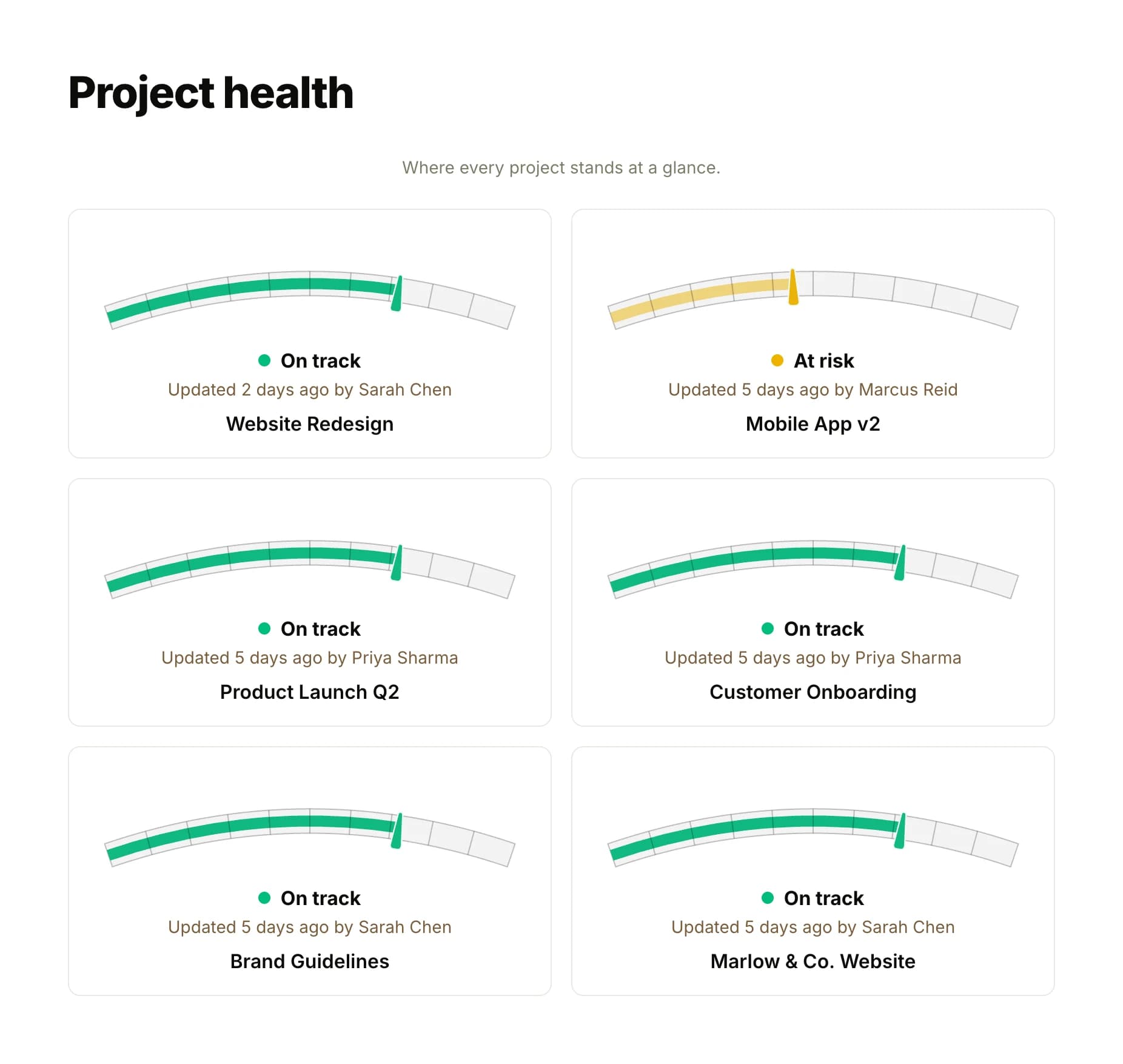
The Project health report: six projects as cards, each with its gauge, its status, On track or At risk, and who updated it and when

Project health for a status everyone can see

Turn on project health and the project's letterhead shows a gauge: On track, At risk or Off track, with when it was set. Post an update with a note on why, and every update is kept as the project's history. The Project health report lists every project's status on one page, so the question of which projects need attention has a page instead of a meeting.

Project health

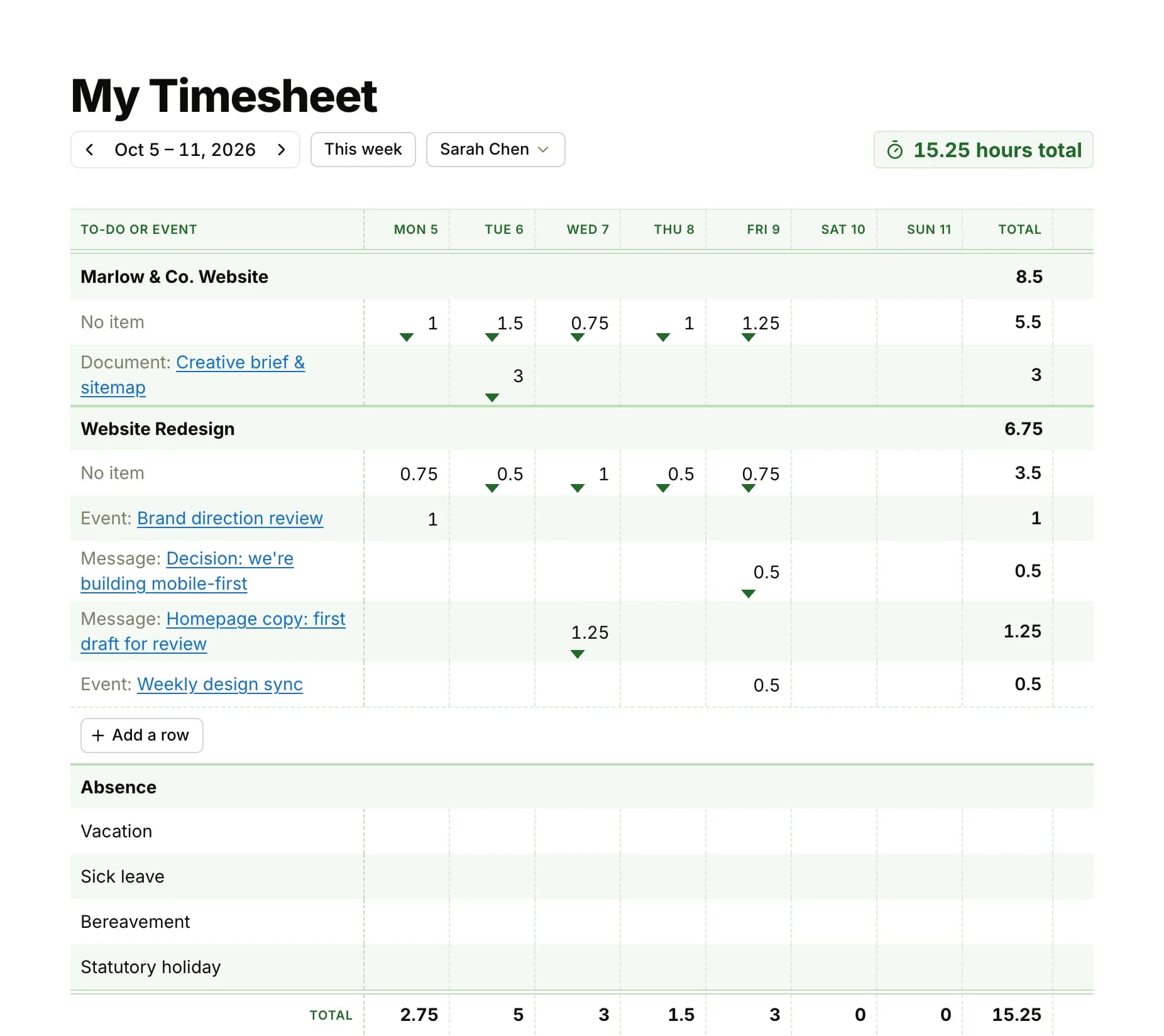
My Timesheet for one week: the dates across the top with the week's total hours, then each project heading its rows of logged time with hours under each day, the Vacation and Sick leave rows, and totals for each day and the week

Timesheets for hours logged on the work

Turn on Timesheet in a project and a ⏱ badge appears on the project and on each of its to-dos, messages, docs, files, cards and events. Click it to log hours on that item. My Timesheet is each person's week on one grid, with time off rows, and the Timesheets report adds up the hours by person, project and date range, with a CSV download. Weekly approvals are optional, and clients never see hours.

Timesheets in Thicket

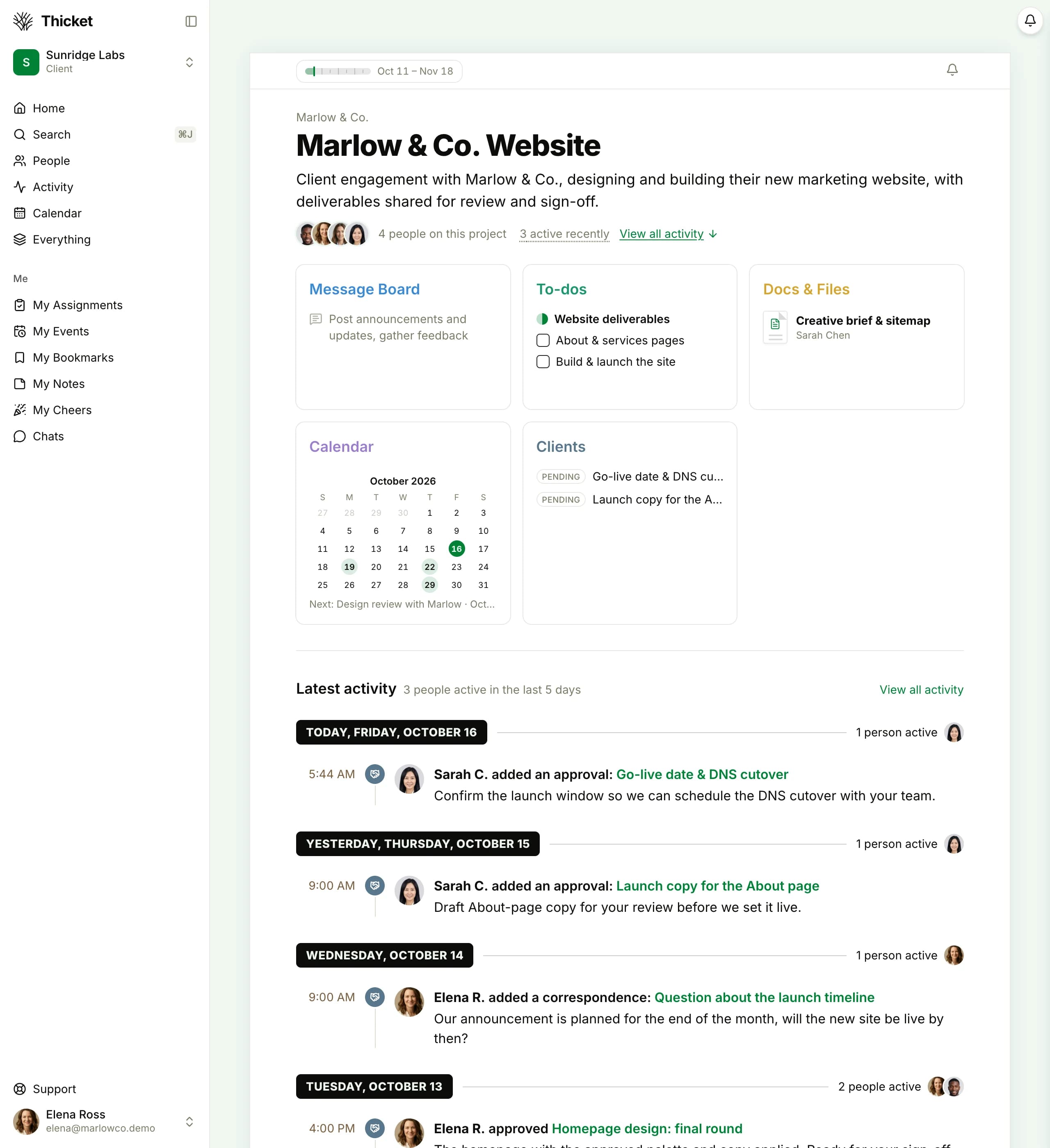
What Elena Ross of Marlow & Co. sees as a client: only the Marlow & Co. Website project, Client under the account name, the project's Message Board, To-dos, Docs & Files and Calendar windows with the items shared with her, a Clients window with two approvals pending, and the latest activity, including her own approval and question

Client access for the people you work for

Invite a client to their project and choose what they see. A client sees only the project they were invited to, and in it only the items you mark visible to them, each wearing a band that says so. Clients comment, ask questions and approve work in the project, and their approvals are kept with the deliverable. The rest of the workspace stays private.

Working with clients

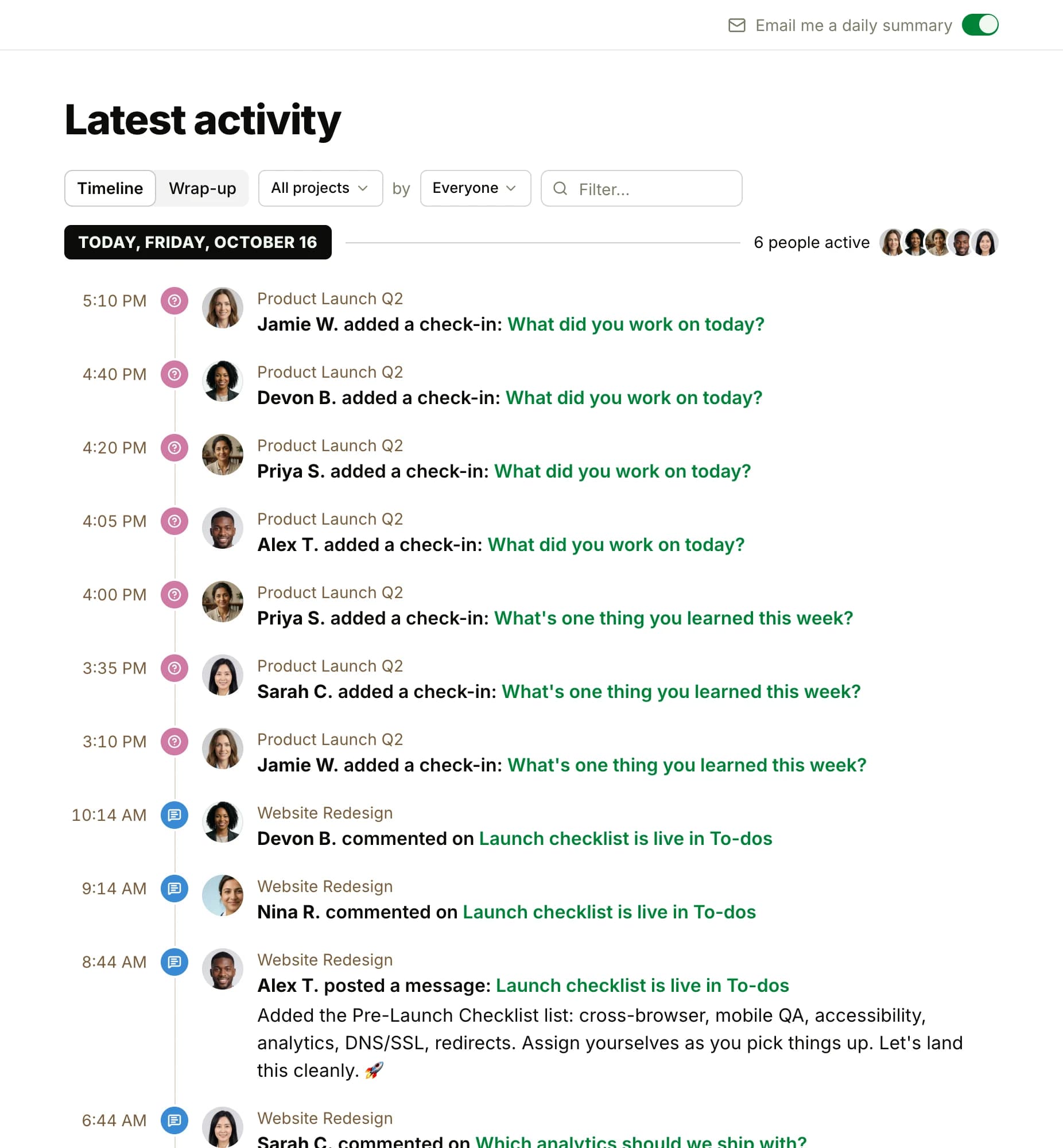
Latest activity across Sunridge Labs: today's rows on a timeline, each a time, a person's face, what they did, the item's title and its project, with the Timeline and Wrap-up tabs, the project and person filters and the daily summary email switch at the top

Latest activity for catching up

Latest activity is one feed of what happened across your projects: posts, comments, completed to-dos, new files, moved cards. Filter it by project, person or keyword, and get the day's activity as a summary email. Each project has its own activity page too, and every item keeps its own history of changes.

Latest activity

The Chats + Notifications tray open over a project page: a Chats row with New chat and three conversations, then New for you with 15 unread notifications, each a face, the action, the item, its time and its project, and Mark all as read

Chats and notifications in one tray

The pill at the top right opens Chats + Notifications: your direct messages, new activity on what you follow, @-mentions, assignments and reminders, newest first, with an unread count you can clear. Mark everything read, set a reminder to come back to something later, or press Shhh to silence alerts for a while. Choose per project and per discussion what notifies you, and whether it emails you.

Chats and notifications

$ npm install -g thicket-cli$ thicket auth login   Opening your browser to approve access… done.   Signed in as Sarah Chen (owner) in sunridge-labs$ thicket todos list --in "Website Redesign" --list Development   ○  Build the services overview              Marcus Reid   Oct 18   ○  Integrate the contact form with the API  Marcus Reid   Oct 20   ○  Add SEO meta tags and sitemap            Alex Torres   Oct 22$ thicket todo "Write the launch announcement" --in "Website Redesign" --assignee priya --due friday   Added to Website Redesign, assigned to Priya Sharma, due Friday.

API, CLI, SDK and MCP for your own tools and AI agents

Everything the web app does is in the REST API, with OAuth or a personal access token. The thicket CLI works from a terminal or from a coding agent, with JSON output, and a TypeScript SDK wraps the API. A remote MCP connector lets ChatGPT, Claude Code and compatible MCP clients work in Thicket under your own permissions, approved in your browser. A named agent can be mentioned and assigned work. Thicket itself ships no built-in AI: you choose the agent.

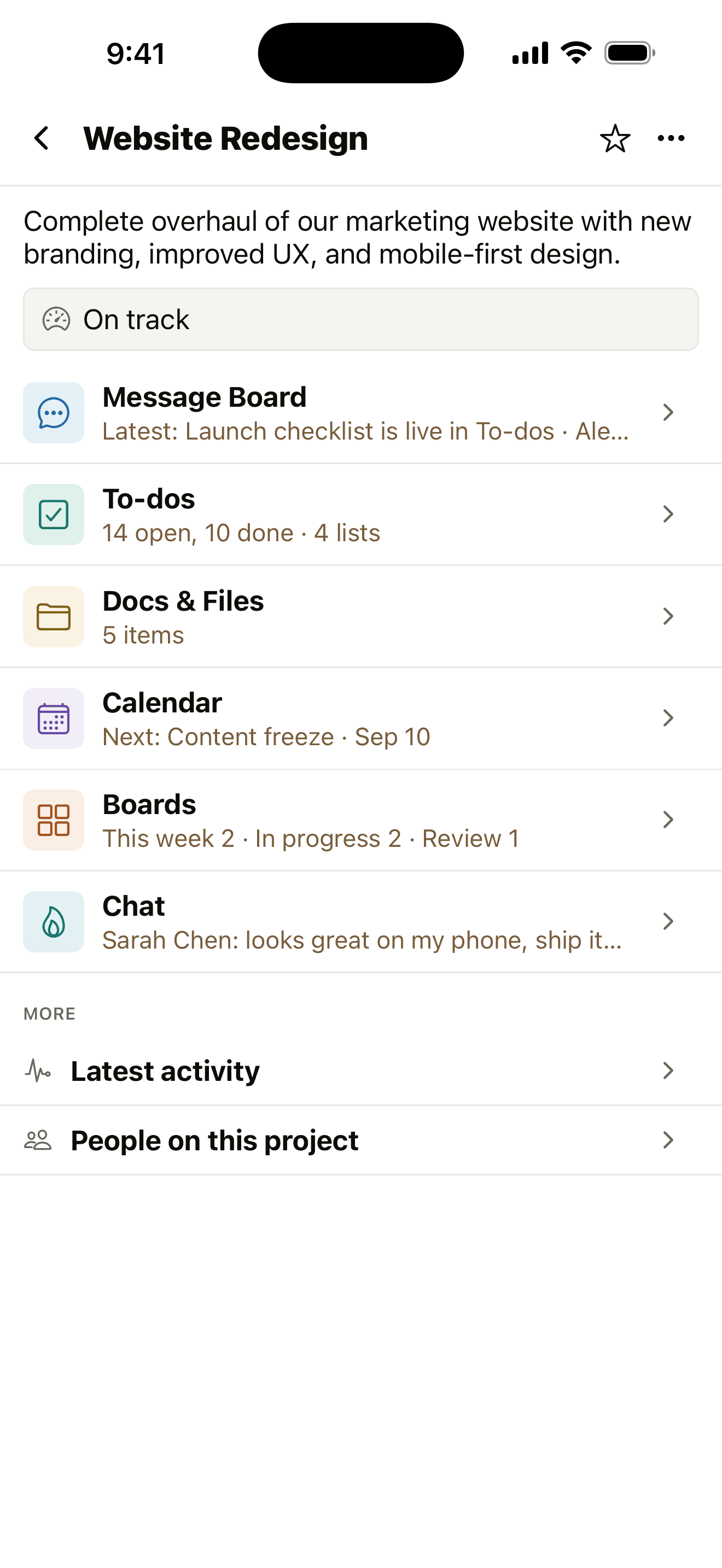
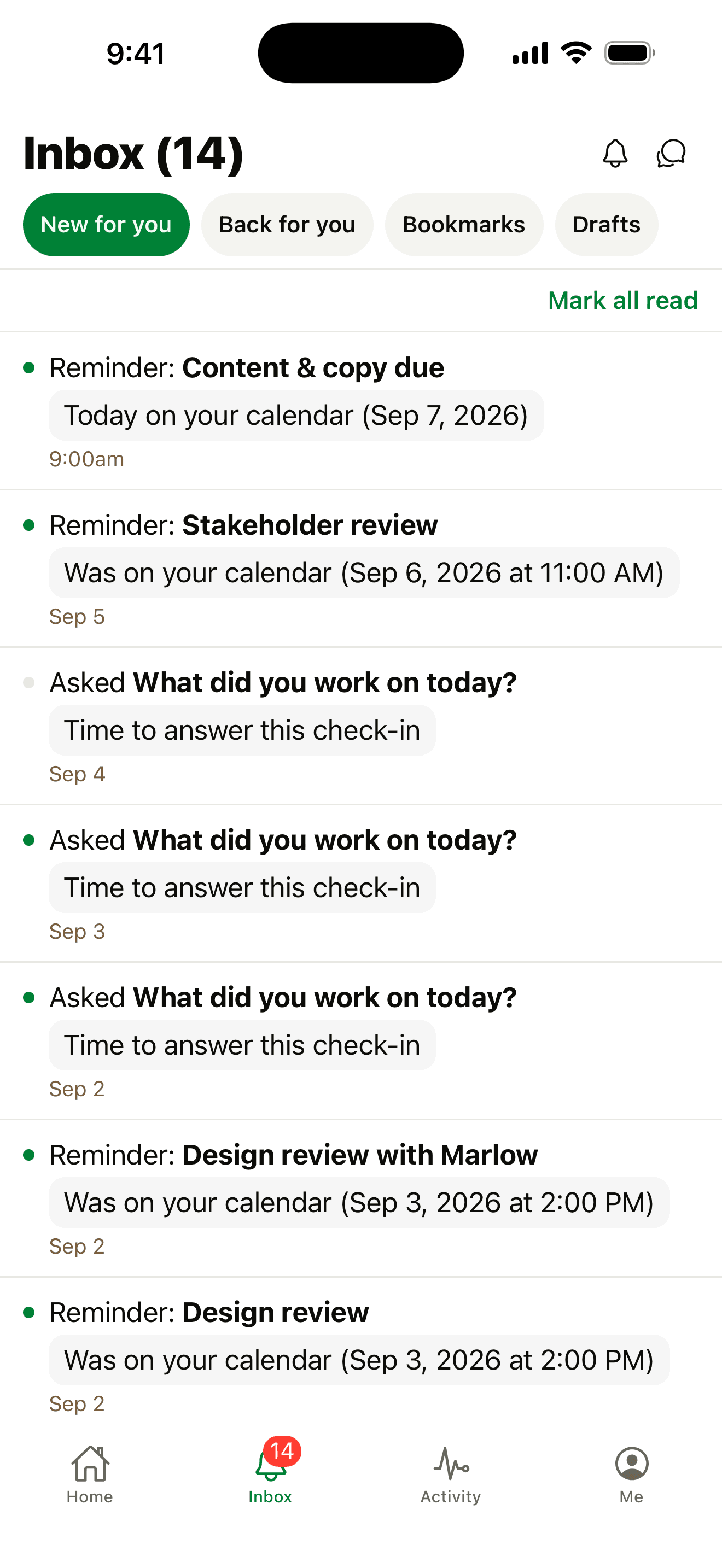
Thicket for iPhone showing the Website Redesign project's tools and its On track statusThicket Inbox on iPhone with reminders and check-ins, plus tabs for bookmarks and drafts

Apps for iPhone and iPad, and the web

Thicket works in any browser on desktop and mobile, and in the Thicket app for iPhone and iPad, with push notifications and quiet hours. One account, the same projects everywhere.

Thicket for iPhone and iPad

Also in Thicket

Templates, drafts, cheers, public links and the rest

Project and to-do list templates

Save a project or a list as a template and start the next one with the setup already in place.

Repeating to-dos and events

A to-do or an event that comes back daily, weekly, monthly or on a schedule of your own.

Drafts and scheduled posts

Save a message or doc as a draft, or schedule it to post on its own at a date and time you choose.

Comments and references

Discuss any item in the comments under it, close a thread, and see everywhere else in Thicket that links to it.

Cheers and voice notes

React to a message, comment, to-do or chat line with an emoji or a few words, or record a voice note straight into a post.

Public links

Share a message, doc or file with people outside your account through a read-only link, and turn it off when you are done.

Bookmarks and Remind me later

Save what you keep coming back to under My Bookmarks, and set a reminder on anything so it comes back when you choose.

Move, copy, archive and trash

Move an item to another project, list or folder, copy it to reuse the work, archive what is finished, and restore from the trash.

Out of office

Set the days you are away and an OUT badge shows beside your name wherever it appears.

Companies, groups and permissions

Group people by company, choose who can see each project, and decide who administers the account.

Sign-in and two-factor authentication

Sign in with email, Google or Apple, add an authenticator app, and require two-factor authentication for everyone.

Formatting

Headings, lists, links, tables, code, colors, images, files and embeds in every post, with keyboard shortcuts and Markdown.

Every feature on every plan

Plans are priced per organization, not per user, and differ only in projects, people and storage. Every plan, Free included, has every tool on this page. 1 project and 20 people are free, and every organization created on the website starts with a 30-day Pro trial.

Free

1 project, 20 people, clients included.

Starter, $25/month

3 active projects, 20 people, clients included.

Pro, $49/month

Unlimited projects and people. $39/month when billed annually.

See pricing for storage and the 30-day Pro trial.

Questions about Thicket's features

What tools does every Thicket project have?

Six: Message Board, To-dos, Docs & Files, Calendar, Boards and Chat, plus Check-ins and Clients when you turn them on. A project can carry more than one of a tool, such as a second Docs & Files, and you can turn off the ones a project does not need.

Does Thicket have a kanban board?

Yes. Boards is a kanban board in every project: cards in columns from Triage to Done, with assignees, due dates, steps, comments and an On hold section.

Can we see all our projects on a timeline?

Yes. Give projects start and end dates and the Roadmap plots them on a 13-week timeline, with markers for the dates everyone works toward.

Does Thicket include time tracking?

Yes. Timesheets are on every plan: hours logged from a ⏱ badge on a project and its items, a weekly grid with time off, optional approvals, and a report that downloads as a CSV.

Can clients use Thicket?

Yes. Invite clients to their project and they see only that project and only the items you mark visible to them. They comment, ask questions and approve work there, and the rest of your workspace stays private.

Can AI agents work in Thicket?

Yes. ChatGPT, Claude Code and compatible MCP clients connect through the remote MCP connector, coding agents use the CLI, and scripts use the REST API, all under your own permissions. This is included on every plan. Thicket itself has no built-in AI.

Is there a mobile app?

Yes, for iPhone and iPad, with push notifications and quiet hours. Thicket also works in any browser on a phone or a desktop.

Are all features on the Free plan?

Yes. Every plan has every tool. Free is $0 for 1 project and 20 people, clients included. Starter is $25/month for up to 3 active projects, and Pro is $49/month for unlimited projects and people.

Start with one project

Create an account, start a project and add its first to-dos. Every tool on this page is on every plan, Free included.

Try Thicket Free

Free plan. No card required. Includes a 30-day Pro trial.

See pricing