
Your Password
Change your Thicket password, reset one you forgot, add a password to a Google or Apple sign-in, and choose one that keeps your account safe.
Your Thicket password is one of the ways you sign in. You change it from My settings, reset it from the sign-in page if you forget it, and add one if your account signs in with Google or Apple.
Changing your password
- Click your name at the bottom of the sidebar and choose My settings
- Under Password & two-factor authentication, click Manage sign-in security
- Under Change password, fill in Current password, New password, and Confirm new password
- Click Change password
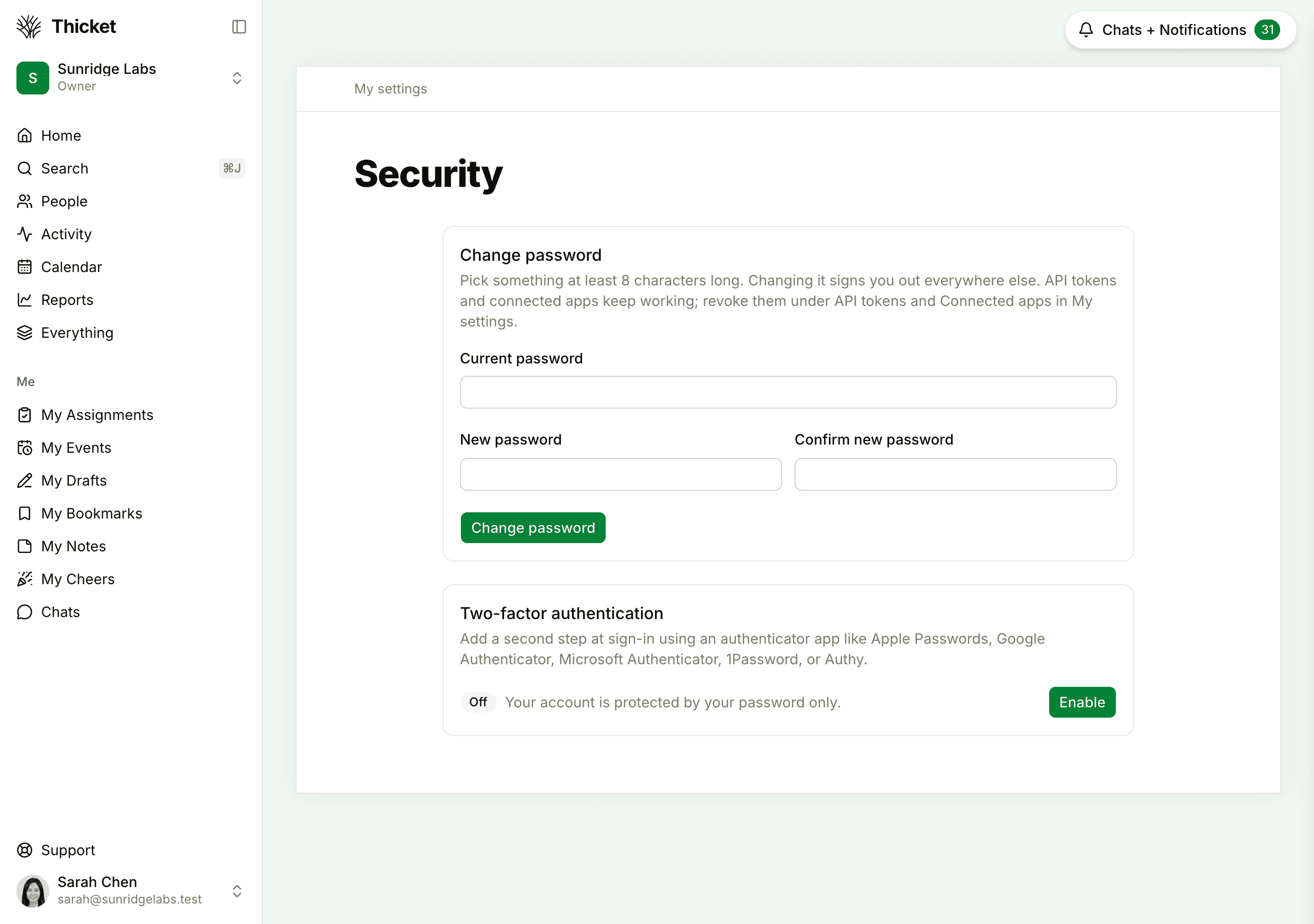
Your new password needs at least 8 characters. Changing it signs you out of every other browser and device, and you stay signed in on the one you're using. That makes it the way to sign out everywhere at once, for example after you lose a phone or laptop.
API tokens and connected apps keep working after a password change, and the page says so. To cut them off, revoke them under API tokens and Connected apps in My settings (see Connected Apps and API Tokens).
If you forgot your password
- On the sign-in page, click Forgot password? next to the Password label
- Enter your email address and click Send reset link
- Open the email titled "Reset your Thicket password" and click Reset password
- Type a new password of at least 8 characters and click Set new password
- Sign in with the new password
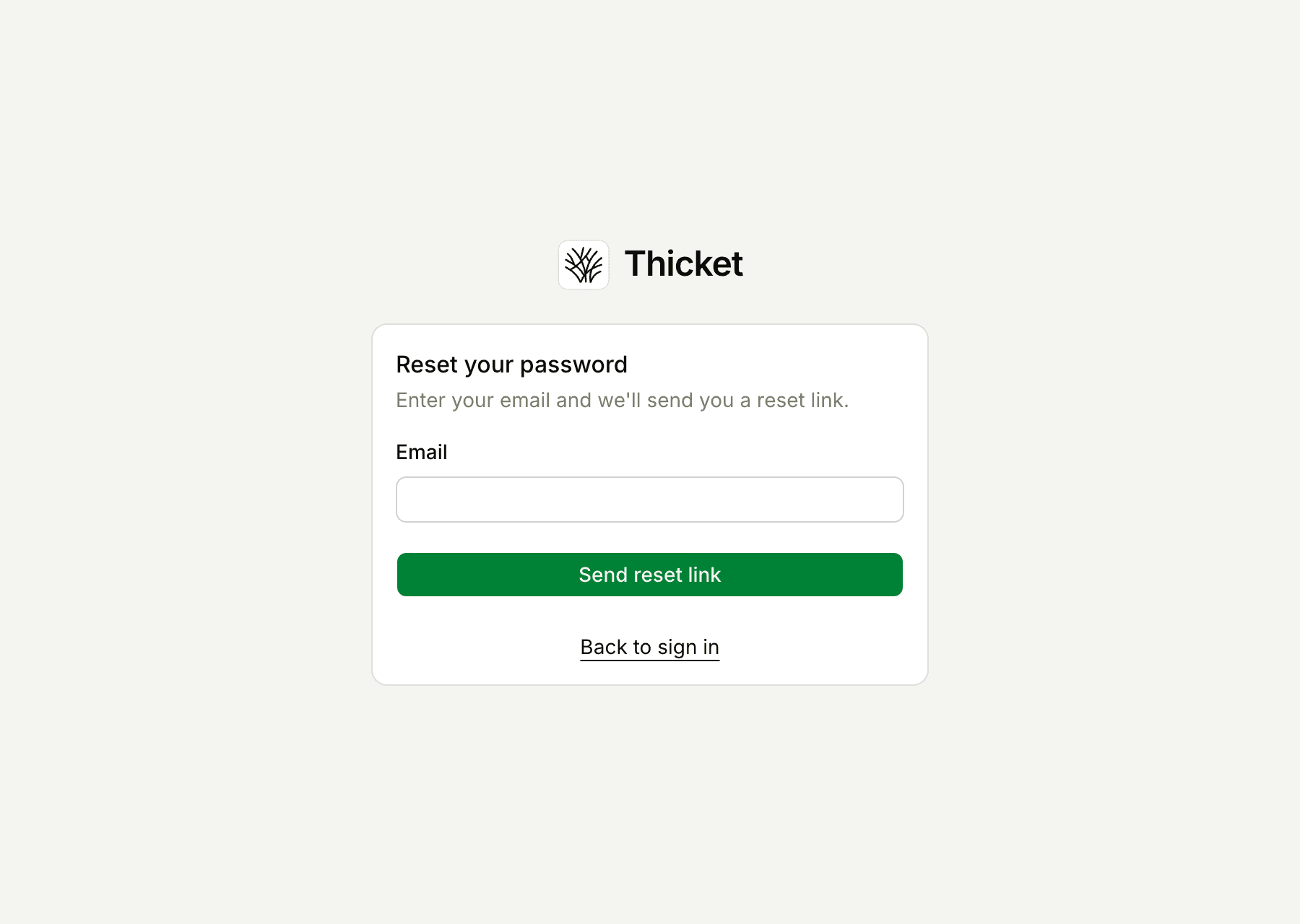
Setting a new password this way signs you out of every browser and device, just like changing it, so you sign in again everywhere with the new one.
The reset link works once and expires one hour after it's sent. If it has expired or was already used, Thicket says "That reset link didn't work": click Request a new reset link and use the newest email. For privacy, the page says the same thing whether or not the address has a Thicket account: "If an account exists for that address, a reset link is on its way." If the email doesn't arrive, see Not Getting Emails from Thicket.
Got a reset email you didn't ask for? You can ignore it. Your password doesn't change unless someone uses the link.
Adding a password to a Google or Apple sign-in
If you created your account with Google or Apple, it has no Thicket password, and you don't need one. You can add one if you'd also like to sign in with your email address:
- Open My settings, then Manage sign-in security
- Under Password, fill in New password and Confirm password
- Click Set password
Adding a password needs a recent sign-in. If you signed in more than a day ago, Thicket asks you to sign out and back in first. After that, you can sign in either way, and Thicket asks for your password before changes to two-factor authentication.
Forgot password? on the sign-in page also works for these accounts: the reset link lets you create a password.
Choosing a strong password
- Use a password manager, such as the one built into your browser or phone, to create and remember a long, random password. Many offer to create one when you click into New password.
- Use a password you don't use anywhere else. A password reused on another site is only as safe as that site.
- Longer is stronger. Eight characters is the minimum Thicket accepts, not a target.
- Turn on two-factor authentication, so a stolen password isn't enough on its own to get into your account.
Thicket never stores your password itself, only a one-way hash of it, so it can't be read back out.