
Two-Factor Authentication
Add an authenticator app to your sign-in, keep recovery codes, and require 2FA for everyone on your account.
What two-factor authentication does
Two-factor authentication (2FA) adds a second step to signing in: a 6-digit code from an authenticator app on your phone or computer, such as Apple Passwords, Google Authenticator, Microsoft Authenticator, 1Password, or Authy. Someone who learns your password, or gets into your Google or Apple account, still can't get into Thicket without that code.
It applies however you sign in. If you sign in with Google or Apple, Thicket asks for the code after Google or Apple signs you in.
Turning it on
- Click your name at the bottom of the sidebar and choose My settings
- Under Password & two-factor authentication, click Manage sign-in security
- Under Two-factor authentication, click Enable
- If you sign in with a password, enter it and click Continue. If you sign in with Google or Apple, there's no password to confirm and setup starts right away
- Scan the QR code with your authenticator app, or type the Setup key into it by hand. Then enter the 6-digit code the app shows and click Verify
- Thicket shows your recovery codes. Save them if you want to (see below), then click Finish
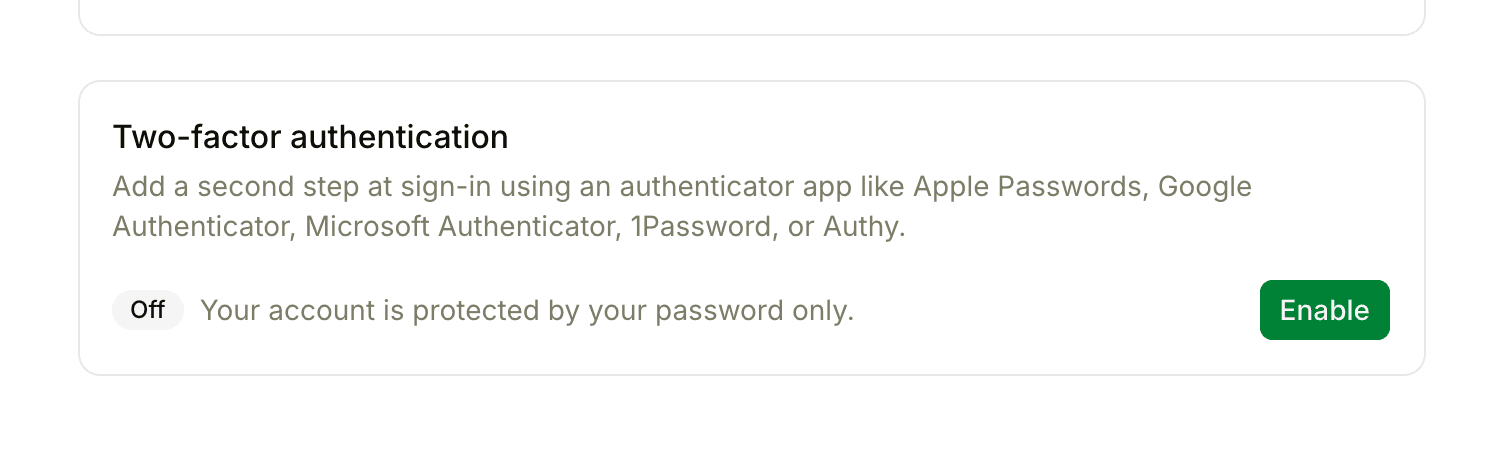
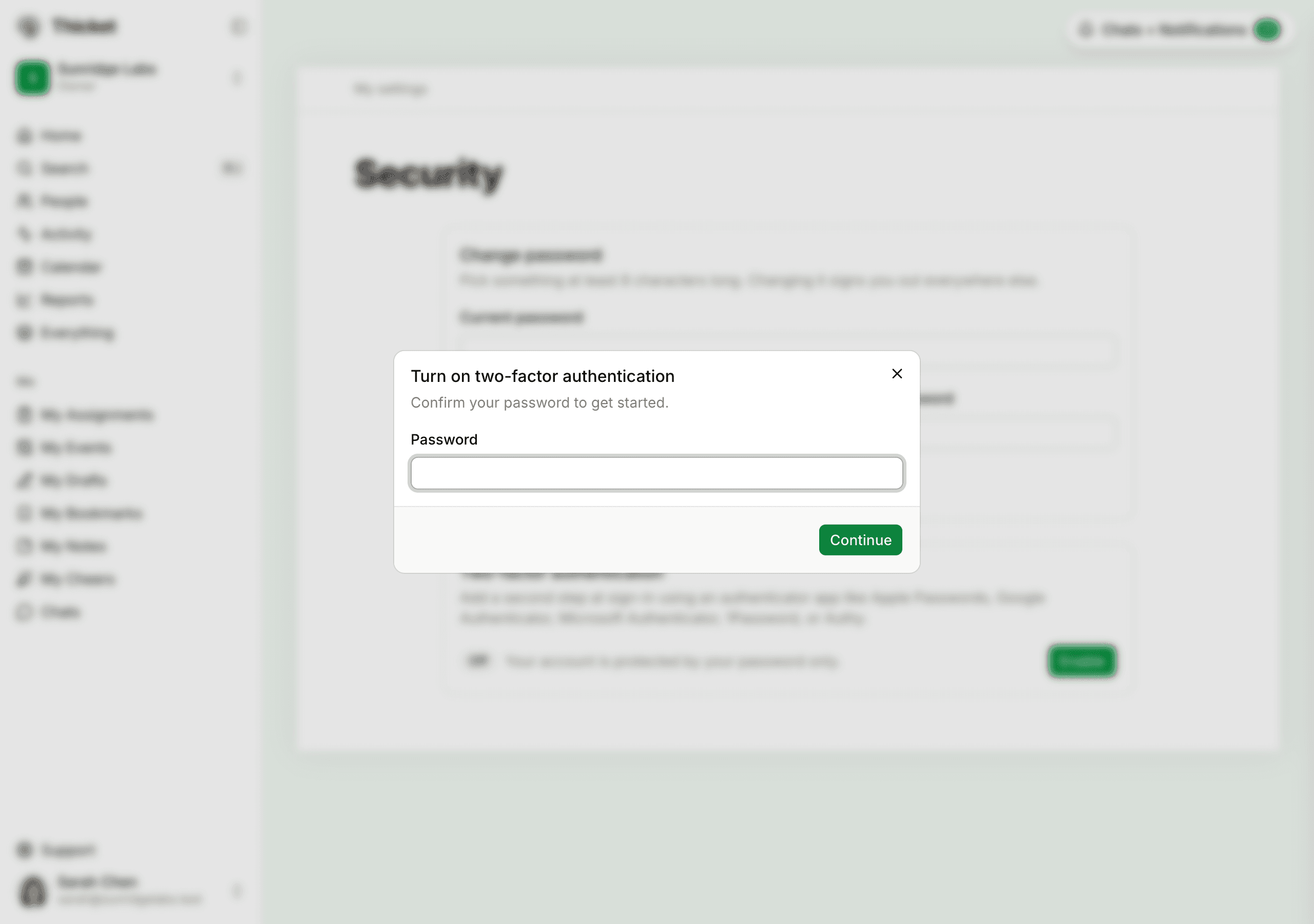
From now on, sign-in asks for a code. Remember this device for 30 days is ticked on the code screen, so that browser doesn't ask for a code again for 30 days. Untick it on a shared or public computer.
Recovery codes
Each recovery code signs you in once if you don't have your authenticator app with you. To use one, click Use a recovery code instead on the code screen.
If your authenticator syncs across your devices, you may never need them, and you can finish setup without saving them. If you do want a separate way back in, click Copy recovery codes, or More > Download .txt file, and keep them somewhere safe. They're only shown once.
To get a fresh set, go to the Security page, click Recovery codes…, confirm your password, and click Generate new codes. The old codes stop working the moment the new ones exist.
Google and Apple sign-in
Accounts that sign in with Google or Apple don't have a Thicket password and don't need one for 2FA. Because there's no password to confirm, turning 2FA on or off and making new recovery codes need a recent sign-in instead. If you signed in more than a day ago, Thicket says "For your security, sign in again before changing two-factor authentication" and offers Sign out and continue, which brings you back to the Security page after you sign in.
You can add a password from the Security page if you'd also like to sign in with your email address (see Your Password). Once you have one, Thicket asks for it before changing your 2FA settings.
Turning it off
On the Security page, click Disable, confirm your password if you have one, and click Disable two-factor. Your recovery codes stop working. If an account you belong to requires 2FA, Disable stays greyed out and the page says which account requires it.
Requiring 2FA for everyone
Account owners can require two-factor authentication for the whole account from Admin > Security: require 2FA. The page shows how many people are already set up. Clients are exempt.
Set up your own 2FA first: until you do, the Require two-factor authentication switch stays off and the page shows Set up 2FA. When you turn the requirement on, Thicket asks you to confirm with Require 2FA. After that, everyone except clients is walked through setup the next time they open the account, and can't get in until they finish. That includes people who sign in with Google or Apple, on the web or in the mobile app. People covered by the requirement can't turn off their own 2FA until an owner turns the requirement off. See The Admin Area.
Locked out?
If you've lost your authenticator app, sign in with a recovery code, then set 2FA up again from the Security page.
If you're locked out entirely, an owner or admin on your account can turn your 2FA off. They go to People, click the ••• next to your name, choose Edit info…, click Turn off two-factor… under Two-factor authentication, and confirm with Turn off two-factor. It turns off as soon as they confirm and also forgets every remembered device. Only an owner can do this for another owner. You then sign in with your usual method, without a code, and can set 2FA up again. If you're not sure who to ask, contact support from the email address on your account.