
Browser Troubleshooting
Fix pages that will not load or behave oddly: reload, try a private window, turn off extensions, clear site data, and check your network.
When Thicket works for everyone else but not for you, the cause is usually in the browser: an extension, old stored data, an outdated version, or a network that blocks something. These steps rule each one out, quickest first.
Messages Thicket shows
- Connection lost means Thicket couldn't be reached. Check your connection, then click Try again.
- Something went wrong means the page hit an unexpected error, and Thicket was notified. Click Try again or Reload page. If it keeps happening, contact support.
- Thicket is briefly unavailable means the service is restarting or briefly out of reach. Thicket retries on its own a few times, then offers Try again.
- Updating to the latest version… appears when an open tab is on an older version of Thicket after an update. The tab reloads itself once.
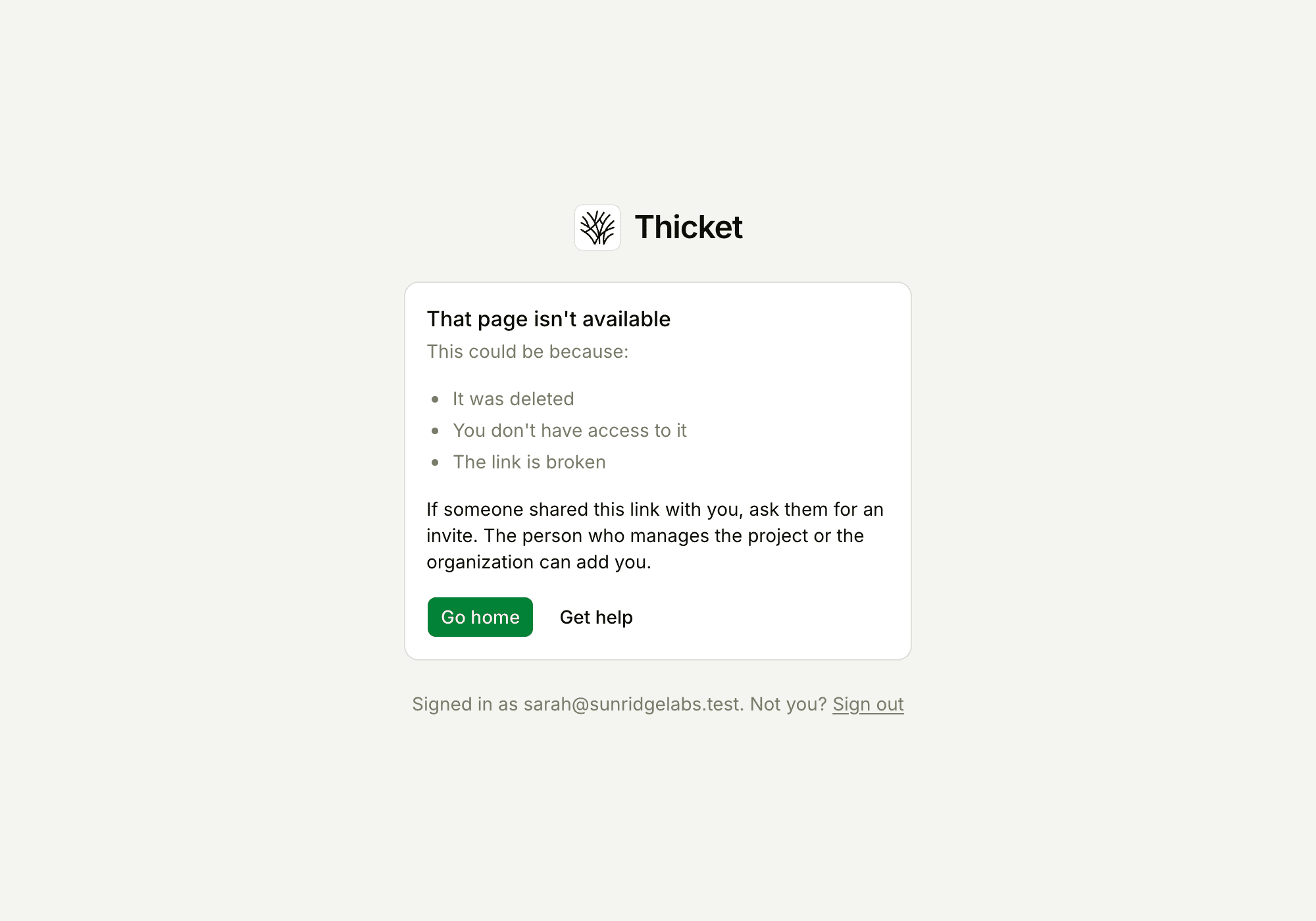
That page isn't available
This page appears when an item was deleted, when you don't have access to it, or when the link is broken. Thicket shows the same page in each case, so it doesn't say which one applies.
- Check the line under the card that says who you're signed in as. If it's the wrong account, click Sign out and sign in with the right one.
- If someone shared the link with you, ask them to add you to the project or the account.
- Get help opens the support page.
Reload the page
Reload the page, or close the tab and open Thicket again. A tab left open for a long time, or a laptop that went to sleep, can hold an out-of-date page.
Try a private window
Open a private or incognito window, go to thickethq.com, and sign in. A private window starts without your stored site data, and most browsers leave extensions off in private windows unless you've allowed them.
- It works there: an extension or stored data is the cause. Continue with the next two steps.
- It fails there too: try another browser, or another network, to narrow it down.
Turn off extensions
Ad blockers, privacy tools, grammar checkers, and other extensions that change pages can stop the editor or other parts of Thicket from working. Turn your extensions off, reload Thicket, then turn them back on one at a time to find the one causing trouble. Most extensions let you turn them off for a single site.
Clear Thicket's stored data
Your browser's settings let you delete the cookies and cached files stored for one site. Delete them for thickethq.com, then reload and sign in again. Clearing cookies signs you out, so have your password or your Google or Apple account ready.
Update your browser
Thicket needs a recent version of Chrome, Edge, Firefox, or Safari. System Requirements lists the versions.
Check your network
Work networks, VPNs, and firewalls sometimes block part of a page. Thicket loads from thickethq.com, while files you add to Docs & Files upload straight to Thicket's file storage at r2.cloudflarestorage.com, and downloads, file previews, and voice notes play from there. If pages load but uploads say they didn't go through, or files and voice notes won't open, ask your IT team to allow both addresses, or try another network.
Desktop notifications don't appear
Pop-up notifications on your computer need your browser's permission, and they only appear while Thicket is open in a browser tab. If turning on Pop up notifications on my computer in My settings says Your browser blocked notifications. Allow them for this site first, allow notifications for thickethq.com in your browser's site settings, then turn the switch on again.
Still not working
Contact support and include what you've tried, your browser and its version, and a screenshot of any message. For slow pages, a HAR file helps, and that article explains how to capture one.