
Not Getting Emails from Thicket
Check your notification settings, find Thicket emails caught by spam filters, and get email flowing again to an address that bounced.
Thicket emails you about activity in your projects, invitations, reminders, and account tasks like password resets. When those emails stop arriving, the cause is usually one of three things: your notification settings, your mailbox's filtering, or an address that stopped accepting mail. Work through them in order.
Check that Thicket is set to email you
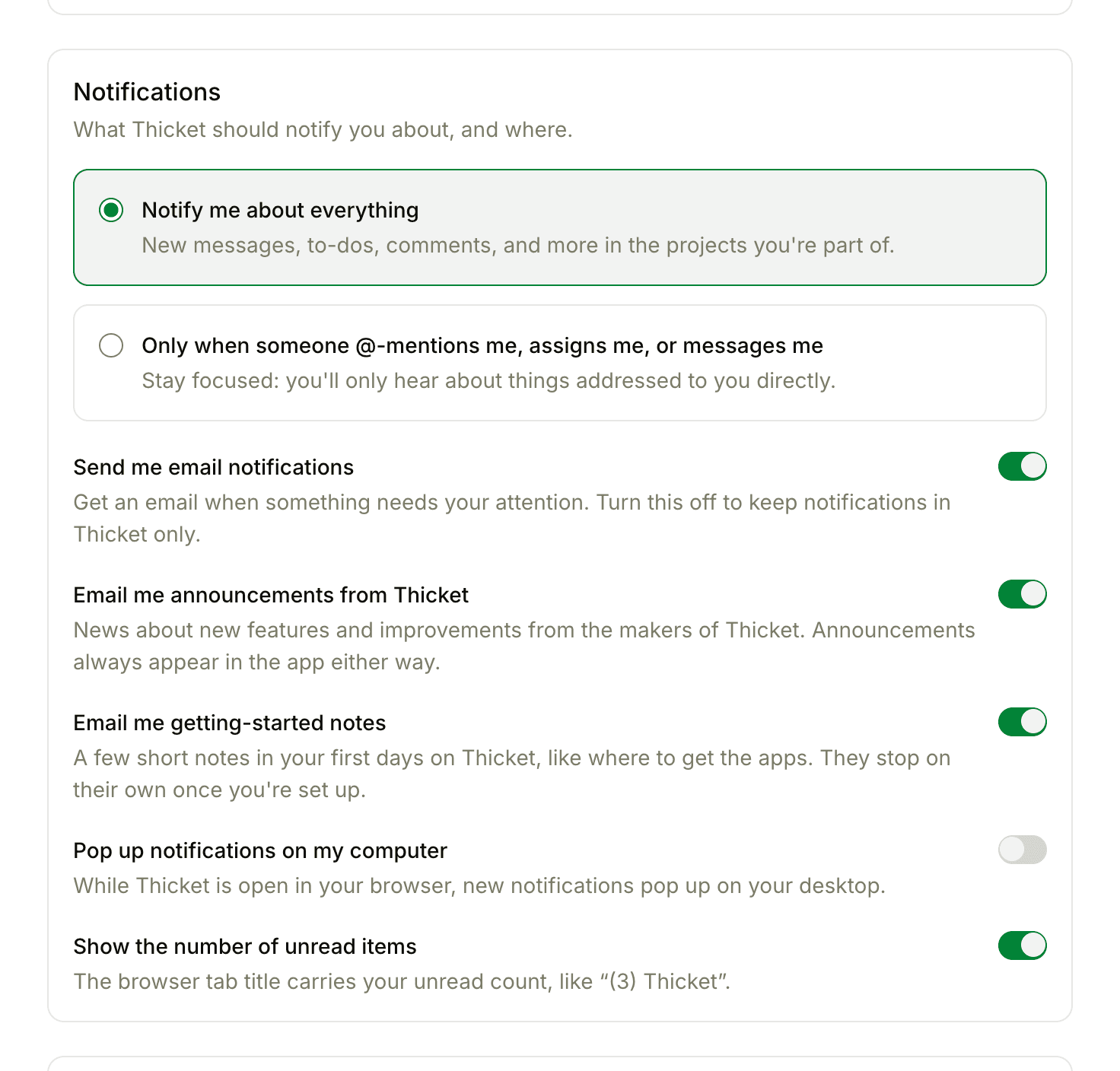
Everything Thicket notifies you about lands in the app first, in your notifications. Email is a copy, and your settings decide which copies you get. Open My settings from your avatar at the bottom of the sidebar and look at Notifications:
- Send me email notifications must be on. With it off, notifications stay in Thicket only.
- Notify me about everything covers new messages, to-dos, comments, and more in the projects you're part of. Only when someone @-mentions me, assigns me, or messages me limits notifications and their emails to things addressed to you.
- Email me announcements from Thicket and Email me getting-started notes control news from Thicket and the notes it sends in your first days.
A few other settings hold back email:
- Quiet hours holds notification emails outside the working hours you set. Everything still shows up in the app, and After-hours catch-up email can send one summary covering what was held.
- Calendar event reminder emails, Assignment due-soon reminder emails, and Monday morning assignments email each have their own switch under Quiet hours.
- The bell at the top of a project overrides your account-wide choice for that project. Set to Only when someone @mentions me, it keeps the rest of that project's activity out of your inbox.
- Every notification email ends with a link to unsubscribe from that thread. Opening it takes effect right away: you won't hear about that thread again unless someone @-mentions you or assigns it to you. If you opened one by accident, click Resubscribe on the page it opened.
Notification Settings and Following and Unfollowing Discussions explain each setting in detail.
Some activity doesn't send email
- Lines in a project's group chat don't email you unless someone @-mentions you.
- Direct messages, and new to-dos or cards on a list or column you watch, arrive as one email a few minutes after the activity stops. If you've already seen them in Thicket by then, no email is sent.
- Clients only hear about items shared with clients.
Look in spam and filters
Every email from Thicket comes from support@thickethq.com. The sender name is usually "Thicket." Invitations and a few other emails show the name of the person who sent them, followed by "(Thicket)."
- Search your whole mailbox, including spam or junk, for support@thickethq.com
- If you find Thicket emails there, mark them as not spam
- Add support@thickethq.com to your contacts or safe senders list
- Check any filters or rules that move or delete mail, and other inbox tabs your email app uses
Work email and IT filters
Thicket's email is authenticated for the thickethq.com domain with SPF, DKIM, and DMARC. If your organization filters mail, ask your IT team to allow the address support@thickethq.com or the domain thickethq.com, and to check their quarantine for held messages.
iCloud addresses
iCloud Mail sometimes accepts a message and then files it away or drops it without telling the sender. If your address ends in icloud.com, me.com, or mac.com, add support@thickethq.com to your Contacts, then check Junk and your mail rules at icloud.com in a web browser, not only in the Mail app.
If your address stopped accepting email
If an email to your address bounces permanently, for example because the mailbox doesn't exist, or your email provider reports that you marked a Thicket email as spam, Thicket stops sending to that address. From then on, every email to it is skipped, including notifications, invitations, and password resets.
When this happens, the Profile section of My settings shows a notice at the top saying email to your address is bouncing. You also see Email bouncing next to your own name on the People page, as do owners and admins. An invitation to an address like this shows Email bouncing too.
To get email flowing again:
- The address was wrong or has changed. Update Email address in My settings and click Save. Thicket emails the new address from then on.
- The address is right and the problem is fixed. For example, the mailbox was set up again, or you marked a Thicket email as spam by mistake. Contact support and ask for the address to be cleared. Thicket support can lift the block, and the app doesn't lift it on its own.
Account emails
Password reset and email confirmation messages go out whatever your notification settings say. Reset links work for one hour and confirmation links for 24 hours. Trouble Signing In covers both. Until you confirm your email address, Thicket holds back its welcome and getting-started emails.
Still missing?
Use Support in the sidebar, choose I'm not receiving emails, and say which email you expected and roughly when. If you can't sign in, write to support@thickethq.com from the address on your account.