
Trouble Signing In
Reset a forgotten password, confirm your email address, sign in without your two-factor device, and fix Google or Apple sign-in.
Most sign-in problems come down to one of a few things: a forgotten password, signing in a different way than you signed up, an unconfirmed email address, or a two-factor code you can't get to. Find your situation below.
Sign in the way you signed up
Your Thicket account belongs to one email address. Depending on how you set it up, you sign in with that address and a password, with Continue with Google, or with Continue with Apple. The sign-in page at thickethq.com/signin offers all of them.
- You signed up with Google or Apple. Use the same button again. An account created that way has no Thicket password, so the email and password fields won't work for it unless you add a password (see below).
- Google or Apple takes you to Create your account. If Thicket asks you to accept the Terms of Service after you chose Google or Apple, that Google or Apple account isn't connected to a Thicket account yet. You probably signed up with a different address. Go back and sign in with that one.
- You used Apple's Hide My Email. If you chose to hide your email the first time you used Apple, your Thicket account's address is an Apple relay address, not your usual one. Keep using Continue with Apple to reach it.
- You changed your email address. Once you change the address in My settings, sign in with the new one.
Forgot your password
- On the sign-in page, click Forgot password?
- Enter your email address and click Send reset link
- Open the email titled "Reset your Thicket password" and click Reset password. The link works for one hour
- Enter a new password of at least 8 characters, click Set new password, and sign in with it
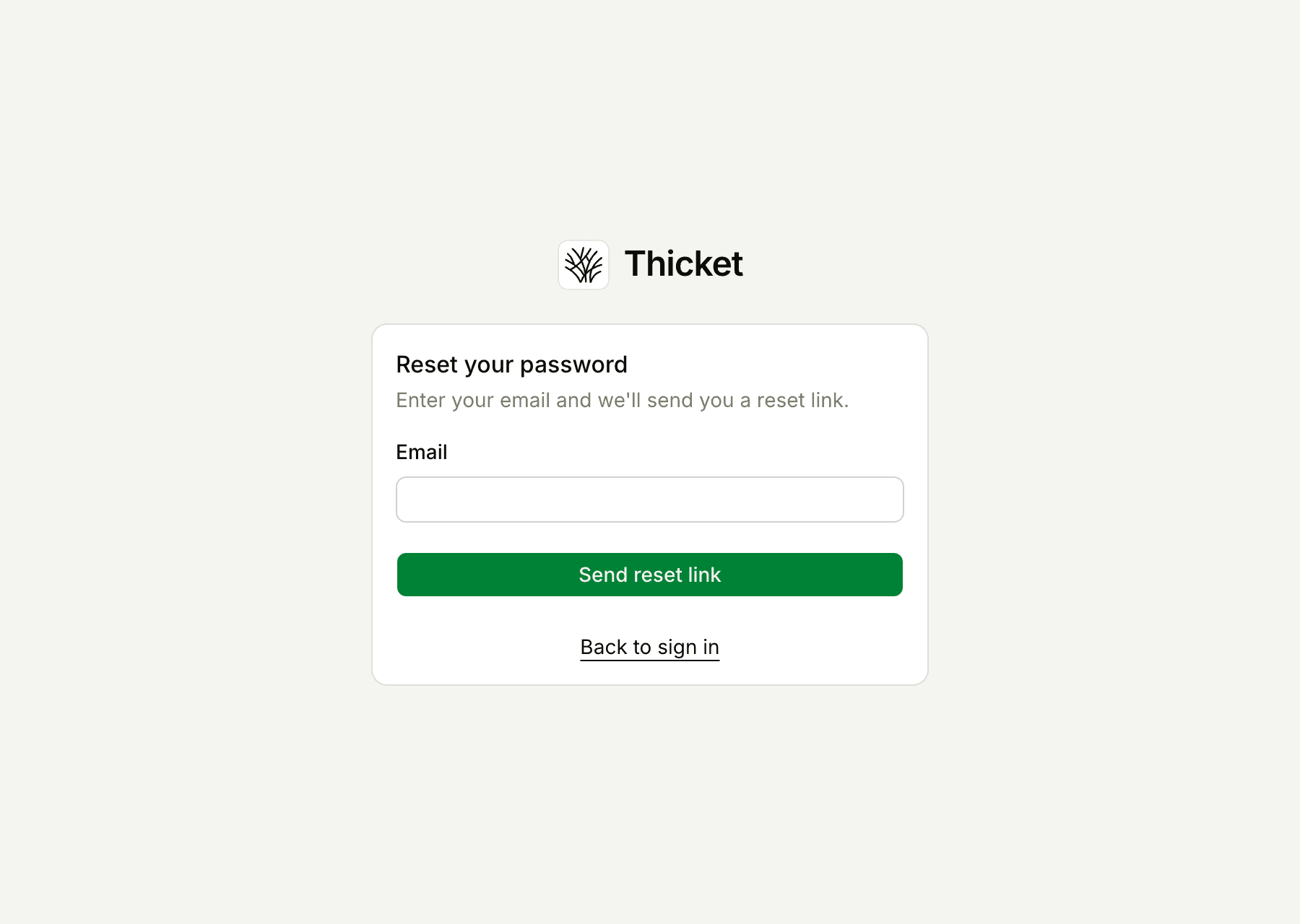
For privacy, the page says a link is on its way whether or not an account exists for the address you typed. If nothing arrives, check your spam folder and make sure you entered the address you signed up with. Not Getting Emails from Thicket covers the other causes.
If the link has expired or was already used, the page says That reset link didn't work. Click Request a new reset link and use the link in the newest email.
Setting a new password signs you out of every browser and device, so sign in again with the new password wherever you use Thicket.
A reset also works for an account that signs in with Google or Apple. It adds a password, and from then on you can sign in either way. More in Your Password.
Confirm your email address
When you sign up with an email address and password, Thicket sends a message titled "Confirm your email address for Thicket." Until you click Confirm email address in it, a banner at the top of Thicket says Please confirm your email address. You can keep working in the meantime.
- The email never came. Click Resend email in the banner to send a fresh link.
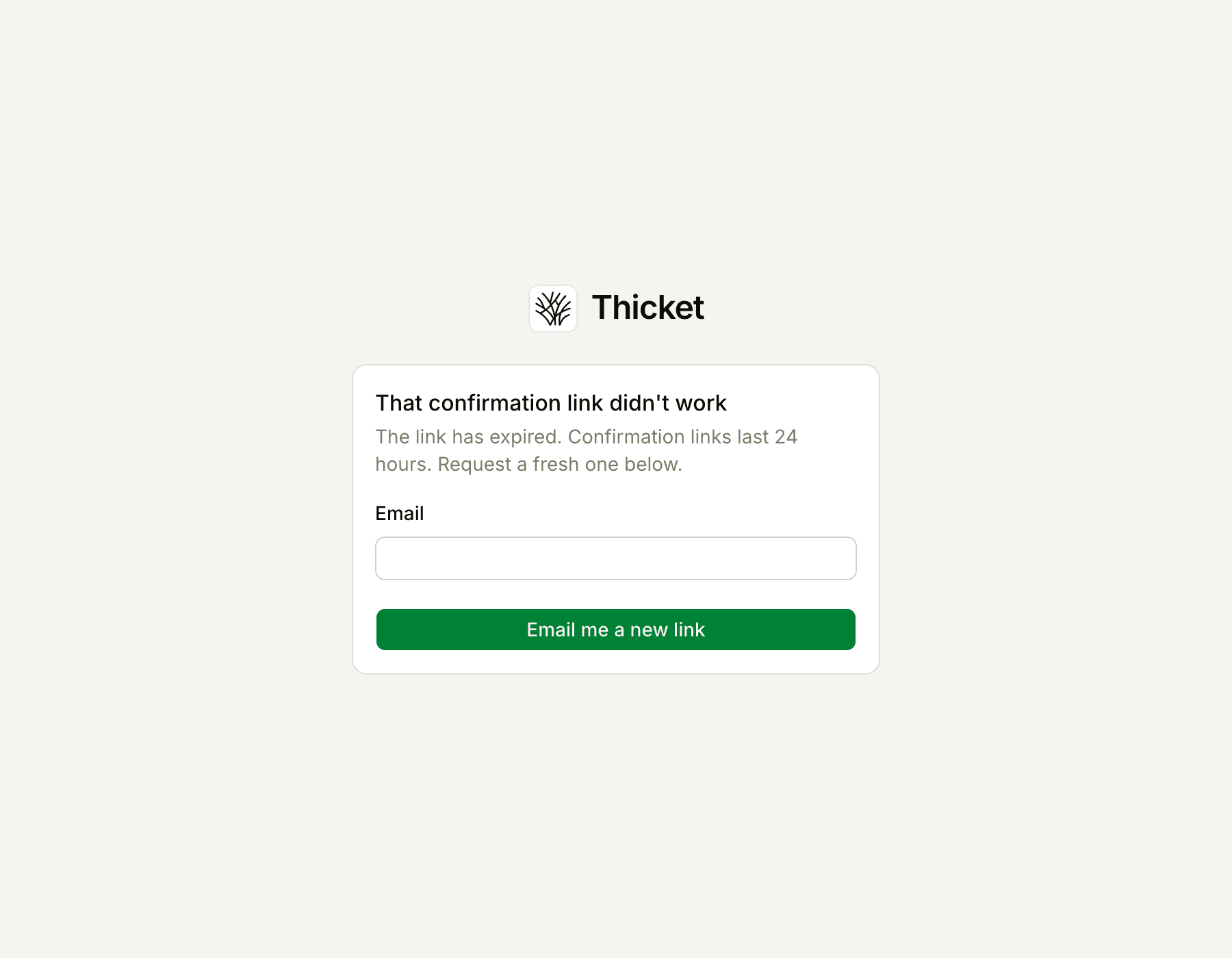
- The link didn't work. Confirmation links last 24 hours. An expired or already-used link opens a page that says That confirmation link didn't work. Enter your email address if it asks, and click Email me a new link.
- The address has a typo. Correct it in My settings under Email address and click Save. The confirmation goes to the corrected address.
Accounts created with Google or Apple, or by accepting an invitation, are confirmed from the start.
Two-factor codes
If you turned on two-factor authentication, Thicket asks for the 6-digit code from your authenticator app after your password, or after Google or Apple signs you in.
- The code isn't accepted. Codes change every 30 seconds, so enter the one showing now. If codes keep failing, check that your phone sets its date and time automatically: a clock that has drifted produces codes Thicket won't accept.
- You don't have your phone. Click Use a recovery code instead and enter one of the recovery codes you saved at setup. Each code works once. After you're in, get a fresh set from My settings > Manage sign-in security with Recovery codes…
- The code page stops working. Each sign-in waits 10 minutes for a code and allows five tries. After that, go back to the sign-in page and start again.
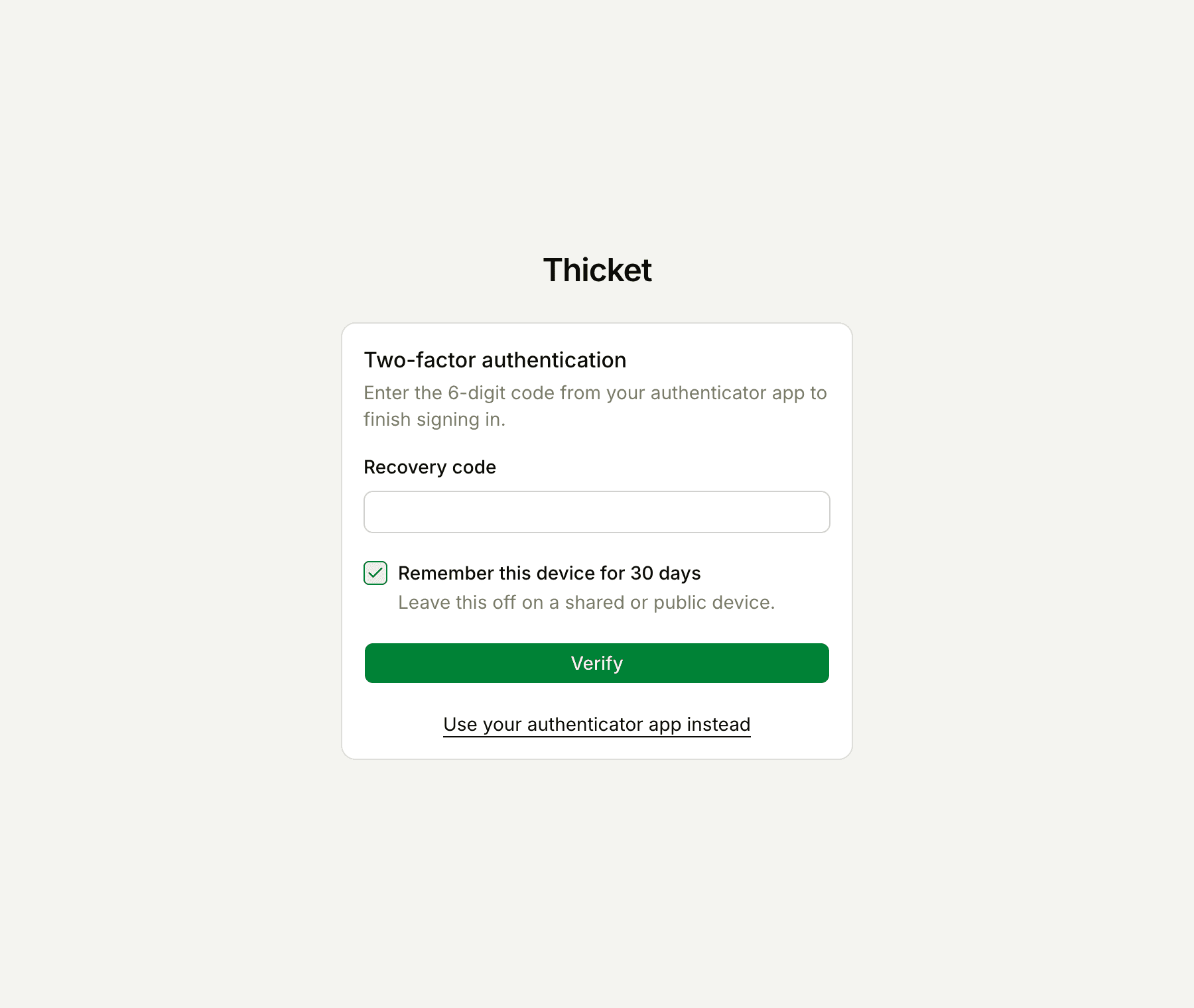
Remember this device for 30 days skips the code in that browser for 30 days. Leave it unchecked on a shared or public computer.
Locked out of two-factor completely
If you've lost both your authenticator and your recovery codes, an owner or admin on your account can turn two-factor off for you. On the People page, they open the menu next to your name, choose Edit info…, click Turn off two-factor… in the Two-factor authentication section, and confirm with Turn off two-factor. You can then sign in with your usual method and set it up again from Two-Factor Authentication. Only an owner can do this for another owner.
Google or Apple sign-in doesn't finish
If Thicket shows We couldn’t complete sign-in. Please try again. after you choose Google or Apple:
- You have an unconfirmed password account. If you first signed up with an email address and password and haven't confirmed that address, Thicket can't connect Google or Apple to your account yet. Sign in with your password, confirm your email address, then try Google or Apple again.
- You picked a different Google account. Choose the Google account whose address matches your Thicket account.
- Something in the browser got in the way. Try again in a private window. Browser Troubleshooting has more to check.
Signed out when you didn't expect it
Thicket keeps you signed in on each browser you use. It asks you to sign in again when:
- You haven't used Thicket in that browser for a week
- You changed your password somewhere else, which signs you out everywhere else
- You reset a forgotten password, which signs you out everywhere
- You cleared your browser's cookies, or closed a private window
If the sign-in page doesn't respond at all, make sure JavaScript is turned on: the page says Enable JavaScript to sign in or create an account. when it's off. If you see We couldn't complete that request. Check your connection and try again., check your internet connection and try once more. If Thicket says there have been too many requests, wait a moment before trying again.
Still can't get in
Email support@thickethq.com from the address on your account. Say how you signed up, what you tried, and the exact message you saw. Contacting Support lists what else helps.