Enabling Microphone Access
Let your browser use your microphone so you can record voice notes, and fix a microphone button that shows as disabled.
Voice notes record through your browser, so your browser needs your permission to use the microphone. The first time you click the microphone button in a message, comment, doc, or chat, your browser asks. Allow it, and recording starts.
Signs the microphone is blocked
If you dismissed or blocked that request, or your computer has no working microphone:
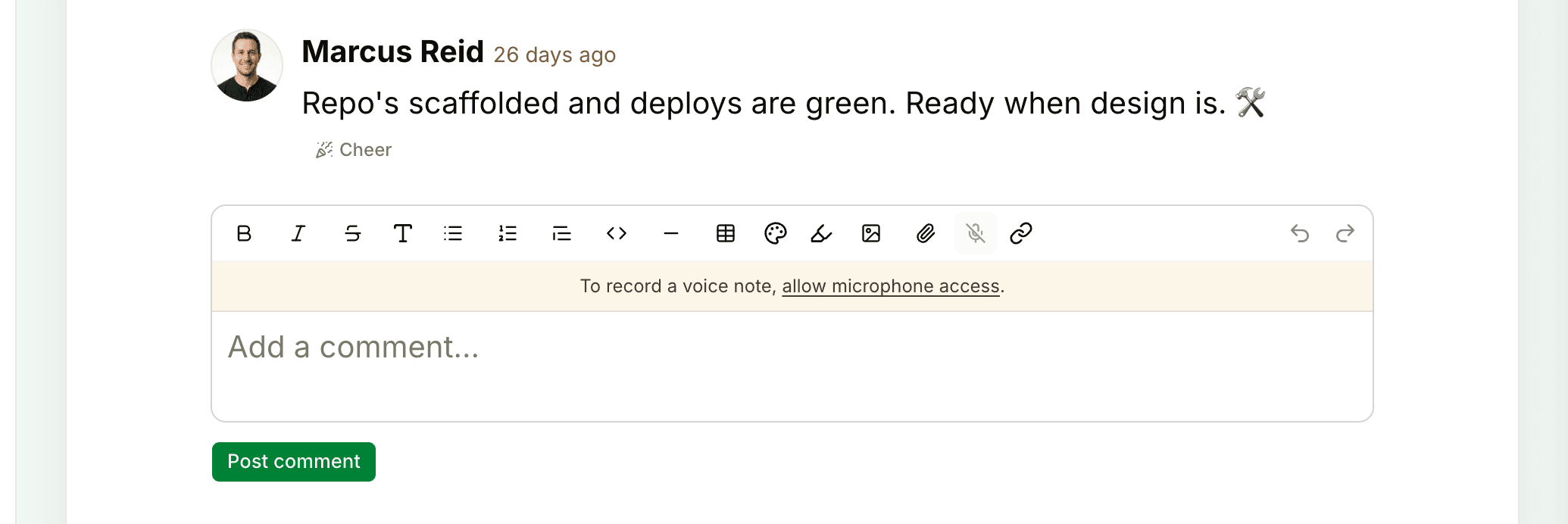
- The microphone button shows a line through it, and hovering over it says Microphone access is disabled
- Clicking it shows To record a voice note, allow microphone access. above the text box
Your browser won't ask again on its own once you've blocked it. Change the setting in the browser, then reload Thicket.
Allow the microphone in your browser
Chrome and Microsoft Edge
- Click the icon at the left end of the address bar, next to thickethq.com
- Set Microphone to allow, or turn it on
- Reload the page and click the microphone button again
If Microphone isn't listed there, open the browser's settings, search for "microphone," and remove thickethq.com from the sites that aren't allowed to use it.
Firefox
- Click the crossed-out microphone icon in the address bar
- Clear the block next to the microphone permission
- Reload the page, click the microphone button, and choose to allow the microphone when Firefox asks
Safari on a Mac
- With Thicket open, choose the Safari menu, then the settings item for this website (it shows thickethq.com in recent versions)
- Set Microphone to Allow or Ask
- Reload the page
Safari on iPhone and iPad
In the Settings app, open Safari's settings (under Apps in recent versions of iOS and iPadOS), set Microphone to Ask or Allow, then reload Thicket in Safari.
Check your computer's privacy settings
Your operating system can block the microphone for a whole app, even when the browser allows it.
- Mac: open System Settings > Privacy & Security > Microphone and turn it on for your browser. Quit and reopen the browser if macOS asks you to.
- Windows 11: open Settings > Privacy & security > Microphone and turn on Microphone access and Let desktop apps access your microphone.
Also make sure the microphone you want is the one selected as your computer's input device, and that it isn't muted.
If there's no microphone button
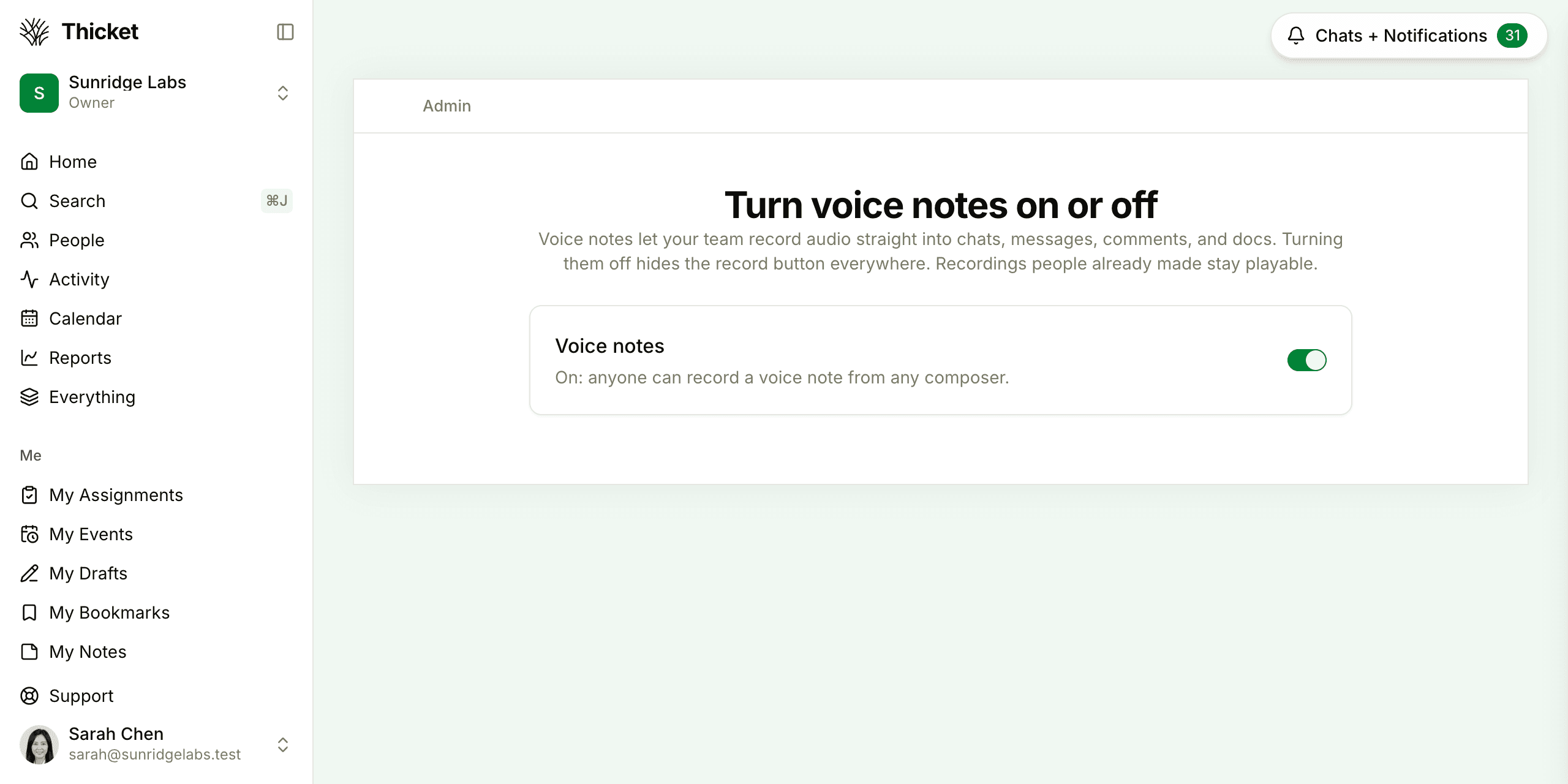
- Voice notes are turned off for your account. Owners and admins can turn the record button on or off for everyone at Admin > Voice notes. Recordings people already made stay playable either way.
- Your browser can't record audio. Thicket says Voice notes aren't supported in this browser. Update your browser or switch to another: see System Requirements.