
Invitation Problems
Find an invitation that never arrived, get a fresh one when it expires, fix an invitation sent to the wrong address, and check its status as an admin.
An invitation to Thicket is an email with a button to join the account. Its link is tied to the address it was sent to, and it works for 14 days. Here's what to do when one doesn't arrive or doesn't work, first for the person invited and then for the owner or admin who sent it.
The invitation never arrived
- Look for an email from support@thickethq.com with the inviter's name as the sender, such as "Sarah Chen (Thicket)." Its subject reads "[name] invited you to [account] on Thicket." Check spam and junk too.
- Ask the person who invited you which address they used. A typo sends it somewhere else.
- Ask them to copy your invite link from the People page and send it another way, like a text or a chat message. It works exactly like the button in the email.
Not Getting Emails from Thicket covers spam filters and addresses that bounce.
The invitation page shows a problem
Opening an invitation can show one of these messages instead of the join form:
- This invitation has expired. Invitations last 14 days. Ask the person who invited you to send it again. A resent invitation uses the same link and works for another 14 days.
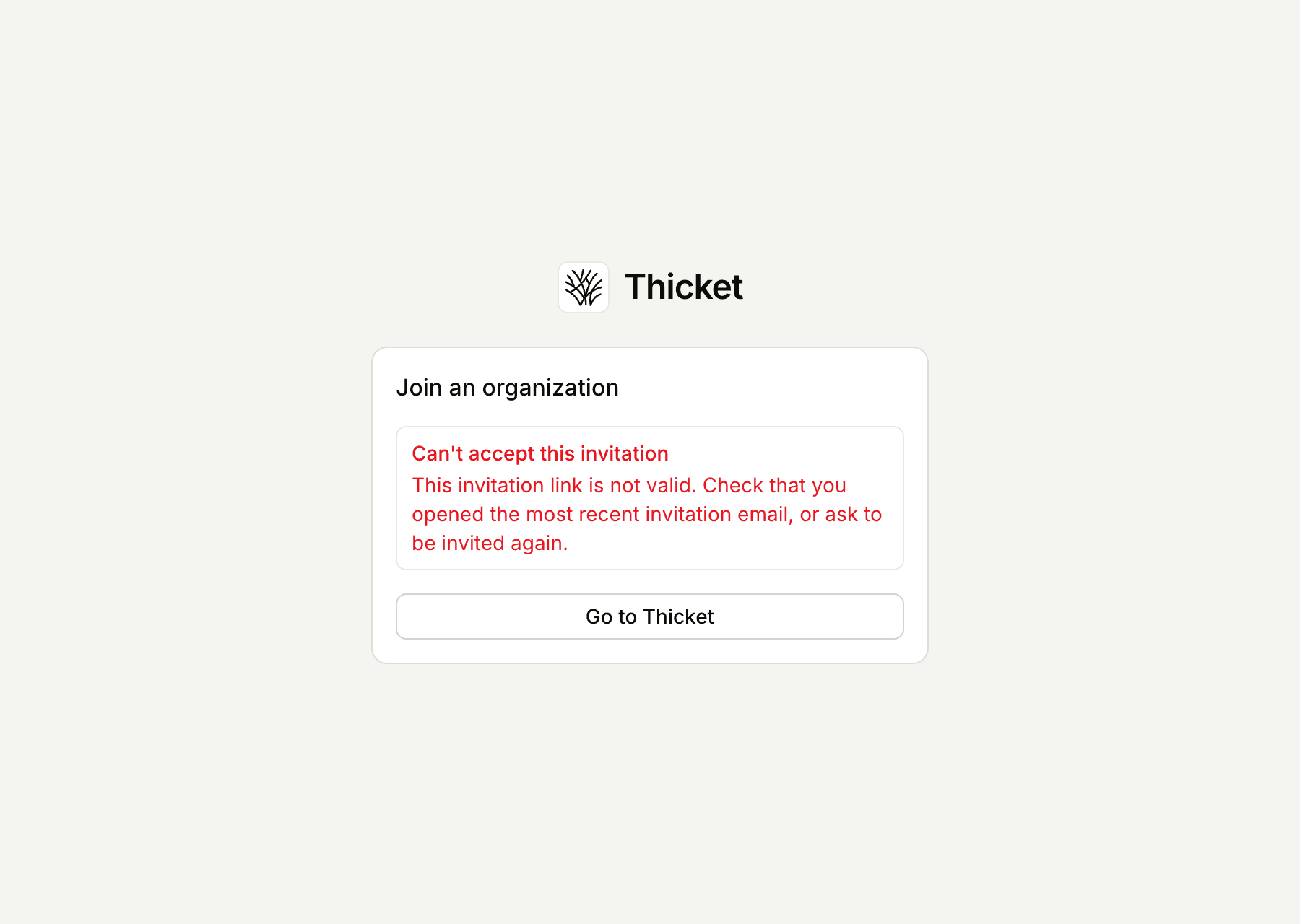
- This invitation link is not valid. The invitation was withdrawn, or the link was cut off when it was copied. Open the most recent invitation email, or ask to be invited again.
- This invitation has already been used. Someone has joined with it. If that was you, sign in with the invited address to open the account.
- You declined this invitation. Ask the person who invited you to send it again. A resent invitation can be accepted.
- This workspace is unavailable. Use Contact Thicket support on that page, or email support@thickethq.com.
The invitation is for a different address
The invitation page fills in the address the invitation was sent to, and you join with that address.
- You're signed in as someone else. The page says the invitation was sent to one address while you're signed in as another. Click Sign out and continue, then accept with the invited address.
- You want to use Google or Apple. Only use Continue with Google or Continue with Apple on the invitation page if that account uses the invited address. If you're new to Thicket, tick the box agreeing to the Terms and Privacy Policy first: the buttons work once it's ticked, and you join the account as soon as Google or Apple signs you in.
- You want to join with another address. Ask the owner or admin to revoke this invitation and invite the address you want to use, such as the one on your existing Thicket account. After joining, you can change your address any time in My settings.
Shared invite links
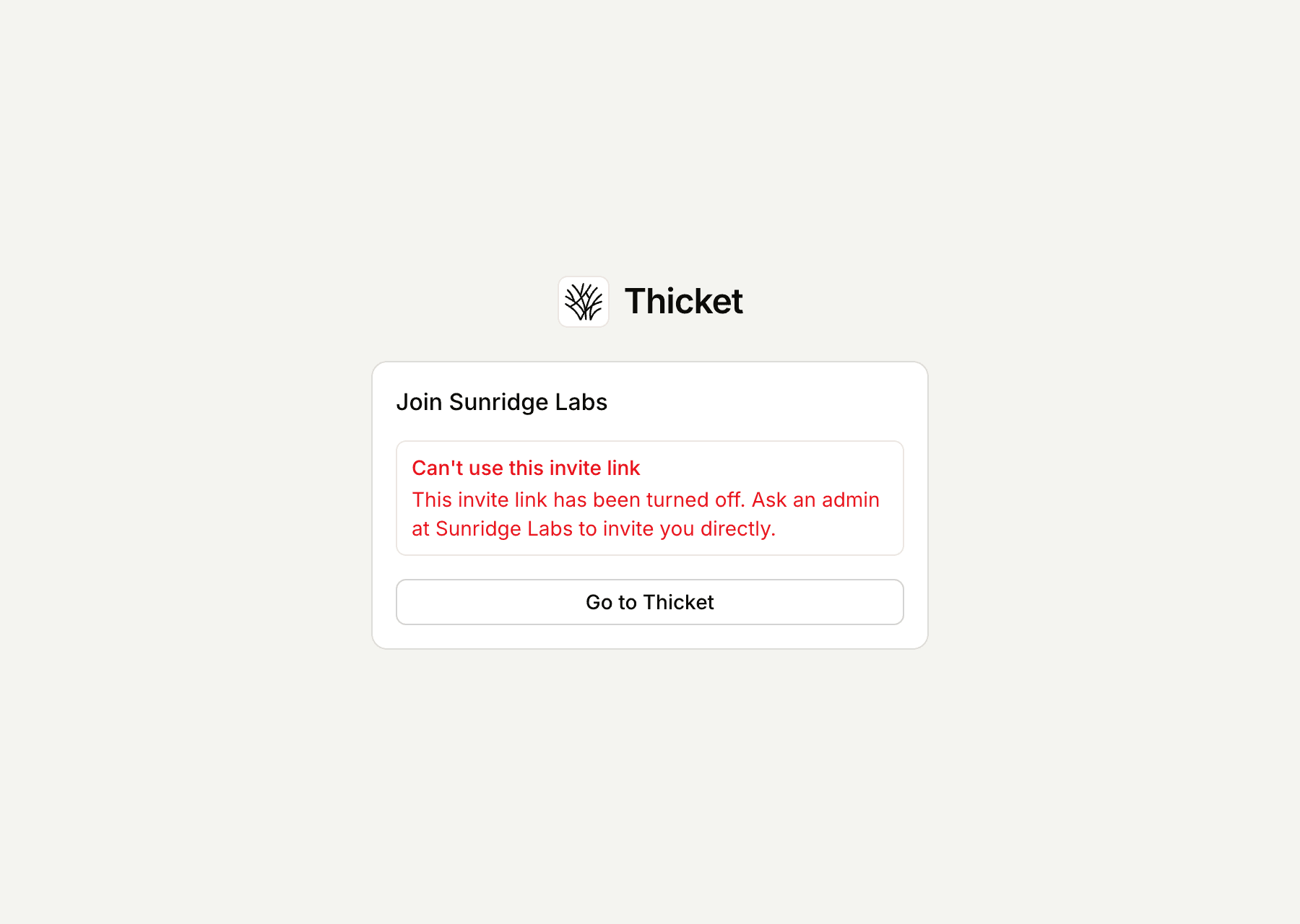
Instead of individual invitations, an owner or admin can share one invite link that anyone can use to join as a team member. If it shows This invite link has been turned off. or This invite link is not valid., they turned it off or replaced it with a fresh one. Ask them for the current link, or to invite you by email.
For owners and admins
Only owners and admins can invite people. Pending invitations appear on the People page with a label showing what became of the email:
- Invited with a date: the invitation is waiting to be accepted. Delivered next to it means the recipient's mail server accepted the email, so if they can't find it, it's probably in their spam.
- Email queued: the email is waiting to be sent.
- Email bounced or Email failed: the email couldn't be delivered. Check the address for typos.
- Email bouncing: that address has stopped accepting email from Thicket, so reminders won't reach it.
- Email not sent: the email couldn't be sent to this address.
- Declined: they declined, and the person who invited them got an email saying so.
The menu next to a pending invitation has what you need to follow up:
- Copy invite link copies the join link. Send it over any channel: it works exactly like the email button.
- Resend invitation sends a reminder and restarts the 14 days. It also revives a declined or expired invitation. Thicket sends one invitation email per address per hour, so if you try sooner it asks you to wait or copy the link instead.
- Revoke invitation withdraws it, and its link stops working.
Some messages you might see when inviting:
- That person is already a member: they're already on the account.
- [address] has already been invited. Resend that invitation from the People page.: the invitation is still waiting. Use Resend invitation to send the email again. Inviting the same address to more projects adds those projects to the pending invitation instead.
- A message about your plan's people limit: on plans with a limit, pending invitations count toward it. See Billing and Plans.
- Invitations are temporarily unavailable. Please try again later.: Thicket has paused sending invitations. Try again later. Invitations you've already sent keep their links, and Copy invite link still works.
Inviting People covers sending invitations and choosing their projects.