
Contacting Support
Reach Thicket support from the app, the support page, or email, include the details that help, and capture a HAR file for slow pages.
Messages to Thicket support go to the people who build and run Thicket. You can write from inside the app, from the support page, or by email. Before writing, Thicket Help may already have your answer.
From inside Thicket
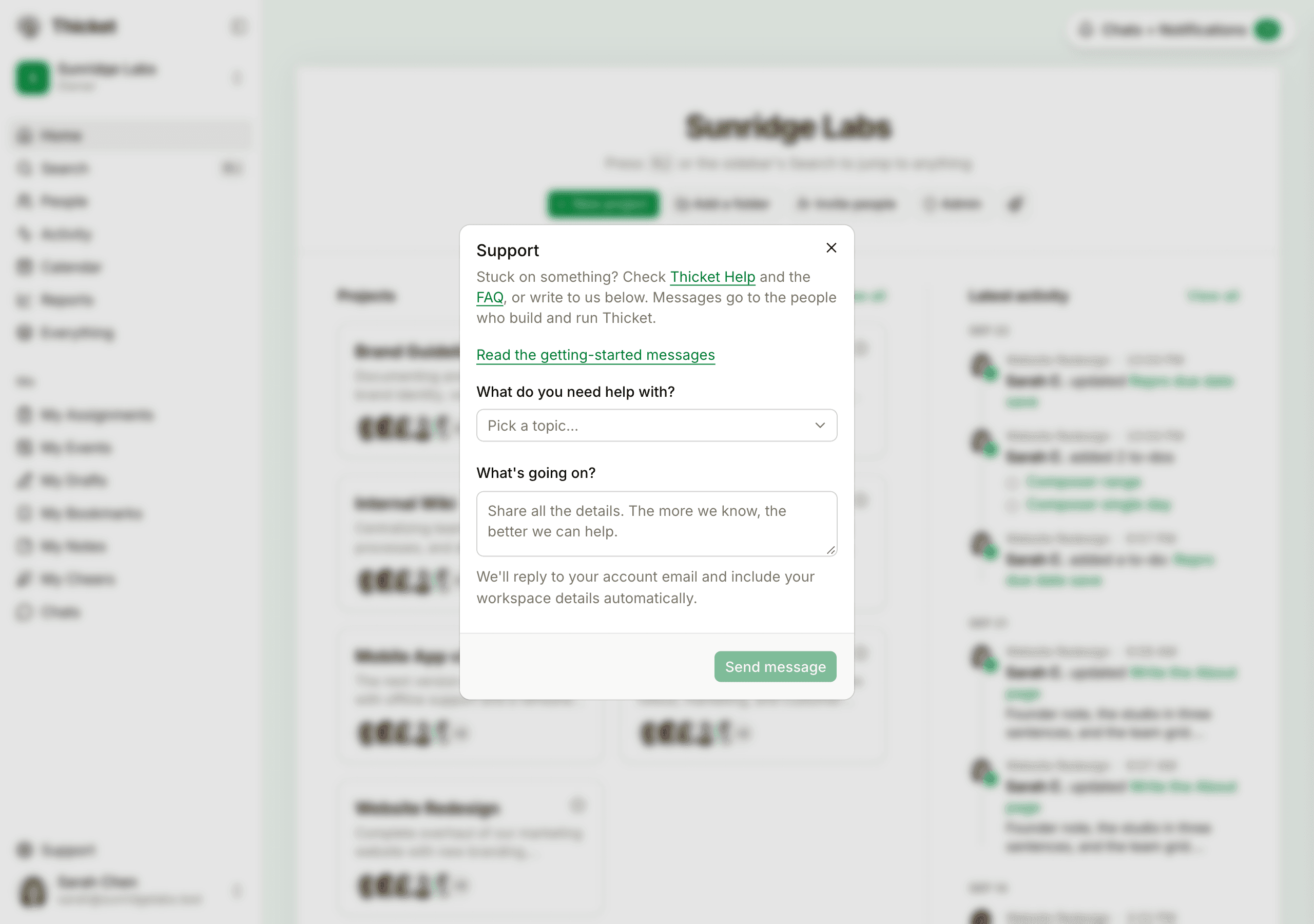
- Click Support at the bottom of the sidebar
- Under What do you need help with?, pick the topic that fits best
- Under What's going on?, describe the problem
- Click Send message
Thicket adds your account's name, your role, and your plan to the message, so you don't need to. Replies go to your account's email address, and Thicket emails you a confirmation that your message arrived.
From the support page
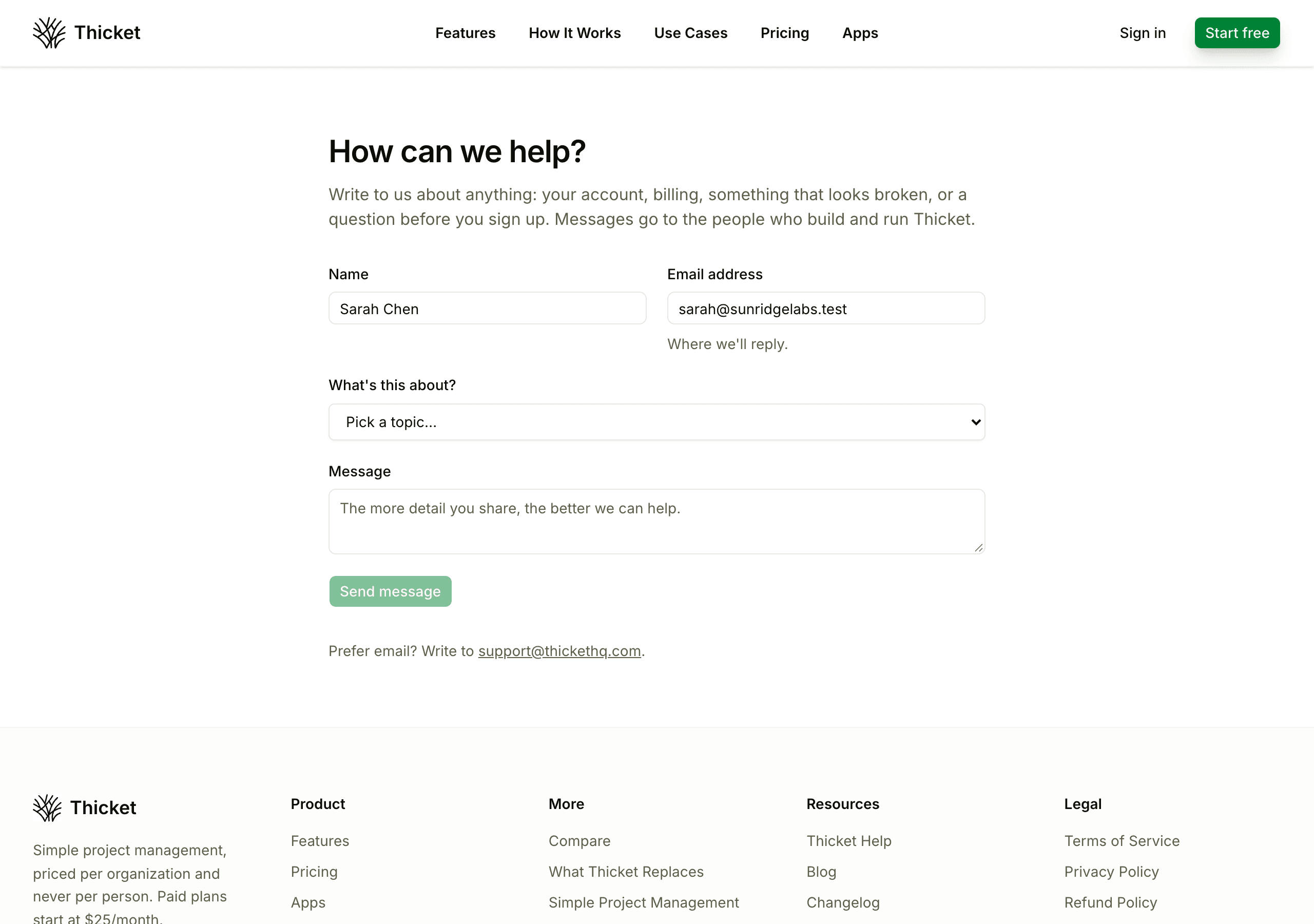
Go to thickethq.com/support, or click Contact support on the Thicket Help home page. When you're signed in, the page is a form with your name and email address filled in. Its topics include I can't access my account and I have a question before I sign up.
By email
Write to support@thickethq.com. Email is the way to go when you can't sign in, or when you want to attach a screenshot, a screen recording, or a HAR file: the forms take text only. If you can't sign in, write from the address on your Thicket account.
What to include
The more of these your message has, the less back and forth it takes:
- What you were trying to do, step by step
- What you expected, what happened instead, and the exact wording of any message
- The address of the page, copied from your browser's address bar
- When it happened, with your time zone
- Your browser and its version, and your device and operating system
- Whether it also happens in a private window or another browser
- A screenshot or screen recording, if you're writing by email
Don't include your password, two-factor codes, or recovery codes.
Capture a HAR file for slow or failing pages
A HAR file is a recording of the requests your browser makes while a page loads, with their timings and responses. It shows where a slow page spends its time or which request fails.
A HAR file can include the content of the pages you loaded and details of your signed-in session. Send it only to support@thickethq.com, and sign out of Thicket after you've sent it: signing out ends the session recorded in the file.
Chrome and Microsoft Edge
- Open the page that has the problem
- Open the developer tools: Option-Command-I on a Mac, or Ctrl+Shift+I on Windows
- Click the Network tab and check Preserve log
- Reload the page and repeat the steps that cause the problem
- Click the Export HAR button (a downward arrow) in the Network tab's toolbar and save the file
Firefox
- Open the page that has the problem
- Press Option-Command-E on a Mac, or Ctrl+Shift+E on Windows, to open the Network panel
- Reload the page and repeat the steps that cause the problem
- Right-click any request in the list and choose Save All As HAR
Safari
- In Safari > Settings > Advanced, turn on the option to show features for web developers
- Open the page that has the problem and press Option-Command-I, then click the Network tab
- Reload the page and repeat the steps that cause the problem
- Click Export in the Network tab and save the file
Then email the file to support@thickethq.com with a note about what you were doing when you recorded it.