
Out of Office
Let your team know you are away: set the days you are out, see where the OUT badge shows, and clear it when you are back.
Out of office tells your team you're away and when you'll be back. It's a visible marker only: Thicket doesn't send automatic replies, doesn't decline events for you, and doesn't change your notifications.
Setting your dates
- Click your name at the bottom of the sidebar and choose My settings
- Under Out of office, turn on I'm out of office. Thicket fills in today for both dates
- Set First day away and Last day away
- Click Save dates
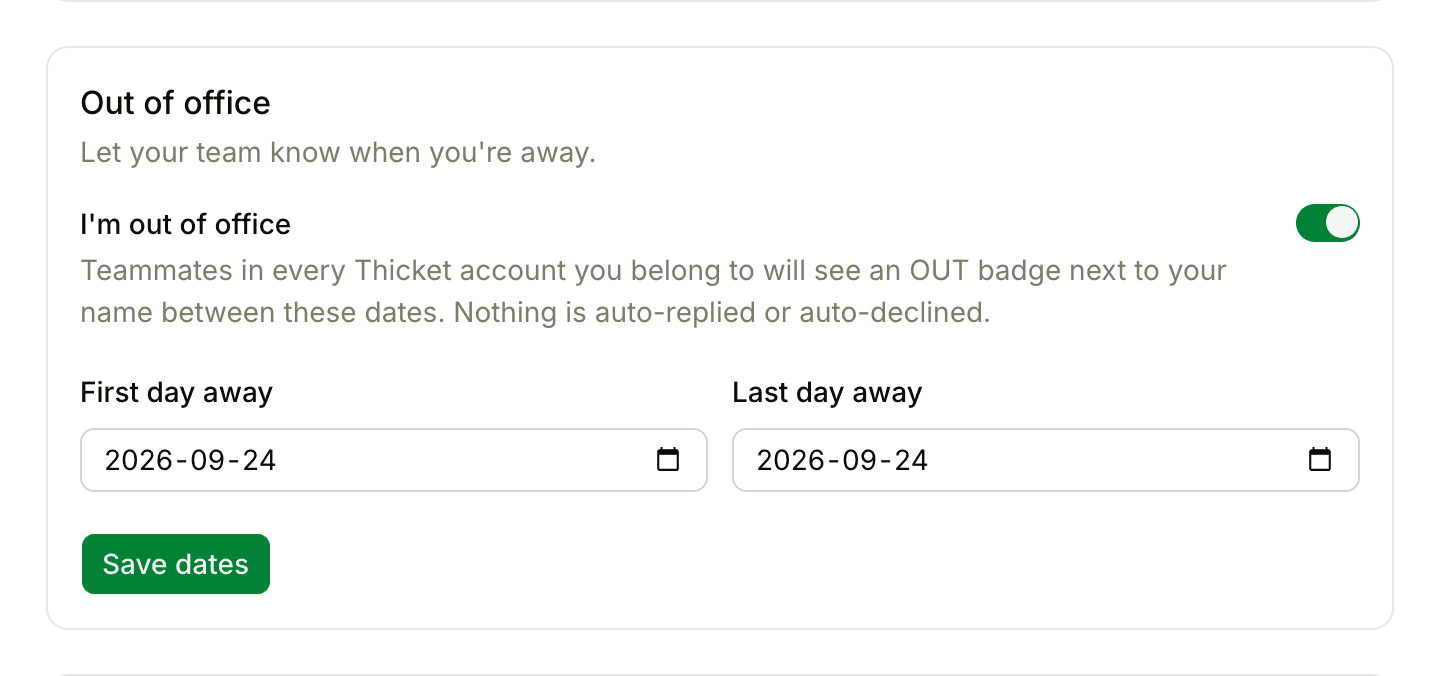
The last day has to be on or after the first day. You can set dates in advance: the badge only appears from your first day away, and it goes away on its own after your last day.
Out of office belongs to your Thicket login, so it shows in every Thicket account you belong to.
What your team sees
Between your first and last day away:
- An amber OUT band across the bottom of your photo, across the account
- Out of office and your dates on your person card, when someone clicks your photo
- "Out until" and your last day next to your name when someone types @ to mention you, so they know before they send it
- An "Out until" badge on your row of the People page
- "Out of office until" your last day at the top of your activity page
Coming back early
Turn off I'm out of office. Thicket clears your dates right away and the badge disappears.
To limit notifications while you're away
Out of office doesn't pause anything. To keep email from piling up, turn on quiet hours or turn off Send me email notifications before you go, and turn them back on when you return.
Setting it for someone else
If someone is away and forgot to set it, an owner or admin can do it for them:
- Go to People and click the ••• next to the person
- Choose Edit info…
- Under Out of office, turn on the switch, set First day away and Last day away, and click Save dates
The dates belong to the person's login, so the badge shows in every Thicket account they belong to.