
Notification Settings
Choose what Thicket notifies you about, whether it emails you, and when, for your whole account, for each project, and for each discussion.
Thicket lets you tune notifications at three levels: for your whole login in My settings, for each project with the project's bell, and for each discussion by following or unfollowing it. The most specific setting wins. A discussion you follow notifies you even when the project or your account is set to mentions only.
Every notification lands in Chats + Notifications at the top right of the screen (see Chats and Notifications). These settings decide which ones you get there, and whether Thicket also emails you.
What to notify you about
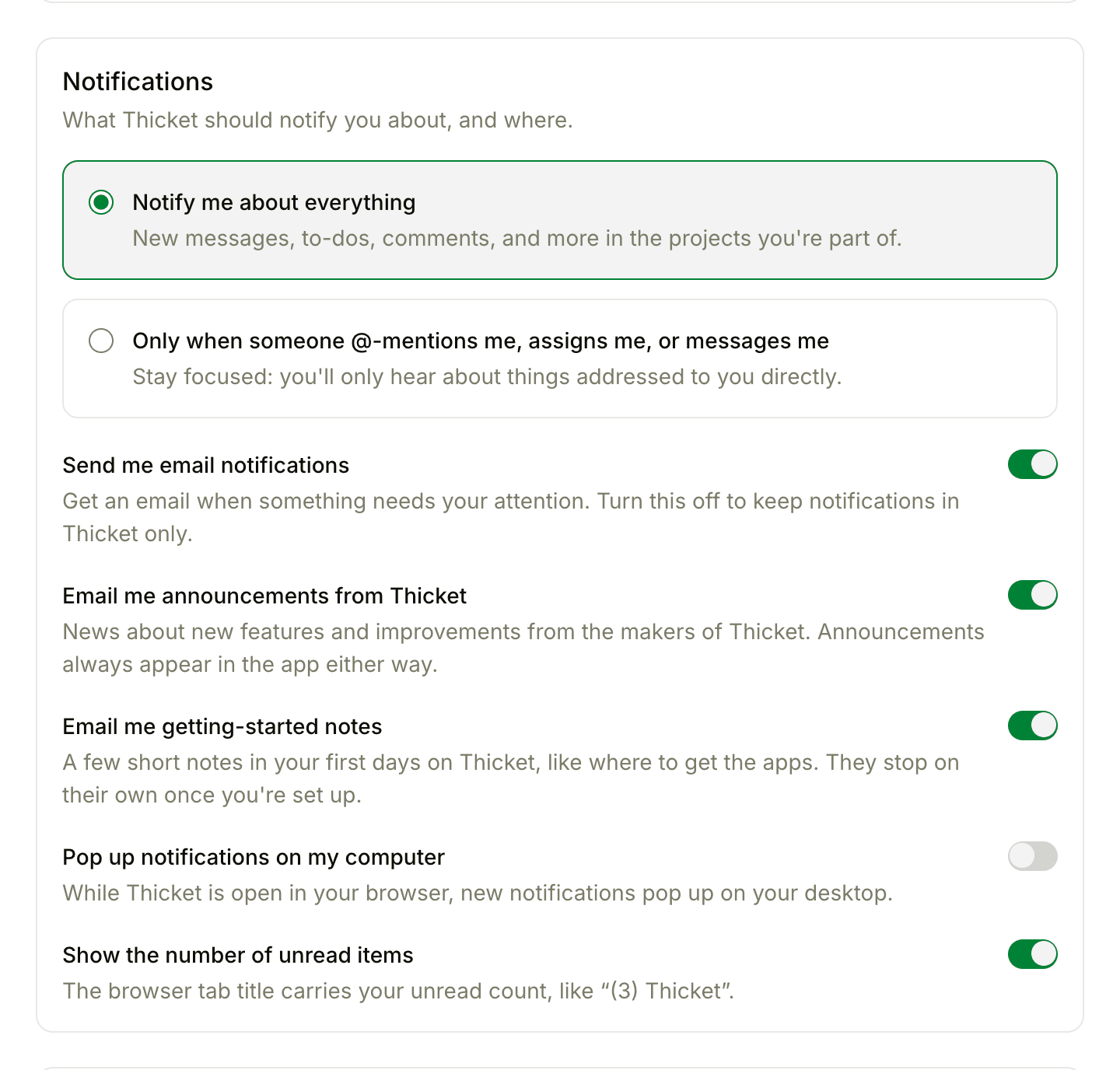
Open My settings (click your name at the bottom of the sidebar) and find Notifications. Choose one:
- Notify me about everything: new messages, to-dos, comments, and more in the projects you're part of.
- Only when someone @-mentions me, assigns me, or messages me: new posts in your projects stop notifying you.
Even on the second choice, you still hear about anything addressed to you: @-mentions, assignments and due dates on your work, direct messages, reminders, event invitations and changes, approval requests, and cheers. You also still hear about new comments on discussions you follow. See Following and Unfollowing Discussions.
How to reach you
The switches under the two choices control where notifications go:
- Send me email notifications: Thicket emails you when something needs your attention. Turn it off to keep notifications in Thicket only.
- Pop up notifications on my computer: while Thicket is open in your browser, new notifications pop up on your desktop. The first time you turn it on, your browser asks for permission. If you've blocked notifications for thickethq.com, allow them in your browser's site settings first.
- Show the number of unread items: your browser tab's title shows your unread count, like "(3) Thicket".
Direct messages, and new items added to a list or column you watch, arrive as one email a few quiet minutes after the last one, not one email each. If you read them in Thicket before then, Thicket doesn't email them at all.
Notification emails end with a link back to these settings, and most also have a link to unsubscribe from that one discussion.
Emails from Thicket itself
The same section has two switches for email that isn't about your work: Email me announcements from Thicket covers news about new features, and Email me getting-started notes covers a few short notes in your first days on Thicket. Each of those emails also has a one-click unsubscribe link at the bottom. Announcements still appear in the app either way.
Quiet hours
Quiet hours keeps notification emails inside your working hours. Turn it on, then tick the days you work and set a start and end time for each. A day you leave unticked shows "No emails this day". The times follow your time zone.
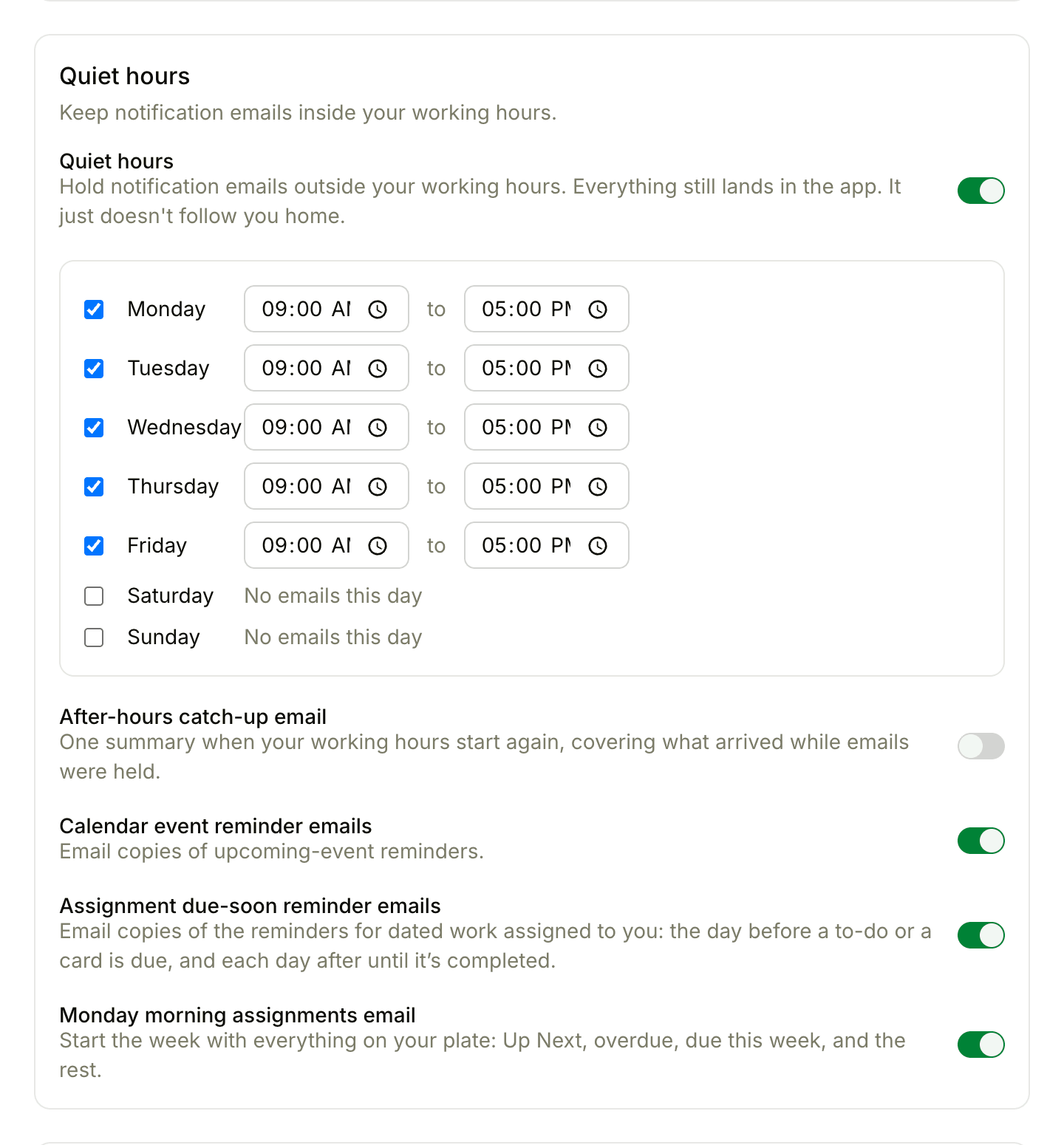
Outside your hours, Thicket doesn't email you about new notifications or send push notifications to the mobile app. Everything still lands in Thicket, so it's there when you look.
Turn on After-hours catch-up email to get one summary of the notifications that arrived while emails were held and that you haven't read yet. It arrives when your working hours start again. The switch only works while quiet hours are on.
Reminder and summary emails
The Quiet hours section also has switches for emails that repeat a reminder you already get in Thicket:
- Calendar event reminder emails: for events you created or were invited to, an email the day before and an hour before a timed event, and on the morning of an all-day event.
- Assignment due-soon reminder emails: for to-dos and cards assigned to you, an email the day before the due date, on the due date, and each day after until the work is completed. Several reminders on the same morning come as one email.
- Monday morning assignments email: a summary of everything assigned to you, sent on Monday mornings. See My Assignments.
Two more have their switches elsewhere: Email me a daily summary on the Activity page (see Latest Activity), and the button at the top of My Cheers, which reads Notifying you about new cheers every 3 hours while it's on (see Cheers).
Notifications for one project
Each project has a bell button at the top right of its page. Click it and choose:
- Yes, notify me about everything
- Only when someone @mentions me
- Use my account-wide setting, which is where every project starts
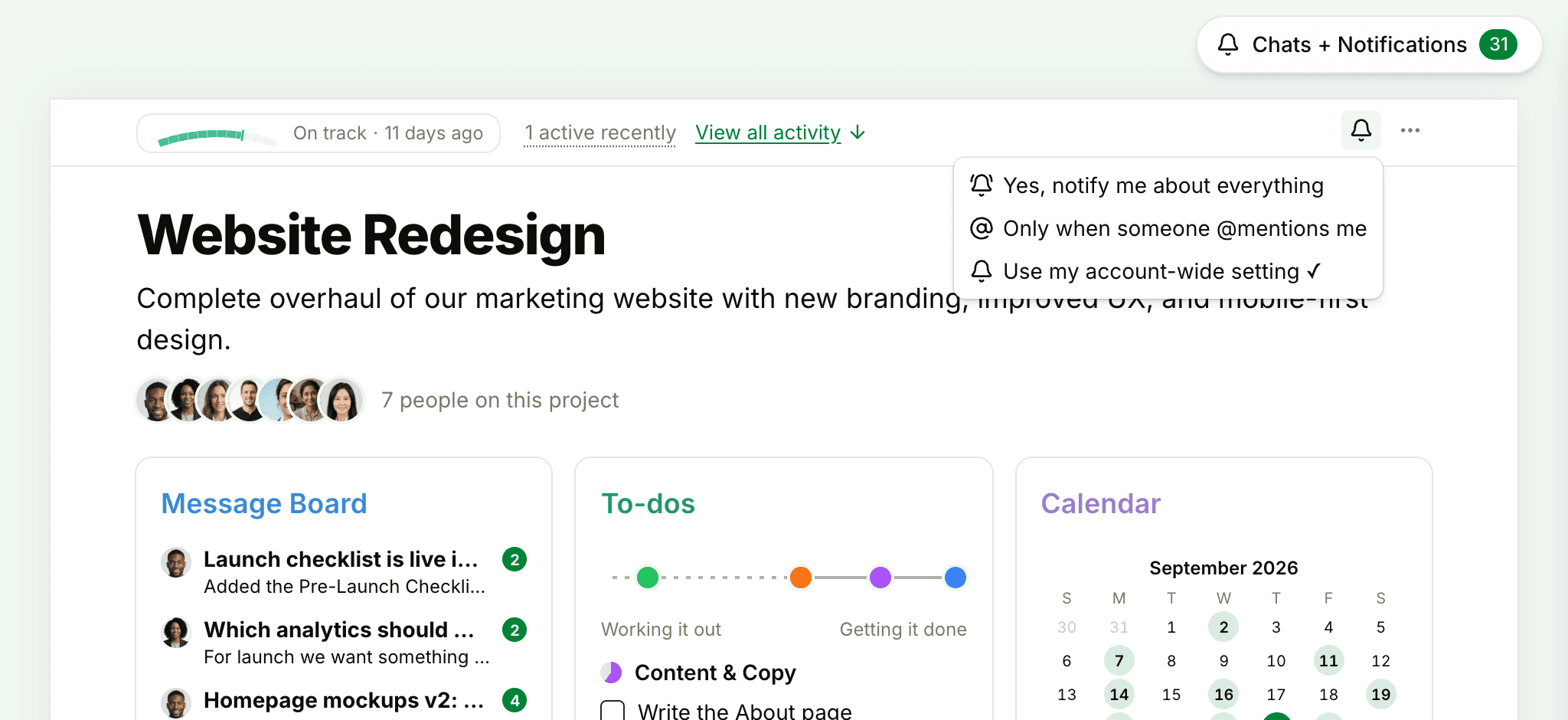
The bell is yours alone: nobody else can change it for you, and it doesn't affect anyone else. Use it to hear everything from the one project you run while the rest stay on mentions, or the other way around.
Notifications for one discussion
At the bottom of a message, to-do, doc, or other item, click Notify me to hear about every new comment on it, or Don't notify me to stop. Posting something, commenting on it, being assigned to it, or being @-mentioned in it makes you a follower. See Following and Unfollowing Discussions. Chat rooms have their own switch: see Group Chat and Direct Messages.
Pausing alerts for a while
To silence the unread badge, desktop pop-ups, and mobile push without changing any of these settings, open Chats + Notifications, click •••, and choose Shhh… silence alerts (or press Shift+Z). Emails keep coming. Choose Turn notifications back on when you're ready. Going away for a while? Out of Office lets your team know.