
Leaving a Project or an Account
Take yourself off a project you no longer work on, or leave a Thicket account entirely, and learn what happens to your work when you go.
You can take yourself off a project, or leave a whole Thicket account, without asking anyone. Everything you posted stays with the team either way.
Leaving a project
You can leave an invite-only project, one that only the people added to it can see:
- Open the project and click ••• at the top right of its page
- Choose Leave this project
- Click Leave project to confirm
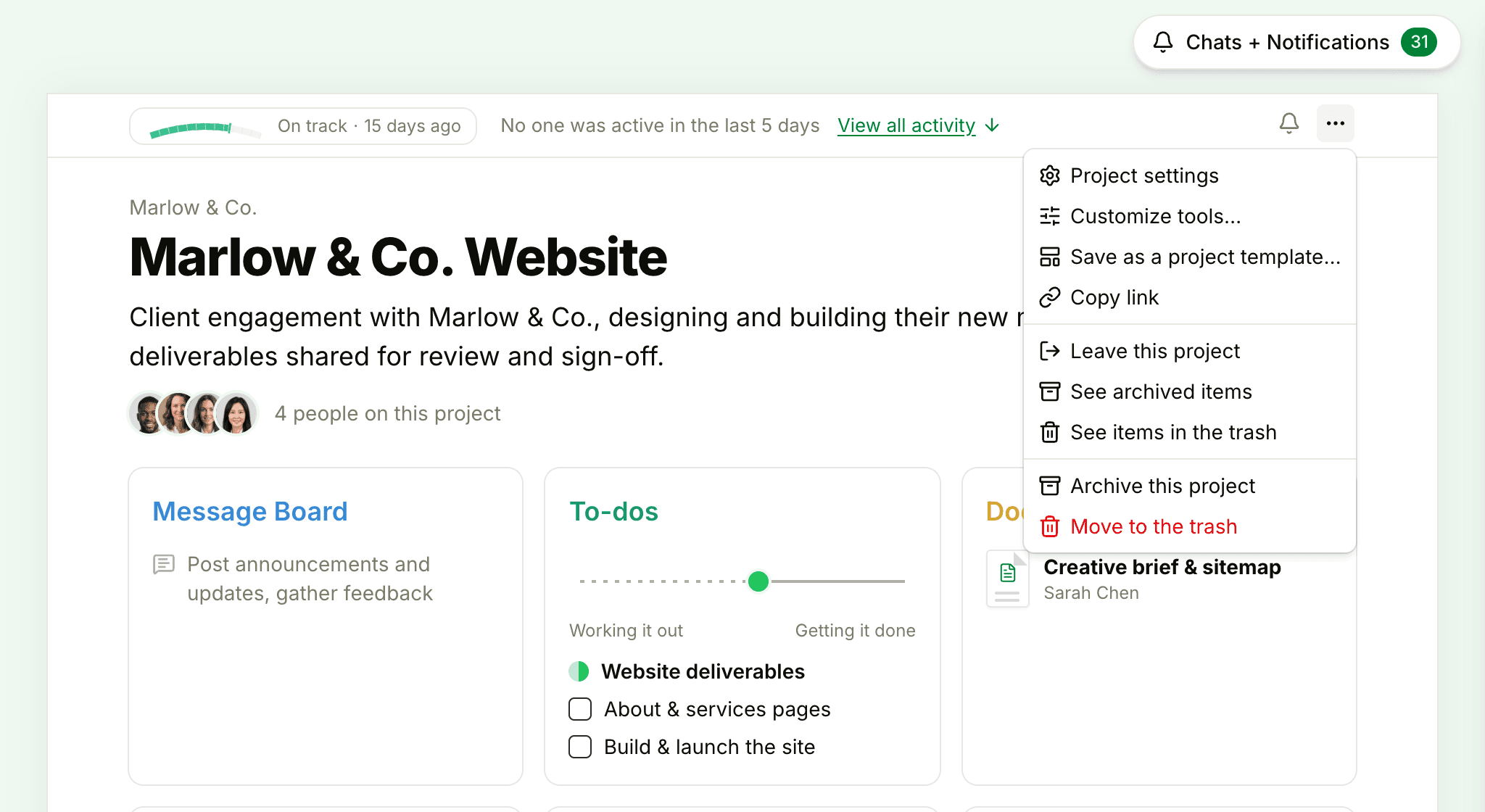
Thicket takes you back to Home. You come off the project's list of people and stop following its discussions. Someone on the project can add you back later (see Adding People to a Project).
A few cases work differently:
- The project is open to everyone. It can't be left, so the ••• menu doesn't offer Leave this project: everyone on the team is on it. To hear less from it, set the project's bell to Only when someone @mentions me (see Notification Settings).
- You're the only person on the project. Thicket won't let you leave: invite someone else first, or archive or delete the project instead (see Archiving, Trash, and Restoring).
- You're a client. Clients don't have the ••• menu. Ask an owner or admin on the account to take you off the project.
Leaving an account
Leaving an account removes you from every project in it. Your Thicket login stays, so you can still sign in to any other Thicket account you belong to.
- Click your name at the bottom of the sidebar and choose My settings
- Scroll to Leave this account and click Leave this account
- If you like, write a note in Leave a note for the owners. It's emailed to the account's owners when you go, and their replies come to you
- Click Leave followed by the account's name, for example Leave Sunridge Labs, to confirm
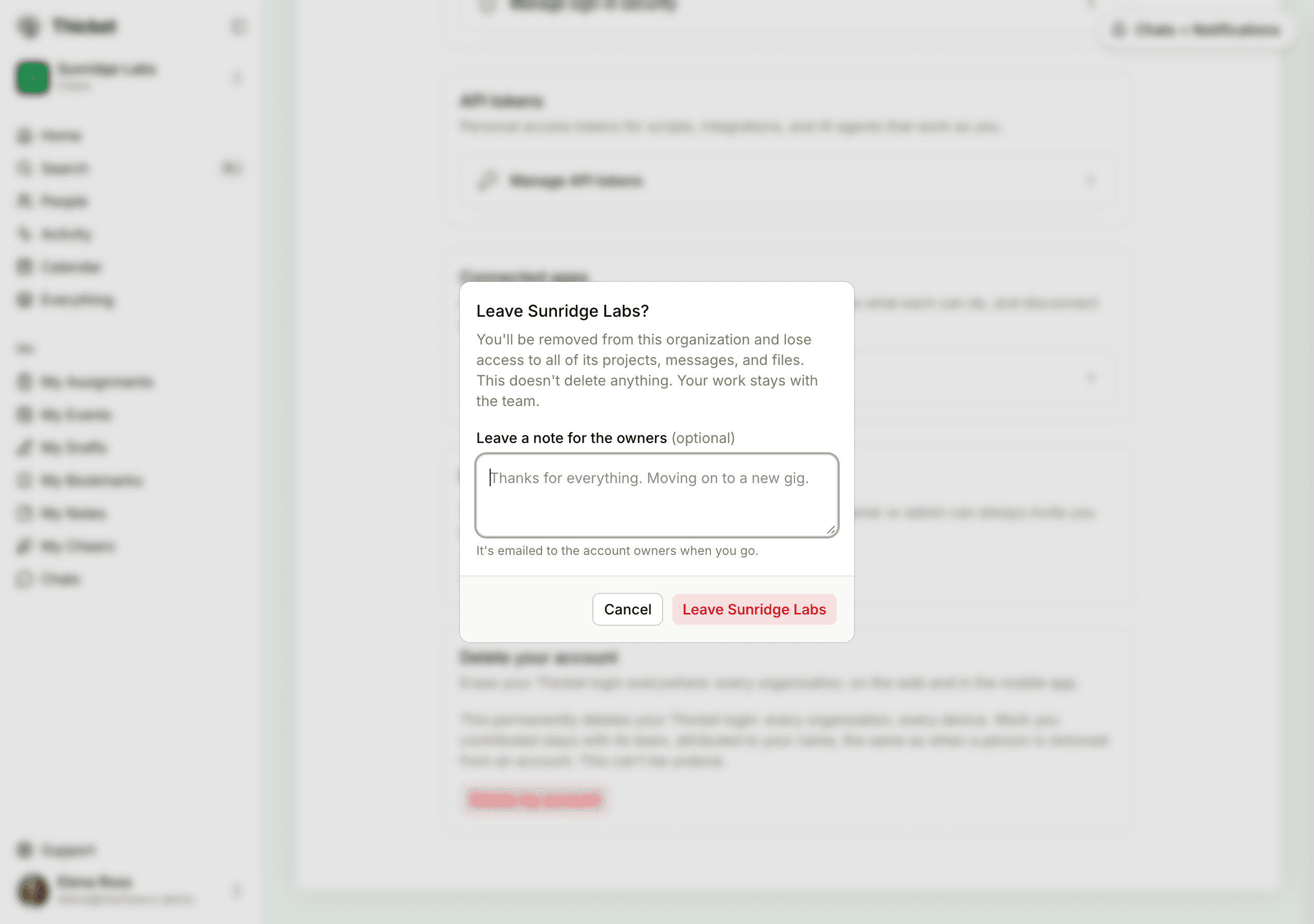
You lose access to the account's projects, messages, and files right away, and you stop getting its notifications. Nothing you contributed is deleted: your messages, comments, to-dos, and files stay with the team, under your name. An owner or admin can invite you back at any time.
If you're an owner
An account always needs an owner. If you're one of several owners, you can leave like anyone else. If you're the only owner, My settings says you can't leave yet: make someone else an owner first, then leave. See Account Owners. To shut the account down instead, see Cancelling Your Account.
Deleting your Thicket login
Leaving an account and deleting your login are different things. Delete your account, at the bottom of My settings, permanently deletes your Thicket login: your sign-in, profile, and preferences are erased, and you lose access to every account you belong to, on the web and in the mobile app. Work you contributed stays with each team, under your name. There's no undo.
To do it, click Delete my account, confirm your password if you have one, and click Delete my account forever. If you sign in with Google or Apple, it needs a recent sign-in: if Thicket says so, sign out, sign back in, and try again.
If you're the only owner of any account, Thicket names it and won't delete your login until you make someone else an owner there, or cancel that account.