
My Assignments
See every to-do and card assigned to you across projects, line up what is next, follow up on work you have handed off, and get a Monday summary.
My Assignments collects the open to-dos, cards, and card steps assigned to you, from every project you can see, into one page. Open it from My Assignments in the Me section of the sidebar, or press Shift+A anywhere in Thicket.
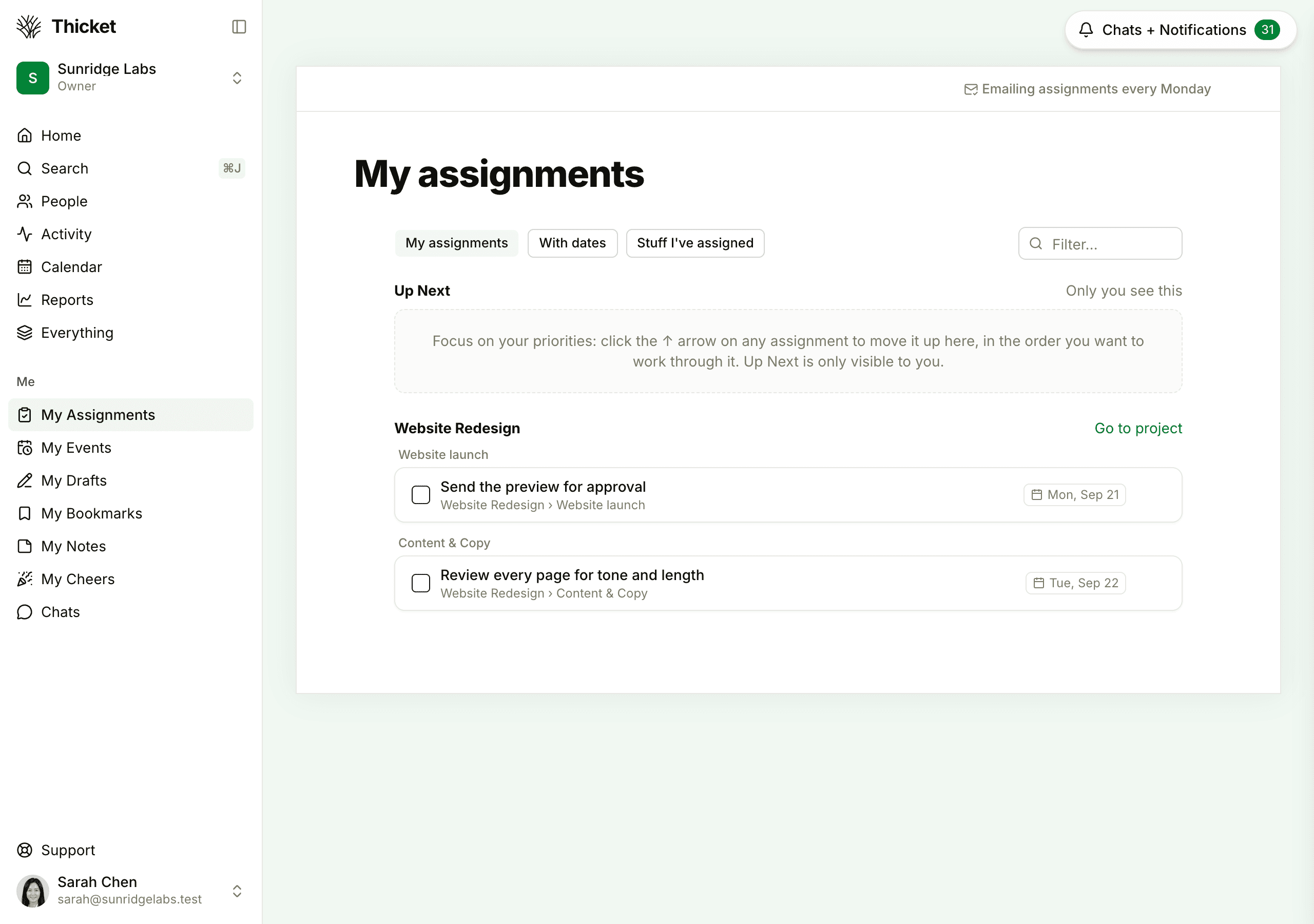
Three views
The buttons at the top switch between:
- My assignments: everything assigned to you, grouped by project, then by the list, column, or card each item belongs to. Go to project opens that project.
- With dates: only the assignments that have a due date, soonest first.
- Stuff I've assigned: open work you assigned to other people, grouped by project, with each person's name beside the item, so you can follow up without searching each project.
Each row shows the item, its project and list, and its due date if it has one. Click the item to open it, or tick its box to mark it complete without leaving the page. Type in the Filter… box (or press Shift+F) to narrow the page as you type.
The page lists open work in active projects. Completed items, and items in archived or trashed projects, don't appear.
Up Next
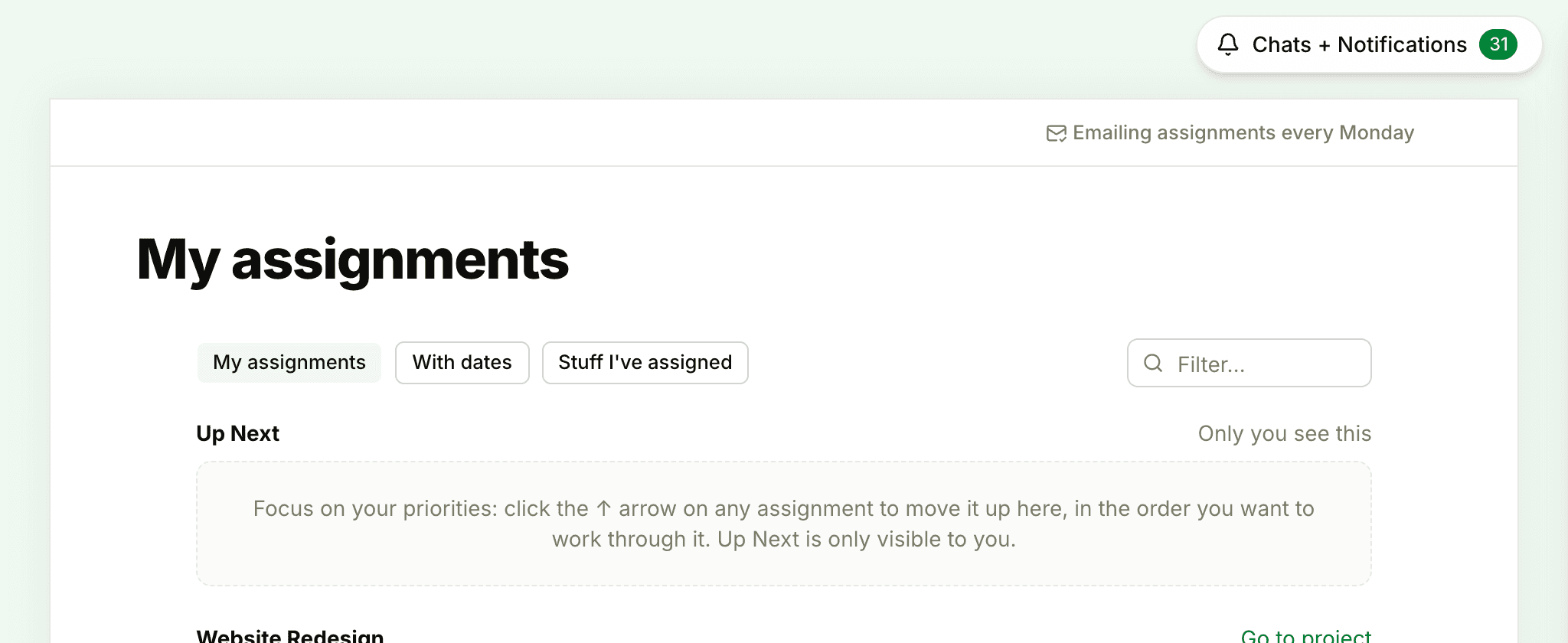
Up Next is a short, ordered list of what you plan to work on next, at the top of the page. It's private: the page says "Only you see this", and anyone looking at your assignments in Reports sees them grouped by project as usual.
- To add an assignment, hover over its row and click the up arrow (Move to Up Next)
- To reorder, use the Move up and Move down arrows on an Up Next row
- To take it back out, click the down arrow (Remove from Up Next)
Completed items drop out of Up Next on their own.
The Monday email
Every Monday morning, in your time zone, Thicket emails you a summary titled "Here are your tasks": what's Up Next, what's overdue, what's due this week, and the rest of your assignments. It covers every Thicket account you belong to, and it isn't sent on a Monday when you have nothing open.
The button at the top right of the page shows whether it's on: Emailing assignments every Monday. Click it to turn the email off; it then reads Email me assignments every Monday, and clicking it again turns the email back on. You can also turn it off with the unsubscribe link at the bottom of the email, or with Monday morning assignments email in My settings.
Due-date reminders
Thicket also reminds you about dated work assigned to you: the day before it's due, on the due date, and each day after until it's done. See Notification Settings to choose whether those reminders also come by email. For how assignments work in each tool, see To-dos and Lists and Boards.