
Your Profile and Preferences
Change your name, photo, email address, location and status, and choose light or dark mode, your time zone, clock, and first day of the week.
Your profile is how other people see you in Thicket: your name, photo, email address, location, and status. Your preferences decide how Thicket looks and how it shows dates and times to you. Both live in My settings: click your name at the bottom of the sidebar and choose My settings.
Your profile and preferences belong to your Thicket login, so they're the same in every Thicket account you belong to.
Your photo
Click Upload photo (or Change photo if you already have one) and pick an image of up to 10 MB. Thicket crops it to a square and removes the hidden details a phone photo can carry, such as where it was taken. Click Remove to go back to your initials on a colored circle.
Name, location, status, and email address
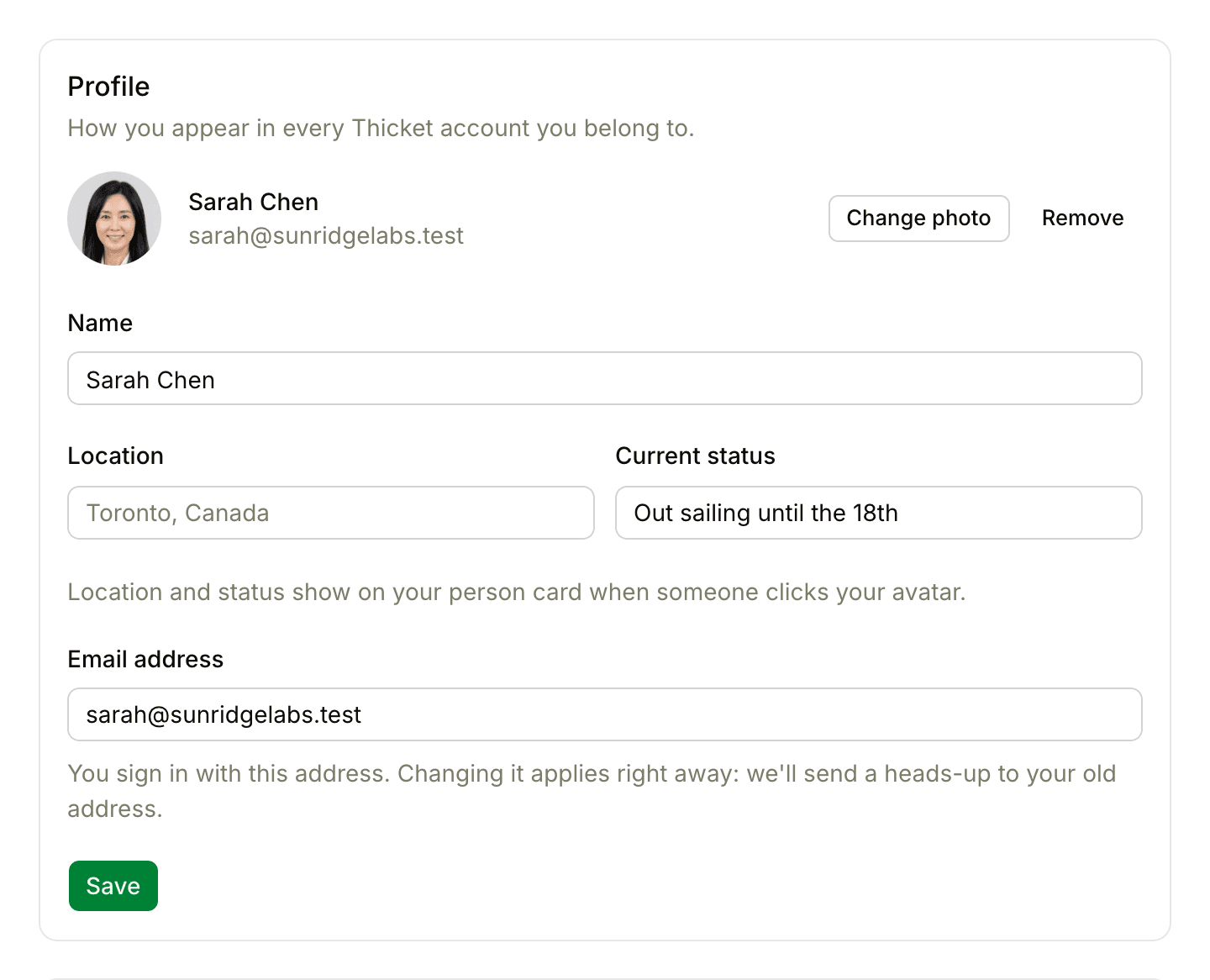
Edit any of these fields, then click Save:
- Name is how you appear on everything you post, in the sidebar, and on the People page.
- Location and Current status are optional, up to 200 characters each. They show on your person card when someone clicks your photo, so a status like "Heads-down on the launch until Friday" tells people what to expect.
- Email address is where Thicket sends your notifications. If you sign in with an email and password, it's also the address you sign in with.
Changing your email address takes effect as soon as you click Save. Thicket sends a note to your old address saying the address was changed, so you'll know if someone else ever changes it. If you had not yet confirmed your original address, Thicket sends a confirmation link to the new one instead. If you sign in with Google or Apple, that doesn't change: the address here is only where Thicket emails you. Each address can belong to only one Thicket login, so an address someone else already uses is refused.
If email to your address is bouncing, the Profile section says so at the top. Change the address if it's wrong. If it's right, contact support to clear the block.
Your job title and company on the People page are set by an owner or admin of the account.
Your person card
Clicking anyone's photo opens their person card. Yours shows your name, role, title and company, location, your local time (from your time zone), your current status, and your dates if you're out of office.
Preferences
The Preferences section saves each choice as soon as you make it.
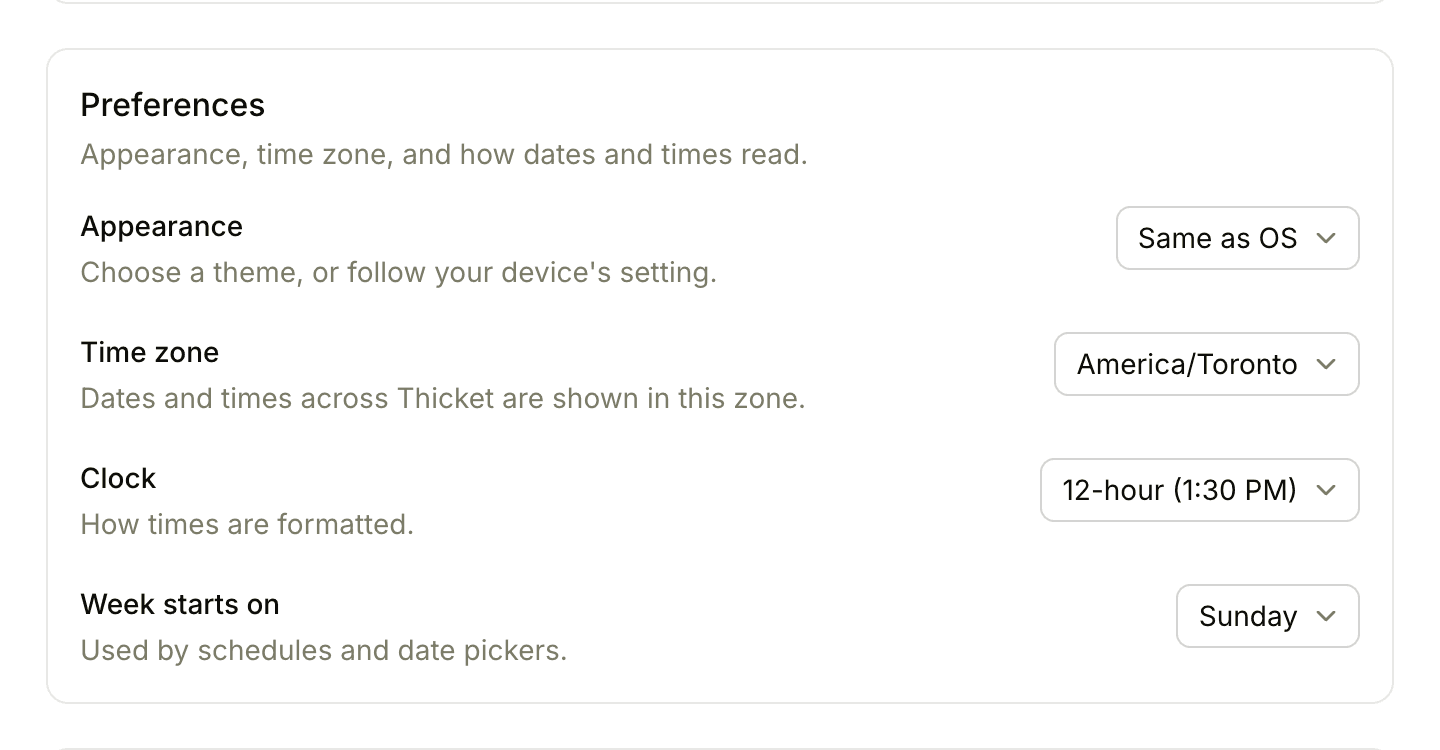
- Appearance: Always light, Always dark, or Same as OS, which follows your device's light or dark setting. Thicket applies it right away, and your choice follows you to every browser you sign in on.
- Time zone: dates and times across Thicket are shown in this zone. It also decides when time-based emails reach you, such as the Monday assignments email and your quiet hours.
- Clock: 12-hour (1:30 PM) or 24-hour (13:30).
- Week starts on: any day of the week. Calendars and date pickers use it.
Thicket sets your time zone from your device the first time you use it. If you travel and your device switches zones, My settings notices and asks whether to update your time zone to match. Click Update it to switch, or ignore it to keep your home zone.
Background color
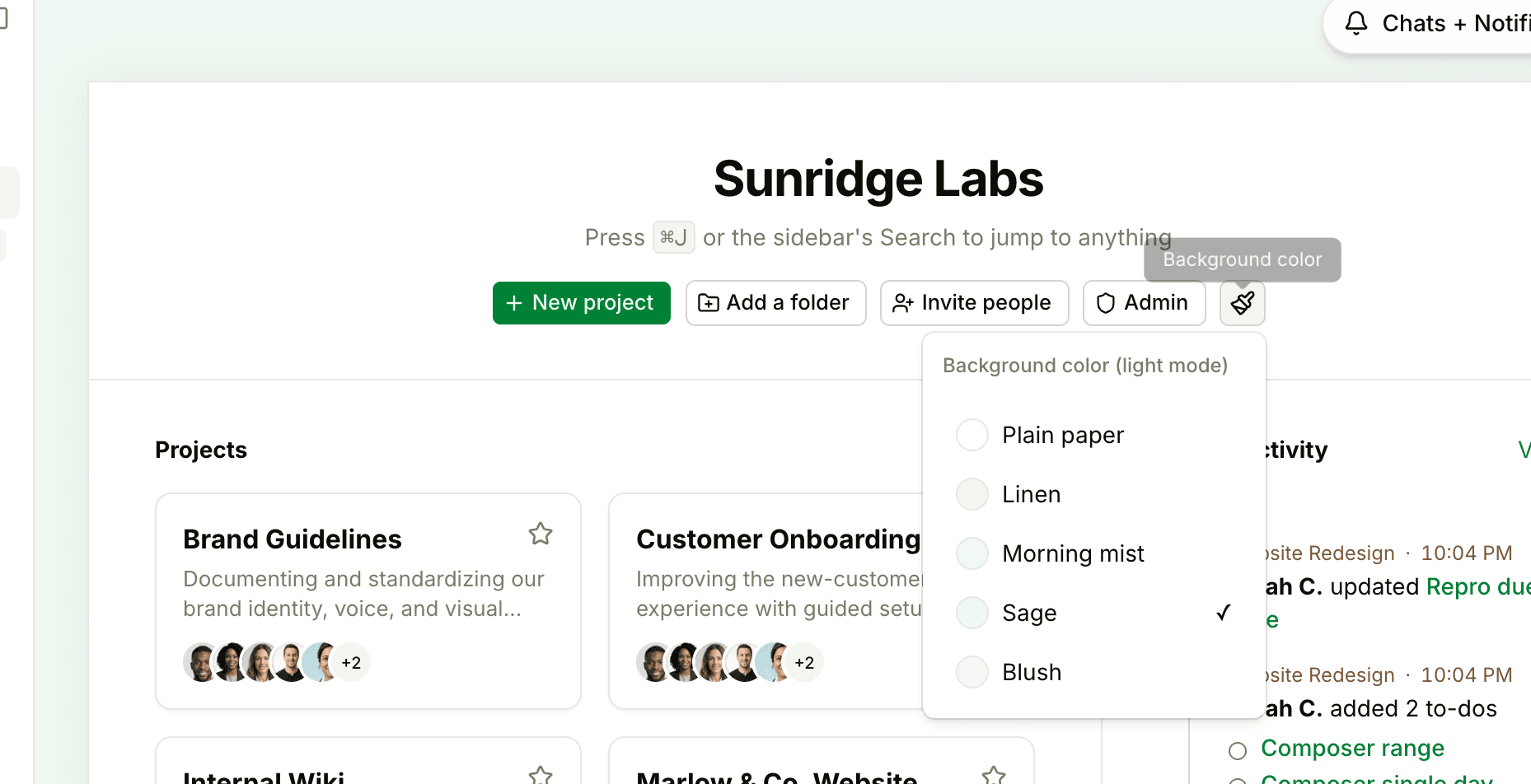
In light mode, you can tint the background behind the page. On Home, click the paintbrush button (Background color) at the end of the row of buttons under the account name, and pick Plain paper, Linen, Morning mist, Sage, or Blush. Sage is the starting color. Your choice applies across Thicket for you only. In dark mode, the background stays dark.
Related settings
What Thicket notifies you about, and when, is in Notification Settings. Your password and two-factor authentication are in Your Password and Two-Factor Authentication.