
Signing In and Out
Sign in with your email and password, Google, or Apple, find out how long you stay signed in, and sign out when you are done.
You sign in to Thicket once per browser or device, and it keeps you signed in there while you keep using it. This article covers the ways in, how long a sign-in lasts, and how to sign out.
Signing in
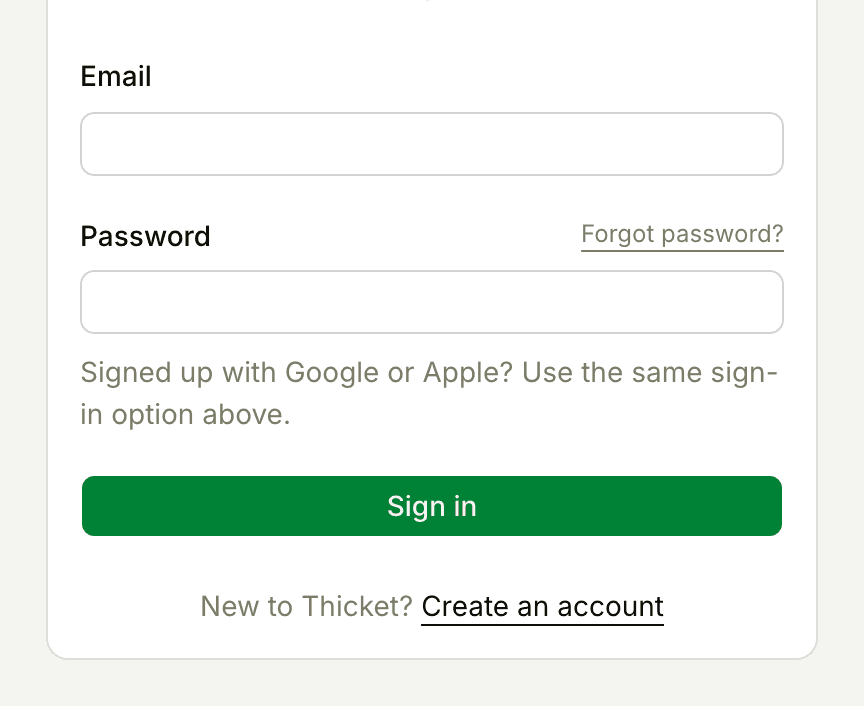
Go to thickethq.com and click Sign in at the top of the page, or go straight to thickethq.com/signin. You can sign in three ways:
- Continue with Apple, if you created your account with your Apple ID
- Continue with Google, if you created your account with your Google account
- Your email address and Thicket password: fill in Email and Password, then click Sign in
If you signed up with Google or Apple, use the same button again. That kind of account has no Thicket password unless you add one (see Your Password).
If you turned on two-factor authentication, Thicket then asks for the 6-digit code from your authenticator app before it lets you in. See Two-Factor Authentication.
Where you land
- If you belong to one Thicket account, you go straight to its Home.
- If you belong to several, you pick one from Your organizations. See Switching Between Organizations.
- If you don't belong to any account yet, Thicket walks you through creating one.
Joining an account you were invited to? Start from the link in your invitation email. See Getting Started as a Team Member.
Already signed in? Clicking Sign in on thickethq.com takes you straight into the app.
Staying signed in
Each browser and device keeps its own sign-in. A sign-in lasts seven days and is extended as you keep using Thicket, so a browser you use regularly stays signed in. A browser you haven't used Thicket on for a week asks you to sign in again.
Two-factor authentication has its own setting for this. When Thicket asks for your code, Remember this device for 30 days is ticked, so that browser doesn't ask for a code again for 30 days. Untick it on a shared or public computer.
Signing out
- Click your name and photo at the bottom of the sidebar
- Choose Sign out
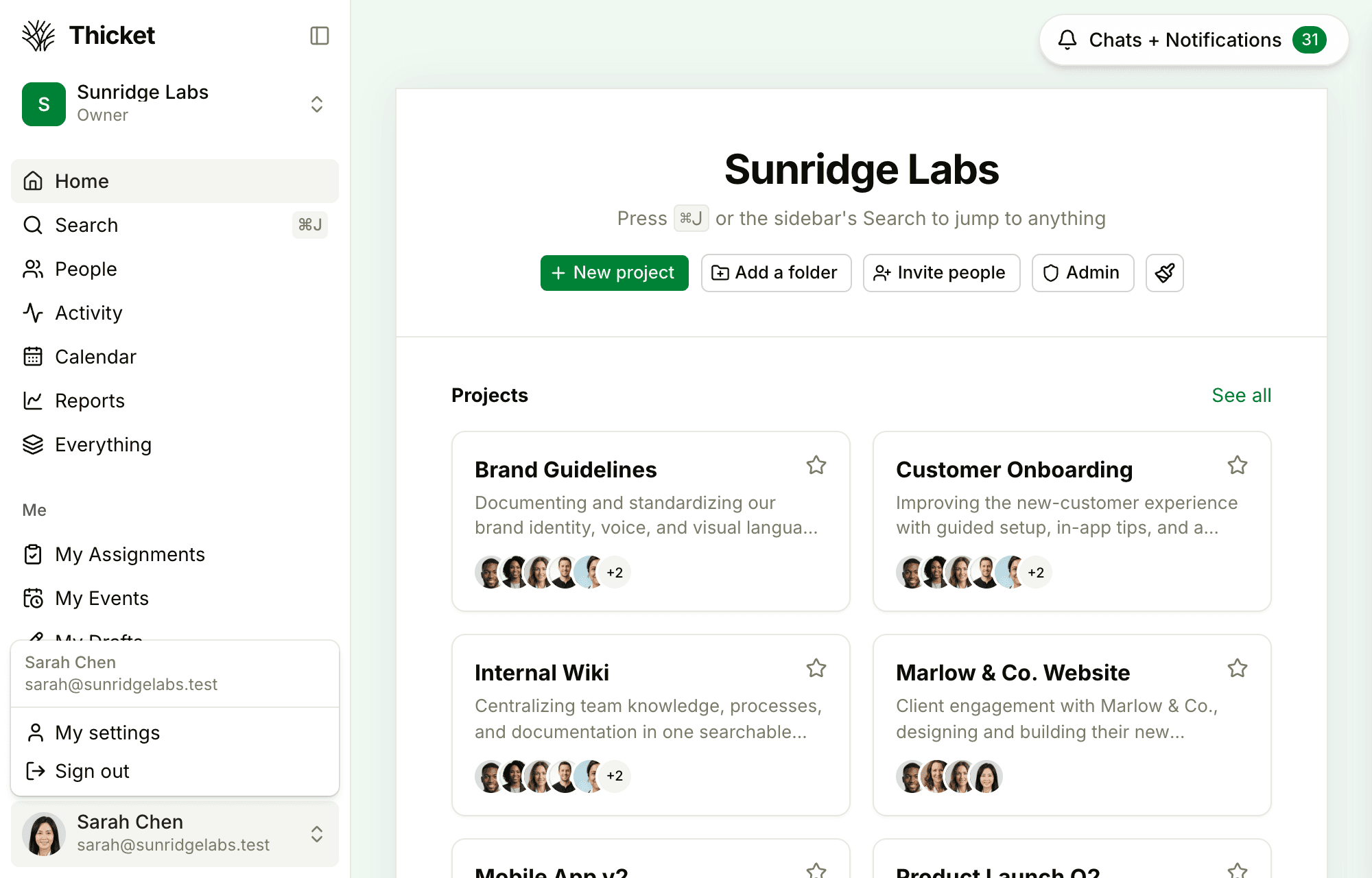
Thicket signs you out of that browser and takes you to the thickethq.com homepage. Other browsers and devices where you're signed in stay signed in.
To sign out everywhere else at once, change your password. Changing it from My settings signs out every other browser and device and keeps you signed in where you are. Resetting a forgotten password signs you out everywhere, including the browser you reset it in. See Your Password.
On a computer other people use, sign out when you finish, and leave Remember this device for 30 days unticked when Thicket asks for your two-factor code.
Trouble signing in
If Google or Apple sign-in fails, Thicket shows "We couldn't complete sign-in. Please try again." on the sign-in page. For a forgotten password, click Forgot password? next to the Password label (see Your Password). For anything else, see Trouble Signing In.