
The Admin Area
Find Admin, see what owners and admins can each do there, and get to the right page for billing, people, content and your data.
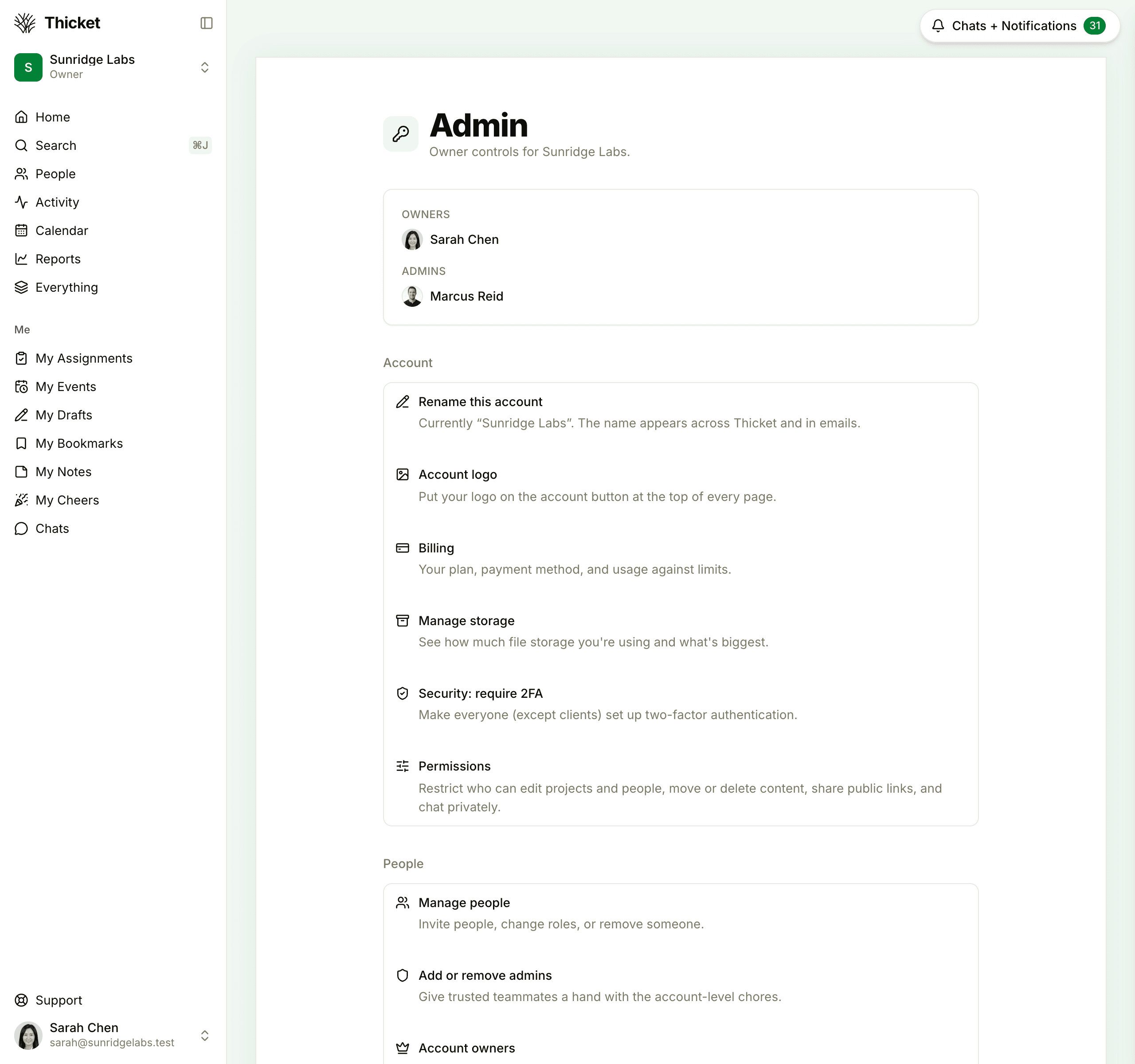
Admin is where owners and admins run the account: billing, people, account-wide settings and your data. Everything in it applies to the whole organization, not to one project.
Getting to Admin
- Click your account's name at the top of the sidebar, then choose Admin.
- Or press ⌘J (Ctrl+J on Windows), type "admin" and choose Admin.
The top of the page lists the account's owners and admins, so anyone can see who to ask. When the account is nearly out of storage, a banner above them says so.
Who Can Use It
- Owners see every page in Admin.
- Admins see everything except the pages marked "owners only" below.
- Members can open Admin, but it only shows who the owners and admins are, so they know who to ask.
- Clients don't have an Admin link.
See Account Owners and Adding or Removing Administrators for the difference between the two roles.
Account
- Rename this account (owners only): change the name shown across Thicket and in emails. See Renaming Your Account.
- Account logo: put your logo on the account button at the top of the sidebar. See Customizing Your Account.
- Billing (owners only): your plan, payment method, and usage against your plan's limits. See Billing and Plans.
- Manage storage: how much file storage you're using and which files are biggest. See Managing Storage.
- Security: require 2FA (owners only): make everyone except clients set up two-factor authentication. See Two-Factor Authentication.
- Permissions: restrict who can edit projects and people, move or delete content, share public links, and chat privately. See Permissions.
People
- Manage people: opens the People page, to invite people, change roles or remove someone. See Managing People.
- Add or remove admins: see Adding or Removing Administrators.
- Account owners: see who owns the account. Owners can add or remove owners here. See Account Owners.
- Reassign someone's to-dos (owners only): move, clear or share out all of a person's open to-dos, across the account or in one project.
- Merge people: combine two profiles that belong to the same person. See Merging People.
- Manage companies and Manage groups: organize people into companies, mark client companies, and create groups for quick mentions and adds. See Companies and Groups.
- AI agents: add AI agents as members you can @mention and assign. See AI Agents.
- Access any project (owners only): add yourself to any project on the account, even one you weren't invited to.
Content
- Message categories: the categories people can file message board posts under.
- Templates: project and to-do list templates anyone on the team can use. See Project and To-do List Templates.
- Rename project tools: rename a tool for every project, such as calling the Message Board "Announcements".
- Voice notes: turn the record button for voice notes on or off for everyone.
- Chat history: keep chat history forever, or delete lines automatically after a set number of days.
- Manage public items (owners only): see everything shared with a public link, and unpublish any of it. See Sharing Items with Public Links.
Message categories, tool names, voice notes and chat history are all covered in Customizing Your Account.
Your Data
- Trash (owners only): everything deleted across all projects, and deleted project templates, to restore or delete permanently. See Archiving, Trash, and Restoring.
- Export data (owners only): download the account's data as a file. See Exporting Your Data.
- Cancel account (owners only): switch to the Free plan and keep everything, or cancel and delete it all. See Cancelling Your Account.
Was this article helpful?