
Voice Notes
Record a voice note straight into a message, doc, comment or chat, play it back anywhere, and turn voice notes on or off for your account.
Some things are quicker to say than to type. A voice note is an audio recording you make right in the writing box, with no other app needed. It sits in your post as a small player that anyone who can see the post can play or download.
Recording a voice note
- Click in the text where the note should go. It's placed below the paragraph your cursor is in
- Click the microphone button in the formatting toolbar. The first time you do, your browser asks whether Thicket may use your microphone: allow it
- Speak. While you record, you see a moving waveform, "Recording…", and a timer, and the microphone button becomes a red stop button
- Click the stop button, or press Escape, to finish
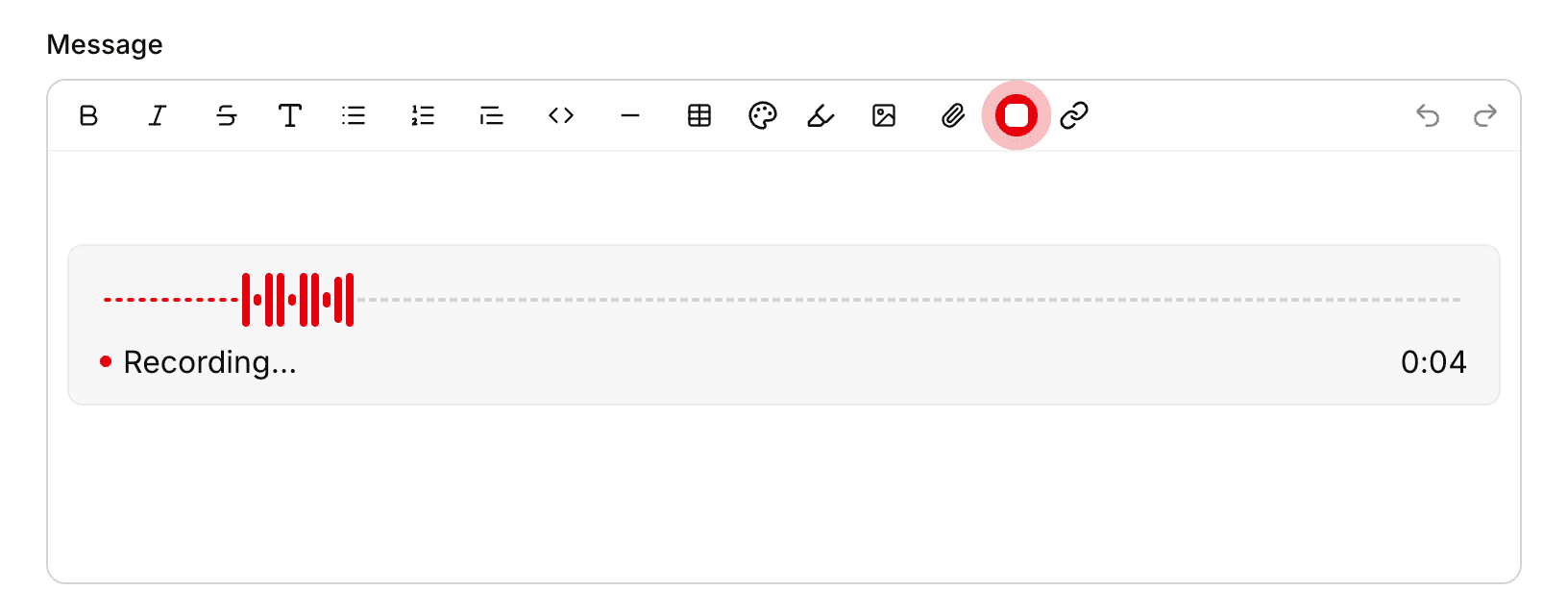
The note uploads and appears as a player where you were recording. You can keep writing around it and record more notes in the same post. To take a note out before you post, click the × on its player.
You can't post while a recording is still running: Thicket shows "Please finish recording your voice note" until you stop it.
The microphone is in the formatting toolbar wherever it appears: messages, docs, comments, check-in answers, and to-do and card notes. See Formatting Text.
Voice notes in chat
In a project's chat or a direct message, the microphone sits beside the message box:
- Click the microphone and speak
- Click the red stop button, or press Escape. Post is dimmed while you record and turns on once you stop
- Click Post
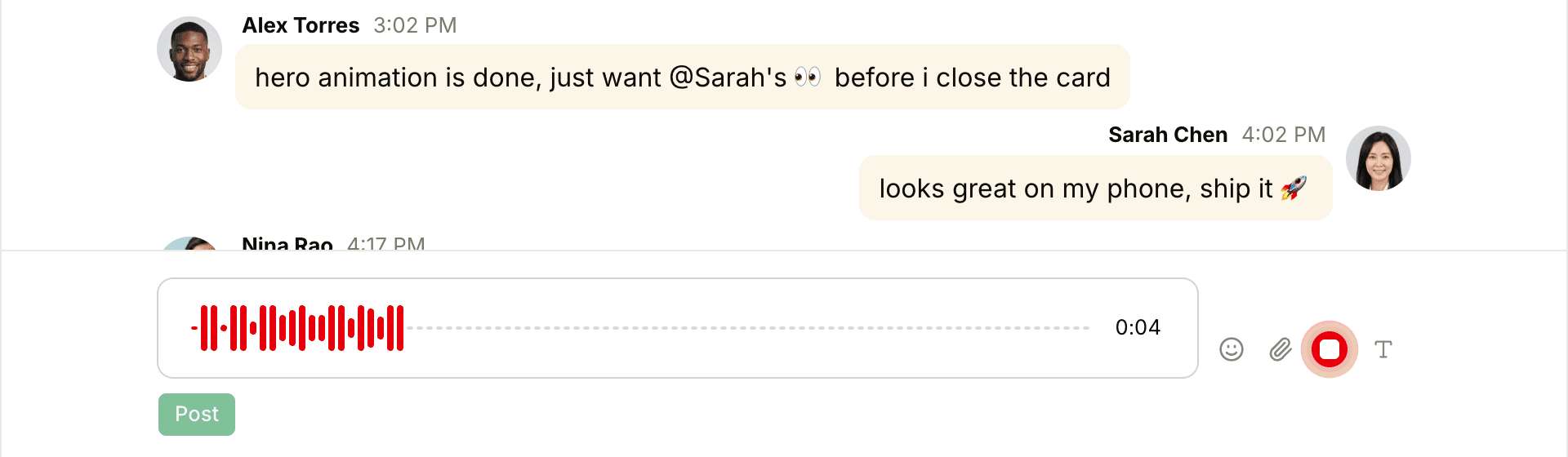
A voice note in chat posts on its own, as a line by itself. Starting a recording clears anything you'd typed in the box. While a note is waiting to be posted, the other buttons beside the box are off; click the × on the note to throw it away instead.
Playing a voice note
A voice note shows as a player with a round play button, the words "Voice note", and the recording's length. Click the play button to listen, and the timer follows along. Click or drag along the bar at the bottom of the player to jump to another point; when the bar has keyboard focus, the left and right arrow keys skip back or ahead 5 seconds. Download saves the recording as an audio file.
Where recordings are kept
Thicket saves each recording exactly as your browser made it, for example as a WebM file in Chrome or an MP4 file in Safari. In a project, the file is kept in the project's Docs & Files, along with images and files attached to posts, which is why the microphone only appears in projects that have Docs & Files turned on. Like other files, voice notes count toward your account's storage. See Managing Storage.
When a post is shared with clients, clients can play and download its voice notes too, even if the Docs & Files folder they're kept in isn't shared with them.
If the microphone button is crossed out
A crossed-out microphone means your browser is blocking Thicket from using the microphone. Clicking it shows "To record a voice note, allow microphone access." Allow the microphone for Thicket in your browser's settings for the site, then reload the page. See Enabling Microphone Access.
If your browser can't record audio at all, Thicket says "Voice notes aren't supported in this browser." Current versions of Chrome, Edge, Firefox and Safari can all record.
Turning voice notes on or off for everyone
Owners and admins can remove the microphone from every writing box in the account:
- Click your account's name at the top of the sidebar and choose Admin
- Under Content, click Voice notes
- Switch Voice notes off
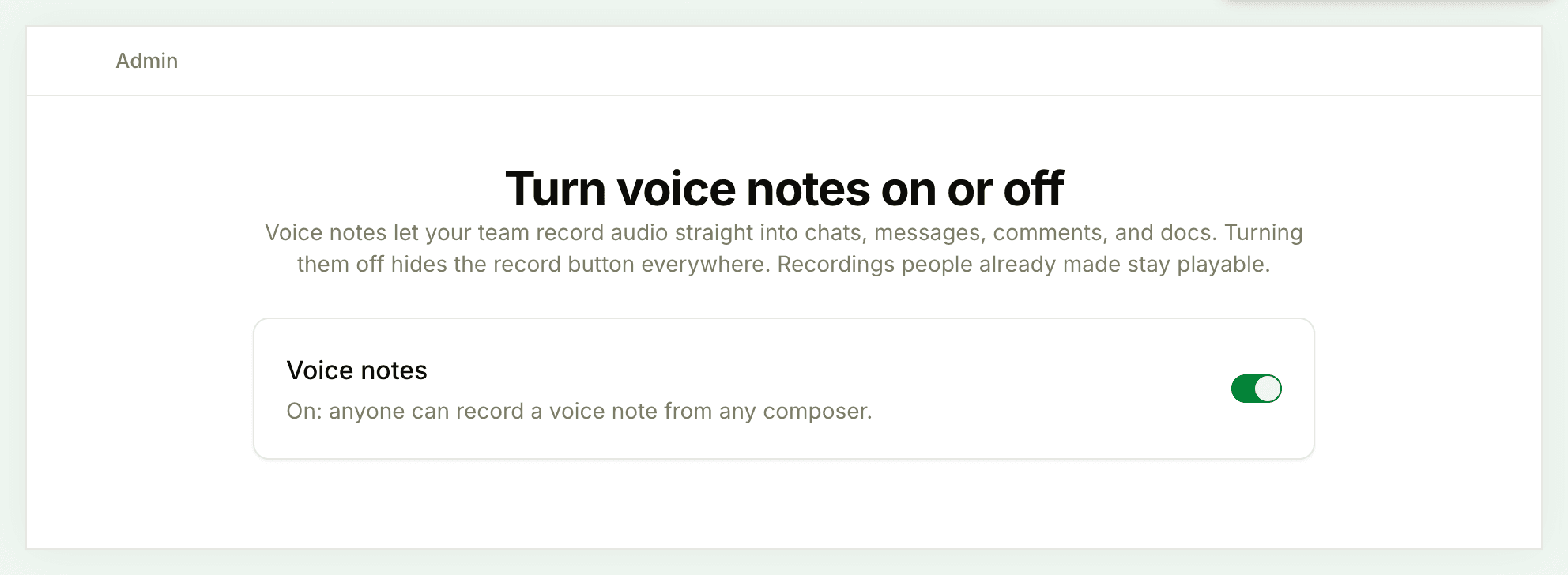
With the switch off, the page reads "Off: the record button is hidden everywhere. Nothing already recorded is deleted." Voice notes people have already posted stay playable. Switch it back on to bring the microphone back. For the other account-wide settings, see Customizing Your Account.