
Inviting People
Invite teammates and clients by email or with a shareable link, choose the projects they join, and follow up on invitations that are still pending.
Before someone can work in your projects, they need to join your account. Owners and admins invite people, one at a time or several at once, by email or with a shareable link.
Team members can add people who are already in the account to a project (see Adding People to a Project), but they can't invite anyone new. If you need someone invited, ask an owner or admin. The Admin page, under your account's name at the top of the sidebar, lists who they are.
Sending Invitations
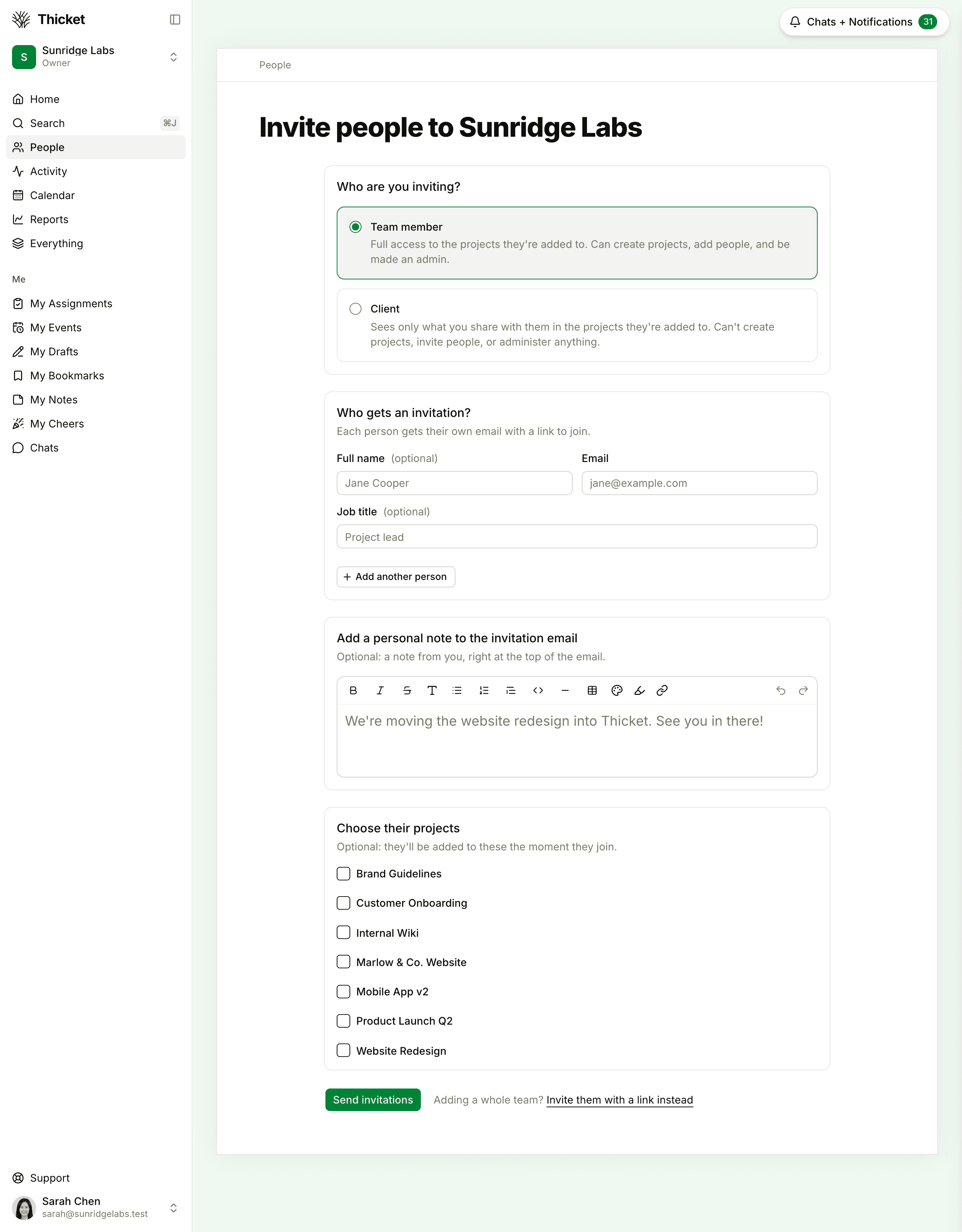
- Click People in the sidebar, then Invite people.
- Under Who are you inviting?, choose Team member or Client.
- Enter each person's Email, and if you like, their Full name and Job title. For a client, also choose their Company, or pick New company… and type its name.
- To invite more people with the same settings, click Add another person. You can invite up to 50 people at once.
- Optionally, write a personal note. It appears at the top of the invitation email.
- Under Choose their projects, tick the projects they should join. They're added to them the moment they accept.
- Click Send invitations.
Each person gets their own email, and you're taken back to the People page, where each pending invitation is listed with the date you sent it.
Team Member or Client
The type you choose applies across your whole account: someone can't be a team member on one project and a client on another.
- A Team member sees everything in the projects they're on, can create projects and add people to them, and can later be made an admin or owner.
- A Client sees only what your team shares with them, in the projects you add them to. Clients can't create projects, invite people, or run anything in Admin. Each client you invite joins a client company, and when you invite clients, the project list shows only projects that work with clients. See Working with Clients.
You can't invite someone straight in as an admin or owner. Invite them as a team member, then change their role once they've joined: see Changing User Types.
Inviting a Whole Team with a Link
To add a lot of coworkers without typing every address, share one link:
- On the Invite people page, with Team member chosen, click Invite them with a link instead.
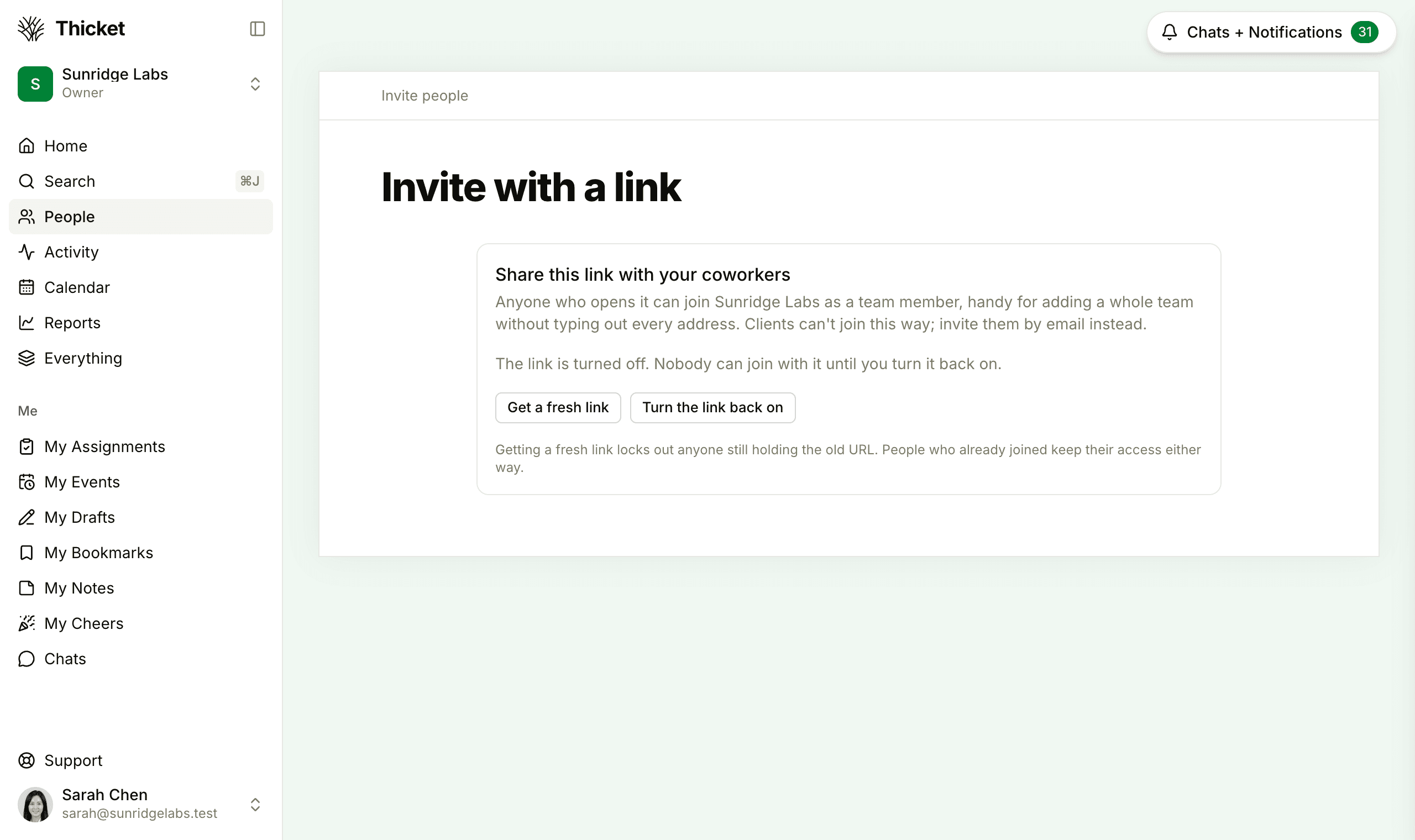
- If the page says the link is turned off, click Turn the link back on.
- Click Copy and share the link where your coworkers will see it.
Anyone who opens the link can join your account as a team member. Clients can't join this way, so invite them by email. The same page has two more controls:
- Get a fresh link replaces the link and turns it on. Anyone holding the old link can no longer use it.
- Turn off the link stops it working until you click Turn the link back on.
People who already joined keep their access either way.
What the Invitation Email Says
The invitation comes from you: your name is on it, and replies go straight to you. It has a button to join your account, your note if you wrote one, and a count of what's waiting in any projects you chose. What happens next depends on the person:
- If they already have a Thicket account with that email address, they sign in and land in your account.
- If they're new to Thicket, they choose a password, or click Continue with Google, and land in your account. There's no separate signup.
Invitations expire after 14 days. The email also has a link to decline, and if they use it, you get an email saying so. If someone can't find their invitation, see Invitation Problems.
Following Up on Pending Invitations
Owners and admins see pending invitations on the People page. A badge shows where each one stands:
- Invited and the date you sent it, joined by Delivered once their mail server accepts the email
- Email queued while the email waits to go out
- Declined if they turned it down
- Email bounced, Email failed, Email bouncing or Email not sent if the email can't reach them. Copy their invite link and send it another way.
Click the ••• button on a pending invitation to:
- Set up their projects…: change the projects they'll join when they accept. They get an email about any project you add.
- Copy invite link: copy their personal join link to send another way, such as a text message. It works exactly like the button in the email.
- Resend invitation: send a reminder. It gives them another 14 days, and revives an invitation they declined. If an invitation email went to that address within the last hour, wait, or copy the invite link instead.
- Revoke invitation: cancel it. The link in their email stops working.
Inviting the same address again doesn't create a second invitation. If you chose new projects, they get an email about those; otherwise, use Resend invitation.
How Many People You Can Invite
On the Free and Starter plans, your account can have up to 20 people, clients included. Pending invitations count too, until they're declined or expire. Pro has no limit on people. AI agents and people you've removed don't count. See Billing and Plans.
Inviting Someone from a Project
Owners and admins can also invite a new person from a project's people page, and they land in that project when they accept. See Adding People to a Project.