
Following and Unfollowing Discussions
Choose which discussions notify you: follow or stop following an item, choose who else is notified, and unsubscribe straight from an email.
Every message, to-do, doc, file, event and other item in a project keeps a list of the people who follow it. When someone comments, everyone following is notified. Following the discussions that matter to you, and dropping the ones that don't, keeps your notifications useful.
How You Start Following
You follow an item automatically when:
- You post it. For messages, docs and files, the When this posts, notify… choice decides who follows: Everyone on this project, Only the people I pick…, or No one (then nobody follows until they opt in, not even you).
- You comment on it.
- Someone @-mentions you in it. See @-mentions.
- You're assigned to it, or you assign it to someone else.
- Someone adds you to its notify list.
- You're asked a check-in question: you follow its answers.
- You're a client, and your team shares it with you. For a message, doc or file shared as it's posted, the When this posts, notify… choice decides.
Follow or Stop Following an Item
At the bottom of an item's page, a box shows who's being notified, with two buttons:
- Notify me starts following.
- Don't notify me stops.

On a to-do list, the line reads something like "3 people will be notified when someone comments on this to-do list." On a to-do, the When done row lists who's told when it's completed; they also hear about its comments.
Once you stop following, you won't hear about the item again unless someone mentions you or assigns it to you. Either one makes you a follower again.
Choose Who Else Is Notified
- At the bottom of the item, click Add/remove people… (on a to-do, click the names in the When done row, or Notify these people…).
- In Who should get notified?, tick the people who should follow. Select everyone and Select no one are shortcuts.
- Choose Quietly: they'll hear about the next comment, or Notify the people I'm adding right now to tell them immediately.
- Click Save.
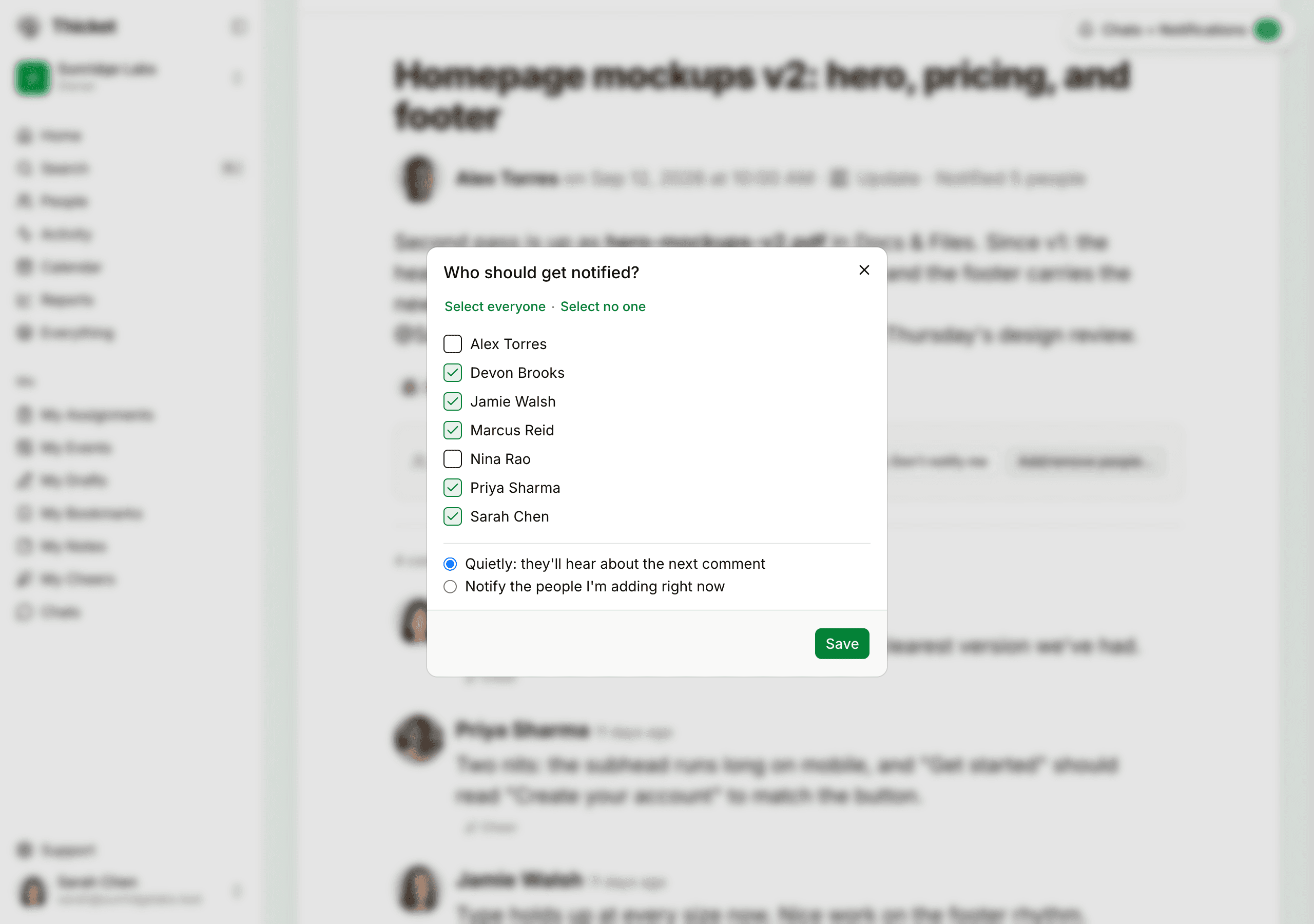
The list offers only people who can see the item: the people on the project, or everyone on your team when the project is open to everyone. Clients appear only when the item is shared with clients.
Unsubscribe from an Email
Every notification email ends with a link: unsubscribe from this thread. Click it and you stop following that item, without signing in. The page that opens confirms it, and has a Resubscribe button in case you change your mind.
You can also stop following from Chats + Notifications: under Previous notifications, point at a notification, click •••, and choose Stop notifications about this. See Chats and Notifications.
Chat Notifications
A project chat is followed as a whole. At the top of the chat, click Notify me about new messages to follow it. The button then reads Notifying you; click it again to stop.
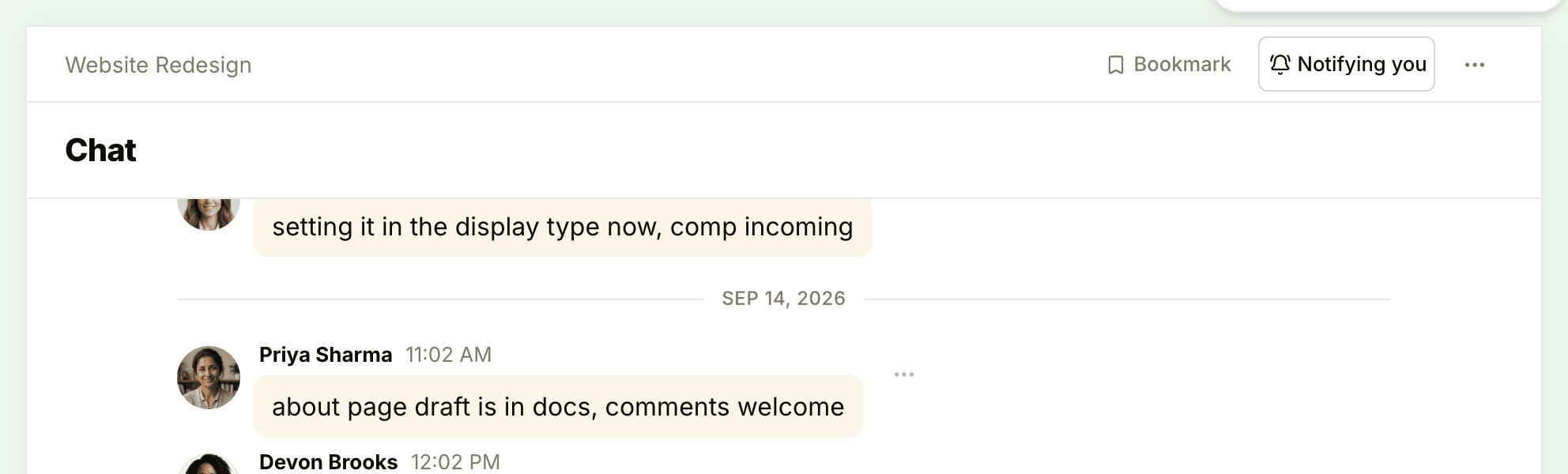
While you follow a chat, new lines collect into one notification that stays put until you read it, rather than one per line. You get an email or phone notification only for the first line after six or more quiet hours. When someone @-mentions you in the chat, you're notified about that line right away. To see or change who follows the chat, your team can open the chat's ••• menu and choose the Notifying item, which shows how many people follow it.
New To-dos and Cards
Some things are worth following before anyone comments:
- To-do lists: open the list's ••• menu, or the ⋮ beside the list on the To-dos page, and choose Notify me about new to-dos. For to-dos added outside any list, open the To-dos page's ••• menu and choose Notify me when to-dos are added outside a list.
- Board columns: open the column's ••• menu and choose Watch this column to hear about new cards and comments on the column.
Following and Your Notification Settings
Following wins over your broader settings. If you've set Thicket, or a project, to notify you only when someone @-mentions you, you still hear about new comments on the items you follow. Whether those notifications also reach your email is up to your email settings. See Notification Settings.
Closing Comments
When a discussion has run its course, the person who posted it, an admin or an owner can open the item's ••• menu and choose Close comments. The page then says "Comments are closed on this.": nobody can add comments or cheers, and the ones already there stay. Reopen comments, in the same menu, opens it up again. See Comments and References.