
Getting Started as a Client
Accept your invitation, find the project a team shared with you, review and approve their work, and know how to reach them.
When a team uses Thicket to work with you, they invite you as a client. You see the projects they add you to, and inside each one, only the messages, to-dos, files, and other items they choose to share with you. The rest of their work stays with their team. This guide shows you where to start.
Accept your invitation
Your invitation arrives by email from the person who invited you, with a subject like "Sarah Chen invited you to Sunridge Labs on Thicket." The name at the end is the team's organization, not yours. Click the Join button in the email, then:
- New to Thicket? Enter your Name, choose a password of at least 8 characters, tick the agreement box, and click the Join button. There's no separate sign-up and nothing to pay.
- Already have a Thicket account for that address? Enter your password and click Sign in and join.
- Prefer Apple or Google? Click Continue with Apple or Continue with Google, if that account uses the address the invitation was sent to. If you're new to Thicket, tick the agreement box first: the buttons work once it's ticked.
The invitation expires after 14 days. If it has expired, reply to the invitation email: replies go straight to the person who invited you. See Invitation Problems for more.
Next time, sign in at thickethq.com with the same email address. See Signing In and Out.
Find your project
After you sign in, Thicket opens Home, which lists the projects you've been added to. Beside them, Latest activity shows the newest items the team has shared with you. Click a project to open it.
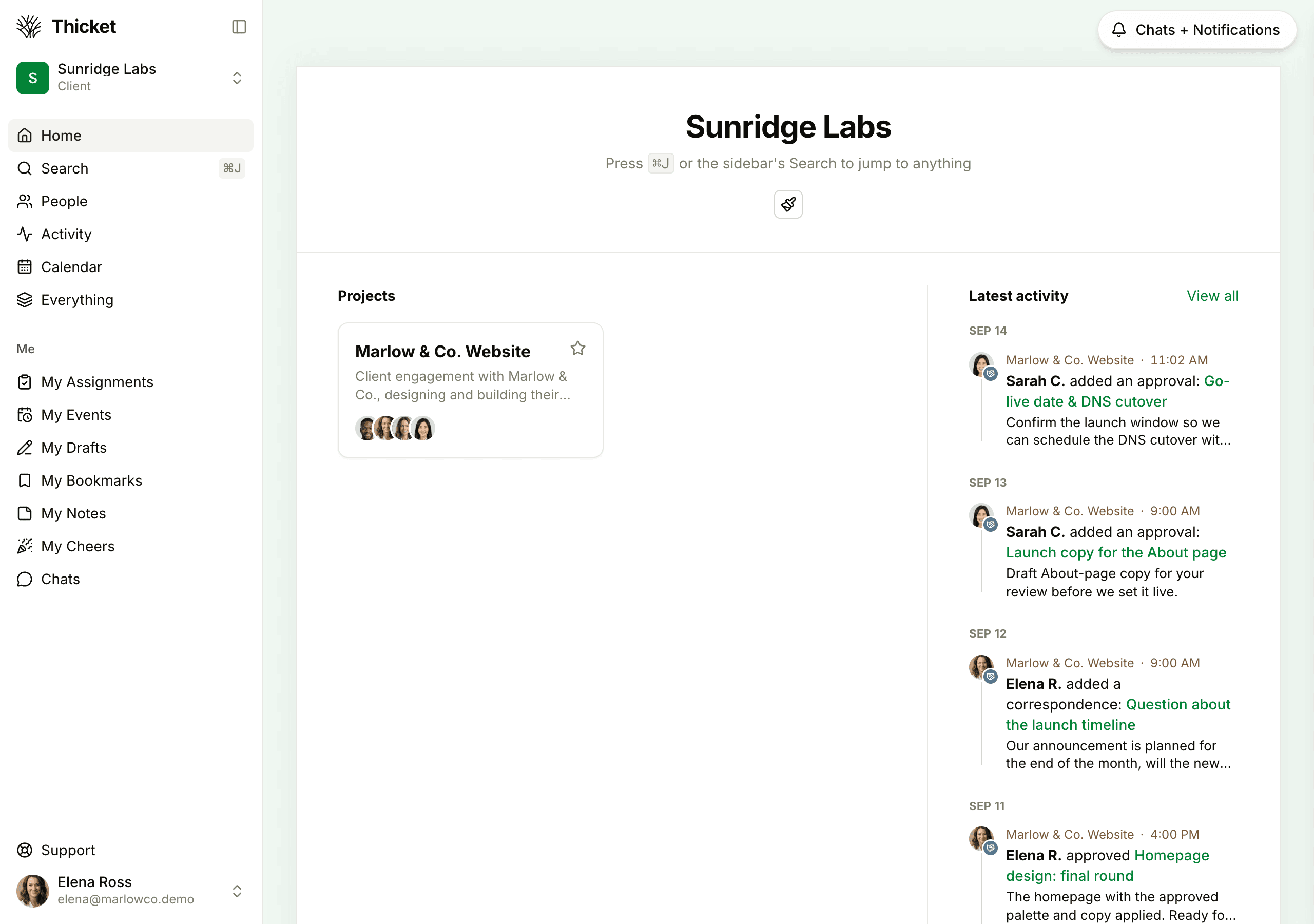
If Home is empty, the team hasn't added you to a project yet. It will appear as soon as they do.
What you'll see in a project
A project page shows the team's tools, such as a Message Board for updates, To-dos, Docs & Files, and a Calendar. Inside each tool you see only what the team has shared with clients, so a tool can look empty until they share something in it. The people on the project are shown under its name.
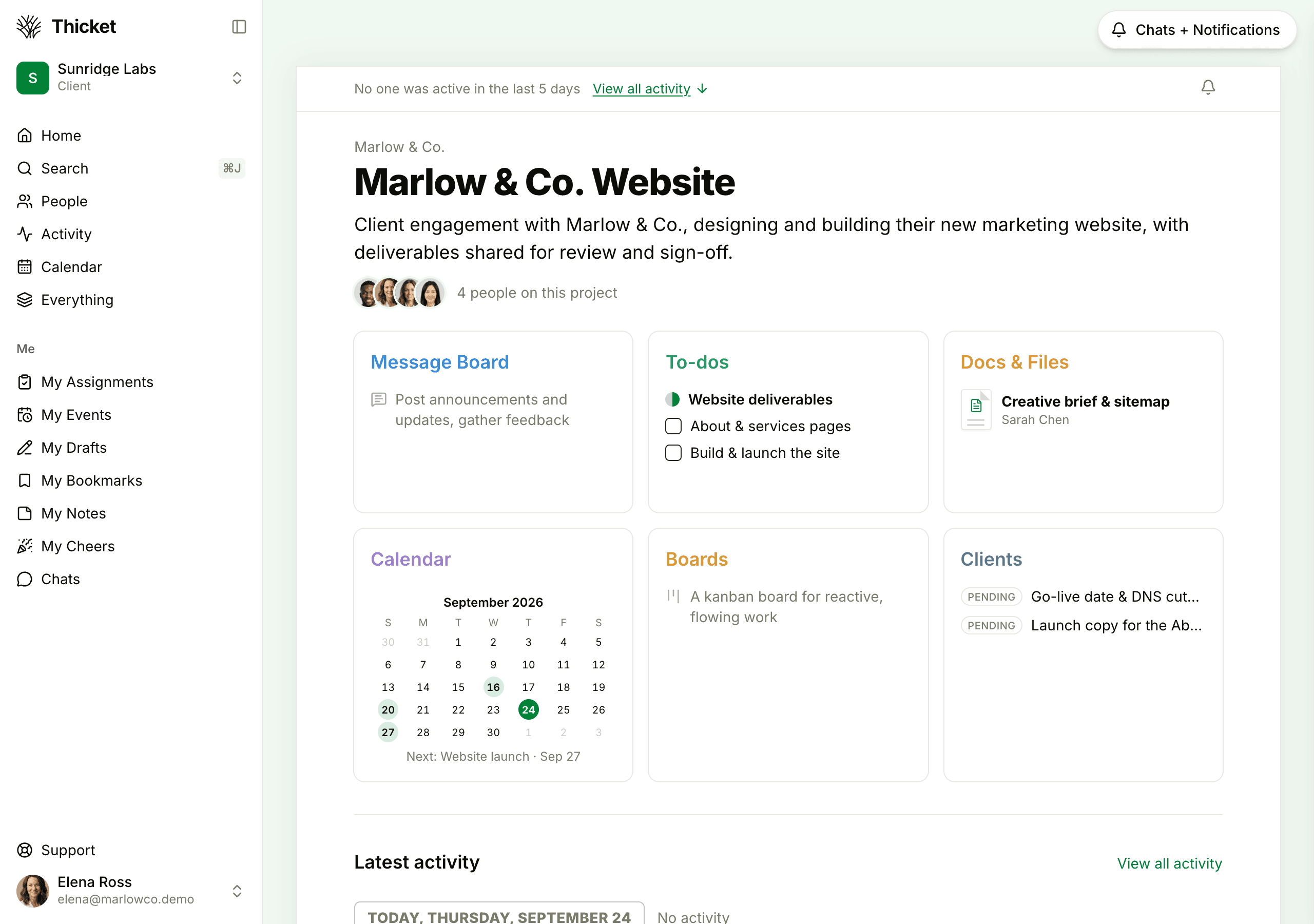
You can comment on anything you can see, and the team sees your comments. To start a new conversation, open the Message Board and click New message. Anything you post is visible to the team.
Approvals and correspondence
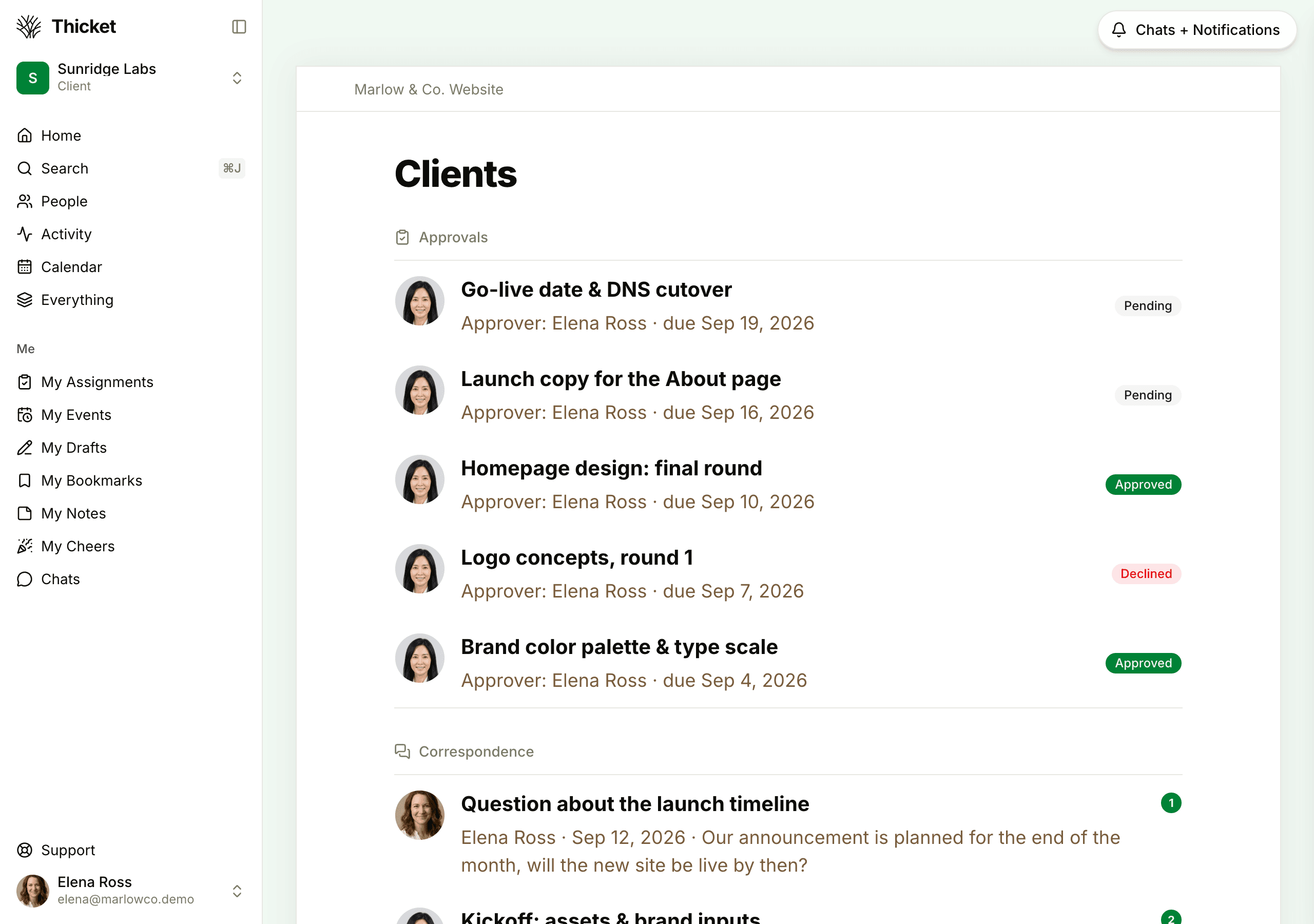
Many teams add a Clients tool to projects they share with clients. It holds two lists:
- Approvals are requests for your sign-off: a design, a date, a piece of copy. Each shows who the approver is, when it's due, and whether it's Pending, Approved, or Declined. If you're the approver, open it and click Approve or Decline. You can decide once, and you can comment before or after you do.
- Correspondence holds conversations the team starts with you. Open one and add a comment to reply.
Stay in the loop
When the team mentions you, assigns you something, or replies on something you're following, it shows up in Chats + Notifications at the top right of the page, and in your email. You can change how often Thicket emails you in My settings, under your name at the bottom of the sidebar. See Notification Settings.
You can also start a private chat from Chats in the sidebar with the team's owners and admins, and with people on your projects, unless the team has turned private chats off for your company.
Know who to contact
For questions about the work, ask the team in the project: comment on the item it's about, and type @ followed by a name to make sure that person is notified. See @-mentions.
For trouble with Thicket itself, such as signing in or missing emails, click Support at the bottom of the sidebar to write to the people who build Thicket. To learn more about working in a team's projects, see Using Thicket as a Client and What Clients Can See and Do.