
Using Thicket as a Client
For clients: find your way around, post and comment, answer approvals, reply to correspondence, chat privately, and manage your notifications.
A team has invited you into Thicket as a client, so you can follow their work for you and talk it through in one place. You see the projects they add you to, and inside each one, the items they've shared with you. If you haven't accepted your invitation yet, start with Getting Started as a Client.
Finding Your Way Around
The sidebar on the left is your map:
- Home lists your projects, with the latest activity beside them.
- Search finds projects, people and anything shared with you.
- People lists the team's owners and admins and the people on your projects.
- Activity, Calendar and Everything gather what's been shared with you across all your projects.
- Under Me: My Assignments, My Events, My Bookmarks, My Notes, My Cheers and Chats.
Chats + Notifications sits at the top right of every page. Support, at the bottom of the sidebar, is for problems with Thicket itself.
What's in a Project
A project page shows the tools the team uses for it, such as a Message Board, To-dos, Docs & Files, a Calendar, Chat and a Clients tool. If the team has named your company on the project, the name appears above the project's name. The people on the project are listed under it.
Inside each tool you see only what's been shared with you, so a tool can look empty until the team shares something there. That's normal: the team decides what to share, item by item.
Posting and Commenting
You can take part anywhere you can see:
- Comment on any message, to-do, doc, event or other item with the box at the bottom of its page, then click Post comment.
- Post a message: open the Message Board, click New message, add a Title and your message, and click Post message.
- Add to-dos: open a list the team has shared and click Add a to-do.
- Add an event: click New event in the project's Calendar.
- Chat: when the team has shared the project's chat, type in the box at the bottom.
- Cheer something to show appreciation. See Cheers.
What you post goes up right away: saving drafts and scheduling posts are for the team. Everything you post can be seen by the team and by any other clients on the project. When you post or comment, people following that item are notified according to their own settings. To make sure a particular person sees it, type @ and their name. See @-mentions.
Approvals
When the team needs your sign-off on a design, a date or a piece of copy, they send you an approval. You get a notification saying they've requested your approval and, if you get email notifications, an email whose subject starts with "Approval requested."
Open it from the notification, or from Approvals in the project's Clients tool. The page shows who requested it, who the Approver is and when it's Due. If you're the approver, click Approve or Decline.
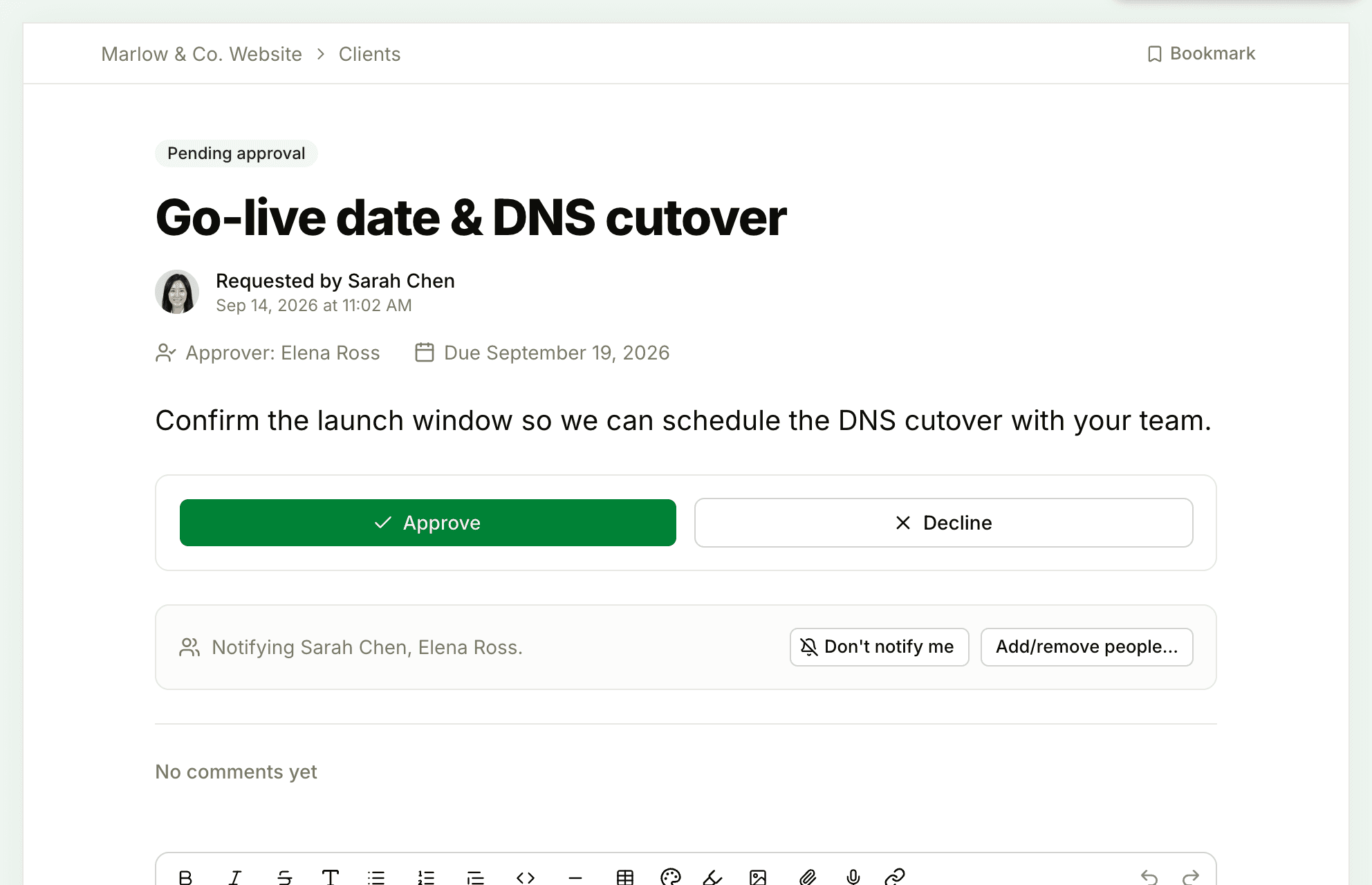
You can decide once, and the page then shows your answer and when you gave it. Leave a comment before or after you decide to explain your choice or ask for changes. Only the named approver sees the buttons.
Correspondence
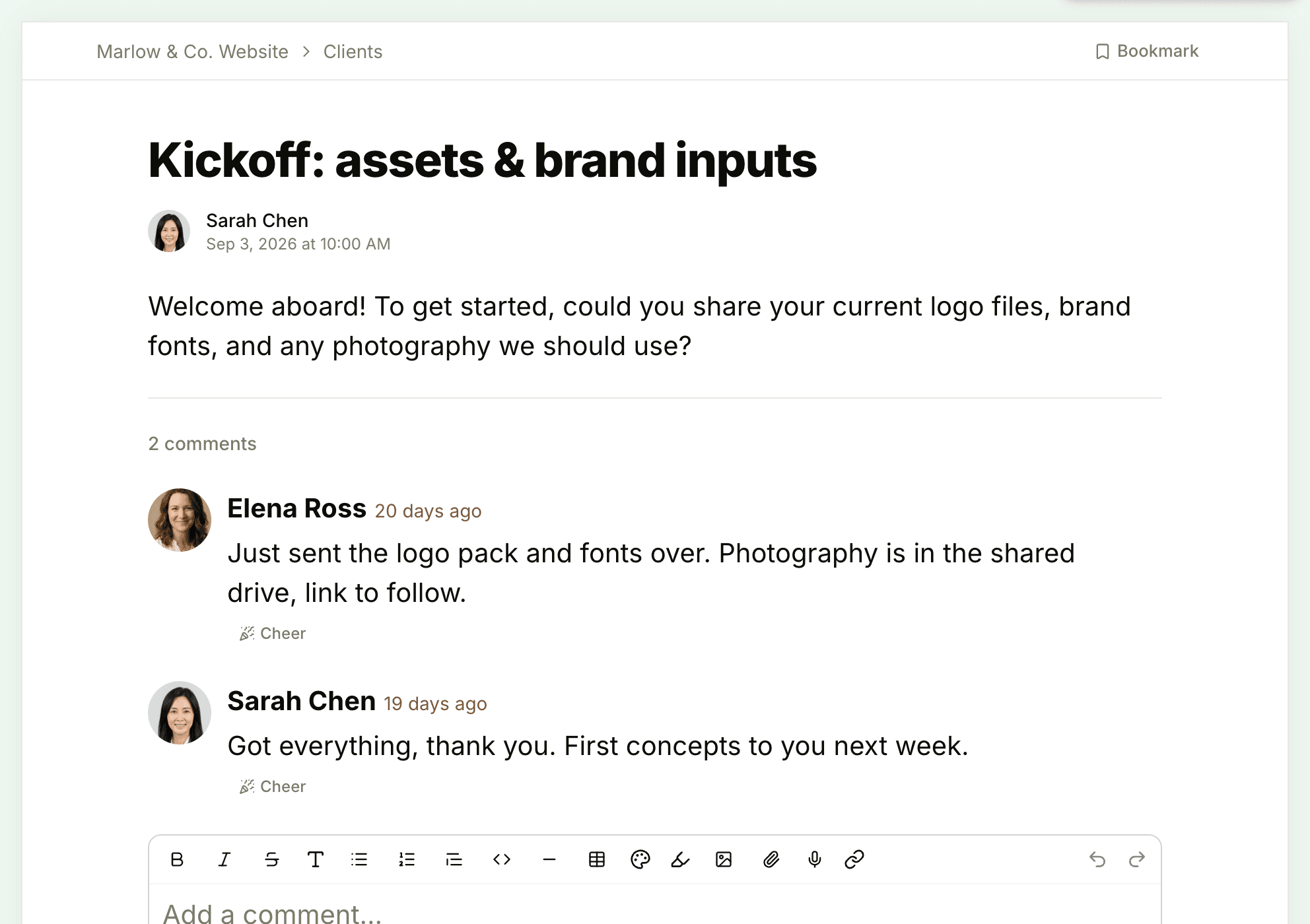
Correspondence holds conversations the team starts with you, listed under Correspondence in the Clients tool. Open a thread and add a comment to reply. Everyone following the thread is notified.
Reaching Someone Directly
For a private conversation, open Chats in the sidebar, or Chats + Notifications, and click New chat. You can chat with the account's owners and admins and with people on your projects, unless the team has turned private chats off for your company. See Group Chat and Direct Messages.
Staying Up to Date
Chats + Notifications collects everything that needs your attention: replies on items you follow, mentions, and approvals waiting for you. You start following items when the team shares them with you, and when you post, comment or get mentioned.
At the bottom of a message, doc, file, event, approval or correspondence thread, click Notify me to follow it or Don't notify me to stop, and Add/remove people… to choose who else hears about it. To come back to something later, open its ••• menu and choose Remind me…. See Remind Me Later.
To change how Thicket notifies you, click your name at the bottom of the sidebar and choose My settings. There you can choose between Notify me about everything and Only when someone @-mentions me, assigns me, or messages me, and turn Send me email notifications on or off. See Notification Settings.
To stop hearing about one item, click unsubscribe from this thread at the bottom of any notification email about it. See Following and Unfollowing Discussions.
Getting Help
Questions about the work belong in the project: comment on the item it's about and @-mention the person who can answer. For problems with Thicket itself, such as signing in or missing emails, click Support. See Contacting Support.