Getting Started as a Team Member
Accept your invitation, find the projects you work on, and set up the profile and notifications your team will see.
When someone on your team invites you to Thicket, you join their organization as a team member. You can see every project that's open to everyone in the organization, plus any project someone adds you to. You can post and comment in any tool, and start projects of your own. This guide covers your first steps.
Accept your invitation
Your invitation arrives by email, with a subject like "Sarah Chen invited you to Sunridge Labs on Thicket." Click Join Sunridge Labs (the button carries your organization's name), and Thicket opens a page to finish joining:
- New to Thicket? Your email address is already filled in. Enter your Name, choose a password of at least 8 characters, tick the agreement box, and click the Join button.
- Already have a Thicket account for that address? Enter your password and click Sign in and join.
- Prefer Apple or Google? Click Continue with Apple or Continue with Google, but only if that account uses the same email address the invitation went to. The invitation is tied to that address. If you're new to Thicket, tick the agreement box first: the buttons work once it's ticked.
If you're signed in to Thicket with a different address, the page says so and offers Sign out and continue. An invitation expires after 14 days. If yours has expired or never arrived, ask the person who invited you to send a new one, or see Invitation Problems.
Some teams share an invite link instead of sending emails. Opening it shows the same kind of page, where you enter your name, email, and password to join.
Find your way around
After you join, Thicket opens your organization's Home. It shows the projects you can see, with the latest activity across them beside it. A welcome card at the top explains the two ways to get around. Click Got it to put it away for good.
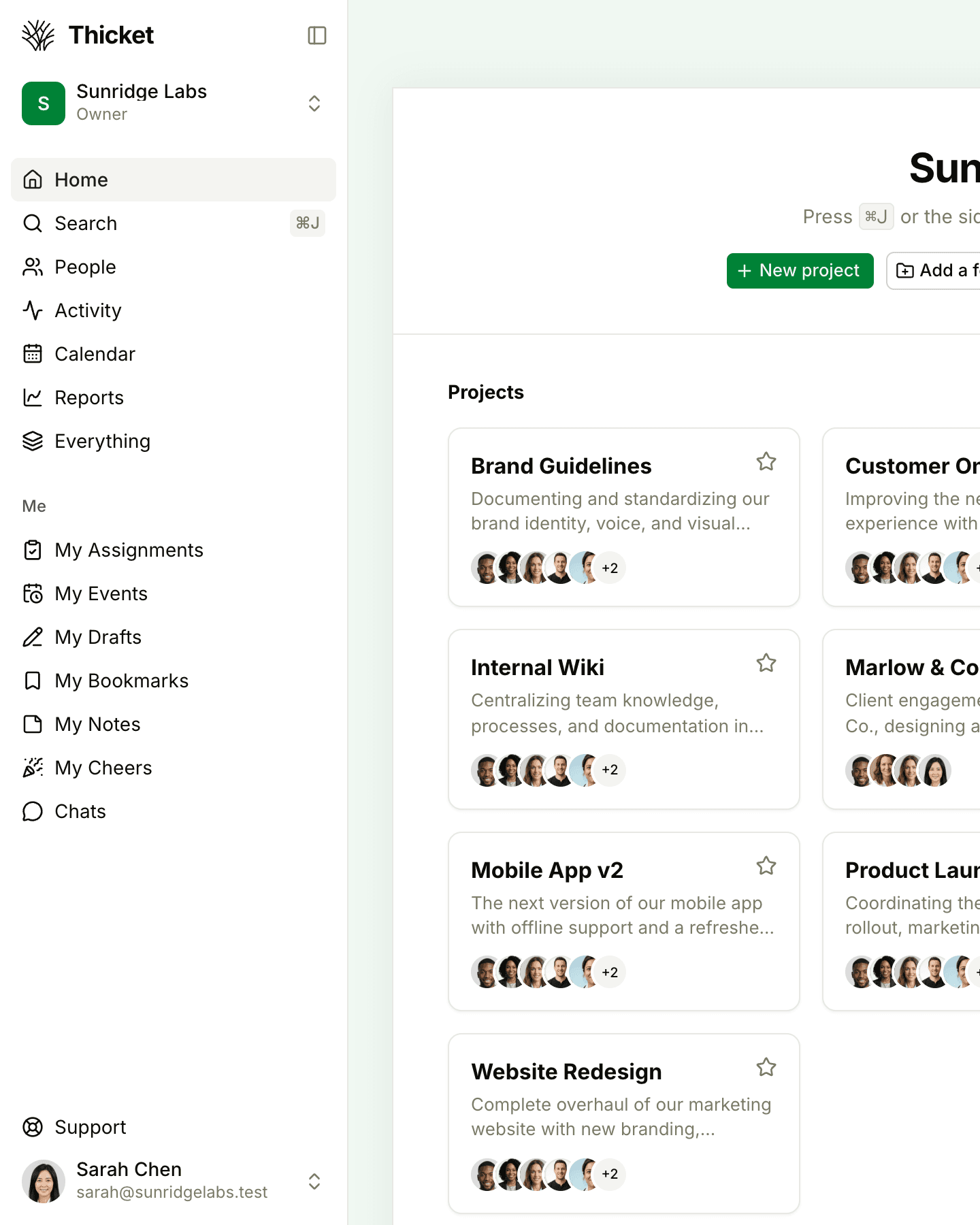
- The sidebar lists every place in Thicket: Home, Search, People, Activity, Calendar, Reports, and Everything, then your own pages under Me.
- ⌘J on a Mac (Ctrl+J on Windows), or Search in the sidebar, jumps to any project, person, or page as you type its name.
- Chats + Notifications, at the top right of every page, is where mentions, assignments, and replies arrive.
Click a project's star on Home to keep it at the front. For a tour of the page, see The Home Screen.
Work in a project
Open a project from Home to see its tools. Each project has its own set, and most have a Message Board for updates and discussions, To-dos for tasks, Docs & Files for documents and uploads, a Calendar, Boards for work that moves through stages, and a Chat for quick questions. How to Work in Thicket explains which tool suits which kind of work.
A good first step is to read the newest messages and check the to-dos. Anything assigned to you also appears under My Assignments in the sidebar. See My Assignments.
Know what needs you
Thicket tells you when something involves you: someone @mentions you, assigns you a to-do or a card, or replies on something you're following. Those arrive under New for you in Chats + Notifications, and by email unless you turn email off. Commenting on an item follows it for you, so you hear about later replies. See Chats and Notifications and Following and Unfollowing Discussions.
Set up your profile and notifications
Click your name at the bottom of the sidebar and choose My settings:
- Profile: add a photo, and check your name. Your teammates see these on everything you post.
- Preferences: set your time zone, so due dates and events show at the right time for you.
- Notifications: choose Notify me about everything, or Only when someone @-mentions me, assigns me, or messages me, and decide whether Thicket also emails you.
- Quiet hours: hold notification emails outside your working hours.
See Your Profile and Preferences and Notification Settings. To keep up from your phone, see Thicket for iPhone and iPad.
Getting help
Account settings belong to the owners and admins. If you open Admin, Thicket lists who they are so you know whom to ask. For help with Thicket itself, click Support at the bottom of the sidebar. It links to these help articles and has a form that goes to the people who build Thicket.
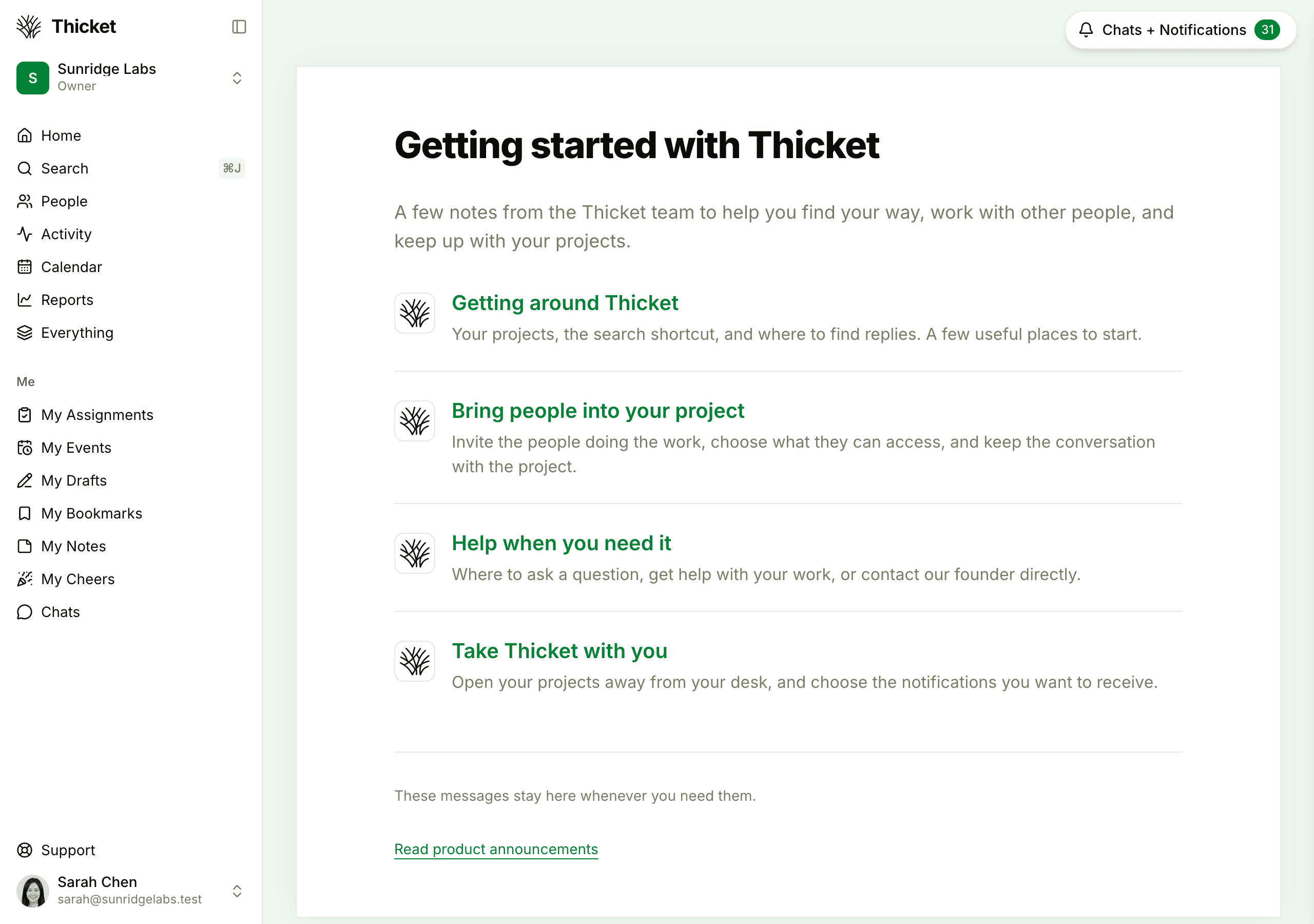
During your first week, a few short getting-started messages from the Thicket team arrive in Chats + Notifications. To read them again, click Support, then Read the getting-started messages. Team members see three of them. Owners and admins also get Bring people into your project, about inviting people.