
The Home Screen
Find your way around Home: your projects, stars, folders and card colors, the latest activity, and the buttons for creating and inviting.
Home is the first page you see after you sign in. It lists your organization's projects on the left and what's been happening across them on the right. To get back to it from anywhere, click Home at the top of the sidebar, click the Thicket logo, or press Shift+H.
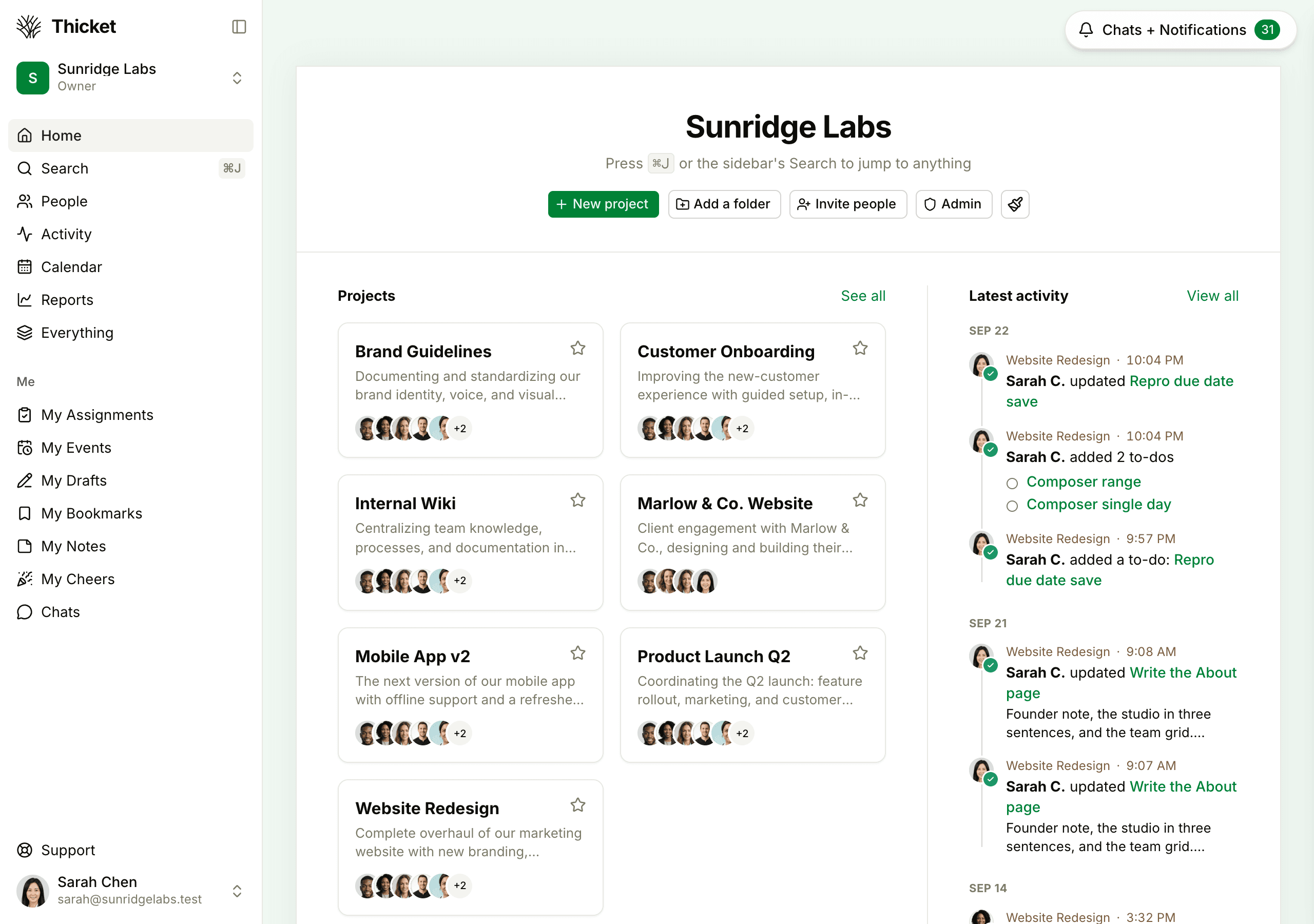
The top of Home
Your organization's name heads the page, with a reminder that ⌘J (Ctrl+J on Windows) or the sidebar's Search jumps to anything. Below it is a row of buttons:
- New project starts a project. Everyone except clients can create projects. See Creating and Setting Up a Project.
- Add a folder creates a folder for grouping projects (see below).
- Invite people opens the invitation form. Only owners and admins see it. See Inviting People.
- Admin opens the account settings. Owners and admins manage them there, and everyone else sees who the owners and admins are. See The Admin Area.
- The paintbrush button sets the Background color, covered below.
Clients see only the paintbrush.
Your projects
Each project is a card with its name, the start of its description, and the faces of up to five people on it. Click a card to open the project.
Starred projects come first, and the rest follow in alphabetical order. Home shows up to 40 projects outside folders. See all, above the cards, opens the Project directory, which lists every project you can see under Active, Archived, and In the trash.
Clients see only the projects they've been added to, in one list with no folders. An account owner also sees All projects on this account below the cards: projects they haven't joined yet, each with an Add yourself button. Joining is recorded in the project's activity.
Starring projects
Click the star at the top right of a card to star it. Starred projects move to the front of Home, in the order you starred them. To change that order, unstar a project and star it again, which moves it to the end of your starred projects. Stars are personal: starring a project doesn't change anyone else's Home.
Card colors
Hover over a card and a small color ring appears at its bottom right. Click the ring and pick yellow, orange, coral, pink, purple, blue, green, tan, or gray, or No color to clear it. The color shows as a small square before the project's name, the same mark the calendar uses for that project.
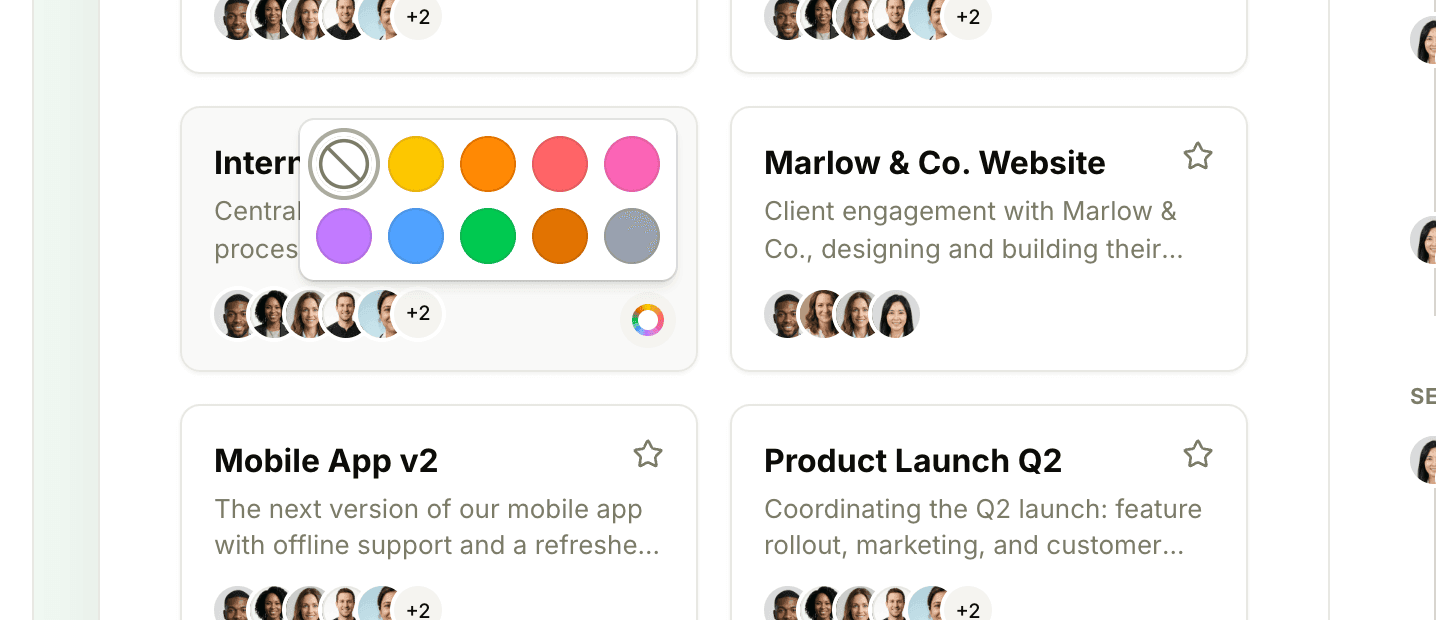
A project's color belongs to the project, so everyone sees the same one. Clients can't change it, and if an admin has turned on Restrict who can edit project details, only owners, admins, and the project's creator can.
Folders
Folders group projects on Home, for example by client or by department. They're shared, so everyone on the team sees the same folders. Clients never see them.
- Click Add a folder
- Type a Folder name and click Create folder
- Drag a project card onto the folder's tile to file it
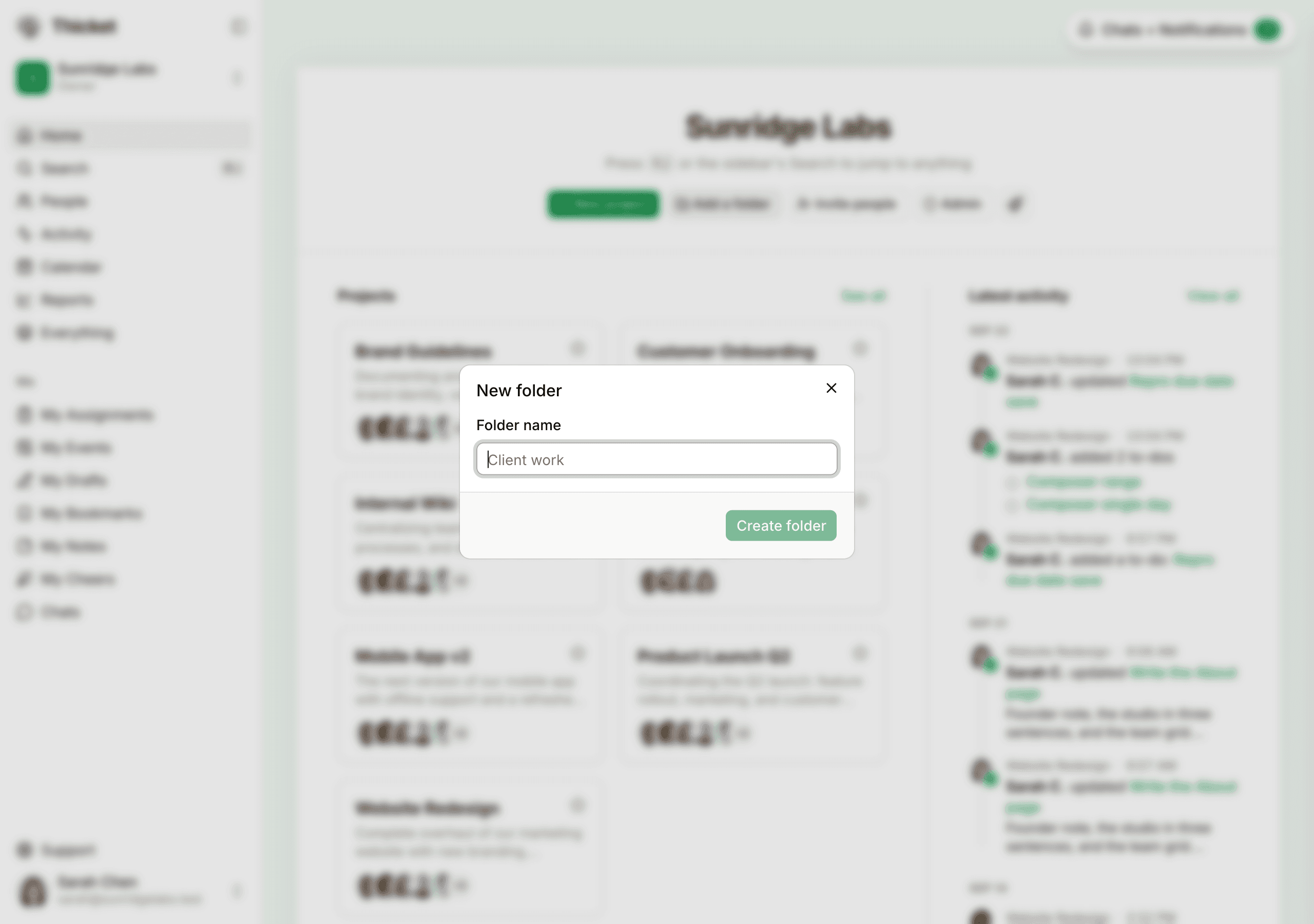
Folder tiles appear after the project cards and show how many projects each holds. Click a tile to open the folder. Inside, drag a card onto the Drag projects here to remove them from this folder area to move it back to Home, and click All projects to go back.
The ••• button on a folder has Rename folder… and Delete folder…. Deleting a folder moves its projects back to Home and deletes nothing inside them.
You can also drag with the keyboard: tab to a project card, press Space to pick it up, use the arrow keys to reach a folder, and press Space again to drop it.
Latest activity
The right side of Home shows the newest things that happened in the projects you can see: messages posted, to-dos added and completed, comments, and more, grouped by day. Click any item to open it. View all opens the full Latest activity page, where you can filter by project and person. See Latest Activity.
Below the list, Thicket shows how many people were active in the last 24 hours, with their photos.
Background color
The paintbrush button at the end of the row picks the color behind the page: Plain paper, Linen, Morning mist, Sage, or Blush. It applies everywhere in Thicket, only for you, and only in light mode.
Notices at the top of Home
A few things can appear above Home when they apply:
- A welcome card the first time you visit, with tips for getting around. Click Got it to dismiss it for good.
- A storage warning. Owners and admins see it when the account is close to its storage limit, and everyone sees it once the limit is reached. See Managing Storage.
- On the Free plan, the account owner sees "You're using Thicket Free." with a See upgrade options link. See Billing and Plans.