
How to Work in Thicket
Which tool to use for what, where conversations belong, and habits that keep every project clear for the people working in it.
Thicket keeps work organized by giving each piece of work one home: a project. Inside it, a handful of tools each suit a different kind of work. This article explains how the pieces fit together and suggests habits that keep projects easy to follow. There's no required method, so adapt it to how your team works.
One project per piece of work
A project holds everything about one piece of work: the people on it, the conversations, the tasks, the files, and the dates. A client engagement, a product launch, and a hiring round each make a good project. So does ongoing work with no end date, such as a team's weekly operations or a company handbook.
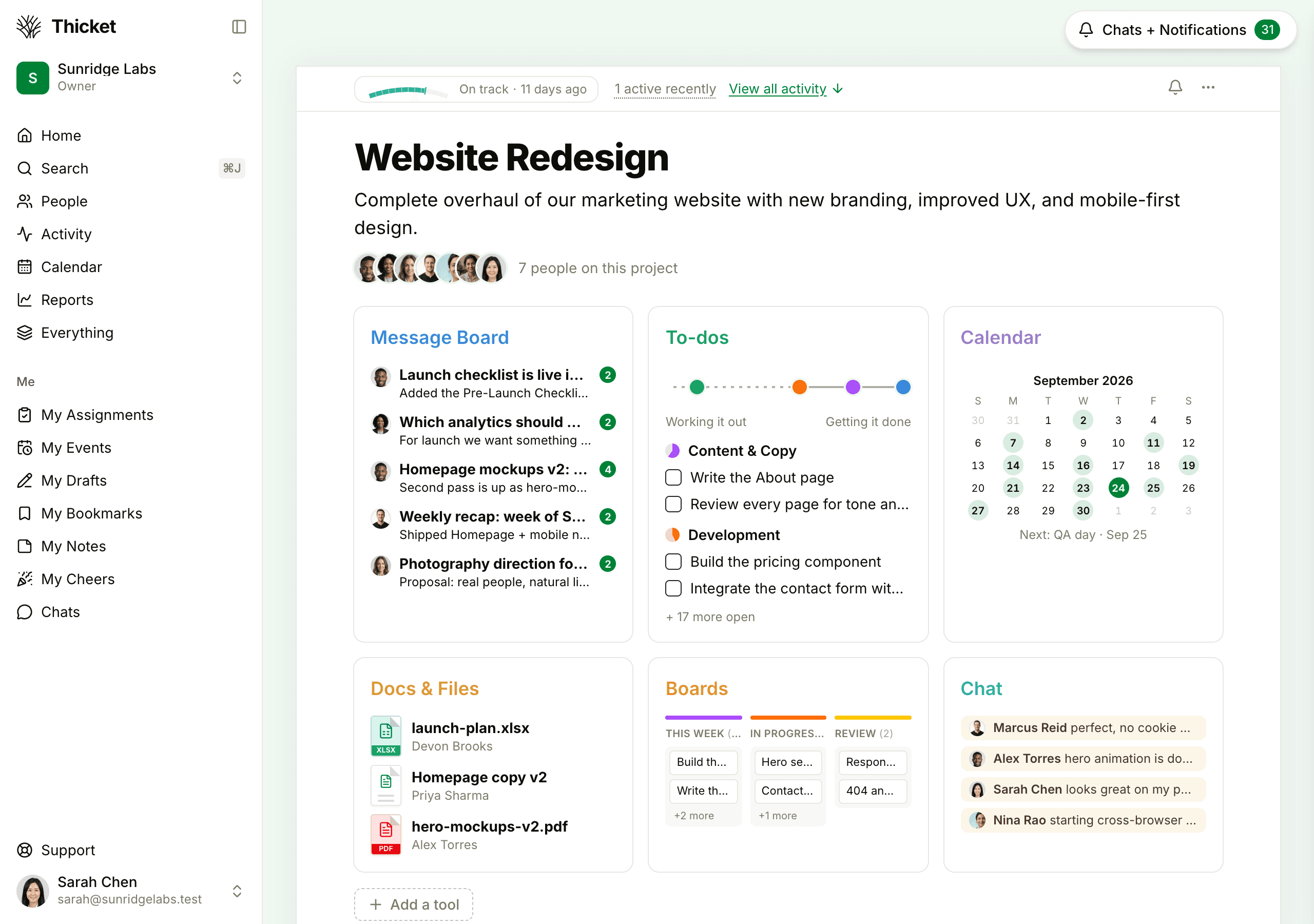
When everything about the work lives in its project, anyone who joins later can read back through it instead of asking around. Keep announcements for the whole company in a project that's open to everyone.
Which tool to use for what
Every new project starts with six tools. Use the ones the work needs:
- Message Board: announcements, proposals, and decisions that deserve their own titled thread. Comments stay underneath, so the discussion and the outcome sit in one place. See Message Boards.
- To-dos: tasks with someone responsible and, when timing matters, a due date. Group them into lists, and track a list's progress on a chart. See To-dos and Lists.
- Docs & Files: documents you write in Thicket, uploaded files, and links, organized in folders. See Docs and Files.
- Calendar: the dates everyone needs to know: meetings, deadlines, and milestones. See Schedule and Events.
- Boards: work that moves through stages, such as requests, bugs, or a content pipeline, with cards that move across columns. See Boards.
- Chat: quick questions and casual back-and-forth that nobody will need to find later. See Group Chat and Direct Messages.
Two more are available when you want them:
- Check-ins ask your team a question on a schedule, such as "What did you work on today?", and collect the answers in one place. They can replace a status meeting. See Automatic Check-ins.
- Clients holds approvals and correspondence with clients in projects that work with clients. See Working with Clients.
To add a tool, click Add a tool below a project's tools and pick one. The same menu has External link, for linking the project to a service like GitHub or Figma (see External Links).
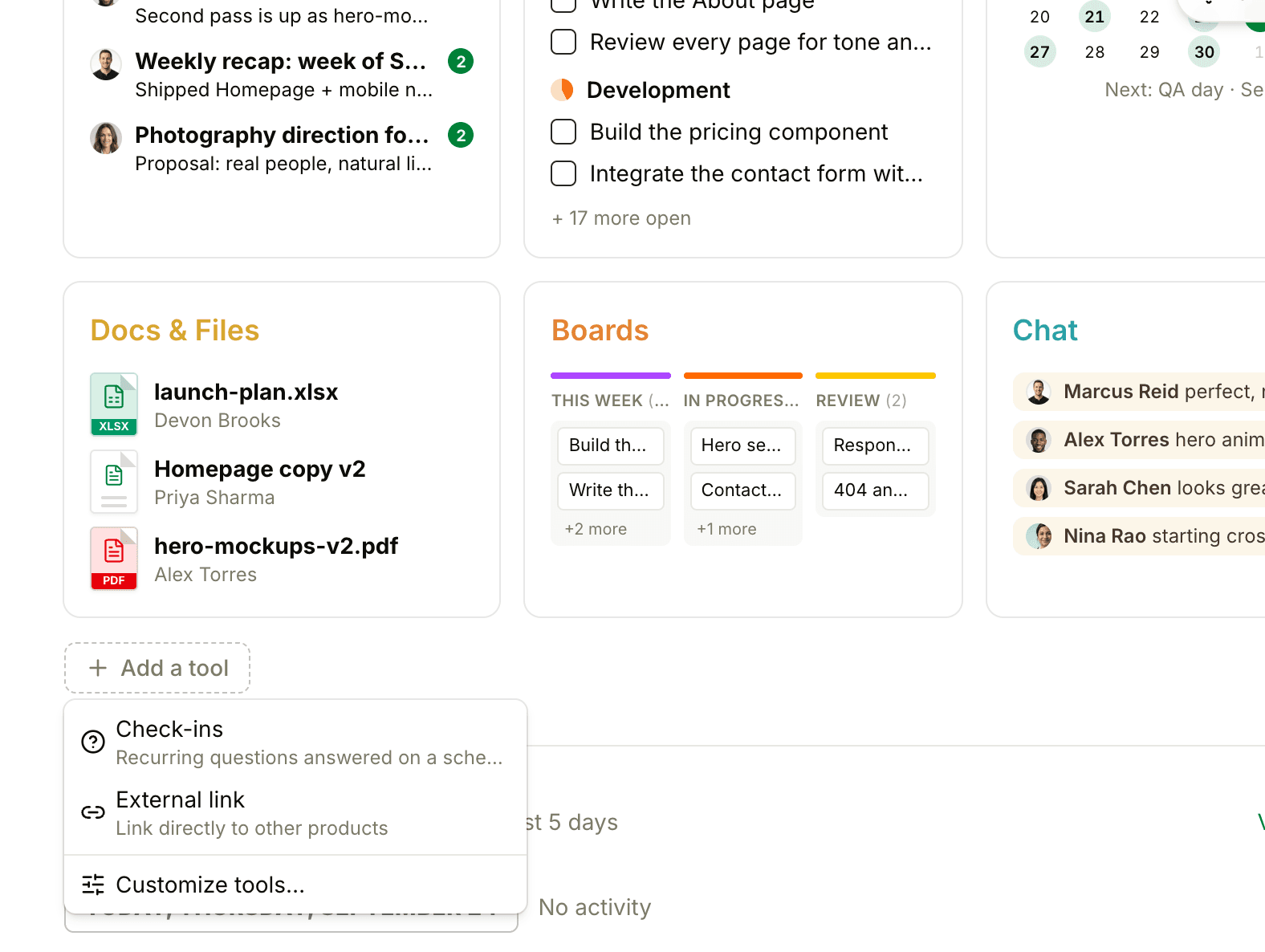
A small project might only need To-dos and Chat. Switch off the tools you don't use in the project's settings; switching one off hides it without deleting anything. You can also rename a tool in one project, or rename it for the whole account in Admin.
Keep conversations with the work
- Comment on the item itself. A question about a to-do belongs in the to-do's comments, not in chat or email, so the answer is there for the next person who opens it. See Comments and References.
- @mention people you need. Typing @ and a name notifies that person and brings them into the thread. See @-mentions.
- Use chat for the quick stuff. When a chat turns into a decision, write it up as a message so it doesn't scroll away.
- Keep private chats private. Chats in the sidebar are for one-to-one or small-group talk outside any project. Anything the rest of the project needs to know belongs in the project.
Habits that keep projects clear
- Give every to-do an owner. Assign it, and add a due date when timing matters. Everyone can see their own work under My Assignments.
- Write decisions down. Post them on the Message Board and pin the ones people will need to find again.
- Share progress where people look for it. Post updates on the project's progress chart or health gauge instead of waiting to be asked. See Progress Charts and Project Health.
- Check the reports. Reports show what's overdue, what's coming up, and who's working on what across every project. See Reports.
- Archive finished projects. Archiving takes a project off Home and keeps everything in it, and an admin can restore it later. See Archiving, Trash, and Restoring.
- Star the projects you use every day. Starred projects stay at the front of Home. See The Home Screen.
Working with clients
When clients are involved, give their work its own project and turn on working with clients from the project's People page. You then choose, item by item, what clients can see. Everything else stays with your team. See Working with Clients and What Clients Can See and Do.