
@-mentions
Type @ and a name to get someone’s attention in a message, comment or chat, mention a whole group at once, and know who a mention reaches.
An @-mention is the way to make sure a particular person sees something. Type @ followed by their name, and they get a notification that takes them straight to what you wrote.
Mention Someone
- In a message, comment, doc, to-do, card, chat line or check-in answer, type @.
- Keep typing a name. Thicket suggests up to eight matching people.
- Click the person, or use the Up and Down arrow keys and press Enter or Tab. Press Escape to close the suggestions without picking anyone.
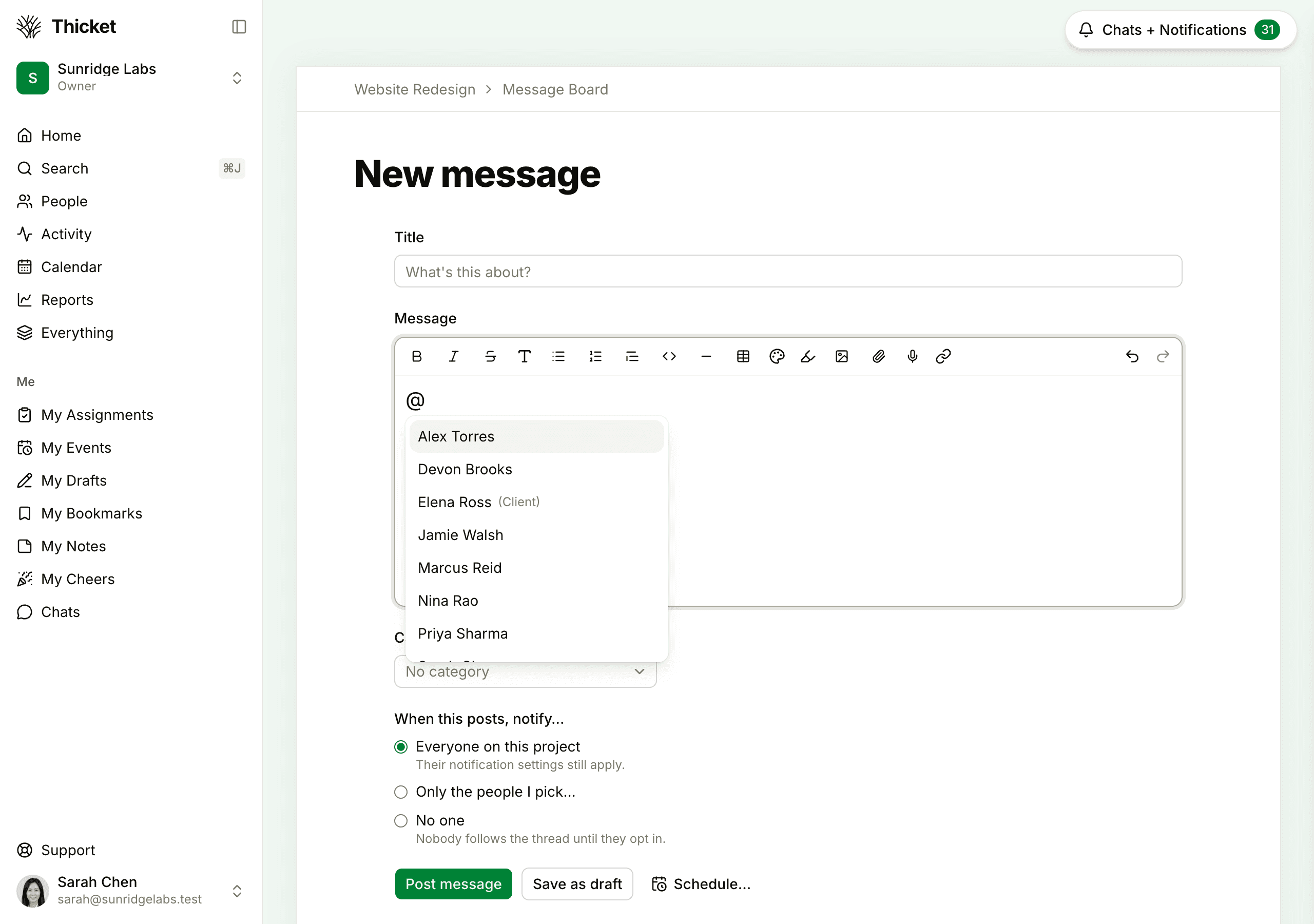
The suggestions carry a few hints:
- Out until and a date, when the person is out of office. See Out of Office.
- (Client), for clients.
- Group and a member count, for a group.
What the Person Gets
- A notification in Chats + Notifications, saying you mentioned them and on what. If they get email notifications, they also receive an email titled "You were mentioned on Thicket."
- A place on the thread. The person starts following the item, so they hear about the comments that come after. Mentioning someone in a comment makes them follow the whole discussion, not just your comment.
Mentions reach people even when they've set Thicket to notify them only when someone @-mentions them, and even if they had stopped following the item.
If you edit something you posted to add a mention, the newly mentioned person is notified unless they already follow the item. People you'd mentioned before aren't notified again.
Mention a Group
To reach several people at once, type @ and a group's name, such as a department or a team. Everyone in the group who can see the item is notified. Owners and admins set up groups in Admin > Manage groups. Groups never include clients. See Companies and Groups.
Who a Mention Reaches
The suggestions offer only people who can see what you wrote:
- Invite-only projects: the people on the project.
- Projects open to everyone on the team: everyone on your team. Mentioning a teammate who isn't on the project's people list adds them to it, and they're emailed that you added them, if they get email notifications. A group mention can add several people at once, so use it with care.
- Clients: the project's clients are offered only when the item is shared with clients. On a Team only item, they aren't suggested. See What Clients Can See and Do.
A group is suggested while at least one person in it can see the item, and its member count shows how many can. The same people are offered when you assign a to-do or card, or choose who's notified about an item.
Mentions in Chat
In a project chat, people who follow the chat get one notification that collects new lines, and email or phone notifications only after a quiet spell. A mention is different: the person you mention is notified about that line right away. See Group Chat and Direct Messages.