
What Clients Can See and Do
How visibility works in a client project, how to share or hide each kind of item, and what clients can and can’t do once they’re in.
When a client opens a project, it looks much like it does for your team: the same tools, the same people. What's inside is different. Clients see only the items your team has shared with them, and everything starts private to your team.
This article applies to projects that work with clients. To set one up, see Working with Clients.
How Visibility Works
- Every item starts Team only. A new message, to-do list, doc, file or event is private to your team until someone shares it.
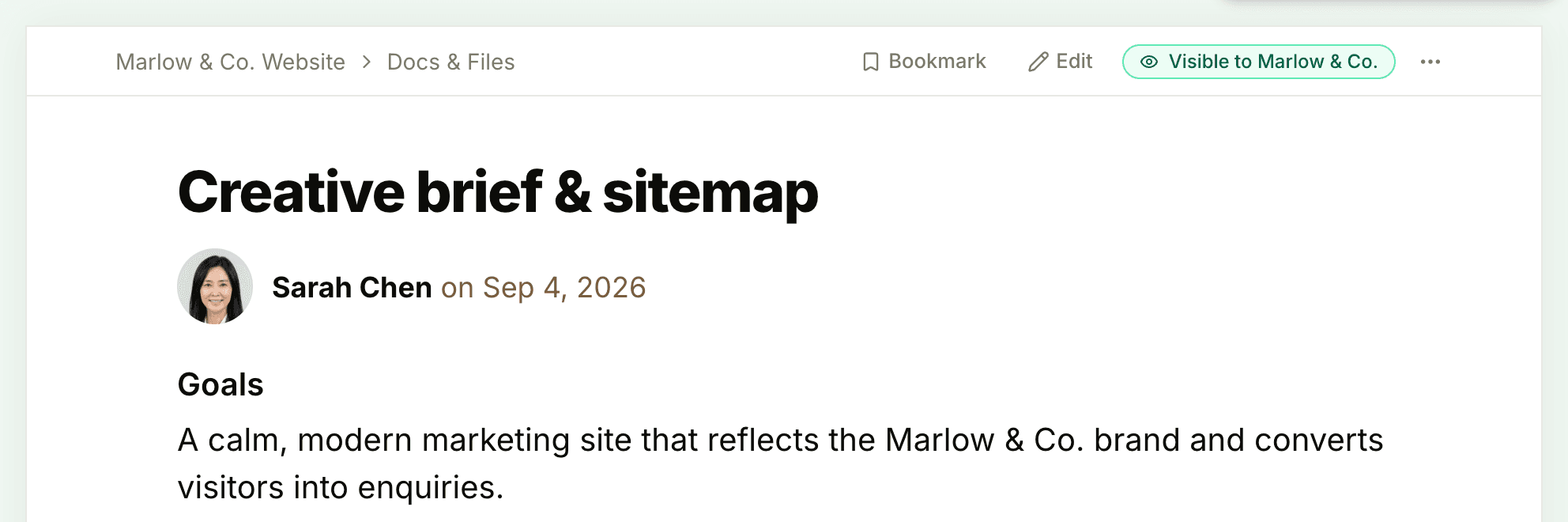
- Each item carries a flag. At the top of an item's page, your team sees Team only or Visible to Marlow & Co. (with your client company's name, or Visible to clients until the project has one). Clients never see the flags.
- What's inside follows along. Comments follow the item they're on, to-dos follow their list, and answers follow their check-in question. Images, files and voice notes in a shared item's text open for clients too. Changing an item's visibility changes everything inside it.
- New things inherit. Something you add inside a shared item is shared too, like a to-do added to a shared list.
- Drafts stay private. Clients can't open a draft. Sharing takes effect when it's published.
- Clients' own posts are visible. Anything a client posts can be seen by your team and by the other clients on the project.
Share When You Post
Some forms ask up front. When you post a message, turn on Visible to Marlow & Co. under the category to let clients read the message and its comments. New check-in questions have a Visible to clients switch, and external links on the project have one too.
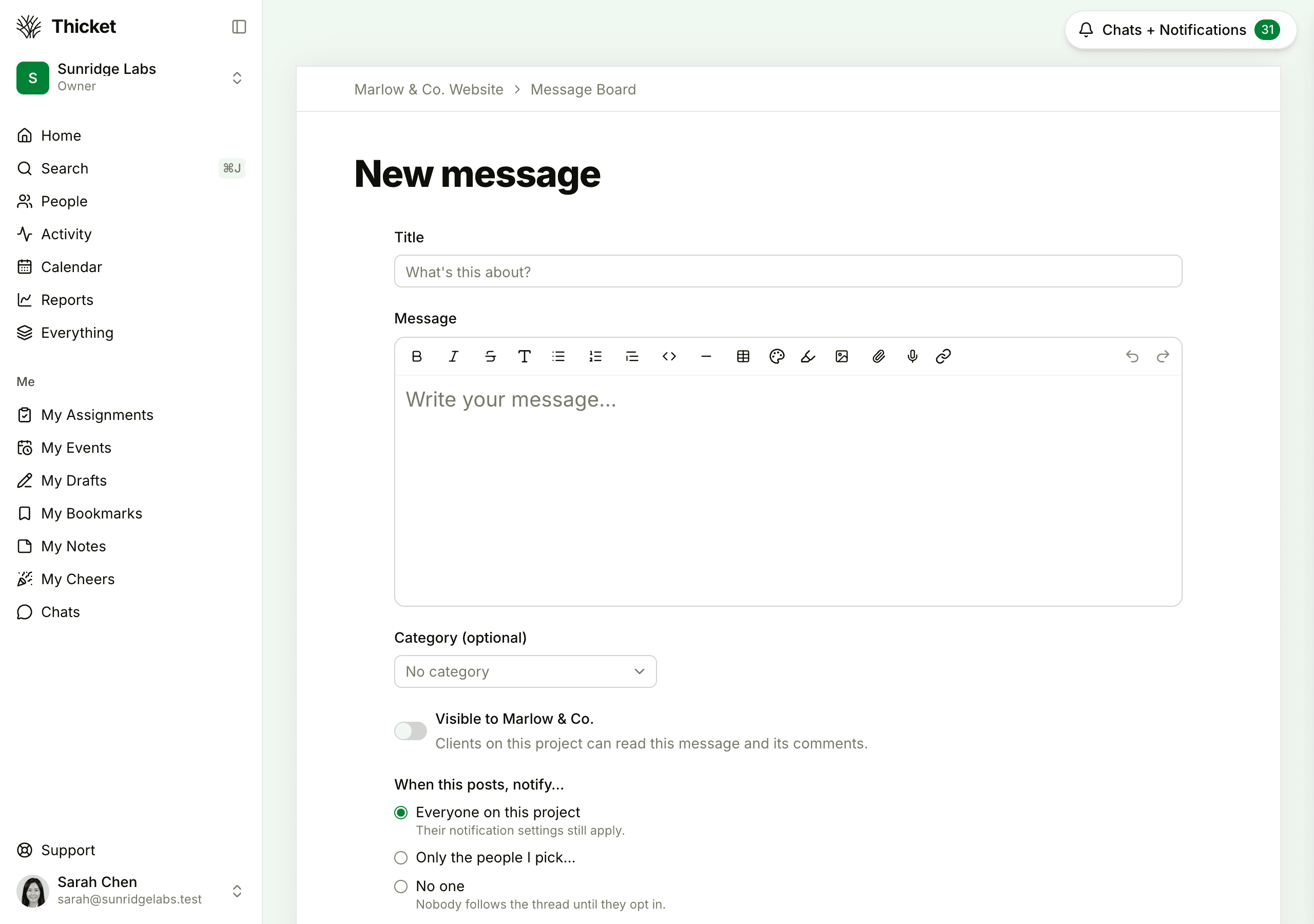
The switch only appears in projects that work with clients.
Share or Hide After Posting
- Open the item.
- Click the flag at the top of the page: Team only or Visible to Marlow & Co.
- In Who's allowed to see this?, choose Our team only, private to us or Let Marlow & Co. see this too.
- Click Save.
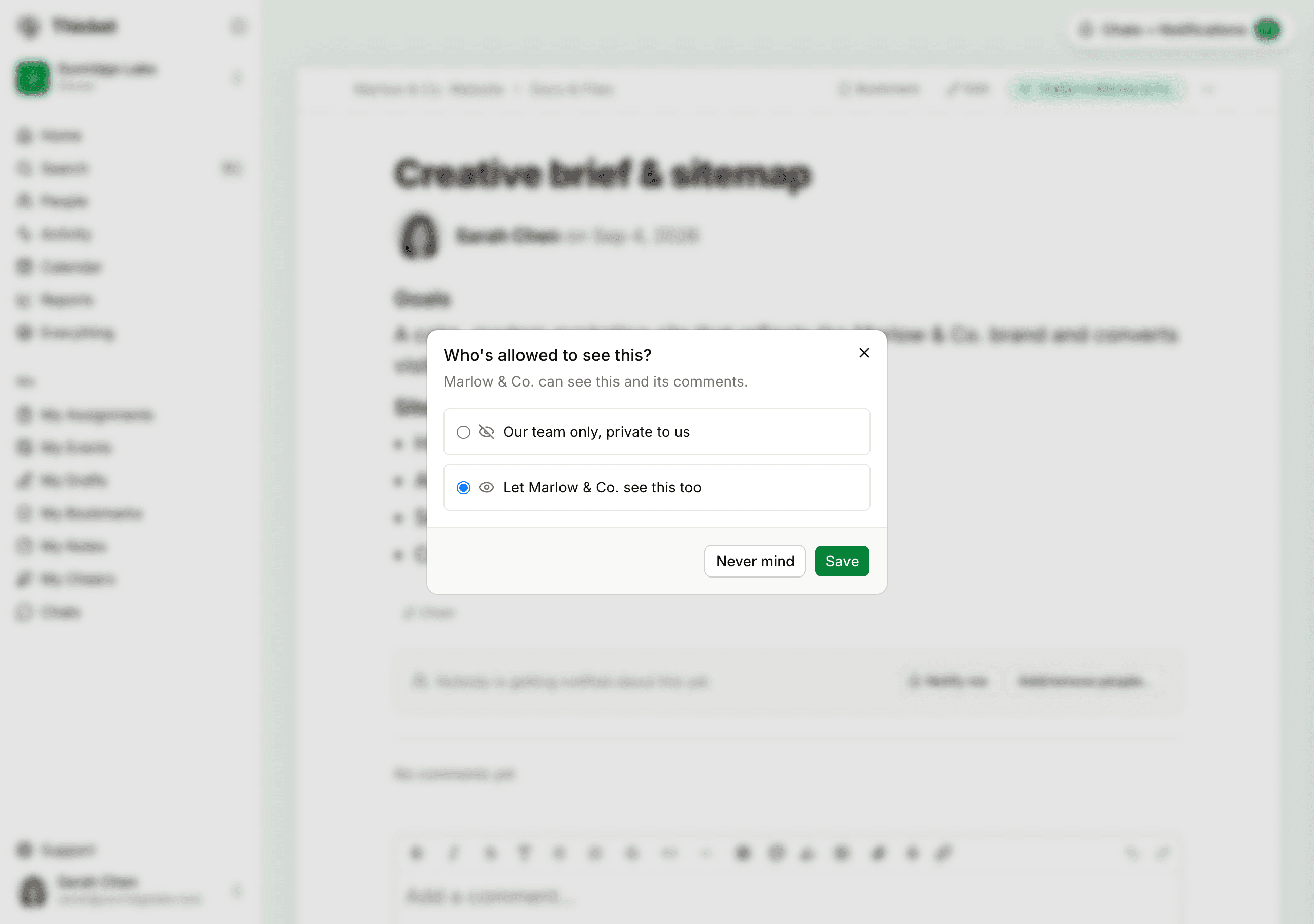
The item's ••• menu offers the same change in one click: Share with clients or Hide from clients.
Tool by Tool
| What | How to share it |
|---|---|
| Messages | The switch when you post, or the flag on the message |
| To-do lists | Share with clients in the list's ••• menu. Its to-dos and groups come along, and you can hide a single to-do from its own page |
| Loose to-dos | Never visible to clients |
| Docs, files and links in Docs & Files | The flag on each item's page |
| Folders in Docs & Files | Share with clients in the folder's ••• menu, on its row or its own page. Everything inside comes along. A folder inside a Team only folder can't be shared on its own |
| Calendar events | The flag on the event's page |
| Chat | The whole chat at once, with the button at the top of the chat |
| Boards | The whole board at once, with the button at the top of the board. Its columns and cards come along |
| Check-in questions | The switch when you create the question, or the flag on the question. Answers follow the question |
| Progress and health updates | The flag on the update's page |
| Approvals and correspondence | Always visible to clients: that's what the Clients tool is for |
Share a Chat
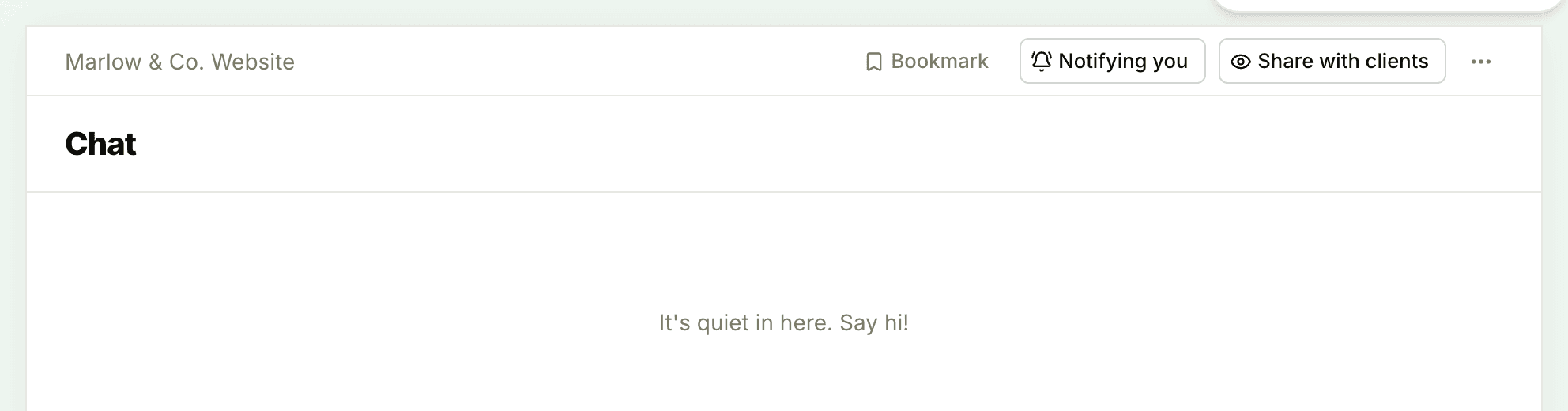
A project's chat is shared all at once. Click Share with clients at the top of the chat, and clients can read it, including earlier lines, and post in it. Click Hide from clients to make it private to your team again. Until it's shared, the chat isn't listed on the client's project page at all.
Share a Board
A board is shared the same way: click Share with clients at the top of the board, and every column and card on it becomes visible to clients, along with cards added later. Hide from clients takes the whole board back. A card you'd rather keep to the team can still be hidden from its own page.
Clients can move cards between the columns of a shared board and comment on them. Adding cards, steps and columns stays with your team.
How Clients Hear About Things
When you share something, the clients on the project start following it and hear about new comments, chat lines and answers, according to their own notification settings. The exception is a message, doc or file shared as you post it: there the When this posts, notify… choice decides who follows, and Everyone on this project includes clients.
Hiding an item takes every client off it, so they stop hearing about it. On a Team only item, clients aren't offered in the @-mention suggestions or the notify list, so nothing about it reaches them. See @-mentions and Following and Unfollowing Discussions.
What Clients Can Do
In the projects they're on, and only with what's shared, clients can:
- Open each of the project's tools. A tool with nothing shared looks empty to them.
- Read, comment on and cheer anything shared with them.
- Follow what's shared with them with the Notify me box at the bottom of each item, choose who else is notified, and set reminders with Remind me… in an item's ••• menu.
- Post messages, add to-dos to shared lists, upload files, and add events to the project's calendar.
- Move cards between the columns of a shared board.
- Post in the chat once it's shared.
- Answer check-in questions they're asked.
- Approve or decline an approval that names them, and reply in correspondence.
- Use Search, Activity, Calendar and Everything, which show them only what's shared with them.
- Start private chats with your account's owners and admins and with people on their projects, unless private chats are turned off for their company in Admin > Permissions.
What Clients Can't Do
Clients can't:
- See Team only items, loose to-dos, drafts, or the visibility flags.
- Change who can see an item.
- Edit, archive, move or copy what the team posted. They can edit and delete their own posts and comments.
- Create docs, folders, to-do lists, cards, board columns or check-in questions. Those are set up by the team.
- Save drafts or schedule posts. What a client posts goes up right away.
- Add events from the all-projects Calendar, or subscribe to a calendar from another calendar app. They add events in a project's calendar instead.
- Create projects, invite people to your account, or add and remove people on a project.
- Change a project's name, description or tools, turn Work with clients on or off, or archive or trash a project.
- Request approvals, start correspondence, or write check-in questions.
- Create public links.
- Use Reports or the Admin area, or see a project's health gauge.
- See the whole account's directory. On People, a client sees the account's owners and admins and the people on their own projects.
- Be made an admin or owner. Change them to a team member first: see Changing User Types.