
Managing Storage
See how much storage your account uses, find the largest files, know when you are close to the limit, and free up space.
Every file uploaded to Thicket counts toward your plan's storage: files in Docs & Files, and attachments in messages, comments, docs and chats. Free includes 1 GB, Starter 10 GB and Pro 50 GB.
Checking Your Usage
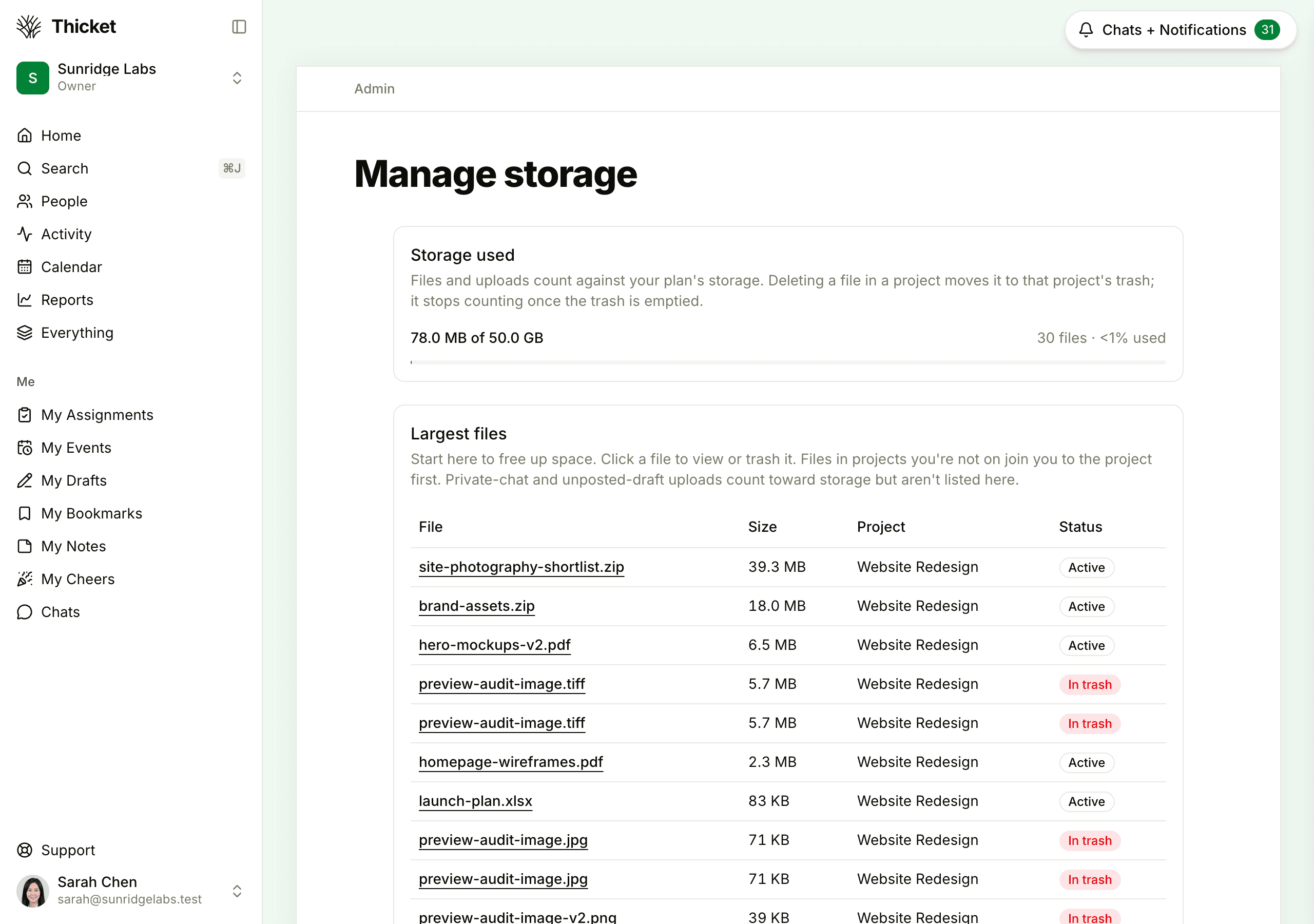
Owners and admins can go to Admin > Manage storage:
- Storage used shows how much you're using out of your plan's total, how many files that is, and the percentage used.
- Largest files lists the biggest files in your projects, largest first, with each file's size, project and status: Active, Archived or In trash.
Uploads in private chats and in drafts that were never posted count toward your storage but aren't listed, so the page never shows the name of a private file.
Owners also see storage on Admin > Billing, next to projects and people.
What Counts
- Files in archived projects still count: archiving a project doesn't free space.
- Files in the trash count until they're permanently deleted.
- Files in the sample project that comes with a new account don't count.
Storage Warnings
When the account reaches 90% of its storage, owners and admins see a banner at the top of Home and Admin saying it's almost out of storage, and each of them gets an email.
When storage is full, everyone sees a banner on Home, clients included, and nobody can upload new files until space is freed. Owners and admins get another email.
Freeing Up Space
A file stops counting once it's permanently deleted.
- On Admin > Manage storage, click a file in Largest files to open it.
- Choose Put in the trash from the file's menu.
- Delete it permanently, in either of two ways:
- Open the project's ••• menu, choose See items in the trash, and click Empty the trash. Owners and admins empty the project's whole trash; members empty only the items they created or trashed.
- If you're an owner, go to Admin > Trash and click Permanently delete next to the file.
Anything left in the trash is deleted for good after 30 days, so the space also comes back on its own. See Archiving, Trash, and Restoring.
Owners can open a file in a project they aren't on: clicking it adds them to the project first. Admins see "A project you're not on" for those files instead, and can ask someone on the project, or an owner, to remove them.
Getting More Storage
Upgrading raises the limit: Starter has 10 GB and Pro has 50 GB. See Billing and Plans.