
Reports
See work across all your projects at once: upcoming and overdue assignments, unassigned work, daily task logs, and what each person is working on.
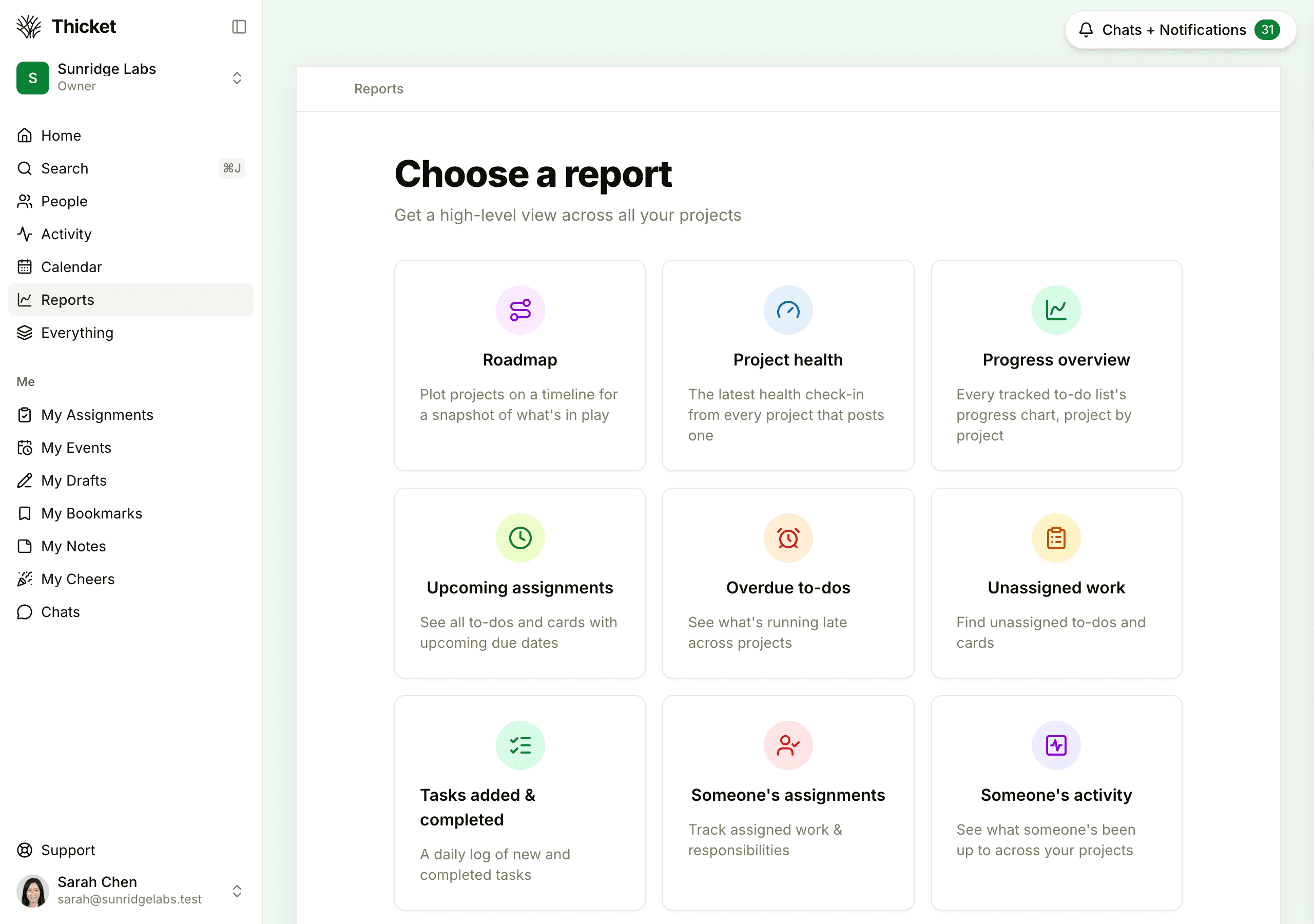
Reports pull work from all your projects into one view, so you can see what's due, what's late, and who's working on what without opening each project. Click Reports in the sidebar, or press 3 anywhere in Thicket, to open Choose a report.
Who can use reports
Reports are for your team: owners, admins, and members. Clients don't see Reports in the sidebar and can't open the report pages.
Each report covers the active projects you can see: the ones you're on, plus projects open to everyone. Archived projects, projects in the trash, and the sample project Thicket adds to new accounts are left out. Two people on different projects can see different results in the same report.
Due dates follow your time zone, so Due today and 1 day overdue count from your own calendar day (see Your Profile and Preferences).
The reports
Roadmap
Your dated projects as bars on a 13-week timeline, with markers for key dates. See Roadmap.
Project health
The current health gauge of every project that has project health turned on and at least one update. See Project Health.
Progress overview
The progress chart of every project whose chart was updated in the last 90 days, most recently updated first. See Progress Charts.
Upcoming assignments
Every open to-do, card, and card step with a due date from today on, whether or not it's assigned. Work is grouped under Due today, Due tomorrow, Due later this week, Due next week, and Due later, then by date, then by list and project. Each row shows who it's assigned to and its due date.
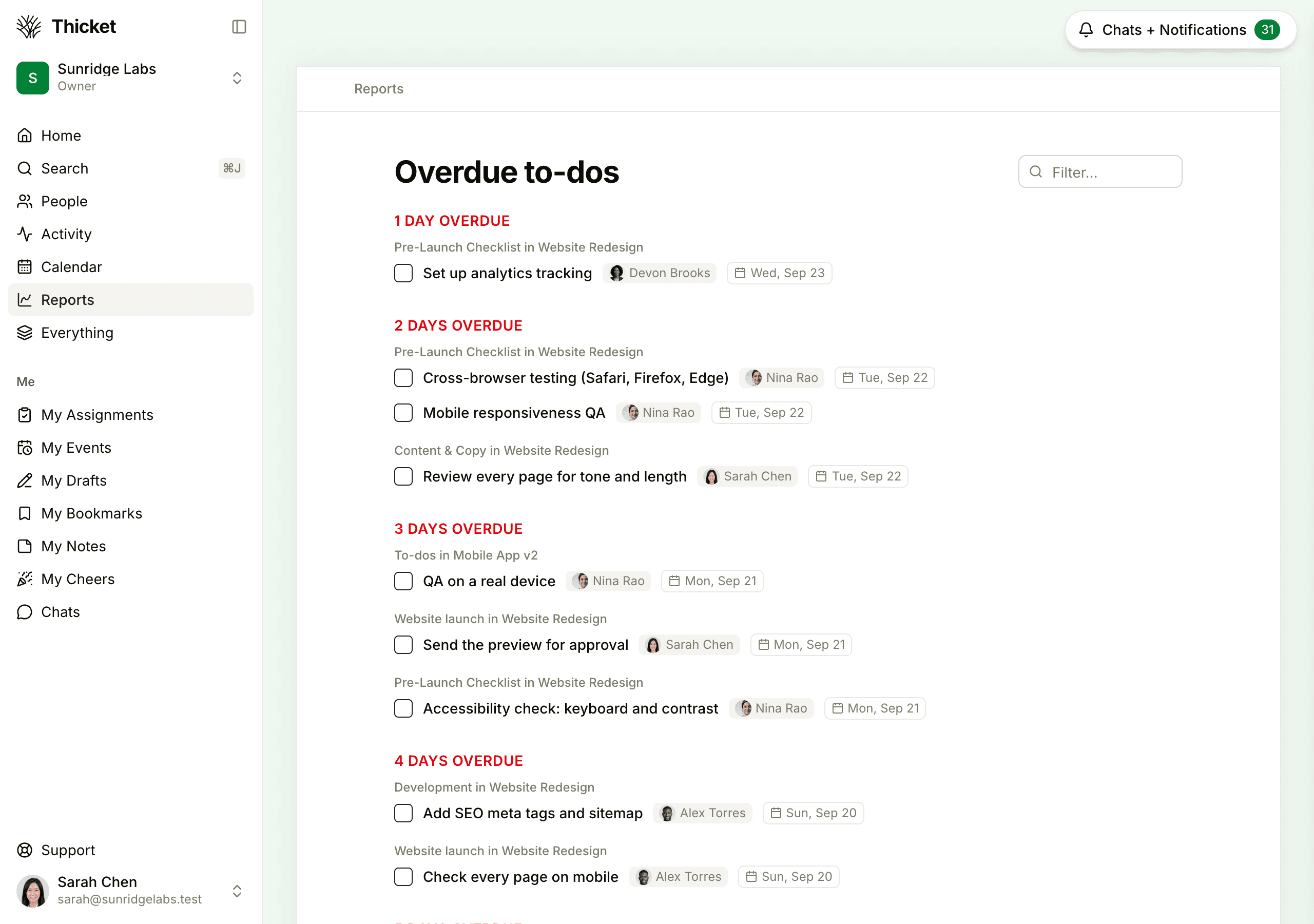
Overdue to-dos
Open to-dos whose due date has passed, grouped by how many days late they are, starting with the least late. Each row shows who the to-do is assigned to and the date it was due. This report covers to-dos only, not cards.
Unassigned work
Open to-dos and cards that nobody is assigned to, with one section per project. Click a project's name to open its section. Inside, work is grouped by list, like To-dos: followed by the list's name, and by board column, like Cards: followed by the column's name. Projects with nothing unassigned don't appear.
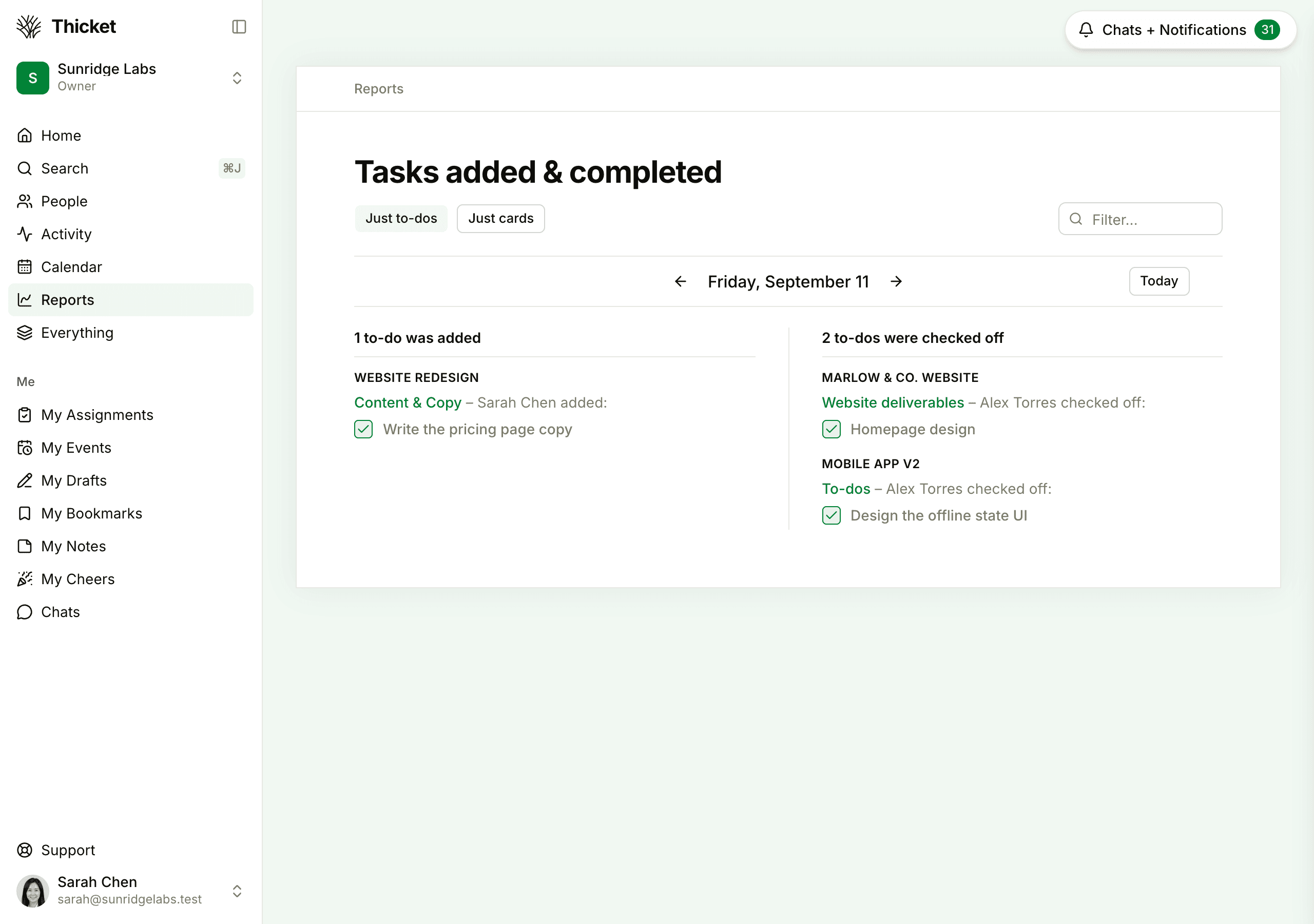
Tasks added & completed
A log of one day at a time: the to-dos added that day on the left and the to-dos checked off on the right, grouped by project, then by list and by the person who did it. Each box shows whether the item is done now, so a to-do added that day and finished since is ticked on the left too. Just to-dos and Just cards switch between to-dos and cards. Use the arrows beside the date to go back or forward a day, and Today to come back to today. Starred projects have a star next to their name.
Someone's assignments
Choose a person under Whose assignments would you like to see?, or type in Jump to a person… to find them. Their page lists their open to-dos, cards, and card steps:
- All assignments groups them by project, then by list or board
- Assignments with dates shows only dated work, under Overdue, Due today, Due tomorrow, and so on
You only see their work in projects you can see yourself. You're first in the list as My assignments, which opens your own My Assignments page.
Someone's activity
Choose a person under Whose activity would you like to see? to see everything they've done across the projects you can see, newest first, with a projects menu and a Filter… box like the ones on Latest Activity. If the person is out of office, the page says until when. You're first in the list as My Activity.
Working from a report
- Click any title to open the item.
- Tick the box next to a to-do, card, or card step to complete it without leaving the report.
- Type in the Filter… box at the top of a report to narrow it as you type. Press Shift+F to jump to the box.