
Chats and Notifications
Open the Chats + Notifications sidebar to catch up on direct messages, new activity, and reminders, mark things read, and silence alerts for a while.
Everything Thicket tells you about lands in one place: the Chats + Notifications sidebar. It keeps your recent chats, the reminders you set, and notifications from your projects together, so you can catch up and get back to what you were doing.
Opening the sidebar
Click Chats + Notifications at the top right of any page, or press Shift+S. The number on the button is how many notifications you haven't read yet.
To close the sidebar, press Shift+S again, press Escape, click the X, or click anywhere outside it.
What's in it
From top to bottom:
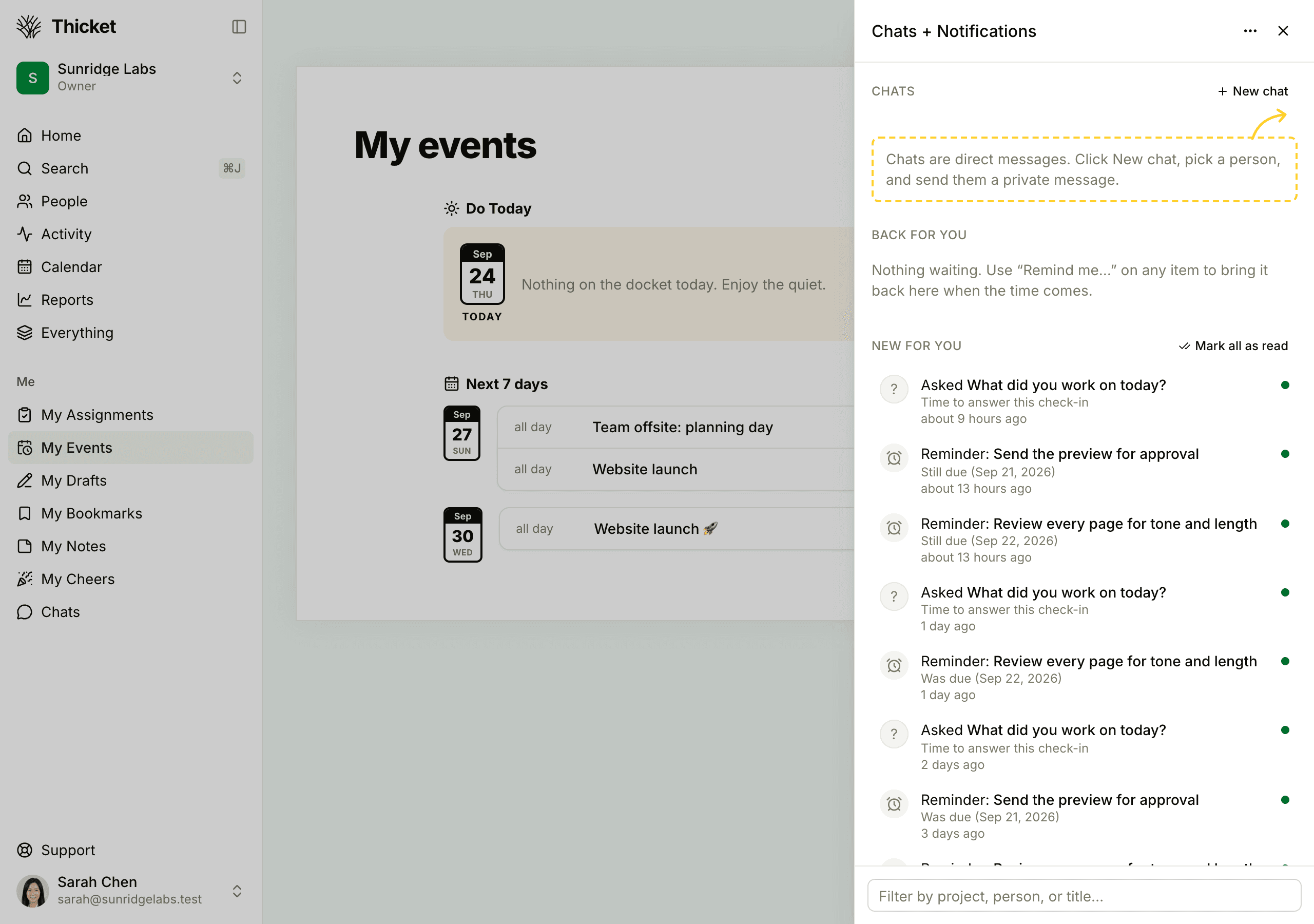
- Chats: your five most recent direct-message conversations, the one with the newest line first, each with its latest line. Click one to open it, or click New chat to start one. All your chats are under Chats in the sidebar's Me section. See Group Chat and Direct Messages.
- Back for you: items you asked Thicket to bring back, once their time comes. See Remind Me Later.
- New for you: notifications you haven't read yet, newest first. When there are none, it says "You're all caught up."
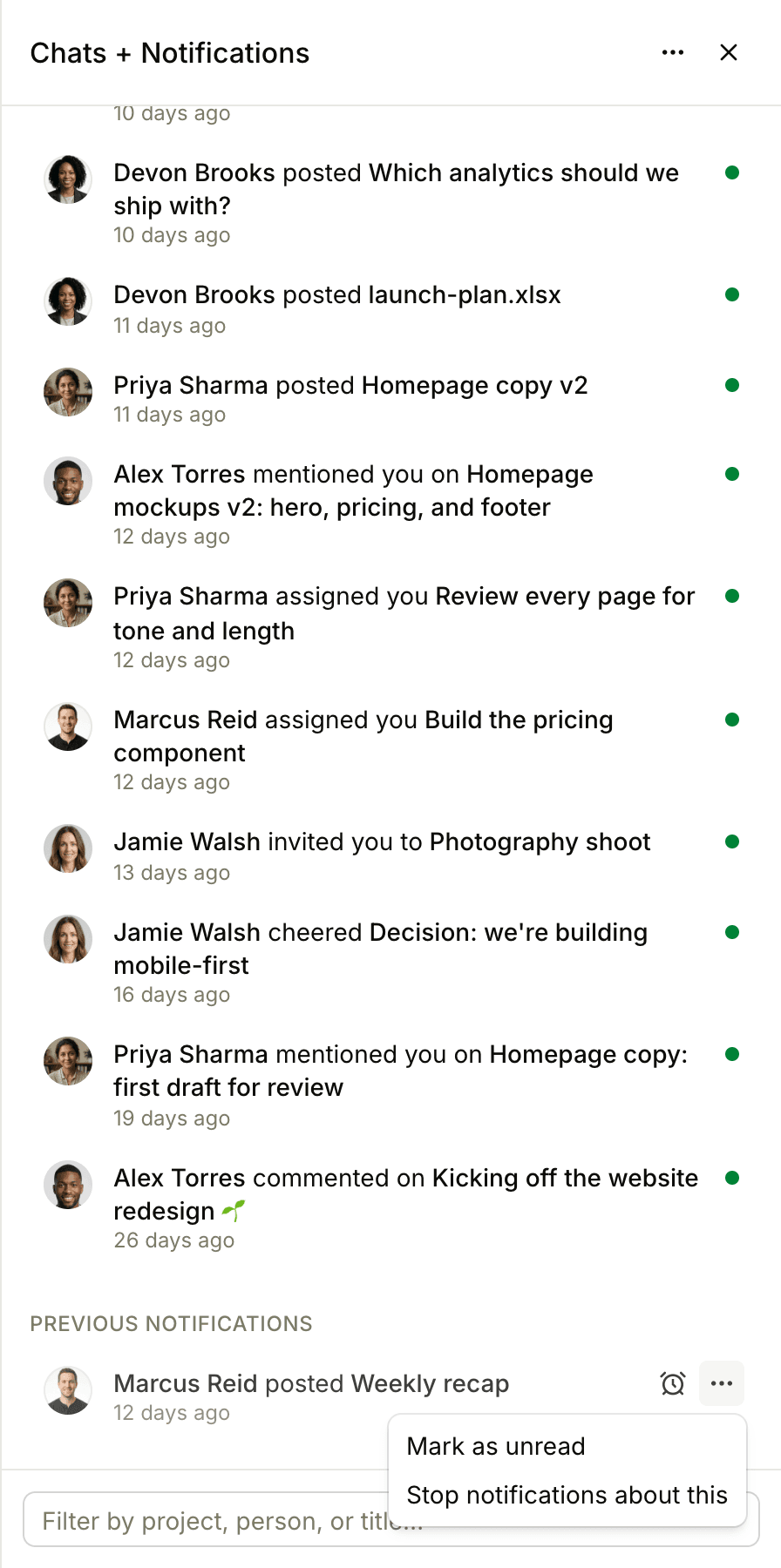
- Previous notifications: notifications you've already read.
The sidebar holds your 100 most recent unread notifications and your 50 most recent read ones.
Reading notifications
Each notification says who did what, and to which item, like "Marcus Reid assigned you Build the pricing component", with a preview and how long ago it happened. A dot on the right means it's unread. Reminders about due dates and upcoming events show an alarm clock instead of a photo.
Click a notification to open the item. Thicket marks it as read, and it moves to Previous notifications. A notification about a cheer opens My Cheers, where cheers are collected.
New lines in a project's chat don't arrive as one notification each: they roll into a single entry for that chat, with a count of the lines that came in while it sat unread. Opening a chat, in a project or a direct message, marks the notifications about its new lines as read.
Marking notifications read or unread
- Hover over a new notification and click the X to mark it as read without opening it.
- Click Mark all as read at the top of New for you, or press Shift+X, to clear them all.
- To put a notification back in New for you, hover over it in Previous notifications, click •••, and choose Mark as unread.
Stopping notifications about one item
If a discussion keeps notifying you and you no longer need to follow it, hover over one of its notifications in Previous notifications, click •••, and choose Stop notifications about this. Thicket unfollows the item for you, so new comments on it stop notifying you unless someone @-mentions you. You can follow it again from the item itself. See Following and Unfollowing Discussions.
Filtering the sidebar
Type in the box at the bottom of the sidebar to narrow every section to the chats, reminders, and notifications that match, with the matching words highlighted. Clear the box to see everything again.
Silencing alerts with Shhh
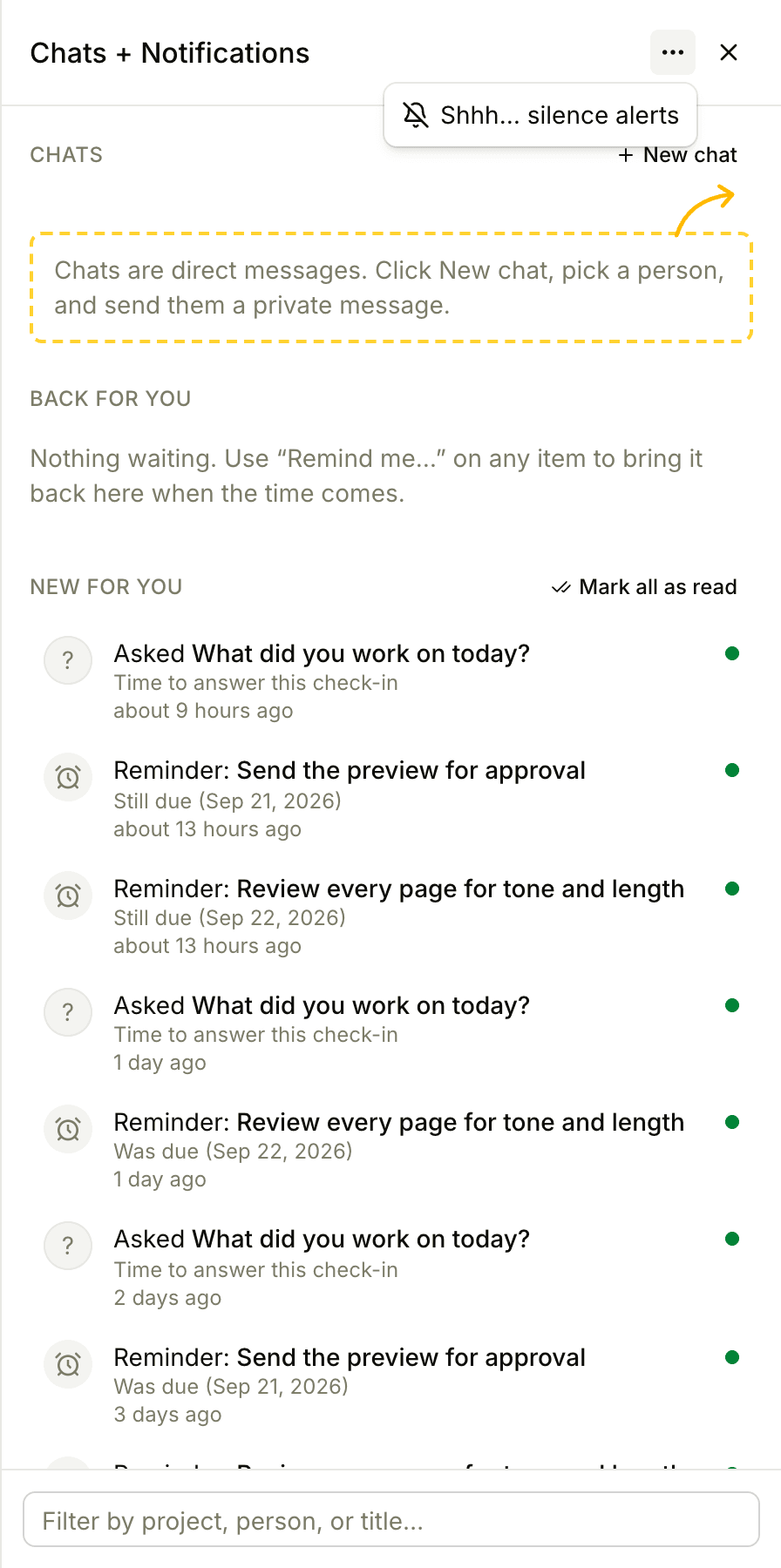
When you need a stretch without interruptions, click ••• at the top of the sidebar and choose Shhh… silence alerts, or press Shift+Z.
While it's on:
- The bell on the Chats + Notifications button is crossed out and the unread number is hidden, and the sidebar shows Shhh… on
- Your browser tab stops showing an unread count, and desktop pop-ups stop
- Thicket stops sending push notifications to its app on your iPhone or iPad (see Thicket for iPhone and iPad)
Notifications keep arriving in the sidebar, so you don't miss anything, and emails keep coming. To turn alerts back on, click ••• again and choose Turn notifications back on, or press Shift+Z. Shhh stays on until you turn it off, on every device and in every Thicket account you belong to.
Choosing what notifies you
What you get notified about, and whether Thicket also emails you, is up to you. See Notification Settings.