
Merging People
Combine two profiles that belong to the same person, so their assignments, projects and posts all end up in one place.
Sometimes one person ends up with two profiles in the same account, for example after being invited at a personal email address and again at a work one. Merging combines them: you choose the profile to keep, and everything from the other one moves to it.
Owners and admins can merge people. A merge can't be undone.
What Moves to the Person You Keep
- Their assignments
- Their project access and group memberships
- Everything they posted or created, such as messages, comments, to-dos, docs, files and chat lines, which then show the kept person's name
- Credit for the to-dos they completed
- The discussions and chats they follow, including their private chats
- Their cheers, bookmarks, notifications and activity
- Invitations they sent
When both profiles had the same thing, such as an assignment on the same to-do, the kept person keeps one copy of it.
What Doesn't Change
- The kept person's name, email address, role and profile stay as they are.
- The removed profile loses access to this account right away. Its login isn't deleted, so it still works for any other accounts it belongs to.
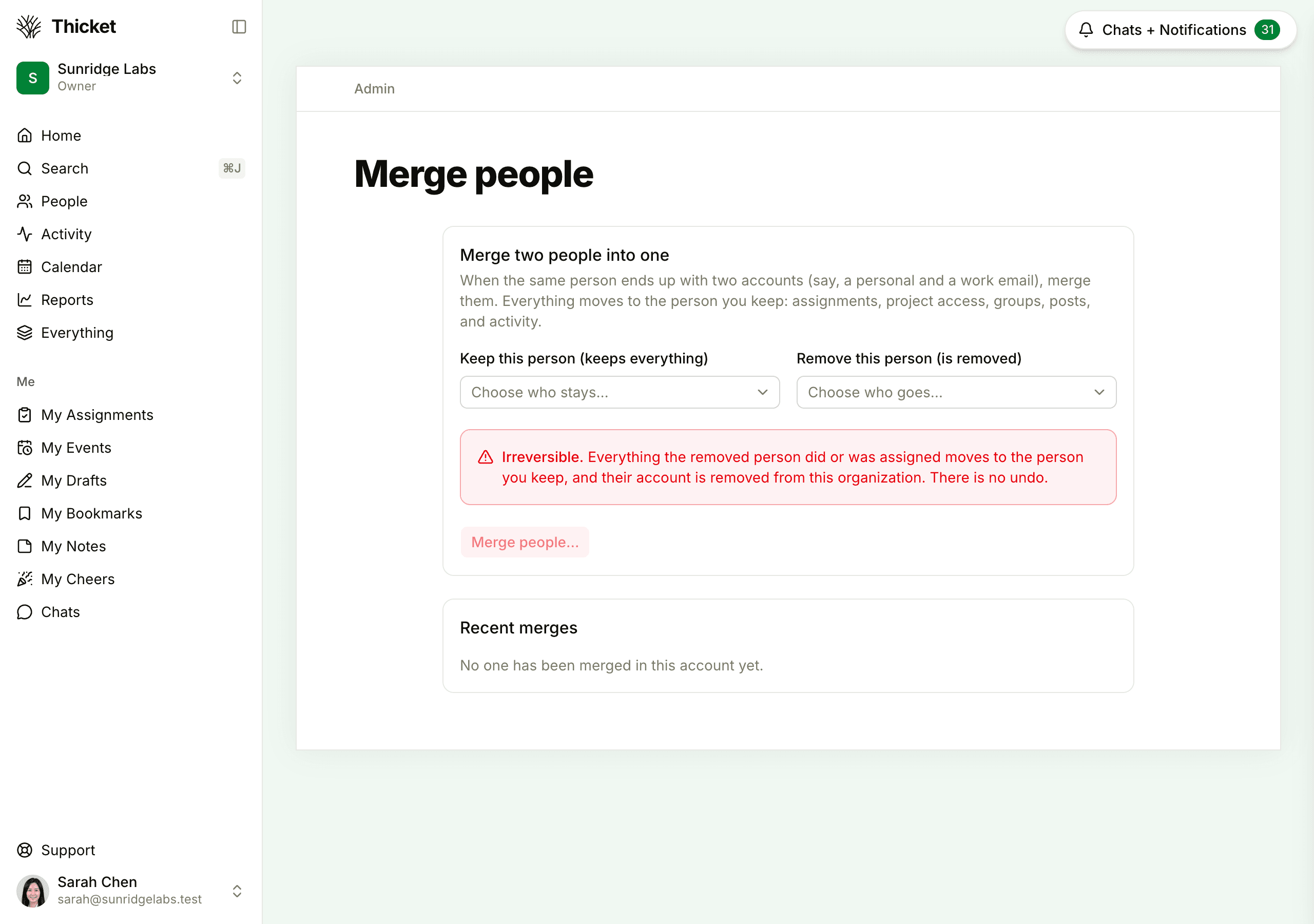
Merging Two Profiles
- Go to Admin > Merge people.
- Under Keep this person (keeps everything), choose the profile to keep.
- Under Remove this person (is removed), choose the duplicate.
- Click Merge people….
- Check the names and email addresses in the confirmation, then click Yes, merge them.
An owner can't be the profile that's removed, so owners don't appear in the second menu. If the duplicate is an owner, make it an admin first on Admin > Account owners. See Account Owners.
Recent Merges
The Recent merges card at the bottom of the page shows the last 20 merges: who was merged into whom, the removed profile's email address, and the date.