
Account Owners
What account owners can do that admins can't, how to add or remove an owner, and how to hand the account to someone else.
Every Thicket account has at least one owner, starting with the person who created it. Owners have full control of the account, and an account can have as many owners as you like.
What Owners Can Do
Owners can do everything admins can, plus the account-level jobs that only owners can do:
- Manage billing and change plans
- Rename the account
- Export the account's data, and private chats separately when there's a serious reason to
- Cancel the account, and restore it within 30 days
- Require two-factor authentication for everyone except clients
- Add themselves to any project, including ones they weren't invited to
- See and restore everything in the account-wide trash, including deleted project templates
- Reassign someone's open to-dos
- See and unpublish every public link
- Make other people owners, or remove their ownership
Seeing Who the Owners Are
The owners are listed at the top of Admin, where everyone except clients can see them. Owners and admins can also open Admin > Account owners for the list with email addresses.
Adding an Owner
Only an owner can make someone else an owner, and only team members can be owners: clients can't.
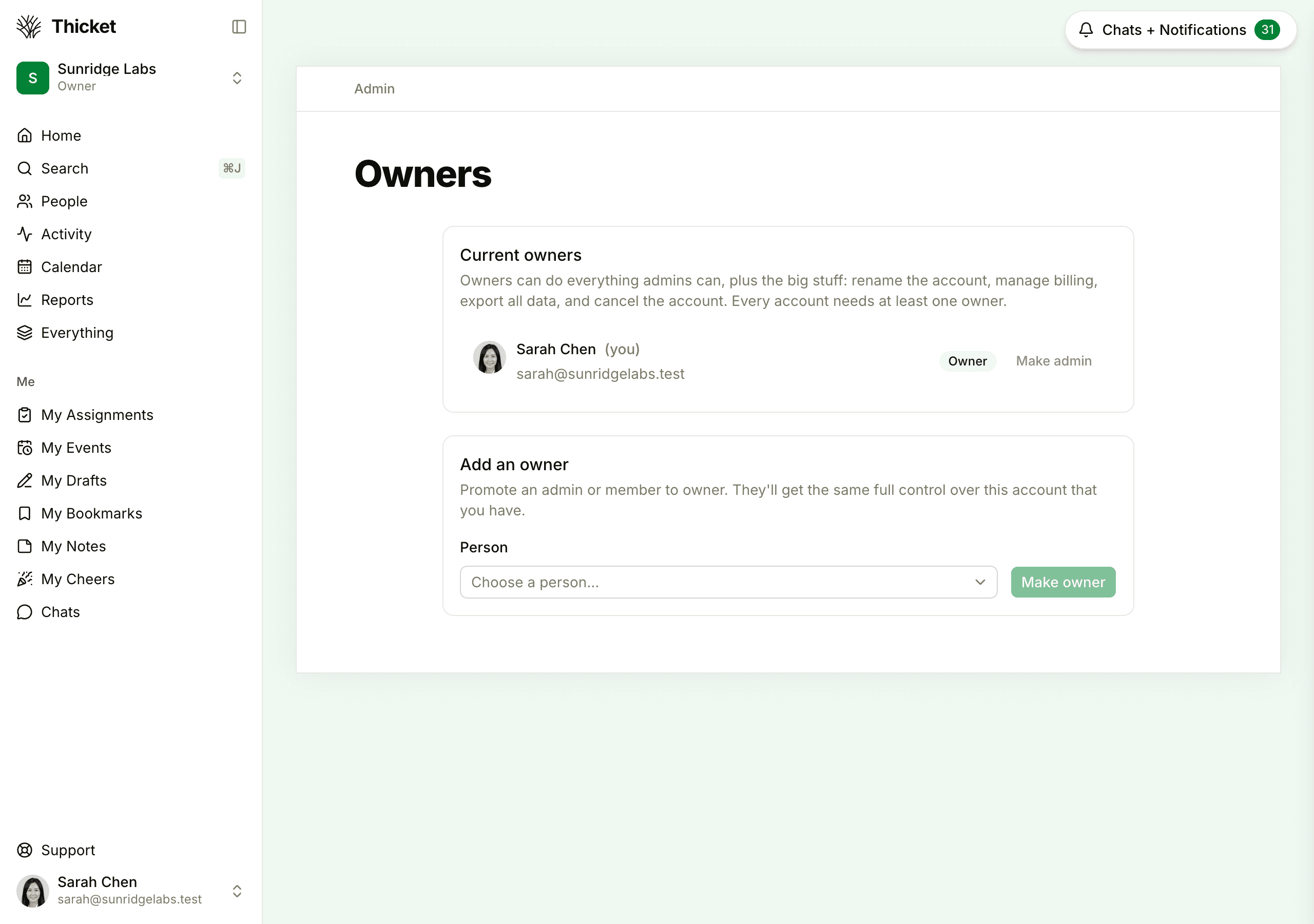
- Go to Admin > Account owners.
- Under Add an owner, choose the person from the Person menu.
- Click Make owner.
The new owner gets the same full control of the account that you have.
You can also make someone an owner from the People page: open the ••• menu next to their name and choose Owner under Change role. Only owners see that choice.
Removing an Owner
- Go to Admin > Account owners.
- Click Make admin next to the owner.
- Confirm with Make them an admin.
They become an admin: they can still manage people and projects, but can no longer rename the account, manage billing, export data or cancel the account. You can step down yourself the same way, as long as another owner remains.
An account always needs at least one owner, so Make admin is turned off while there's only one.
Handing the Account to Someone Else
- Make the new person an owner, as above.
- Click Make admin next to your own name, or leave that to the new owner.
Keeping at least two owners is a good habit, so billing, exports and other owner-only jobs never wait on one person being available. If every owner has left and none can be reached, contact support.
Getting Into Any Project
Owners can add themselves to any project on the account, even one they weren't invited to.
- Go to Admin > Access any project.
- Click Add yourself next to the project.
Joining adds you to the project's people list and is recorded in the project's activity. When you're on every project, the page says so.