
Exporting Your Data
Download a copy of your account's people, projects and project content as a JSON file, and export private chats separately when you need to.
Account owners can download a copy of the account's data at any time, as a single JSON file. Exporting doesn't change anything in the account.
Exporting Project Data
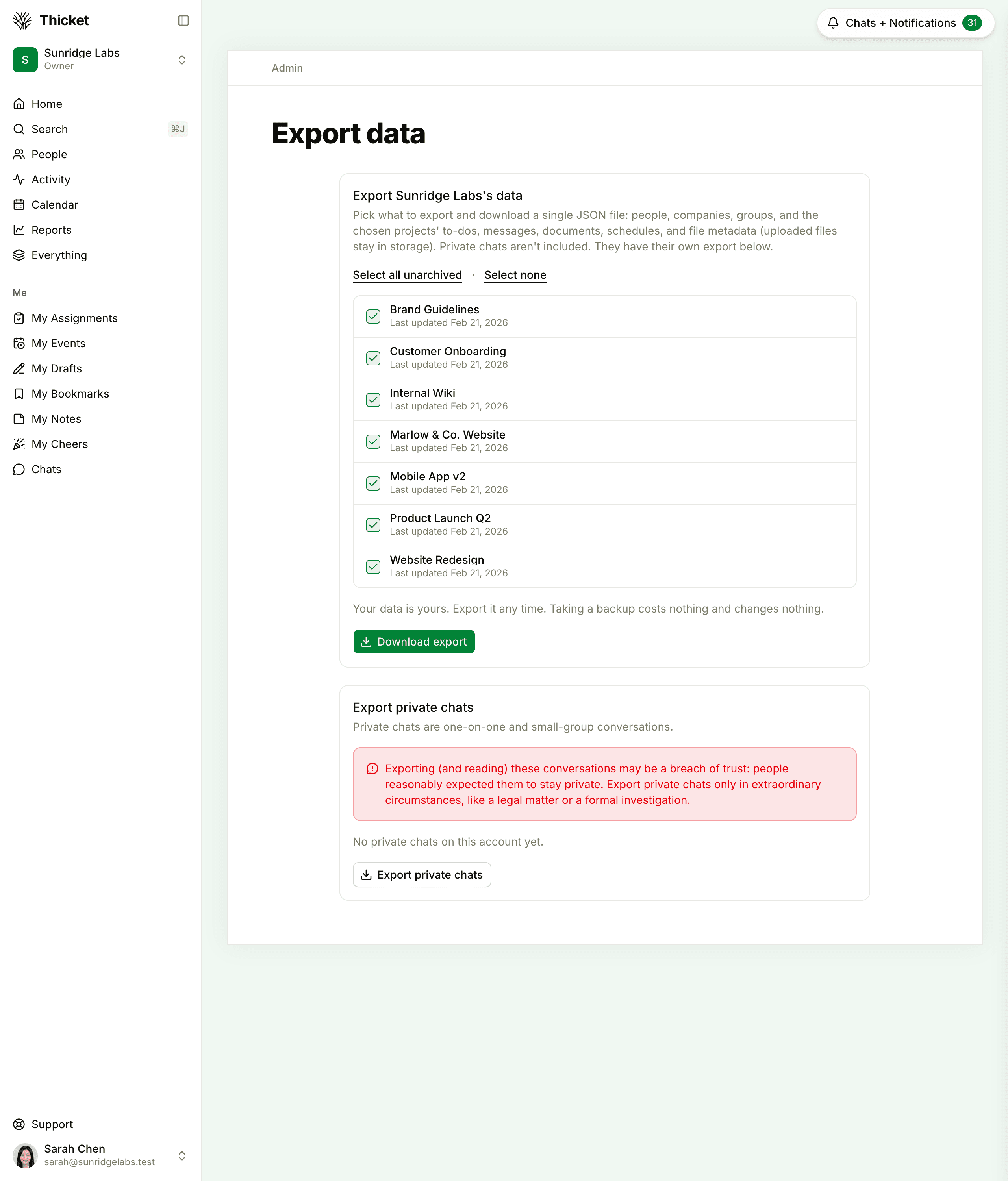
- Go to Admin > Export data.
- In the first card, tick the projects to include. Every project is listed, archived ones too, and the unarchived ones start out ticked. Select all unarchived and Select none change the whole list at once.
- Click Download export.
The file downloads right away and is named after your account, for example thicket-export-sunridge-labs.json.
What the Export Contains
JSON is a structured text format meant to be read by other software, such as a script, rather than page by page. The file contains:
- The account's name and web address
- Everyone on the account: name, email address, role, company and when they joined
- Companies, groups, and who's in each group
- The chosen projects and their tool settings
- The content of those projects, including messages, comments, to-do lists and to-dos, docs, cards, calendar events, check-in questions and answers, and project chat lines, along with archived items and items in the trash. Your own drafts are included; other people's drafts aren't
- Who's assigned to what, and who follows what
- A record of every uploaded file in those projects: its name, size and type
- Pending invitations: the email address, role and date sent
What It Doesn't Contain
- The uploaded files themselves. The export lists them but doesn't include them. To download the files in a project's Docs & Files, open it, click the ••• menu at the top, and choose Download this folder to get a zip. See Docs and Files.
- Private chats. They have their own export, below.
- Personal notes from My Notes.
Exporting Private Chats
Private chats are one-on-one and small-group conversations. People reasonably expect them to stay private, so they're never part of the project export, and Thicket asks you to export them only in extraordinary circumstances, such as a legal matter or a formal investigation.
- Go to Admin > Export data and scroll to Export private chats.
- Tick the conversations you need. Each one shows who's in it, how many messages it has, and when it was last active.
- Click Export private chats.
The file holds each chosen conversation's participants and start date, and every message with its author and time.
Not Seeing Export Data?
Only account owners can export. If you're an admin or member, ask an owner: the top of Admin lists them. See Account Owners.
Before You Cancel
If you plan to cancel the account, export first: a cancelled account can't be exported. See Cancelling Your Account.