
Customizing Your Account
Add your logo, edit message categories, rename project tools, and choose account-wide settings for voice notes and chat history.
Owners and admins can shape a few things that apply across the whole account. Each one lives in Admin.
Account Logo
Your logo appears on the account button at the top of the sidebar, for everyone in the account.
- Go to Admin > Account logo.
- Click Upload a logo… and choose an image.
Use a PNG, JPG, GIF or WebP image up to 5 MB. Square images look best, since every logo is cropped square. To change it later, click Replace logo…, or click Remove to go back to the first letter of the account's name.
Message Categories
Categories let people file message board posts under a type, such as an announcement or a question. Every account starts with five: 📢 Announcement, ❤️ FYI, 📰 Update, 💡 Idea and ❓ Question. The same list is used on every project's message board.
To change them, go to Admin > Message categories:
- Add one: type an emoji in Icon if you want one, type a Name, and click Add.
- Rename one: change its icon or name in the list, then click Save.
- Delete one: click Delete, then Delete category. Posts filed under it keep their content and lose the category. This can't be undone.
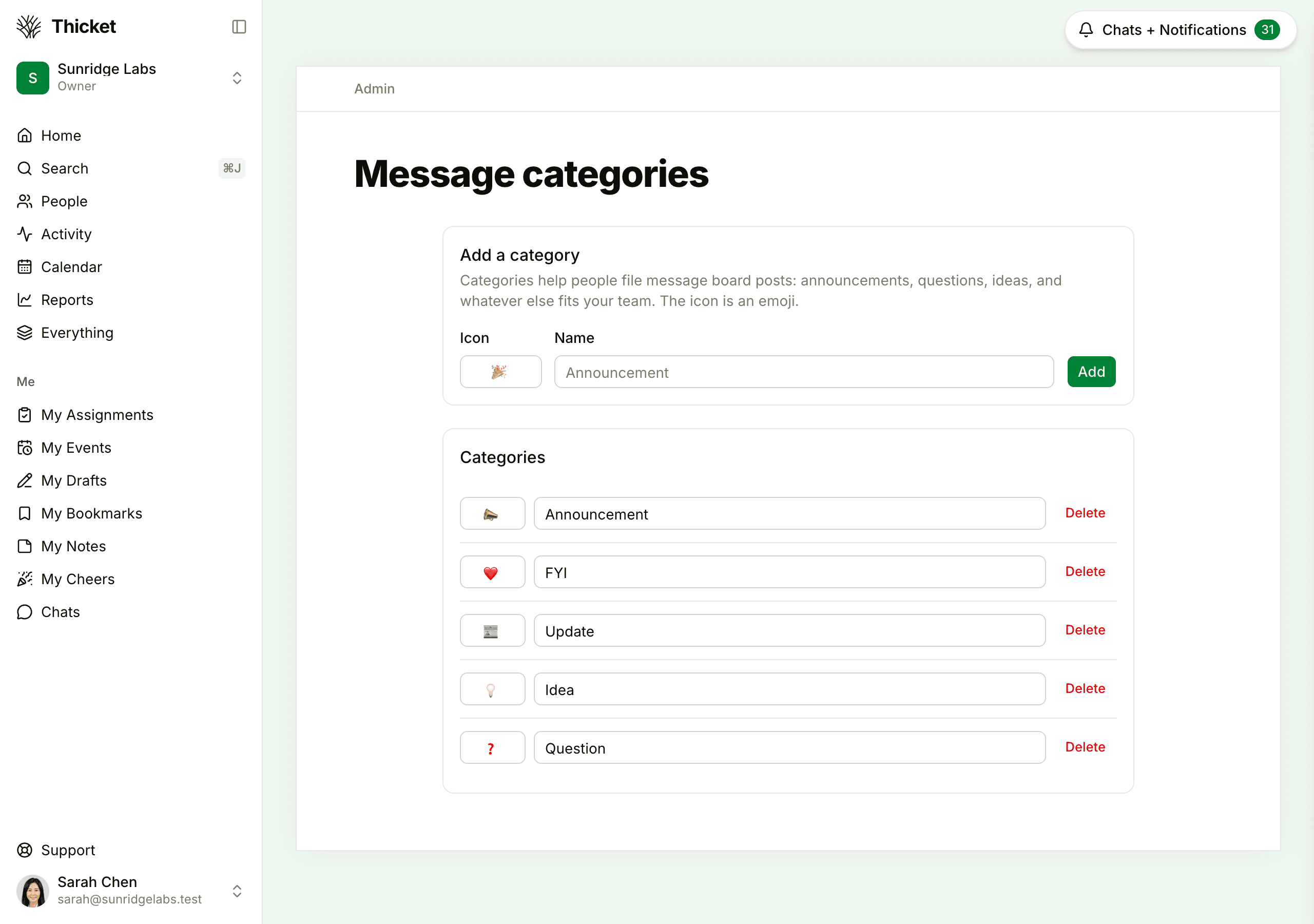
On a message board, owners and admins can also reach this page from Edit categories… at the bottom of the Categories menu. See Message Boards.
Project Tool Names
You can rename any project tool for the whole account. Maybe your Message Board should be "Announcements", or your To-dos should be "Tasks". Every project's tools, navigation and page headers follow.
- Go to Admin > Rename project tools.
- Type a new name in the field for each tool you want to rename. Leave a field blank to keep the standard name.
- Click Save tool names.
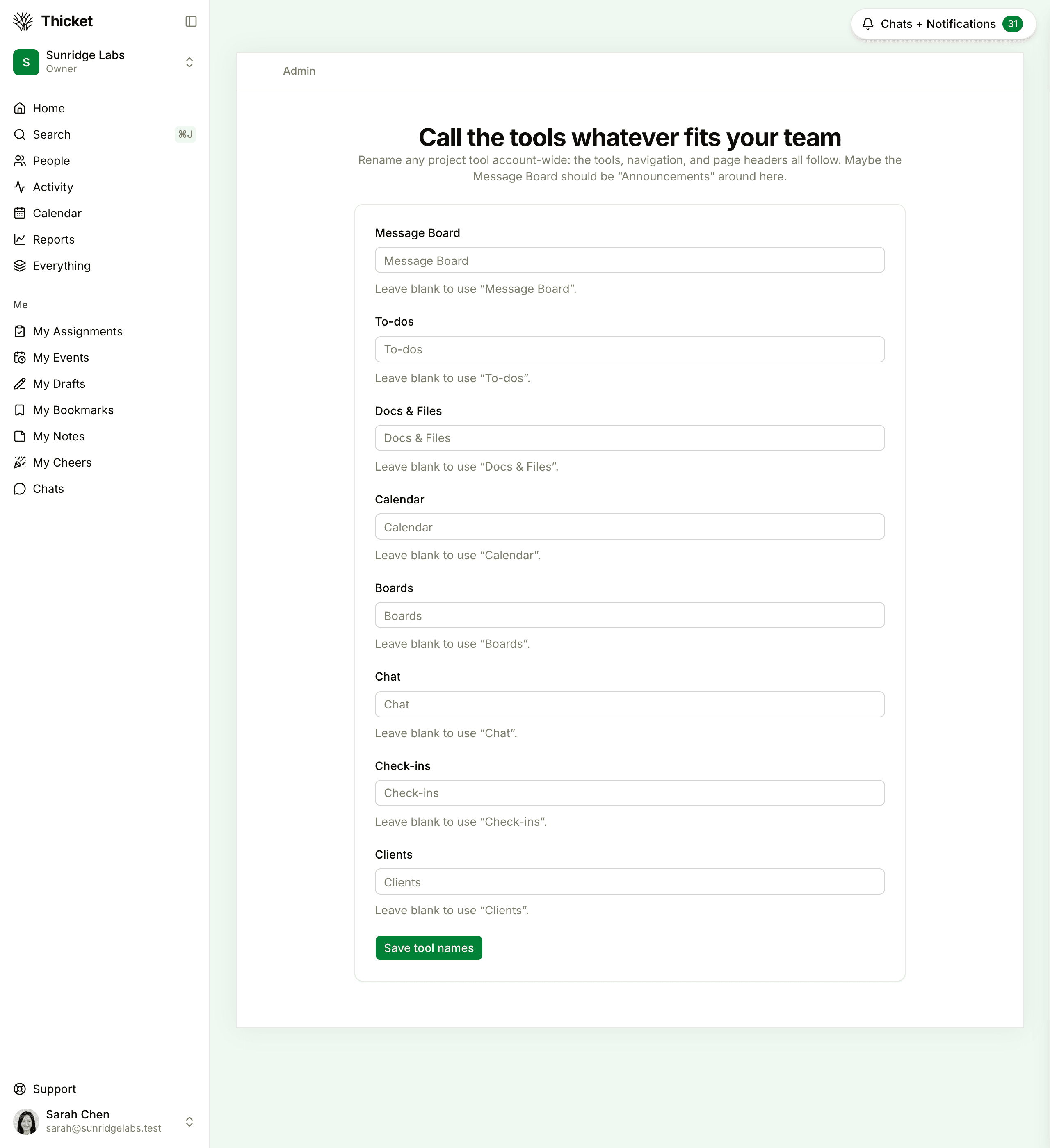
A project can also rename its own tools in its settings, and a name set there wins over the account-wide one in that project. See Creating and Setting Up a Project.
Voice Notes
Voice notes let people record audio straight into chats, messages, comments and docs. They're on unless an owner or admin turns them off.
To turn them off for everyone, go to Admin > Voice notes and turn off the Voice notes switch. The change saves right away. The record button disappears everywhere, and recordings people already made stay playable. Turn the switch back on to bring the button back. See Voice Notes.
Chat History
Chat history is kept until someone deletes it. To delete old lines automatically instead:
- Go to Admin > Chat history.
- Choose Automatically delete history older than… and enter a number of days, from 1 to 3650.
- Click Save.
One setting covers every project chat and every direct chat in the account. Deleted history is gone for good: it doesn't go to the trash and can't be brought back. To keep everything from then on, choose Keep history forever and click Save.
Other Account Settings
- Who can edit projects and people, move or delete content, share public links and chat privately: Permissions
- Requiring two-factor authentication: Two-Factor Authentication
- Project and to-do list templates: Project and To-do List Templates
- The account's name: Renaming Your Account