
Renaming Your Account
Change the name your team sees across Thicket and in the emails it sends. Only account owners can rename the account.
Your account's name appears at the top of the sidebar and on Home, and in the emails Thicket sends your team. Account owners can change it at any time.
Renaming the Account
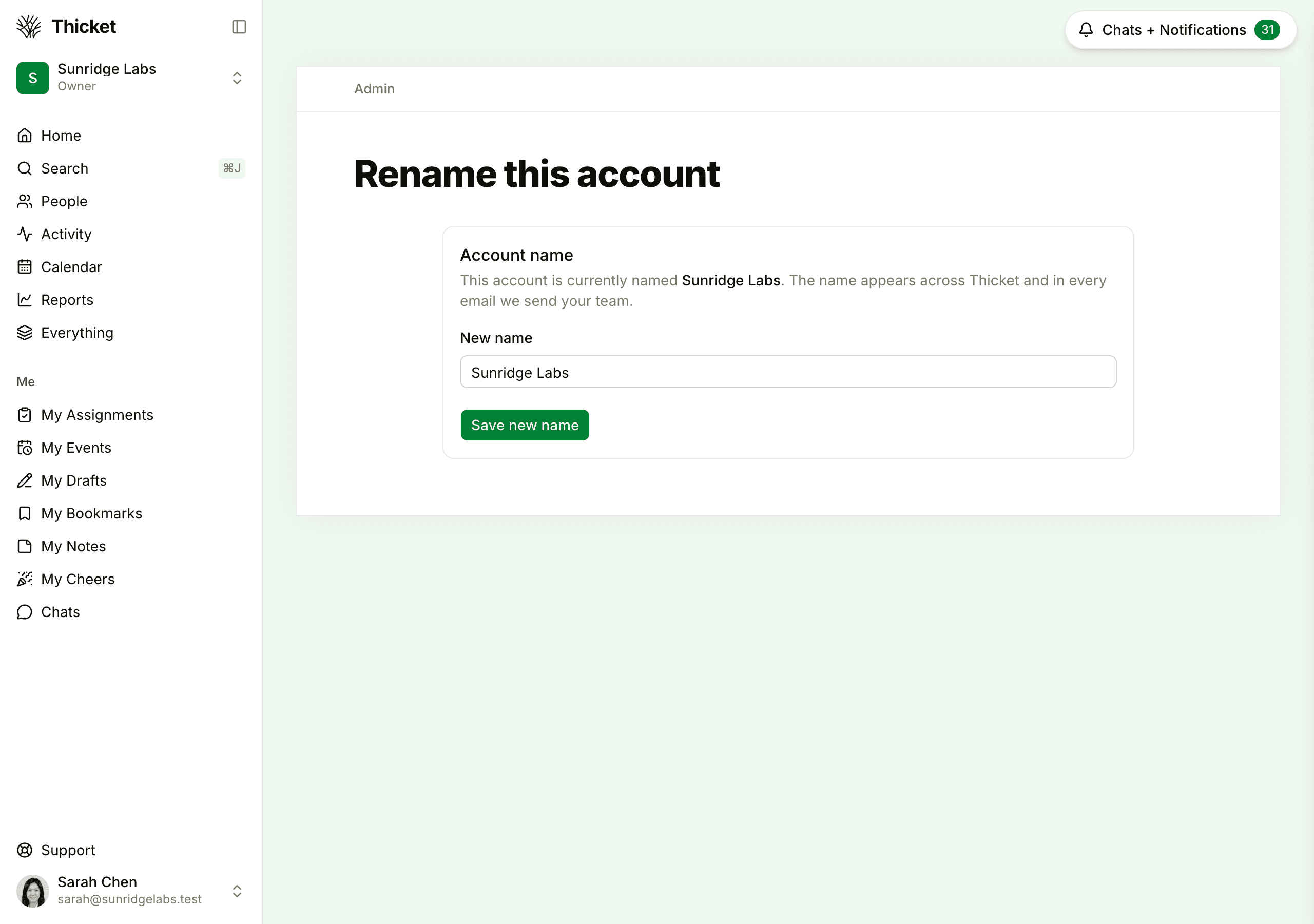
- Click your account's name at the top of the sidebar and choose Admin.
- Click Rename this account. Its description shows the current name.
- Type the new name in New name.
- Click Save new name.
Thicket confirms with "Account renamed", and the new name shows right away. A name can be up to 200 characters long.
What Changes, and What Doesn't
- The new name appears in the sidebar, on Home, on the Your organizations page for people in more than one account, and in emails sent from then on.
- The account's web address stays the same, so saved bookmarks and links keep working.
- Company names don't change. Companies are managed separately in Admin > Manage companies. See Companies and Groups.
Who Can Rename the Account
Only owners. Admins and members don't see Rename this account in Admin. If the name needs changing, ask an owner: the top of Admin lists them. See Account Owners.
Was this article helpful?