
Adding or Removing Administrators
Give trusted teammates admin powers to help run the account, see what admins can and can't do, and take admin access away.
Admins help the owners run the account. They manage people and most account-wide settings, while billing and the other account-level decisions stay with the owners.
What Admins Can Do
- Invite and remove people, change their roles, and change which projects they can access
- Manage companies and groups
- Add and remove other admins
- Merge two profiles that belong to the same person
- Add AI agents
- Change the account logo, permissions, message categories, tool names, and the voice notes and chat history settings
- See storage use and the largest files
- Choose which projects stay active if the account moves to a smaller plan
Being an admin doesn't open every project. Admins see the same projects anyone else would: ones open to everyone, and ones they've been added to.
What Stays With Owners
Billing, renaming the account, exporting data, cancelling the account, requiring two-factor authentication, adding yourself to any project, the account-wide trash, reassigning someone's to-dos, managing public links, and making people owners. See Account Owners.
Adding an Admin
Owners and admins can both add admins. Only team members can become admins: clients can't run the account.
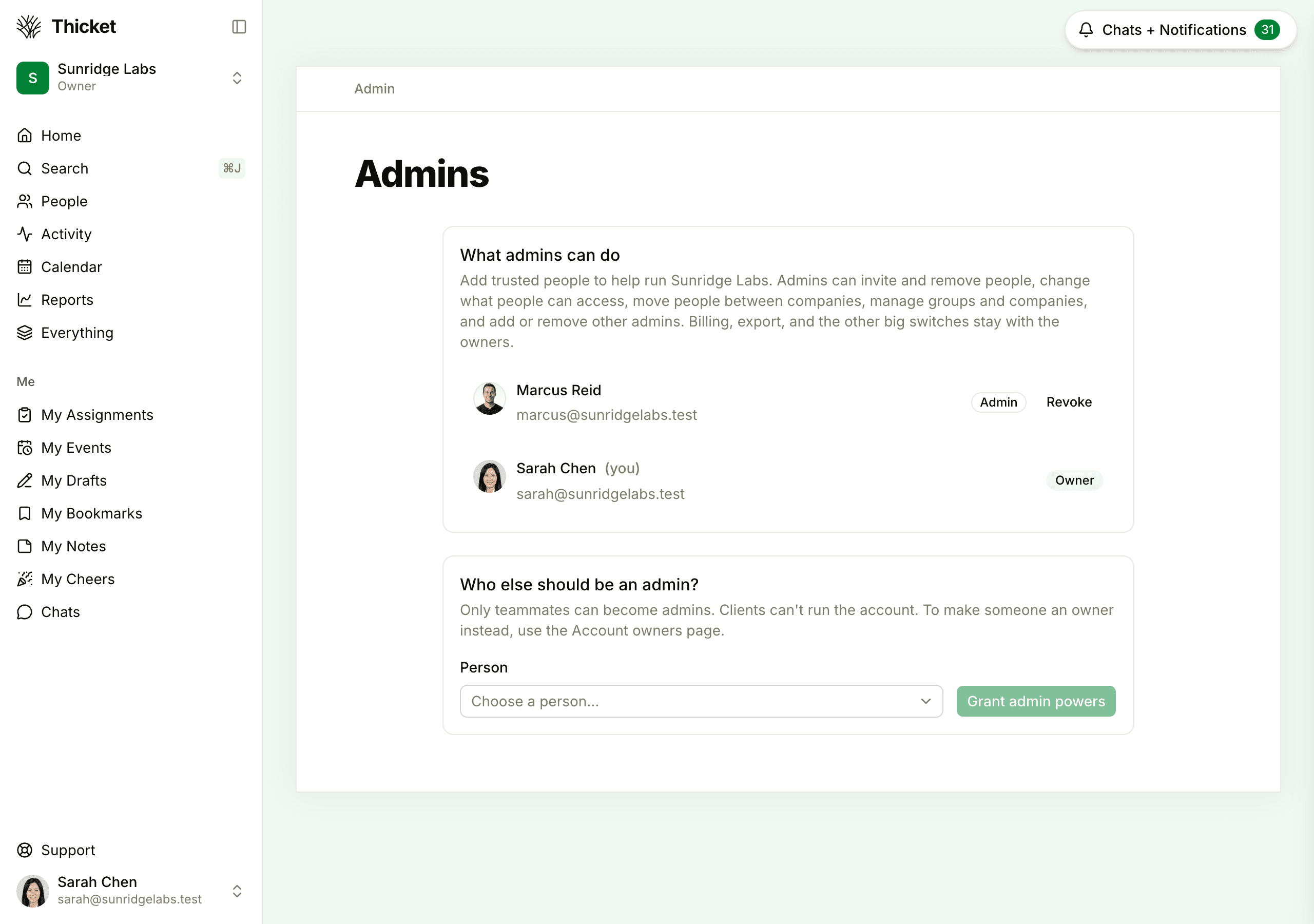
- Go to Admin > Add or remove admins.
- Under Who else should be an admin?, choose the person from the Person menu.
- Click Grant admin powers.
The What admins can do card at the top lists everyone who's already an admin or owner.
To make a client an admin, first make them a team member. See Changing User Types.
Removing an Admin
On Admin > Add or remove admins, click Revoke next to the admin. They become a regular member right away and keep access to their projects.
Owners appear in the same list with an Owner badge and no Revoke button. Ownership is changed on Admin > Account owners instead.
From the People Page
You can also change someone's role on the People page: open the ••• menu next to their name and choose Admin or Member under Change role. See Managing People.