
Adding People to a Project
Open a project to your whole team or keep it invite-only, see who has access, and add teammates, groups or someone new to it.
Every project is either open to everyone on your team or invite-only. Every team member can see an open project. An invite-only project is visible only to the people on its list: anyone else won't see it on Home or in search. That includes admins, who don't get automatic access to projects they aren't on. Clients only ever see projects they've been added to directly.
Open to Everyone or Invite-Only
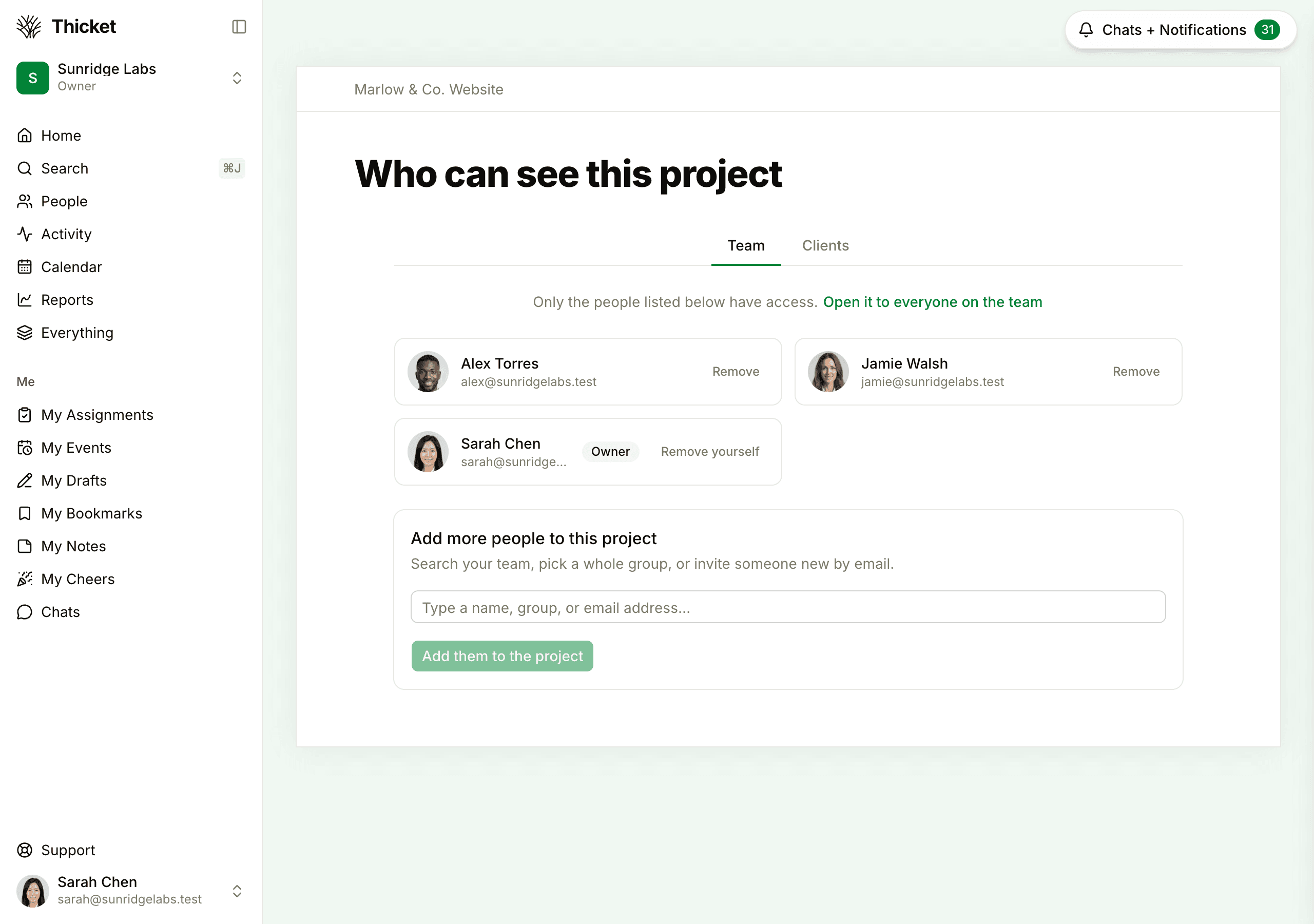
New projects are open to everyone unless you turn off Open to everyone when you create them. To change it later, open the project's people page (see below). A line above the list says which kind of project it is:
- On an open project, click Make it invite-only.
- On an invite-only project, click Open it to everyone on the team.
The Open to everyone switch in Project settings does the same thing. If an admin has turned on Restrict who can edit project details, only owners, admins and the project's creator can make either change.
Making an open project invite-only asks you to confirm first, and the confirmation names who keeps access: you, and the teammates who were added to the project directly. Everyone else on the team loses access until someone adds them, and clients on the project keep theirs. Click Make it invite-only to go ahead, then add anyone who's missing.
Seeing Who's on a Project
On a project's page, the avatars under the project name show how many people are on it, for example 7 people on this project. Click them to open Who can see this project. It has two tabs:
- Team lists your teammates on the project. On an open project, that's everyone on the team. Owners and admins are marked with a badge.
- Clients is where you turn on working with clients and add them. See Working with Clients.
Adding People
On an invite-only project:
- Open the project and click the avatars under its name.
- On the Team tab, go to Add more people to this project.
- Type in Type a name, group, or email address… (Type a name or group… if you can't invite people) and pick from the suggestions. Picking a group adds everyone in it who isn't on the project yet.
- Keep going until everyone you want is on the list. Click the × next to a name to drop it.
- Click Add them to the project.
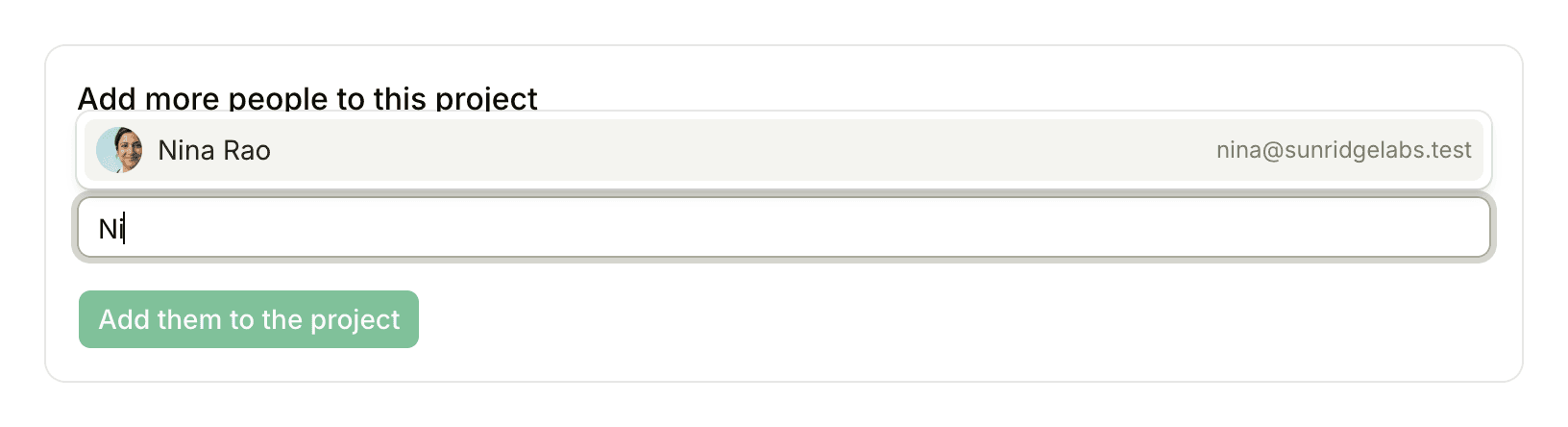
They're added straight away, and each gets an email saying you added them, unless they've turned email notifications off. When the teammates you can add belong to companies, Or pick people from a company… lets you tick people from one company's list instead.
The add box doesn't appear on an open project, because everyone on the team already has access. It's also hidden from you if your account restricts who can edit people on a project and you aren't an owner, an admin, or the project's creator.
Inviting Someone New
Owners and admins can bring in someone who isn't in the account yet, straight into the project:
- Type their full email address in the add box.
- Pick the suggestion that starts with Invite, such as Invite jordan@example.com to this project…. Optionally enter their name, then click Add to the list.
- Add an optional note for the invitation email, then click Add them to the project.
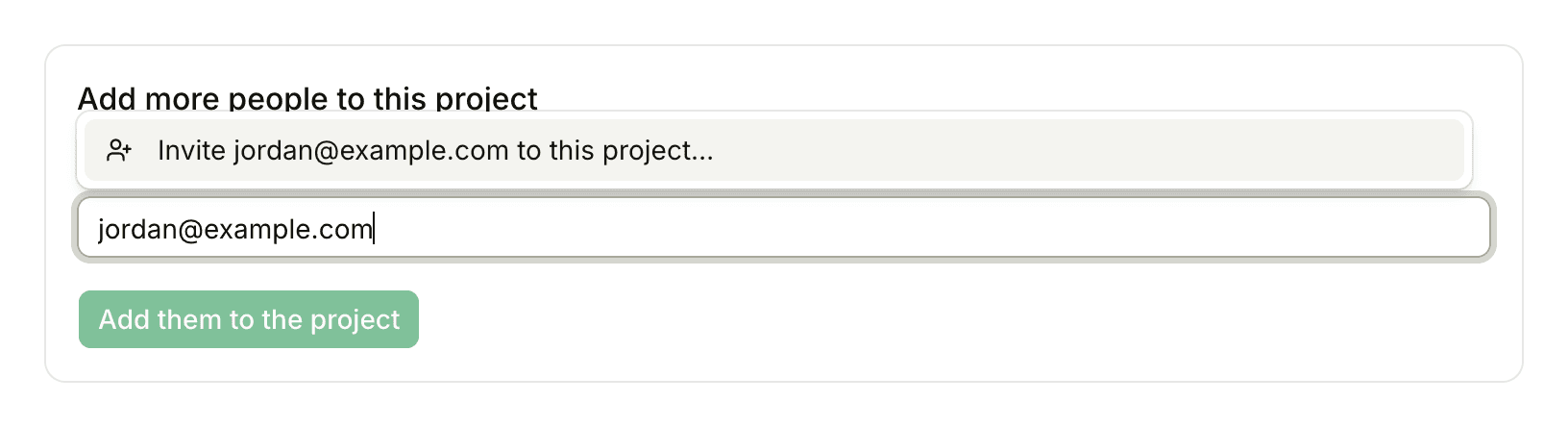
They join your account as a team member and land in this project when they accept. See Inviting People.
Adding Someone to Several Projects
Owners and admins can set all of one person's projects at once, including archived projects:
- Click People in the sidebar.
- Click ••• next to the person and choose Change access….
- Tick their projects and click Save access.
See Managing People.
Who Can Add People
Anyone on the team who's on a project can add people to it. An owner or admin can limit this to owners, admins and the project's creator by turning on Restrict who can edit people on a project in Admin > Permissions (see Permissions). Owners can also add themselves to any project from Admin > Access any project. Clients can't add or remove people.
To take someone off a project, see Removing People.