
Permissions
See what owners, admins, team members and clients can each do, how project access works, and how to restrict editing, moving content and public links.
What someone can do in Thicket depends on two things: their user type (owner, admin, member or client) and the projects they're on. This article covers both, plus the optional restrictions owners and admins can turn on. To change someone's type, see Changing User Types.
Team Members
Team members, shown as Member, can:
- Work in every project that's open to everyone on the team, and in every invite-only project they're on
- Post, comment, and create to-dos, docs, files, events and cards in those projects
- Create projects, and use and create templates
- Add people who are already in the account to projects they're on, and take them off
- Change a project's name, description and tools, and whether it's open to everyone
- Archive or delete projects they created
- Move, archive and delete content, and share items with public links
- Open Admin to see who the account's owners and admins are
Team members can't invite new people, change anyone's user type, or remove people from the account.
Admins
Admins can do everything team members can, plus:
- Invite people by email or with a link, and manage pending invitations
- Remove people from the account
- Change people between member, admin and client
- Change which projects someone is on, and edit their job title, company and out-of-office dates
- Turn off two-factor authentication for someone who's locked out
- Manage companies and groups, and add or remove other admins
- Set up AI agents
- Archive or delete any project they're on
- Change the account settings in Admin that aren't reserved for owners, such as the account logo, permissions, message categories, tool names, voice notes and chat history
Admins can't change or remove owners. They also don't get automatic access to invite-only projects: like everyone else, they see the projects they're on.
Owners
Owners can do everything admins can, plus:
- Make someone an owner, and change or remove other owners
- Manage billing and the plan, and rename the account
- Require two-factor authentication for everyone except clients
- Reassign someone's to-dos in bulk
- Add themselves to any project with Admin > Access any project
- See and unpublish every public link with Admin > Manage public items
- Restore anything from the account-wide trash
- Export the account's data, and cancel the account
See Account Owners and The Admin Area.
Clients
Clients work in the projects they're added to, and they only see the items your team shares with them. They can't create projects, invite people, add or remove people on a project, change a project's settings, use templates, or join groups, and they don't see Admin or Reports. See What Clients Can See and Do.
Project Access
A project is either open to everyone on the team or invite-only:
- An open project includes every team member, admin and owner.
- An invite-only project is visible only to the people on it, admins included.
- Clients are never included automatically. They only get into a project when someone adds them to it.
See Adding People to a Project.
Tightening Permissions
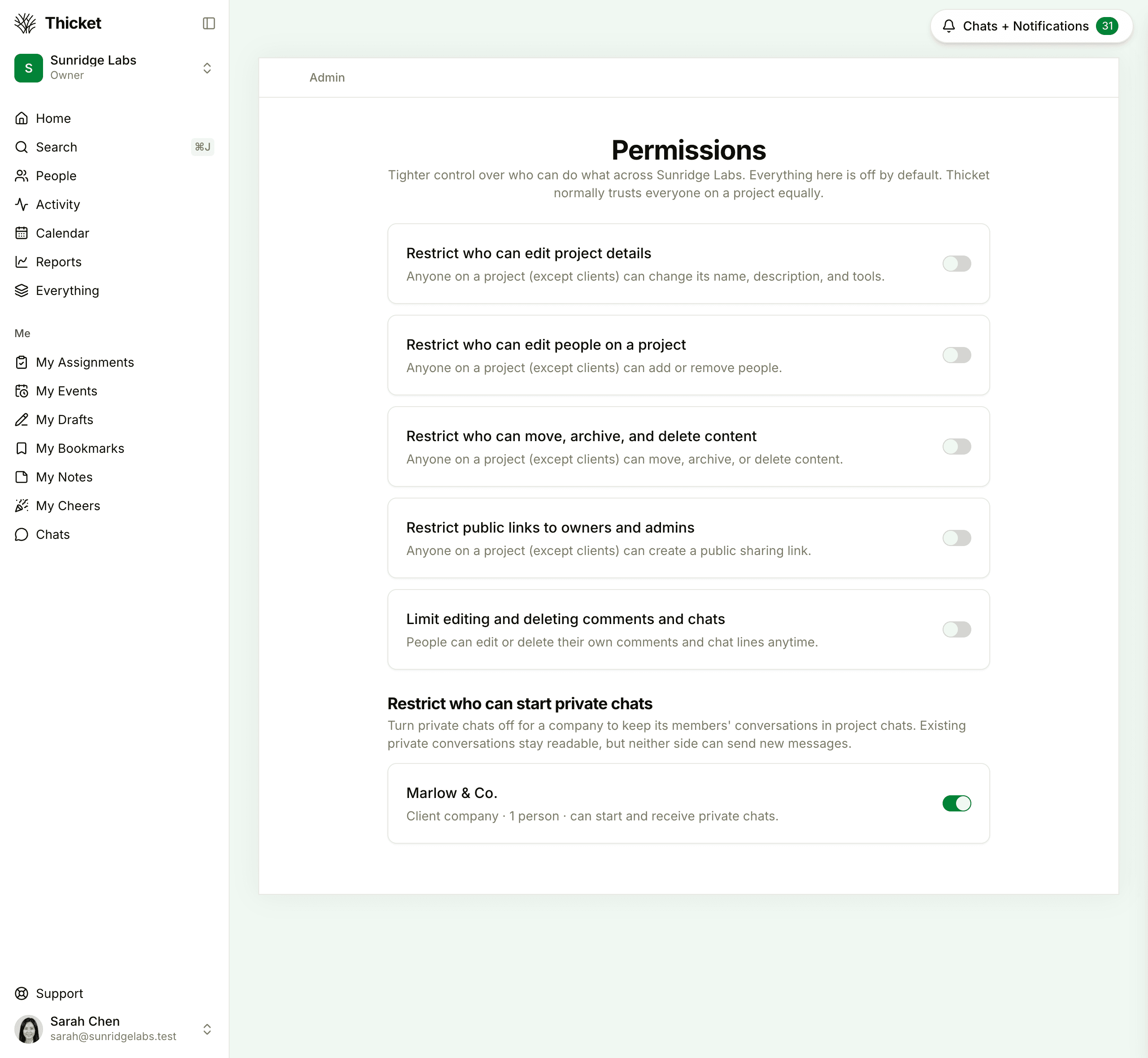
Out of the box, everyone on a project except clients can edit it, change who's on it, move and delete its content, and share public links. Owners and admins can narrow that in Admin > Permissions. Every switch is off until you turn it on, and each applies to the whole account:
- Restrict who can edit project details: only owners, admins and the project's creator can change a project's name, description and tools, and whether it's open to everyone. Everyone else sees Project settings with those controls turned off and a note saying why.
- Restrict who can edit people on a project: only owners, admins and the project's creator can change who's on a project. Projects open to everyone aren't affected, and anyone can still remove themselves.
- Restrict who can move, archive, and delete content: only owners, admins and whoever created an item can move, archive or delete it. Anyone with access can still move cards between columns on the same board, including Done. Once others have commented on an item, only an owner or admin can archive or delete it.
- Restrict public links to owners and admins: only owners and admins can create public sharing links. See Sharing Items with Public Links.
- Limit editing and deleting comments and chats: everyone gets 15 minutes to edit or delete their own comments and chat lines. After that, only owners and admins can delete them, and nobody can edit them.
Turning Off Private Chats for a Company
Under Restrict who can start private chats, each company in your account has its own switch. Turn a company's switch off to keep its people talking in project chats instead of private ones. Their existing private conversations stay readable, but neither side can send new messages. If you haven't set up any companies yet, the section links to Manage companies. See Companies and Groups and Group Chat and Direct Messages.