
Working with Several Client Companies in One Project
A project shows one client company name, but you can add clients from several companies. Choose a neutral name, and each client keeps their own company.
Sometimes one project involves more than one outside company: a client and their agency, or several vendors working toward the same launch. Thicket handles this with one company name per project and each client's own company kept on their profile.
One Name per Project
A project that works with clients shows a single client company name. Your team sees it above the project's name, on every visibility flag (for example Visible to Marlow & Co.), and on the sharing switch when you post.
When clients come from several companies, choose a neutral name that covers all of them, such as "Launch partners" or "All vendors":
- Open the project and click the people under its name, then the Clients tab.
- Click the company name above the roster (or Add the client company name… if there isn't one yet).
- Type the new name and press Enter.
Clients Keep Their Own Company
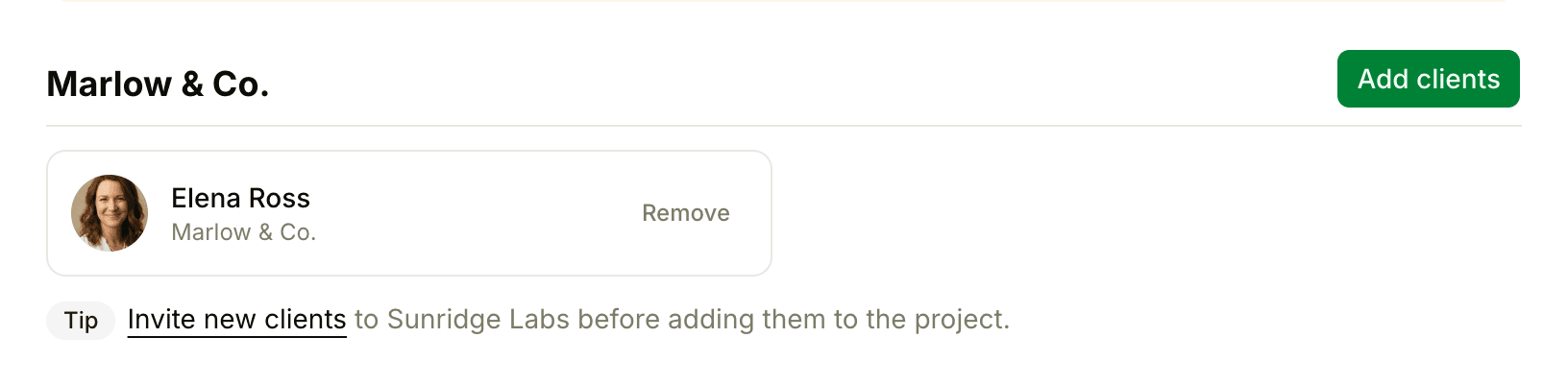
The project's name is only a label. Each client still belongs to the company they were invited with, and the roster on the Clients tab shows that company under their name. Add clients offers every client in your account who isn't on the project yet, whatever their company, so you can add people from several companies to the same project.
To change which company a client belongs to, an owner or admin opens People, clicks ••• next to the client, chooses Edit info…, picks a different Company, and clicks Save changes. Companies themselves are managed in Admin > Manage companies. See Companies and Groups.
Everyone on the Project Sees the Same Things
Sharing is between your team and the project's clients as a whole. When you share an item, every client on the project can see it, whichever company they're from. There's no way to share an item with one company but not the other.
Clients on the same project can also see each other on the project's people page, and they can start private chats with each other. To stop a company's people from starting private chats, an owner or admin can turn private chats off for that company in Admin > Permissions.
If the companies shouldn't see each other's work or conversations, give each company its own project instead.