
Changing User Types
Make someone an owner, admin or team member, turn a team member into a client or a client into a team member, and see what changes for them.
Every person in your account has one user type, and it applies across all of your projects:
- Owner: runs the account, including billing and the account-wide settings.
- Admin: helps run the account. Admins invite and remove people, manage what people can access, and look after companies and groups.
- Member: a team member. Members see everything in the projects they're on and can create projects.
- Client: sees only what your team shares with them, in the projects they're added to.
Permissions lists what each type can do. Owners and admins change user types from the People page.
Promoting or Demoting a Team Member
- Click People in the sidebar.
- Click ••• next to the person.
- Under Change role, click Owner, Admin or Member. The role they have now isn't listed.
The change takes effect immediately. A few rules apply:
- Only an owner can make someone an owner, or change another owner's role.
- Admins can switch people between admin and member, but can't change owners.
- An account always needs at least one owner. The only owner has to make someone else an owner before stepping down.
- You can't change your own role from the People page. To step down as an owner, use Admin > Account owners (see Account Owners).
You can also promote and demote admins from Admin > Add or remove admins. See Adding or Removing Administrators.
Making Someone a Client
- Click People in the sidebar.
- Click ••• next to the person and choose Make a client….
- Read the list of what changes for them.
- Click the button that confirms it, such as Make Priya Sharma a client, or click Never mind to leave them as they are.
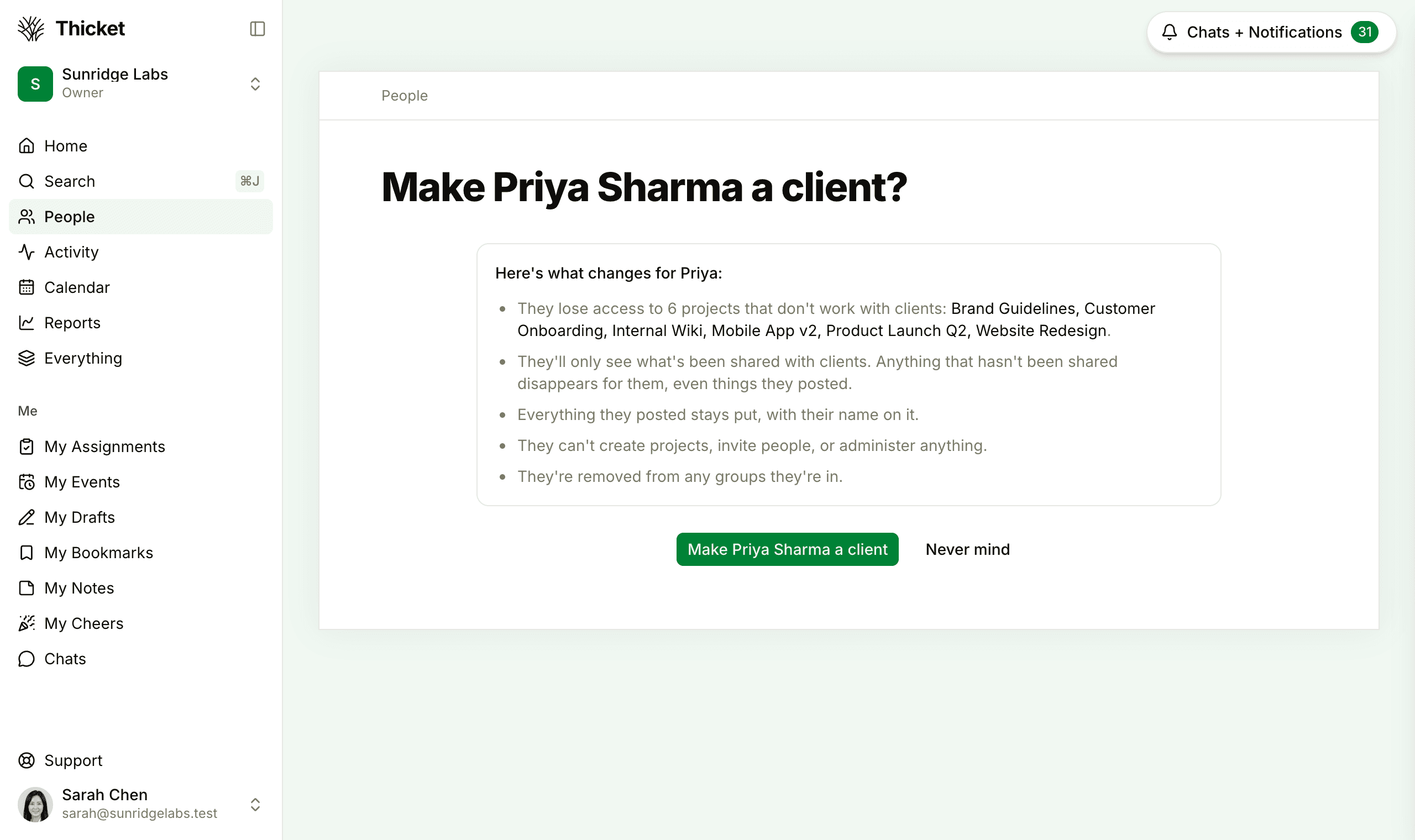
Here's what changes when someone becomes a client:
- They lose access to projects that don't work with clients. The page names those projects.
- Projects that are open to everyone on the team no longer include them. Clients are only on projects they're added to directly.
- They only see items shared with clients. Anything that isn't shared disappears for them, even things they posted.
- They can't create projects, invite people, or run anything in Admin.
- They're taken out of any groups.
Owners can't be made clients. Change an owner to Member first. To list the person under their client company on the People page, set their Company with Edit info… (see Companies and Groups).
Making a Client a Team Member
- Click People in the sidebar.
- Click ••• next to the client and choose Make a team member….
- Review the changes, then click the button that confirms it, such as Make Elena Ross a team member.
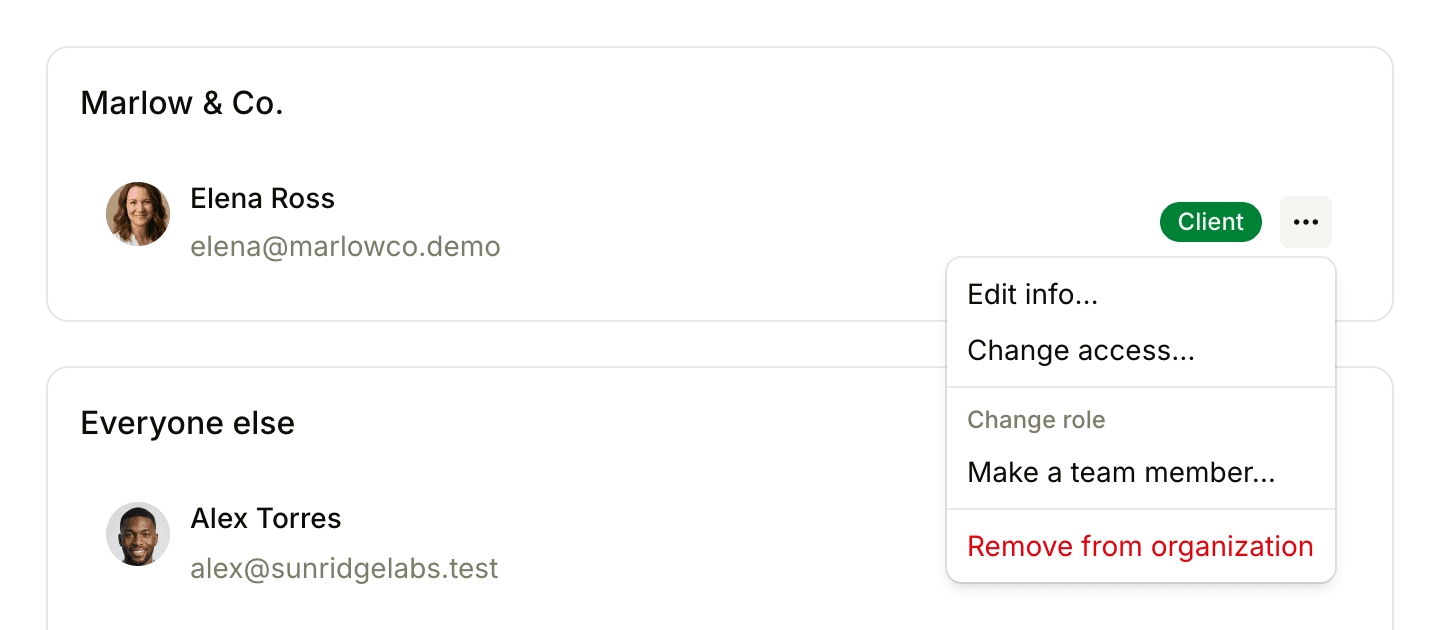
As a team member, they see everything in the projects they're on, not only what was shared with clients. They can create projects, they can be added to groups, and they get access to every project that's open to everyone on the team. Later, you can make them an admin.
Both pages can also be reached from a person's Change access… page, through the link at the bottom.
What Stays the Same
- Everything they've posted stays where it is, with their name on it.
- They sign in with the same email address and password.
- Your people count doesn't change. On the Free and Starter plans, team members and clients count toward the same limit of 20 people.