
Working with Clients
Bring clients into a project, name their company, share work with them, ask for approvals, and turn client access off again.
Clients are people outside your team who need to follow a project: the business you're building a website for, a customer reviewing a rollout, an agency partner. You add them to the projects they're part of, and they see only the items you share with them. Everything else in the project stays with your team.
Client access is set per project. A project doesn't work with clients until someone on your team turns it on.
Before You Start: Invite the Client
A client has to be in your account before you can add them to a project. Owners and admins invite clients from People > Invite people: choose Client, enter their email, and choose their Company (or New company…). The invitation can also add them straight to projects that already work with clients. See Inviting People.
Clients count as people on your plan, the same as everyone else. See Billing and Plans.
Turn On Work with Clients
- Open the project and click the people under its name (for example 4 people on this project). This opens Who can see this project.
- Click the Clients tab.
- Turn on Work with clients.
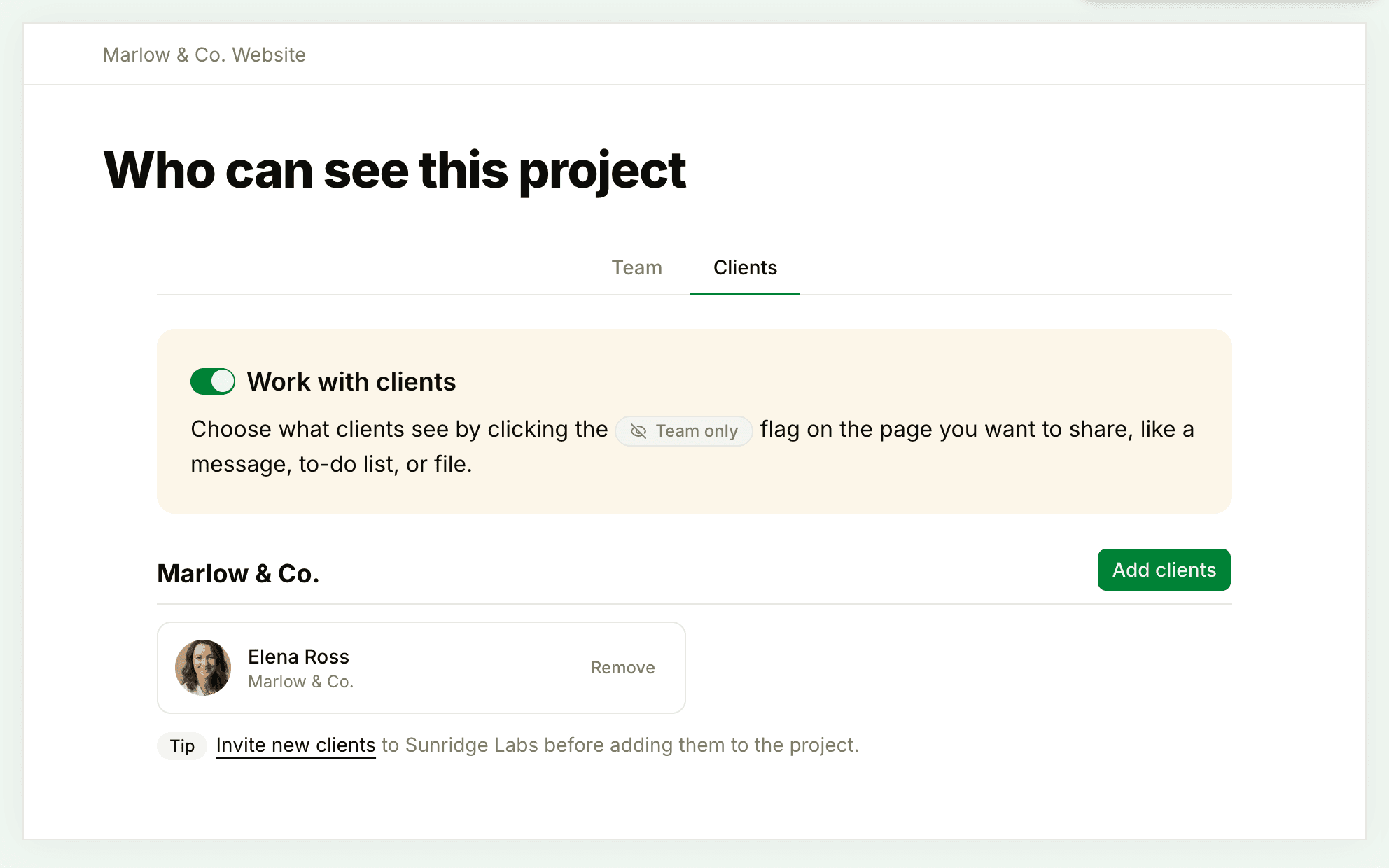
Anyone on your team who can open the project can turn it on. Clients can't. Three things change right away:
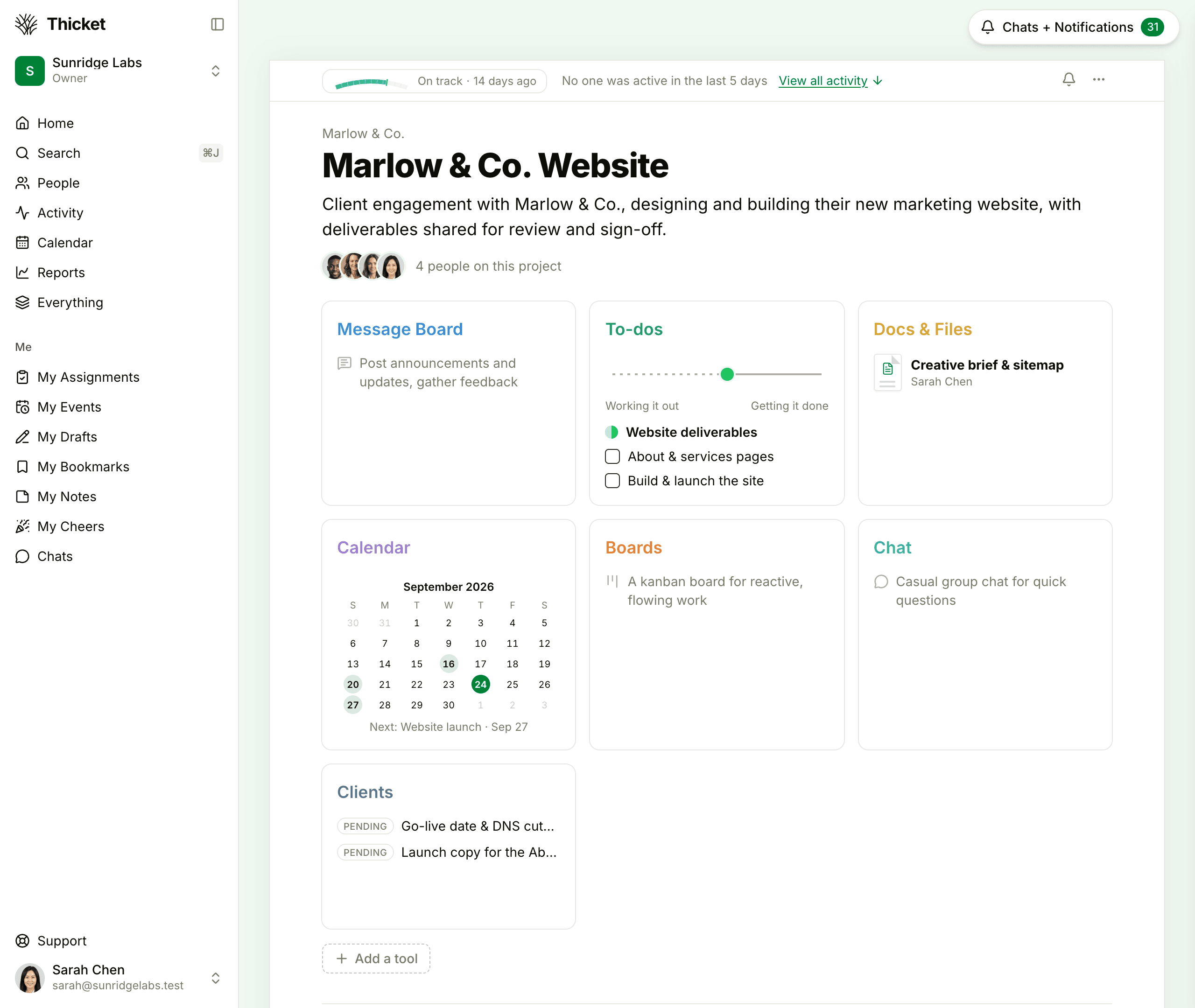
- A Clients tool joins the project's tools. It holds approvals and correspondence (see below). It only appears through this switch, never through Add a tool.
- The client company name appears above the project's name, or Client until you add one. For your team it links back to this tab.
- Every item page gets a visibility flag, which reads Team only until you share the item.
A project created from a template that works with clients starts with Work with clients on and keeps the template's visibility choices. See Project and To-do List Templates.
Name the Client Company
On the Clients tab, click Add the client company name…, type the name, and press Enter or click away. It saves on its own.
The name is a label for the project. Your team sees it above the project's name, on each visibility flag (Visible to Marlow & Co.) and on the sharing switch when you post. Changing it doesn't change the company each client belongs to in your account. If clients from more than one company share the project, see Working with Several Client Companies in One Project.
Add Clients to the Project
- On the Clients tab, click Add clients.
- Under Who do you want to add to this project?, type a client's name or email address and pick them from the list. Add as many as you need.
- If you like, write a note under Add an optional note to the email.
- Click Add them to the project.
Each person gets an email with a link to the project, unless they've turned email notifications off. They can open the project right away, and they see only what's been shared with clients.
The list offers clients who are already in your account. Someone new has to be invited to your account first: owners and admins have an Invite new clients link in the tip under the roster, and everyone else sees a line saying an owner or admin invites new clients. Owners and admins can also add a client to several projects at once from People: click ••• next to the client and choose Change access….
By default anyone on your team can add or remove clients. If an owner has turned on Restrict who can edit people on a project in Admin > Permissions, only owners, admins and the project's creator can change who's on an invite-only project. See Permissions.
Share Work with Clients
Everything you post starts out Team only. You decide what clients see, item by item: flip the switch as you post a message, change the flag at the top of an item's page, or share the whole chat at once. What Clients Can See and Do covers every tool.
Ask for Approvals and Keep Correspondence
The Clients tool gives your team two ways to work with clients on the record. Clients see everything in it.
- Approvals ask one client to sign off on something. Click New approval, fill in the Title and Details, choose the Approver (a client on the project), add a Due date (optional), and click Request approval. The approver is notified and answers with Approve or Decline. They can decide once, and everyone following the approval hears the answer. Each approval shows Pending, Approved or Declined in the list.
- Correspondence is a thread with your clients. Click New correspondence, give it a Title and a Message, and click Start thread. Clients reply with comments.
Only your team can request approvals and start correspondence. Clients comment on both, and follow them with the same Notify me box as any other item. To request an approval, you need at least one client on the project: until then, New approval points you to the Clients tab of the project's people page, with an Add clients button.
Remove a Client from the Project
On the Clients tab, click Remove next to the client, then Remove them. They lose access to the project immediately. Nothing they posted is deleted, and they aren't notified. To take someone out of your account entirely, see Removing People from Projects and Your Account.
Turn Off Work with Clients
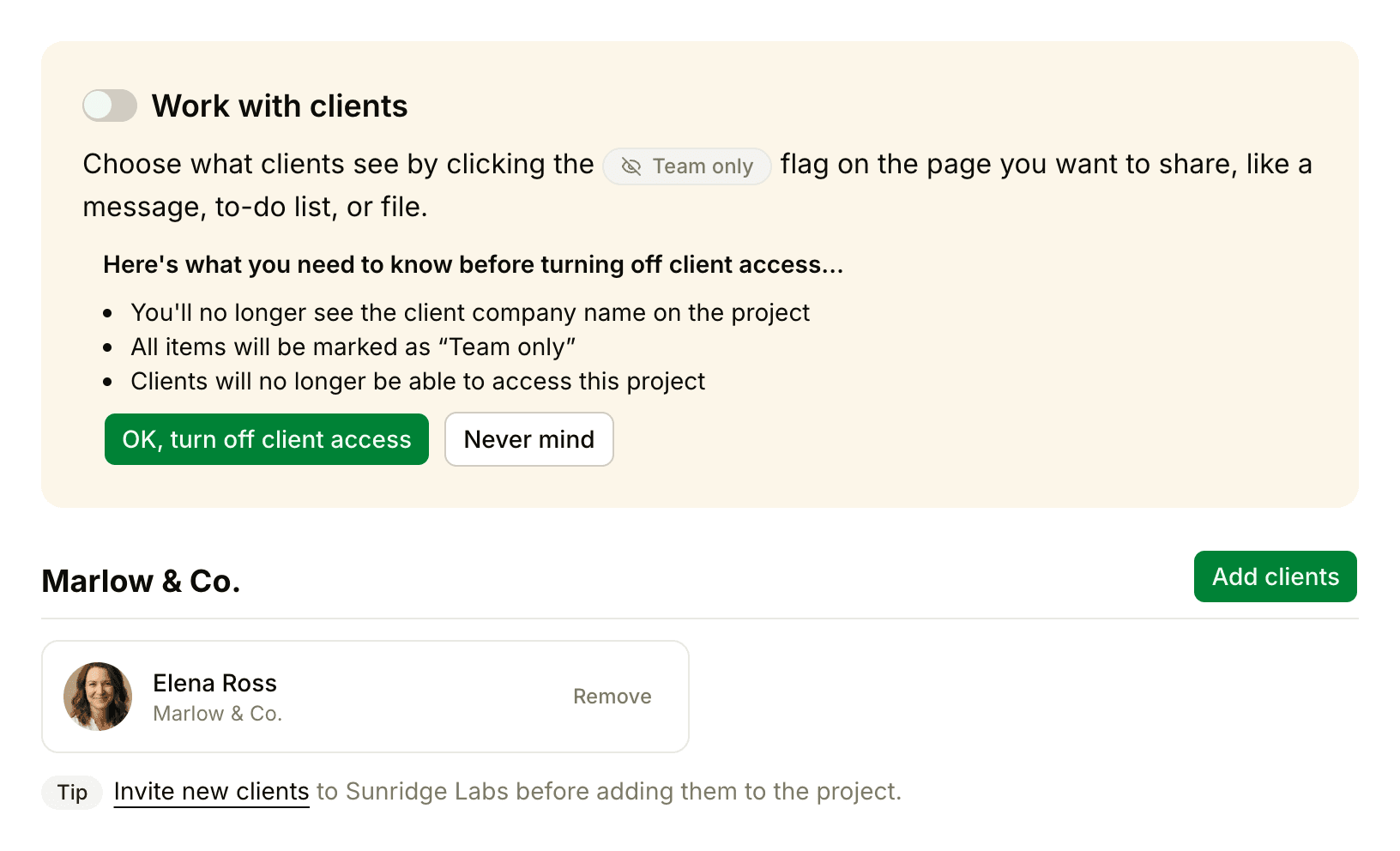
Turn off the Work with clients switch. Before anything changes, the panel lists what will happen:
- You'll no longer see the client company name on the project.
- All items are marked Team only.
- Clients can no longer open the project.
Click OK, turn off client access to go ahead, or Never mind to keep things as they are. The Clients tool leaves the project too, and the client company name is cleared.
If you turn it back on later, approvals and correspondence are visible to clients again, but everything else stays Team only, and you'll need to name the client company and add the clients to the project again.