
Removing People
Take someone off a project, leave a project yourself, or remove a person from your account, and see what happens to the work they leave behind.
You can take someone off a single project, or remove them from your account entirely. Either way, only their access changes: everything they posted stays where it is, with their name on it, and they aren't notified.
Taking Someone Off a Project
- Open the project and click the avatars under its name to open Who can see this project.
- Click Remove next to the person. Clients are listed on the Clients tab.
- Click Remove them to confirm.
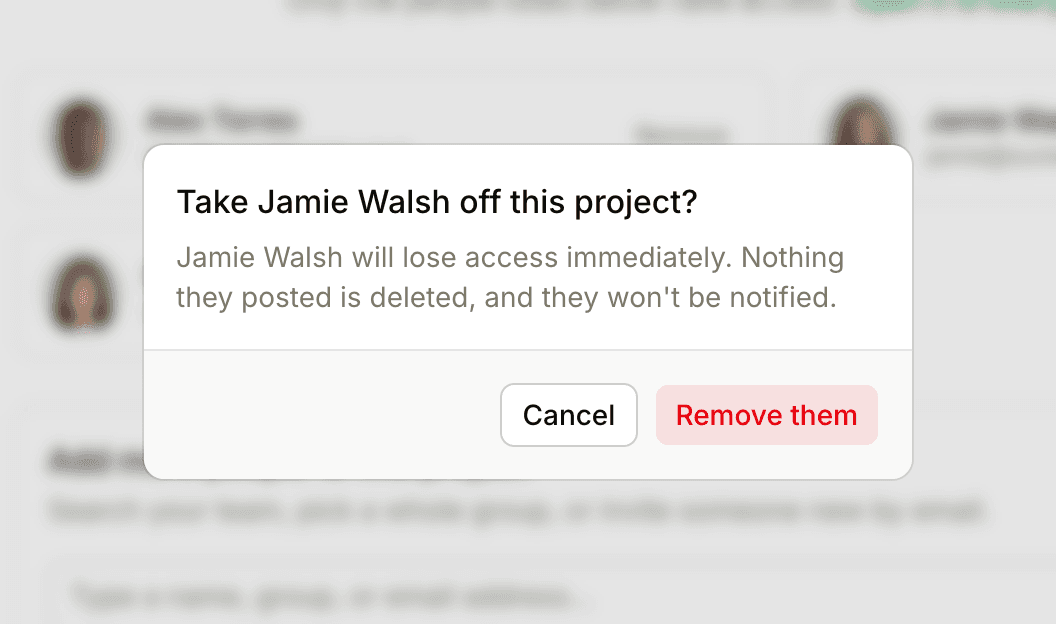
They lose access to that project immediately and stop following its discussions. Their other projects aren't affected.
Anyone on the team who's on the project can remove people from it, unless an owner or admin has turned on Restrict who can edit people on a project in Admin > Permissions. Then only owners, admins and the project's creator can. Clients can't remove anyone.
A project that's open to everyone on the team has no Remove buttons on its Team tab, because every team member has access. To keep someone out, make the project invite-only first. See Adding People to a Project.
Owners and admins can also take someone off several projects at once: on the People page, click ••• next to the person, choose Change access…, untick the projects, and click Save access.
Leaving a Project Yourself
On an invite-only project, click Remove yourself next to your name on the project's people page, or choose Leave this project from the project's ••• menu. You can't leave when you're the only person on it: add someone else first, or archive or delete the project.
A project that's open to everyone on the team can't be left, so neither option appears there. To hear less from it, click the project's bell and choose Only when someone @mentions me. Clients can't remove themselves, so they ask an owner or admin. See Leaving a Project or an Account.
Removing Someone from Your Account
Owners and admins can remove people from the account. Admins can't remove owners, and an account's last owner can't be removed.
- Click People in the sidebar.
- Click ••• next to the person and choose Remove from organization.
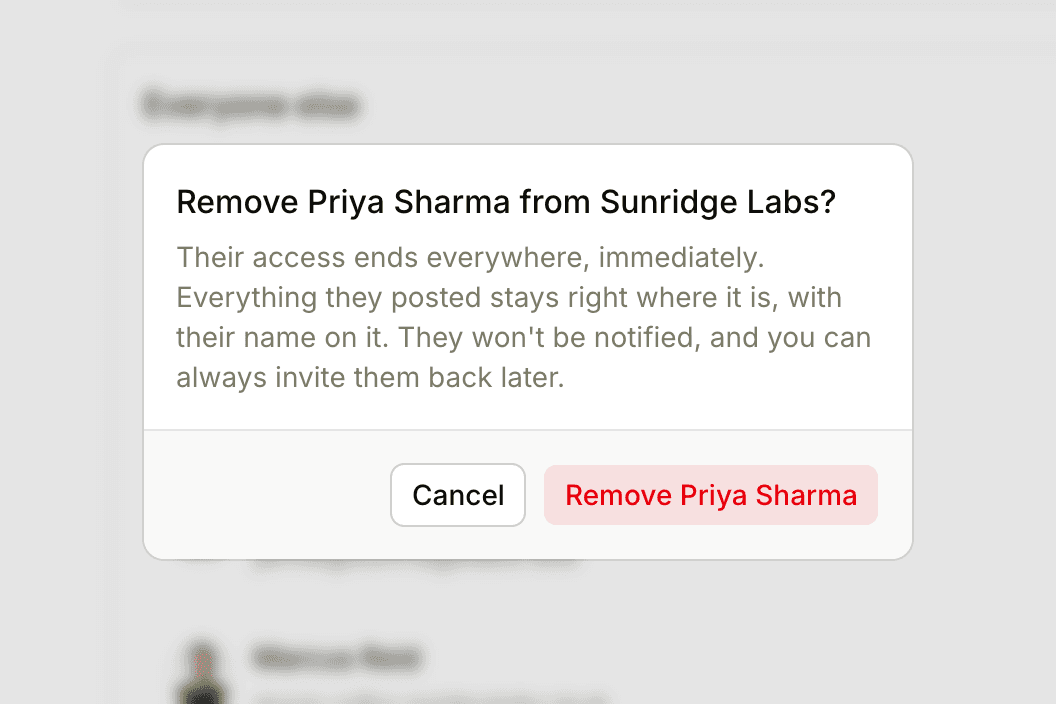
- Click the button that confirms it, such as Remove Priya Sharma.
You can also start from the link at the bottom of their Edit info… page, such as Remove Priya Sharma from this organization….
What Happens When You Remove Someone
- Their access ends everywhere, immediately. They can't open your account, and they're taken off every project and group.
- They stop following everything in your account, so they get no more notifications from it.
- Everything they posted, uploaded or completed stays where it is, with their name on it.
- They aren't notified.
- Their Thicket login keeps working for any other accounts they belong to.
- On the Free and Starter plans, they no longer count toward your limit of 20 people.
To-dos assigned to them stay assigned. If you're an owner, hand them on first with Admin > Reassign someone's to-dos, which can move, clear or share out all of a person's open to-dos. Once someone is removed, that page no longer lists them.
Bringing Someone Back
To bring someone back, invite them again from People (see Inviting People). When they accept, their earlier posts are still theirs, but their project access starts fresh, so choose their projects again.
If someone hasn't accepted their invitation yet, you don't need to remove them: click ••• on their invitation on the People page and choose Revoke invitation.