
Companies and Groups
Organize people by the company they work for, mark client companies, and build groups of teammates you can mention, assign or add to a project together.
Companies and groups are two ways to organize the people in your account. A company records where someone works, and a client company holds the people you do work for. A group is a named set of teammates, such as Designers, that you can mention, assign or add to a project in one step. Owners and admins manage both from Admin, which you open by clicking your account's name at the top of the sidebar.
Companies
The People page lists people under their company, and anyone without one under Everyone else. A person's company also appears next to their job title on their card and on project people pages. Companies are also used to:
- Hold your clients. Every client you invite by email belongs to a client company. See Working with Clients.
- Pick several people from one company when you add people to a project, with Or pick people from a company…
- Turn off private chats for everyone in a company, in Admin > Permissions (see Permissions)
Adding a Company
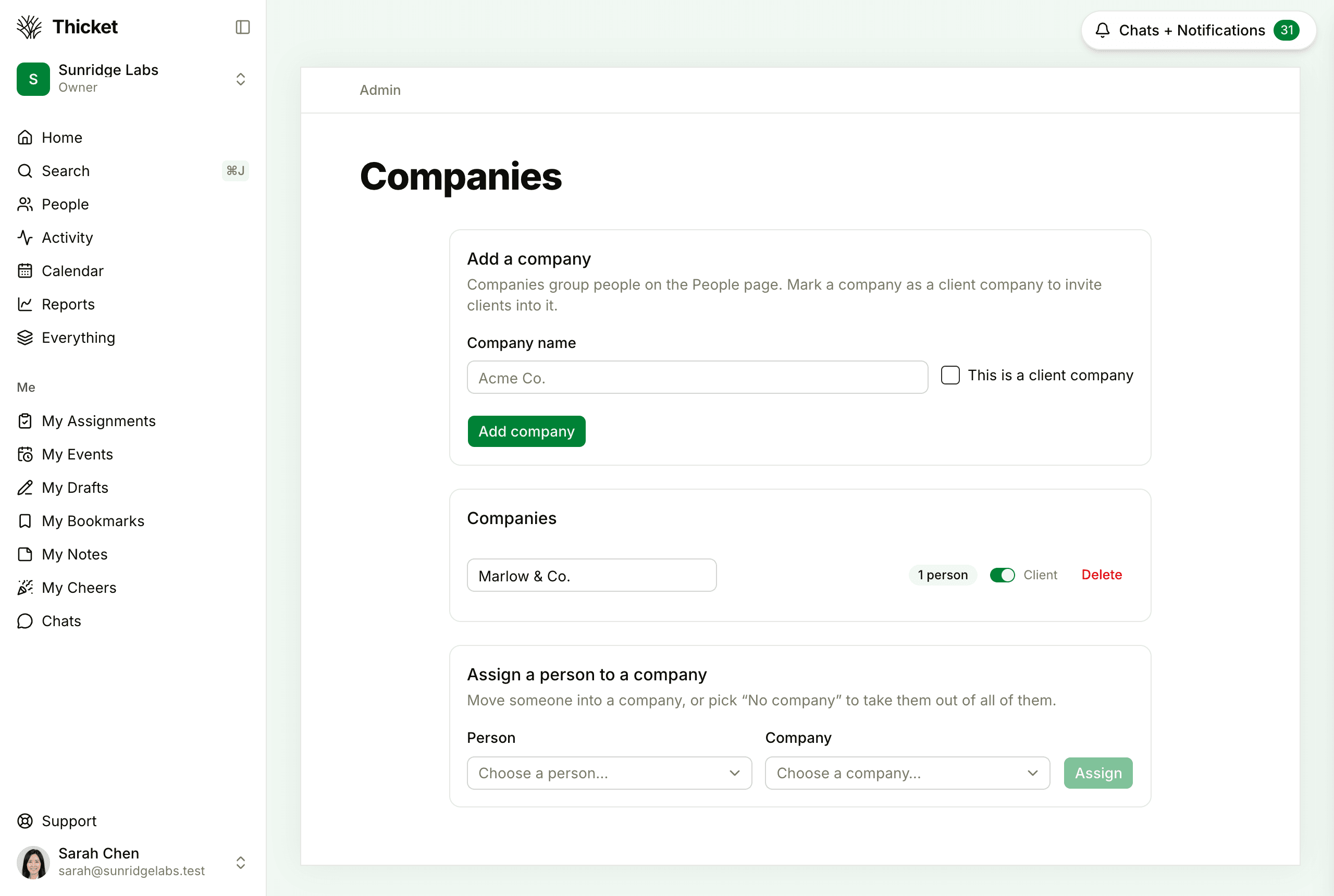
- Open Admin and click Manage companies.
- Under Add a company, type the Company name.
- If it's a company you do work for, tick This is a client company.
- Click Add company.
A new client company is also created when you invite a client and choose New company…. See Inviting People.
Putting People in a Company
On the same page, under Assign a person to a company, choose the Person and the Company, then click Assign. Choose No company to take someone out of their company.
You can also set someone's company from People: click ••• next to their name, choose Edit info…, change Company, and click Save changes.
Renaming, Marking and Deleting Companies
Each company in the Companies list has:
- Its name in a text box. Edit it and click Save to rename the company.
- A count of the people in it.
- A Client switch that marks it as a client company or a regular one. Only client companies are offered when you invite clients. The switch doesn't change anyone's user type: see Changing User Types for that.
- Delete, which removes the company after you confirm. Its people stay in your account, without a company. This can't be undone.
Groups
A group is a shortcut for a set of teammates you often work with together. Clients can't be in groups. You can use a group to:
- @mention everyone in it at once, like @Designers, in a message, comment or chat. Everyone in the group who can see the project is notified. See @-mentions.
- Assign a to-do or card to everyone in it, or add them all to an event. The group is swapped for its members when you pick it, so changing the group later doesn't change earlier assignments.
- Add everyone in it to a project from the project's people page. See Adding People to a Project.
A group only shows up in a picker while at least one of its members can still be added there.
Creating a Group
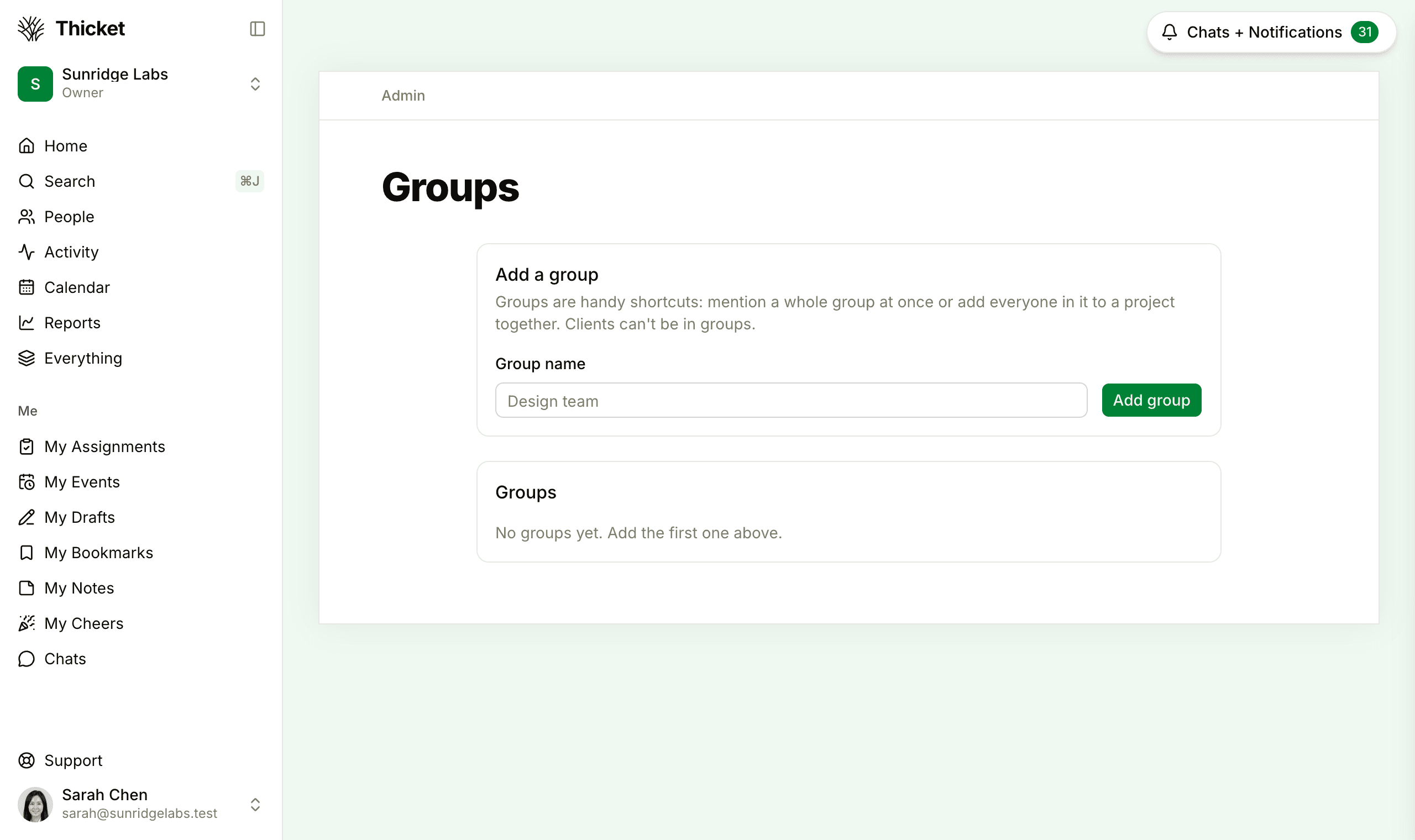
- Open Admin and click Manage groups.
- Type a Group name and click Add group.
- Click Edit members next to the new group, tick the teammates who belong in it, and click Save members.
Changing or Deleting a Group
Click Edit members to add people to a group or take them out. Delete removes the group after you confirm. The people in it stay in your account, and this can't be undone.
People are taken out of every group when they become a client or are removed from the account.