
Archiving, Trash, and Restoring
Archive finished work to keep it out of the way, put things you no longer need in the trash, and restore items and whole projects.
There are two ways to clear something out of the way, and both can be undone:
- Archive work that's finished but worth keeping. An archived item leaves its tool's list, stays readable, and can't be edited or commented on until it's restored. It stays archived until someone restores it.
- Put in the trash what you no longer need. Everything inside goes with it, such as a message's comments, a list's to-dos, or a folder's contents. Trashed items are deleted for good 30 days after they were trashed.
Archiving an Item
- Open the item.
- Click the ••• menu at the top right of the page.
- Choose Archive.
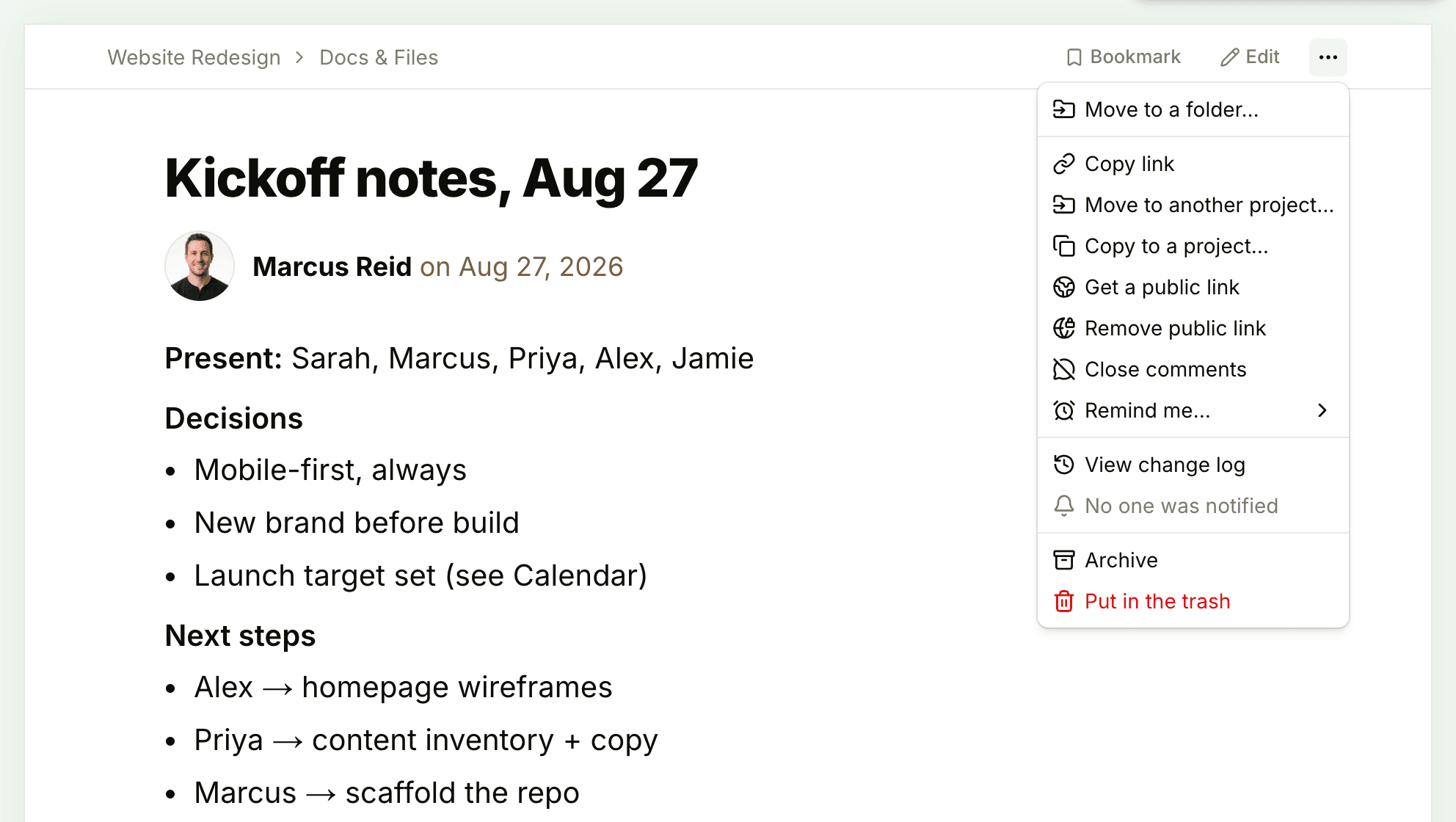
The same command is in the row menus for to-dos and for items in Docs & Files. To archive several to-dos at once, hold ⌘ (or Ctrl) and click each one, open the menu on any of them, and choose Archive them. A message with an Undo button appears in case you change your mind.
On a board, a column you added can be archived from its menu with Archive this column. The Triage, Not now, and Done columns stay put.
Finding and Restoring Archived Items
An archived item shows an Archived label next to its title. To see everything archived in a project, click the ••• menu at the top right of the project's page and choose See archived items. The Archived items page lists them grouped by tool. Click Unarchive to put an item back where it was, or Put in the trash to throw it away. Clients don't have this menu.
Some tools also list their own archived items:
- Docs & Files: at the bottom of Docs & Files, or of a folder, a link such as 2 archived items opens Archived items. Click Unarchive next to the one you want.
- Boards: the board's ••• menu has Archived columns, and each column's page has an Archived cards link. Click Unarchive next to a column or card.
You can also open an archived item from a bookmark, a link, or its entry in Activity, then choose ••• > Restore.
Putting Something in the Trash
Open the item's ••• menu and choose Put in the trash. A few things work a little differently:
- Repeating events ask first. Choose Only delete this event or Also delete all future events. The trash shows each deleted day's date, and restoring one puts it back into the repeating event.
- Several to-dos at once: select them, then choose Delete them. They go to the trash like anything else, and the message that appears has an Undo button.
- Comments have their own ••• menu with Put in the trash, available to the comment's author and to owners and admins.
- Chat lines skip the trash. Deleting a line in a chat removes it for everyone, immediately and permanently.
The Project Trash
Every project has its own trash. To open it, click the ••• menu at the top right of the project's page and choose See items in the trash.
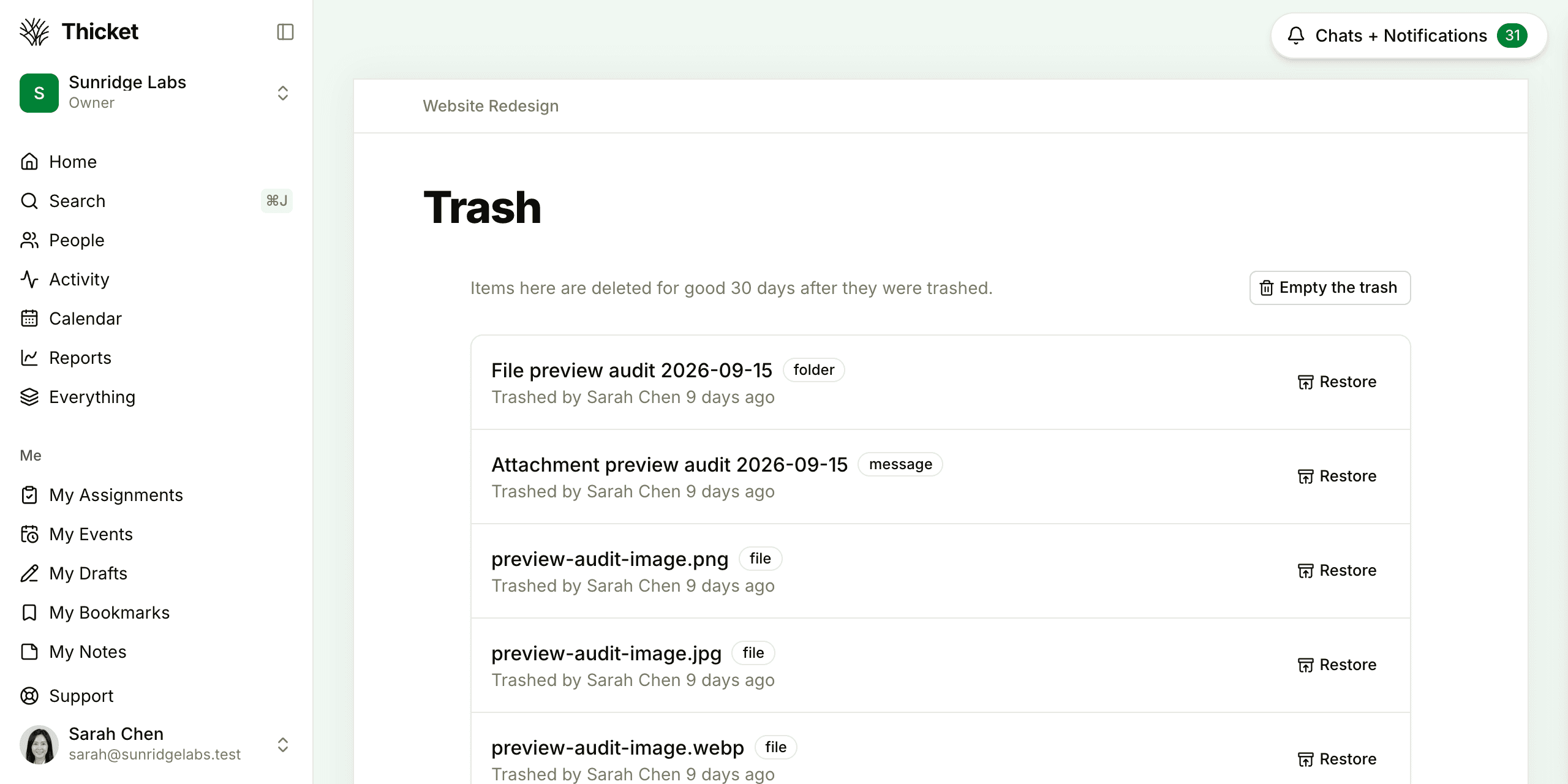
Each entry shows what kind of item it is, such as a to-do list or an event, and who trashed it and when. Click Restore to put it back where it was, together with everything that was trashed along with it. Things that were trashed separately earlier stay in the trash. A draft comes back as a draft.
Owners and admins see everything in the project's trash. Everyone else sees the items they created or trashed themselves.
Empty the trash deletes those items permanently, and there's no undo. For owners and admins that means everything in the project's trash; for everyone else it means only the items shown to them.
Account owners also have a trash for the whole account: Admin > Trash lists deleted items from every project, and deleted project templates, oldest first, with View, Restore and Permanently delete buttons.
Archiving or Trashing a Whole Project
Owners, admins, and the person who created a project can archive it or put it in the trash:
- Open the project and click the ••• menu at the top right.
- Choose Archive this project or Move to the trash.
- Confirm with Archive project or Move to the trash.
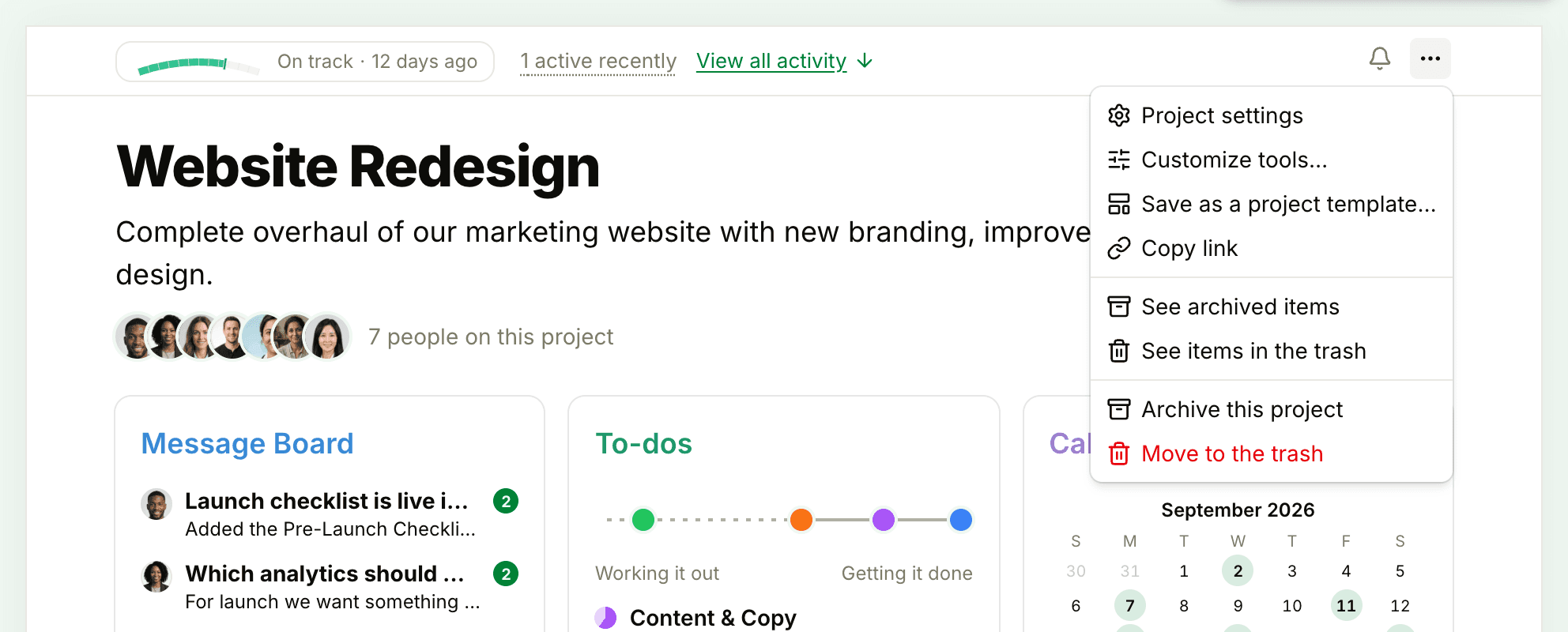
Archive this project is only offered while the project is active. The same actions are at the bottom of Project settings, in the Archive or trash section, as Archive project and Move to trash, and each asks you to confirm. Once the project is archived, that section offers Unarchive project instead of Archive project, and once it's in the trash, Restore project.
An archived project keeps everything, but it leaves Home and the account-wide views: Activity, the Calendar, search, reports, and Everything. It's read-only while archived: nobody can post, edit, comment, complete or move anything in it until it's unarchived. Its check-in questions stop asking, its repeating to-dos stop repeating, its event and due-date reminders stop, and its public links show nothing until it's unarchived. Archived projects don't count toward your plan's limit on active projects, which makes archiving the way to make room on a plan with a project limit. See Billing and Plans.
A trashed project is deleted for good, with all of its files, 30 days after it was trashed. Until then, owners, admins, and the person who created the project can restore it.
To bring a project back, click See all next to Projects on Home to open the Project directory. Archived projects are listed under Archived with an Unarchive button, and trashed ones under In the trash with a Restore button. The same buttons appear in a banner at the top of the project itself.
Who Can Archive and Trash
By default, anyone on a project can archive items and put them in the trash. An owner or admin can change that in Admin > Permissions:
- Restrict who can move, archive, and delete content limits archiving and trashing to owners, admins, and the person who created the item. Once someone else has commented on it, only an owner or admin can archive or trash it. Restoring isn't restricted.
- Limit editing and deleting comments and chats gives people 15 minutes to delete their own comments and chat lines. After that, only owners and admins can delete them.
See Permissions for the full list of these settings.