
Project and To-do List Templates
Save a project or a to-do list as a template, then start new projects and lists from it with the setup already in place.
If your team runs the same kind of project again and again, such as onboarding a client or launching a feature, set it up once as a template. Every new project started from the template begins with its tools, lists, docs, events, and board already in place. To-do list templates do the same for a single list, like a launch checklist you reuse in many projects.
Everyone on your team except clients can create, edit, and use templates. They're free on every plan.
The Templates Page
Templates live on one page with two tabs: Project templates and To-do list templates. Anyone on the team can open it from the Templates page link at the top of the Project directory (click See all next to Projects on Home) or on the New project page. Owners and admins can also open it from Admin > Templates. The Project templates link at the top of any project template leads back to it too.
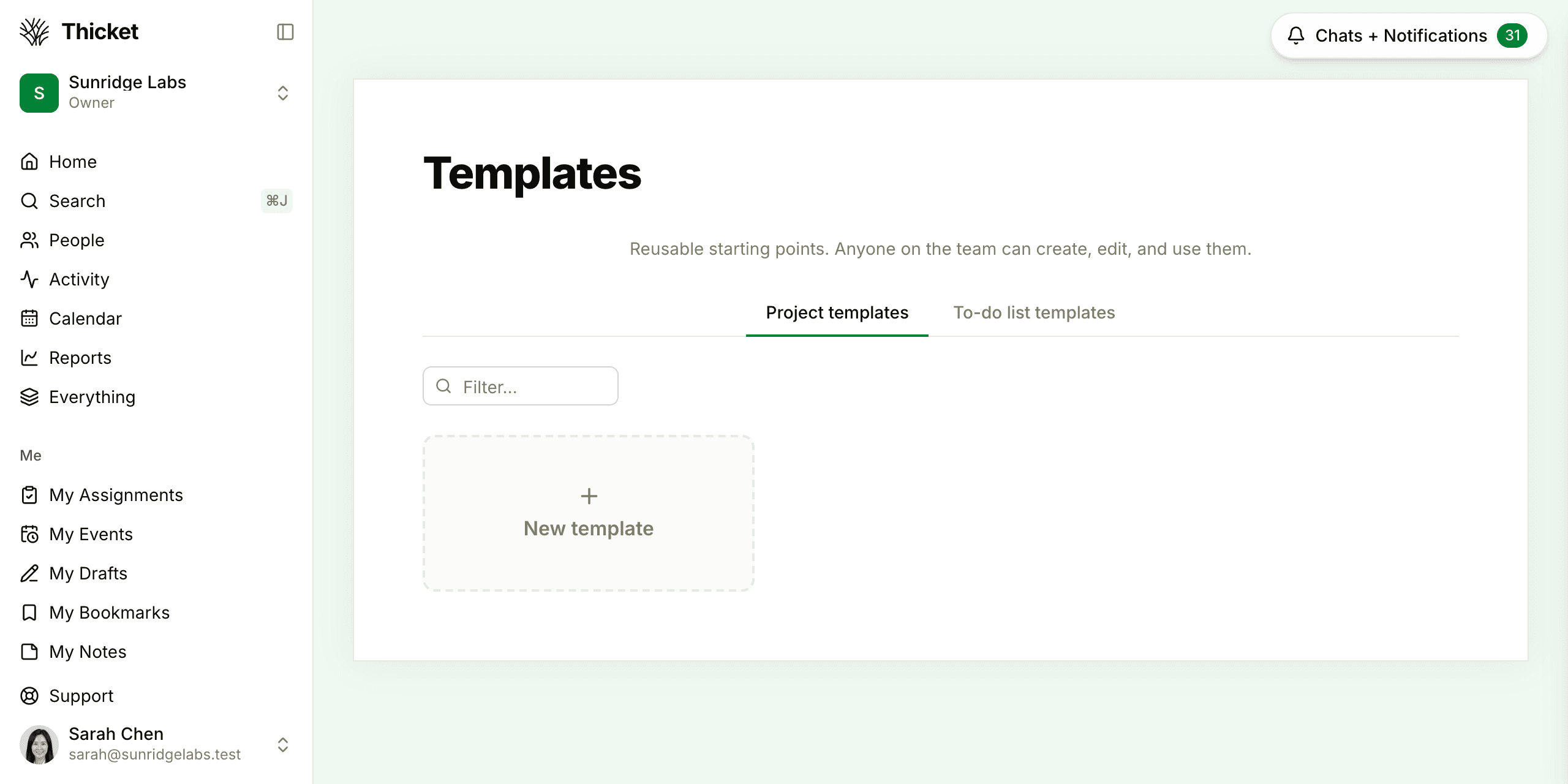
Each tab starts with a New template tile, followed by your templates in alphabetical order. Type in Filter… to find one by name. Archived templates are listed at the bottom, under Archived templates.
Creating a Project Template
Start from an empty template
- On the Templates page, open Project templates and click New template.
- Give it a Name and, if you like, a Description of the kind of work it's for.
- Click Create template.
The template opens looking like a new project, with the usual tools switched on. Set it up the way every project made from it should begin: add to-do lists, docs, events, and board columns and cards, and switch tools on or off.
Save an existing project as a template
When a project is already set up the way you like, turn it into a template:
- Open the project and click its ••• menu.
- Choose Save as a project template….
- Adjust the Template name, add a Description (optional), and choose what comes along:
- Include assignments: to-dos, cards, events, and check-ins keep their assignees.
- Include comments: each discussion's comment thread comes along too.
- Keep client visibility: items shared with clients stay shared. This option appears only when the project works with clients.
- Click Save template.
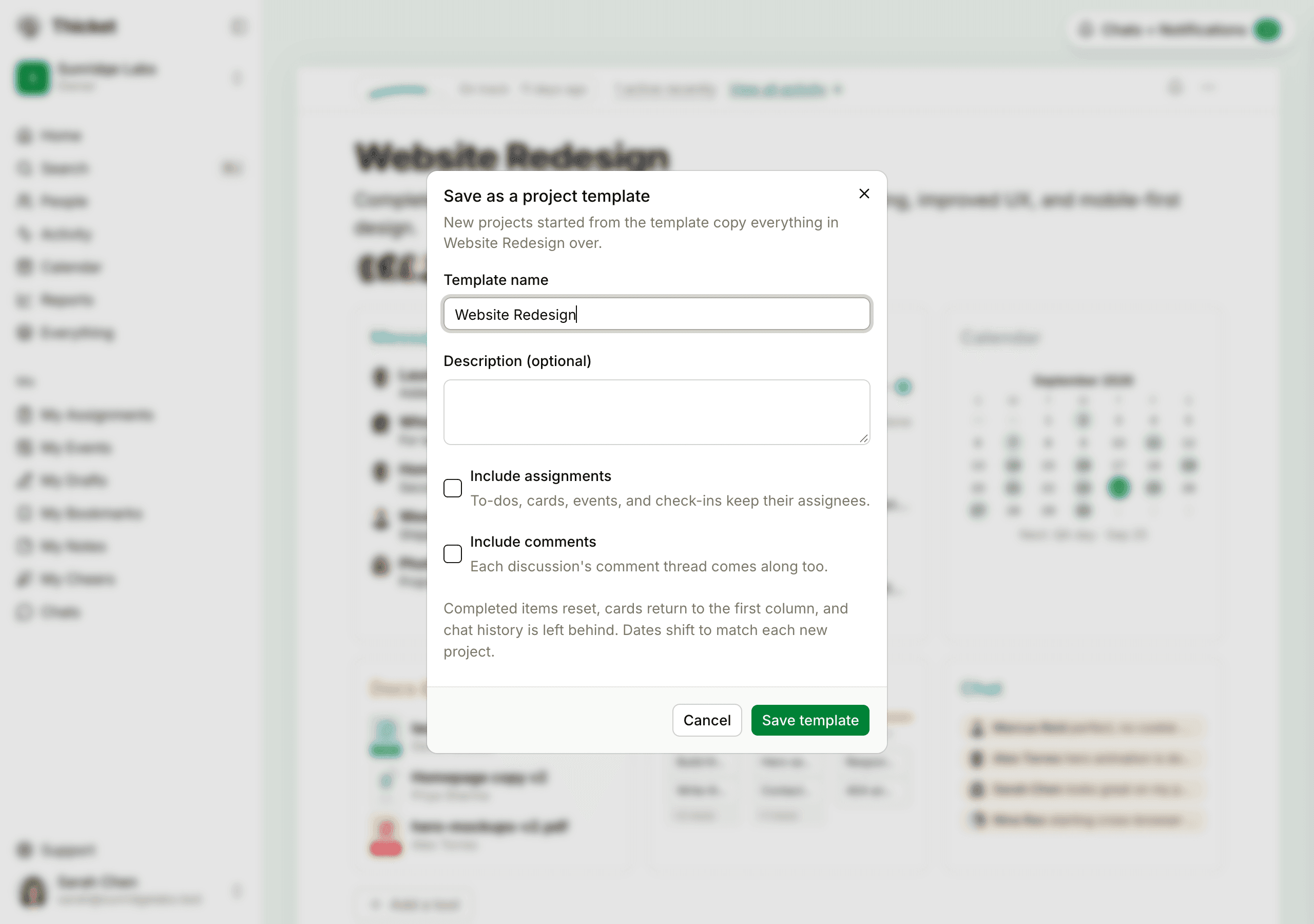
Saving never changes the original project. In the template, completed to-dos and cards are reopened, cards go back to the board's Triage column, and chat history is left behind. Only pinned messages are copied from the Message Board (see Message Boards for pinning).
Make a copy of a template
For a variation on a template you already have, open the template's ••• menu on the Templates page and choose Make a copy…. Name the copy and click Make a copy.
Editing a Template
Click a template to open it. A template works like any other project: add, edit, and remove content with the same tools. A banner at the top reminds you that you're in a template.
The template's ••• menu has Template settings, where you can rename the template, change its description, switch tools on or off, and set Starts and Ends dates. For a template meant for client projects, switch on Work with clients there, then choose which items clients will see. Projects started from the template work with clients too (see Working with Clients).
Messages only carry over into new projects when they're pinned, so pin any message every new project should start with.
Starting a Project from a Template
You can start a project from a template in three places:
- On the New project page, pick the template in the Start from menu. This menu appears once your team has at least one template.
- On the template itself, click Start a new project from this template in the banner.
- On the Templates page, open the template's ••• menu and choose New project from this template….
Then give the project a name, choose whether it's Open to everyone, and click Create project.
What the new project gets
- The template's tools, in the same order and with the same names.
- Its to-do lists, groups, to-dos, and subtasks, with their notes and assignees.
- Its pinned messages, docs, folders, and files.
- Its calendar events, including repeating ones, with their invited people.
- Its board columns, cards, and steps.
- Its check-in questions and the people they ask.
- Comments on all of the above.
Chat, drafts, and archived or trashed items are not copied. Neither are the template's logo, dates, or external links.
People: you're added to the new project, and so is everyone assigned to something in the template. They join quietly: nobody gets an assignment notification when the project is created.
Dates move with the project. Every due date and event keeps its distance from the template's start. If the template Starts on June 1 and a to-do is due June 8, a project created on September 10 gets that to-do due September 17. A template without a start date measures from the day it was created.
Each project you start from a template counts toward your plan's project limit. Templates themselves don't.
To-do List Templates
A to-do list template is a reusable list. Use it for checklists you run in many projects, like a launch checklist or a new-hire list.
Create a list template
- On the Templates page, open To-do list templates and click New template.
- Give it a Name and an optional Description, then click Create template.
- The template opens as a to-do list. Add its to-dos, groups, notes, assignees, and due dates the same way you would in a project. See To-dos and Lists.
Use a list template
- In a project's To-dos, click From a template…, choose the Template, and click Create list. The button appears once your team has at least one list template.
- Or, on the Templates page, open the template's ••• menu, choose New to-do list from this template…, pick the Project, and click Create list.
The new list gets the template's groups, to-dos, subtasks, notes, and assignees, and lands at the bottom of the project's lists. Anyone assigned who isn't on the project yet is added to it, or left unassigned if you can't add people to that project. Due dates are copied exactly as they are in the template, and comments aren't copied. The new list is visible to your team only.
Archiving and Deleting Templates
Open a template's ••• menu on the Templates page:
- Archive keeps the template but stops anyone from starting new projects or lists from it. Archived templates move to the bottom of the page, where Restore brings one back.
- Move to the trash removes it from the page. Trashed templates are deleted for good after 30 days. Until then, an account owner can restore a trashed project template from Admin > Trash. Admins and the template's creator can also restore it with Restore in the banner on the template's own page.
Projects and lists already made from a template aren't affected either way.
Owners, admins, and the person who created a project template can archive or trash it. To-do list templates can be archived or trashed by anyone on the team, unless an admin has turned on Restrict who can move, archive, and delete content (see Permissions).