
Sharing Items with Public Links
Share a message, doc, or file with people outside your account through a read-only link, and turn the link off when you are done.
A public link lets anyone with the address read one message, doc, or file, with no Thicket account and no sign-in. Use it to show a proposal to a prospect or a brief to a freelancer without inviting them into a project.
What You Can Share
You can get a public link for a message, a doc, or a file. The item has to be posted (not a draft) and active (not archived or in the trash), and so does its project.
Getting a Public Link
- Open the message, doc, or file.
- Click the ••• menu at the top right of the page.
- Choose Get a public link.
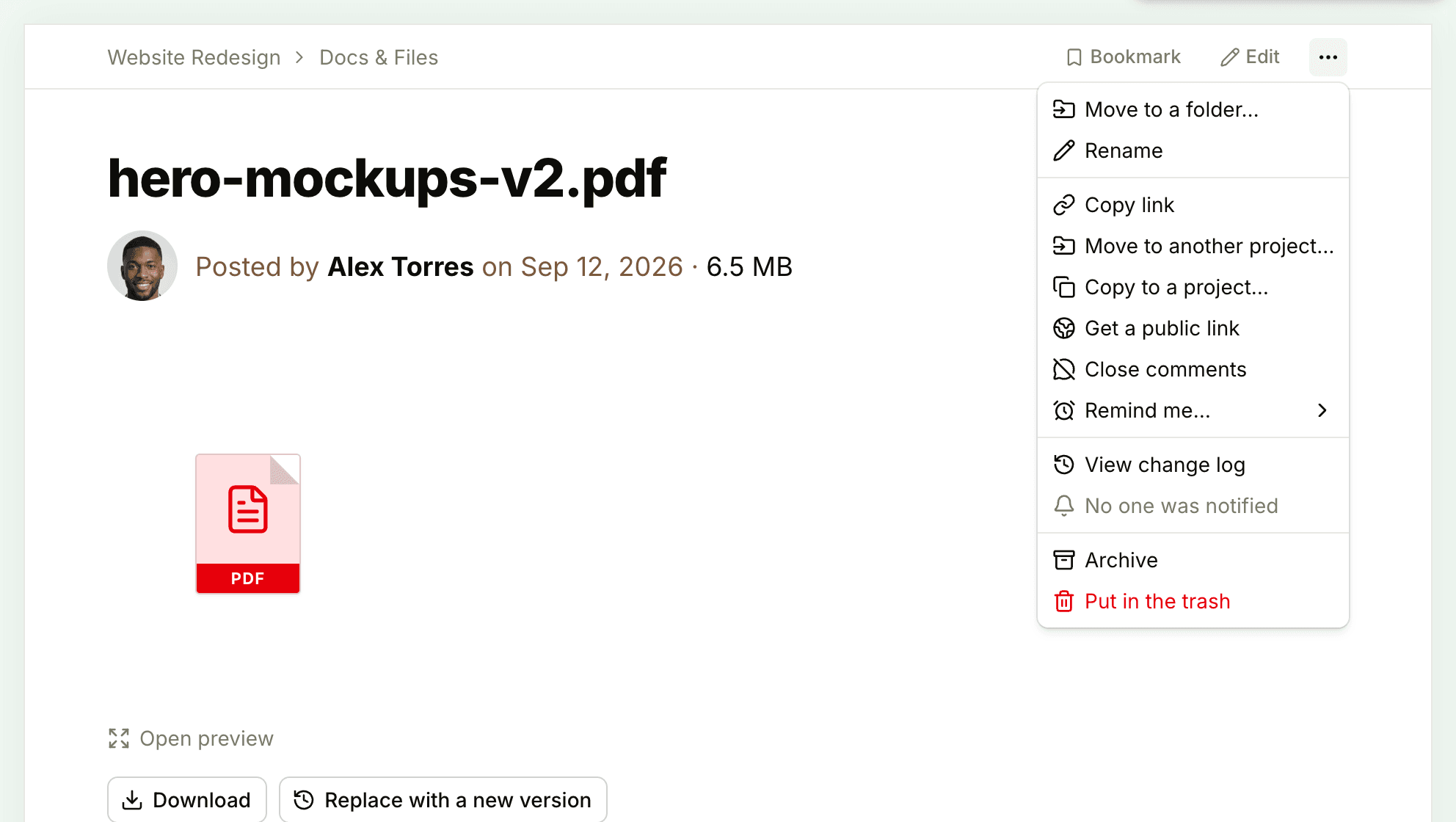
The link is copied to your clipboard, and a message confirms it: "Public link copied. Anyone with it can view". Paste it into an email or wherever you like.
Once an item has a public link, its ••• menu shows Copy public link, which copies the same link again, and Remove public link in place of Get a public link.
What People See
The public page shows the item on its own:
- a line reading Shared from your account's name
- the title and the date the item was posted
- the text of the message or doc, including the images, voice notes, and files in it
- for a file, a preview of images, audio, and video, the file's name and size, and a Download button (plus Open for a PDF)
Comments, the author, the project, and everything else in your account stay private. If you edit a message or doc, the public page shows the new version. The page asks search engines not to list it, so only people who have the link can find it.
Turning a Link Off
Open the item's ••• menu and choose Remove public link. The link stops working right away. If you share the item again later, Get a public link creates a new address, and the old one stays dead.
The public page also goes dark while the item or its project is archived or in the trash. Unarchive or restore it and the same link works again. Links don't expire on their own.
Anyone who opens a link that no longer works sees a page saying That page isn't available.
Who Can Share
Anyone on a project except clients can create a public link for an item they can see, and remove one.
To keep sharing in fewer hands, an owner or admin can turn on Restrict public links to owners and admins in Admin > Permissions. After that, only owners and admins can create new public links. Links that already exist keep working. See Permissions.
Seeing Everything That's Public
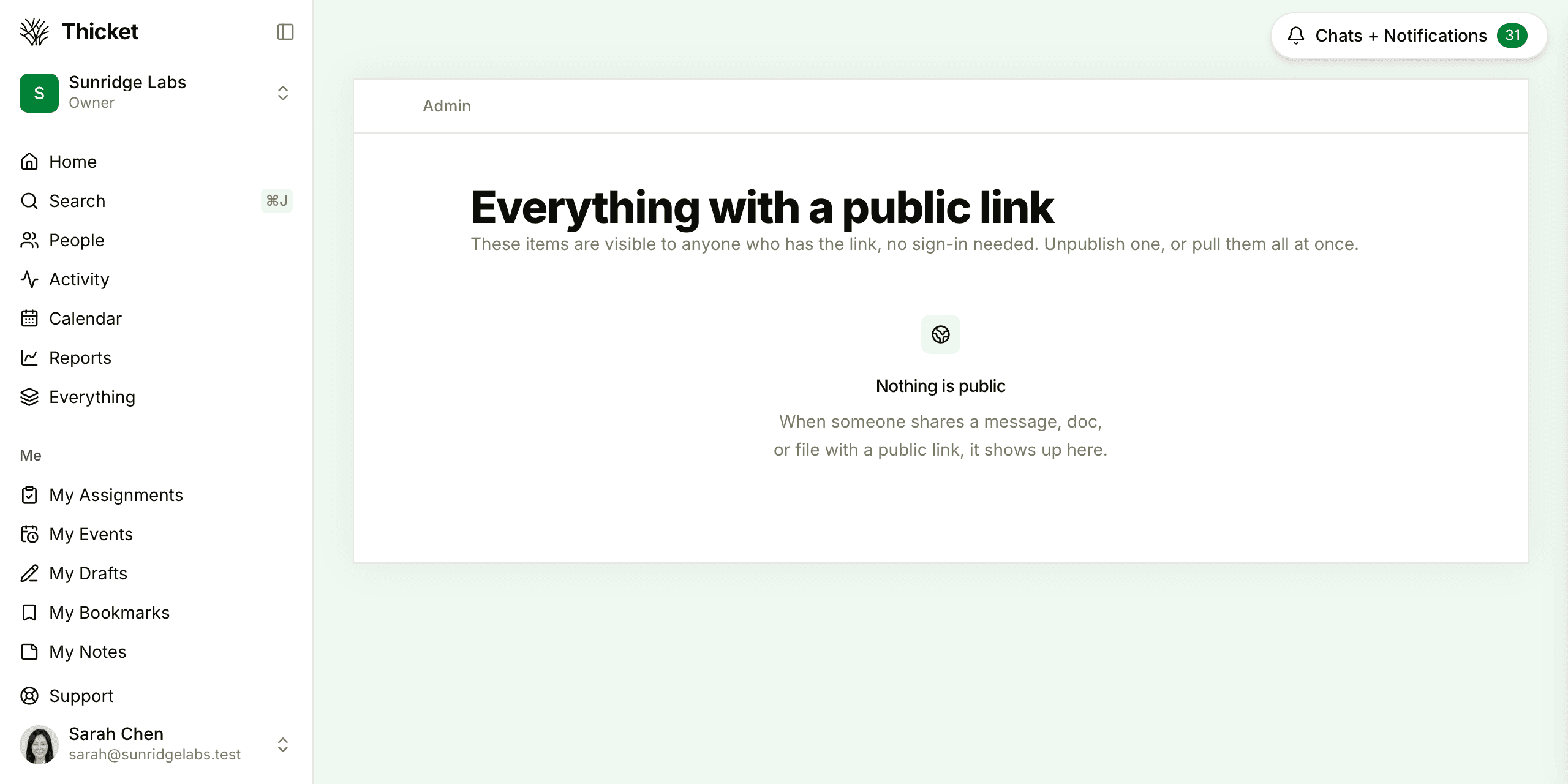
Account owners can review every public link in the account under Admin > Manage public items. The page lists each shared item with what kind of item it is (a message, document, or file), its project and who shared it, a View button to open the public page, and an Unpublish button to turn the link off. Unpublish all turns off every public link at once.
A link that shows nothing right now stays on the list with a label saying why: Archived, In the trash, Project archived, or Project in the trash. It has no View button until the item or project is back, but you can still unpublish it.
Public Links and Copy Link
Copy link, in the same ••• menu, copies the item's address inside Thicket. It only works for people who can sign in and already have access to the item, which makes it the right choice for pointing a teammate at something. Use Get a public link only for people outside your account.