
Comments and References
Discuss any item in the comments under it, edit or remove what you wrote, close a thread, and see everywhere else in Thicket that links to an item.
Almost everything in a project has a comment thread under it: messages, to-dos and to-do lists, docs and files, events, cards and board columns, check-in answers, and progress and health updates. Comments keep a discussion attached to the work it's about. References show the other direction: every place in Thicket that links to the item you're looking at.
Adding a comment
- Open the item and scroll down to its comments, or press Shift+C to jump straight to the comment box
- Write in the Add a comment… box. It has the full formatting toolbar, so you can add lists, images, files and voice notes (see Formatting Text)
- Click Post comment
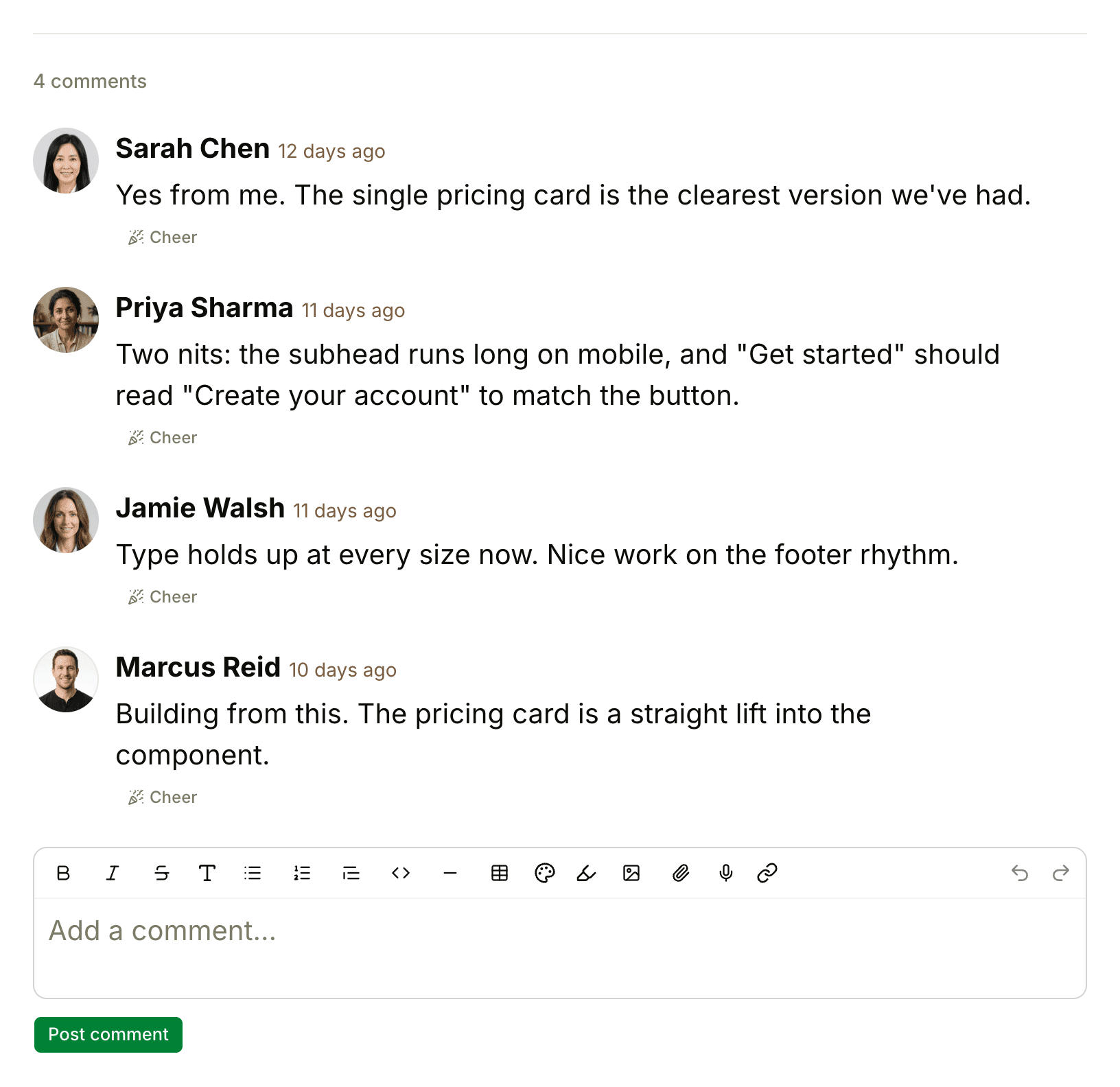
Everyone following the item is notified about your comment, and posting one makes you a follower, so you'll hear about the replies. To bring someone into the conversation, @-mention them (see @-mentions). To change who's notified, use the notification box on the item (see Following and Unfollowing Discussions).
Comments share the item's visibility. On an item shared with clients, clients can read the comments and add their own. See What Clients Can See and Do.
To point someone to one particular comment, click its time, such as "12 days ago". The address in your browser then leads straight to that comment.
Editing or deleting a comment
Hover over a comment and click the ••• that appears beside it:
- Edit opens your own comment for changes. Click Save when you're done, or Never mind to leave it as it was. An edited comment says "Edited" before its time
- Put in the trash removes the comment. You can trash your own comments, and owners and admins can trash anyone's
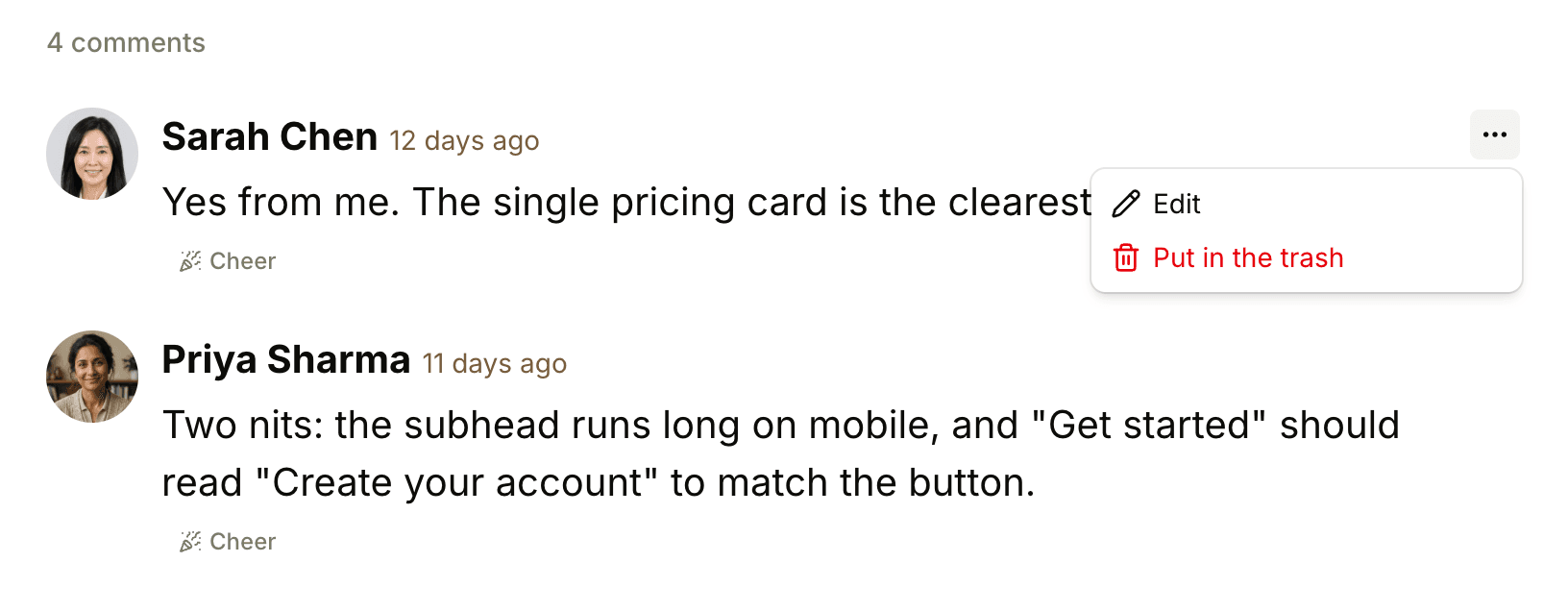
Only the author can edit a comment, and that holds for owners and admins too. A trashed comment can be restored from the trash. See Archiving, Trash, and Restoring.
If an admin has turned on Limit editing and deleting comments and chats, you have 15 minutes after posting to edit or delete a comment. After that, nobody can edit it, and only owners and admins can delete it. See Permissions.
Closing comments
To end a discussion, open the item's ••• menu and choose Close comments. The comment box is replaced by "Comments are closed on this." The comments already there stay, but nobody can add a comment, or a new cheer, until someone chooses Reopen comments from the same menu. Only the person who posted the item, owners and admins see Close comments and Reopen comments.
References
When you link to a Thicket item from somewhere else in Thicket, the item you linked to keeps track. Paste an item's link into a message, doc, comment, check-in answer, to-do or card note, or a chat line, and post it. On the linked item, a tab appears next to the comment count, such as "2 references to this message". It lists each place that links there: who added the link, when, and the text around it. Click an entry to go to it.
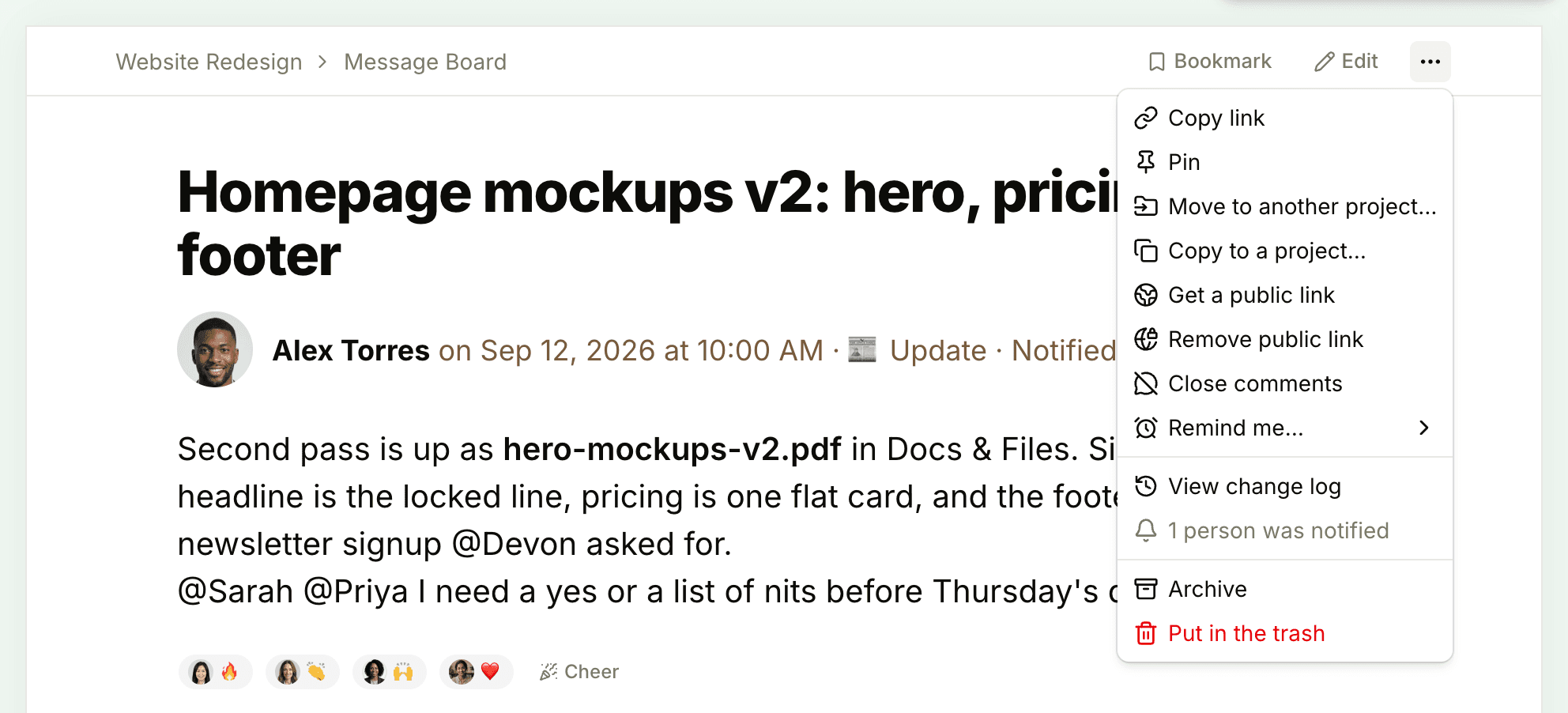
To get an item's link, open the item and choose Copy link from its ••• menu, or copy the address from your browser.
A few things to know about references:
- The reference is recorded when you post, or save an edit to, the text containing the link. The text you link can say anything
- A link in a comment counts as coming from the item the comment is on
- You only see references from projects and chats you can access. Clients only see references from items shared with them
- References from items in the trash aren't listed