
Remind Me Later
Set a reminder on a message, to-do, or notification so it comes back in your sidebar when you choose, then reschedule or dismiss it.
Some things need your attention, just not right now. Remind me… sets an item aside and brings it back in your Chats + Notifications sidebar at the time you pick. Reminders are private: nobody else sees them or hears about them.
Setting a reminder on an item
- Open the message, to-do, list, doc, card, event, or other item
- Click ••• at the top right and point to Remind me…
- Choose when it should come back
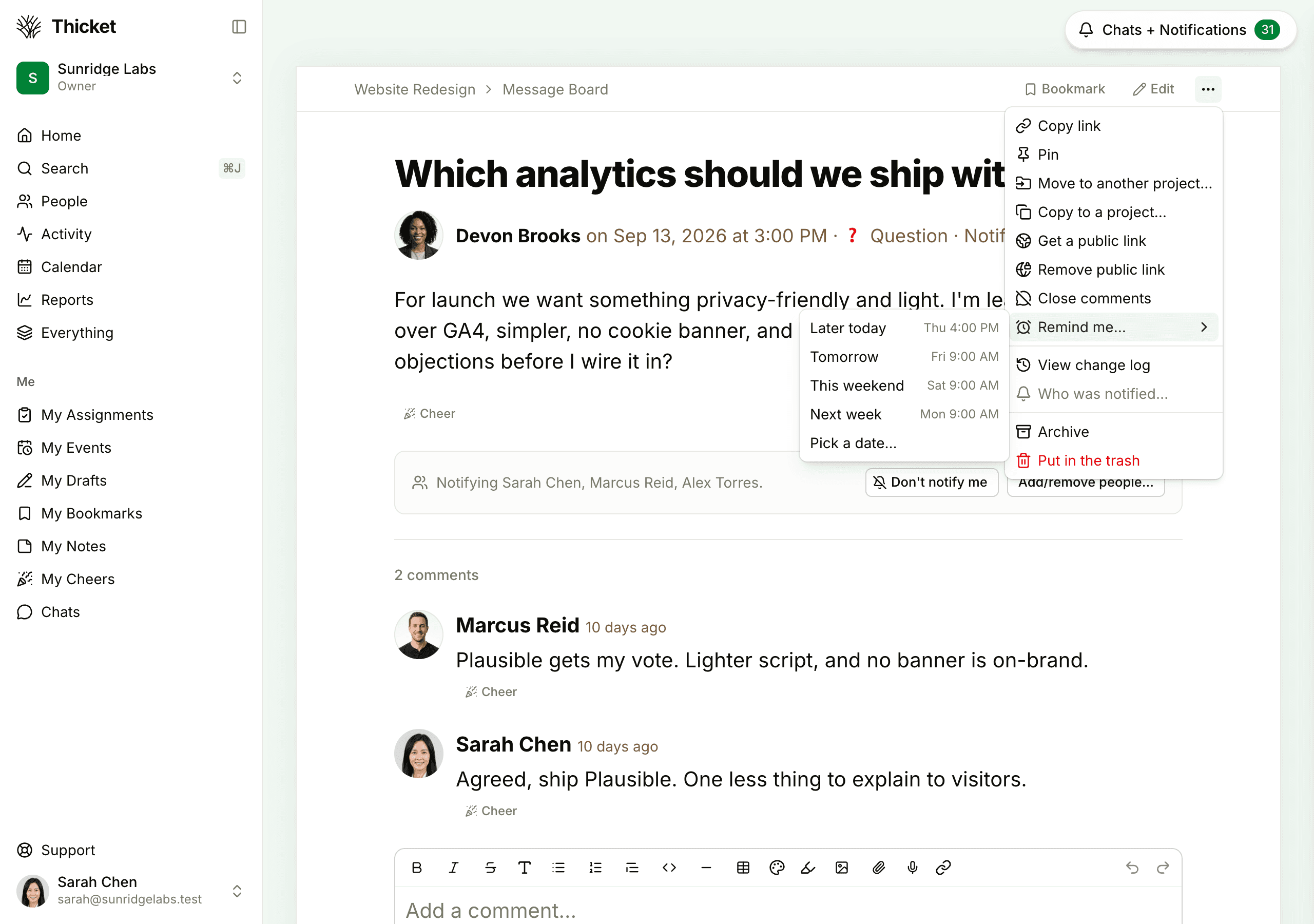
The choices, each shown with the day and time it stands for:
- Later today: 4:00 PM today. It's only offered before 4:00 PM.
- Tomorrow: 9:00 AM tomorrow
- This weekend: 9:00 AM on the coming Saturday
- Next week: 9:00 AM on the coming Monday
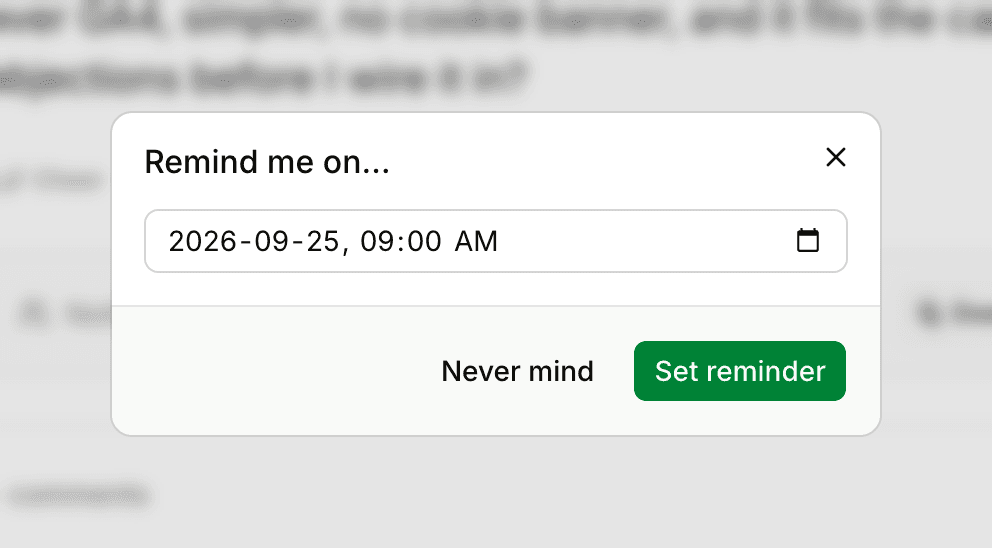
- Pick a date…: opens Remind me on…, where you choose a date and time and click Set reminder
Times follow your time zone (see Your Profile and Preferences). Thicket confirms with a message such as "Got it. This comes back tomorrow".
Remind me… is in the ••• menu of items that are published, not drafts, archived items, or items in the trash. Everyone has it, clients included. You can also set a reminder from a notification, as described next.
Setting a reminder from a notification
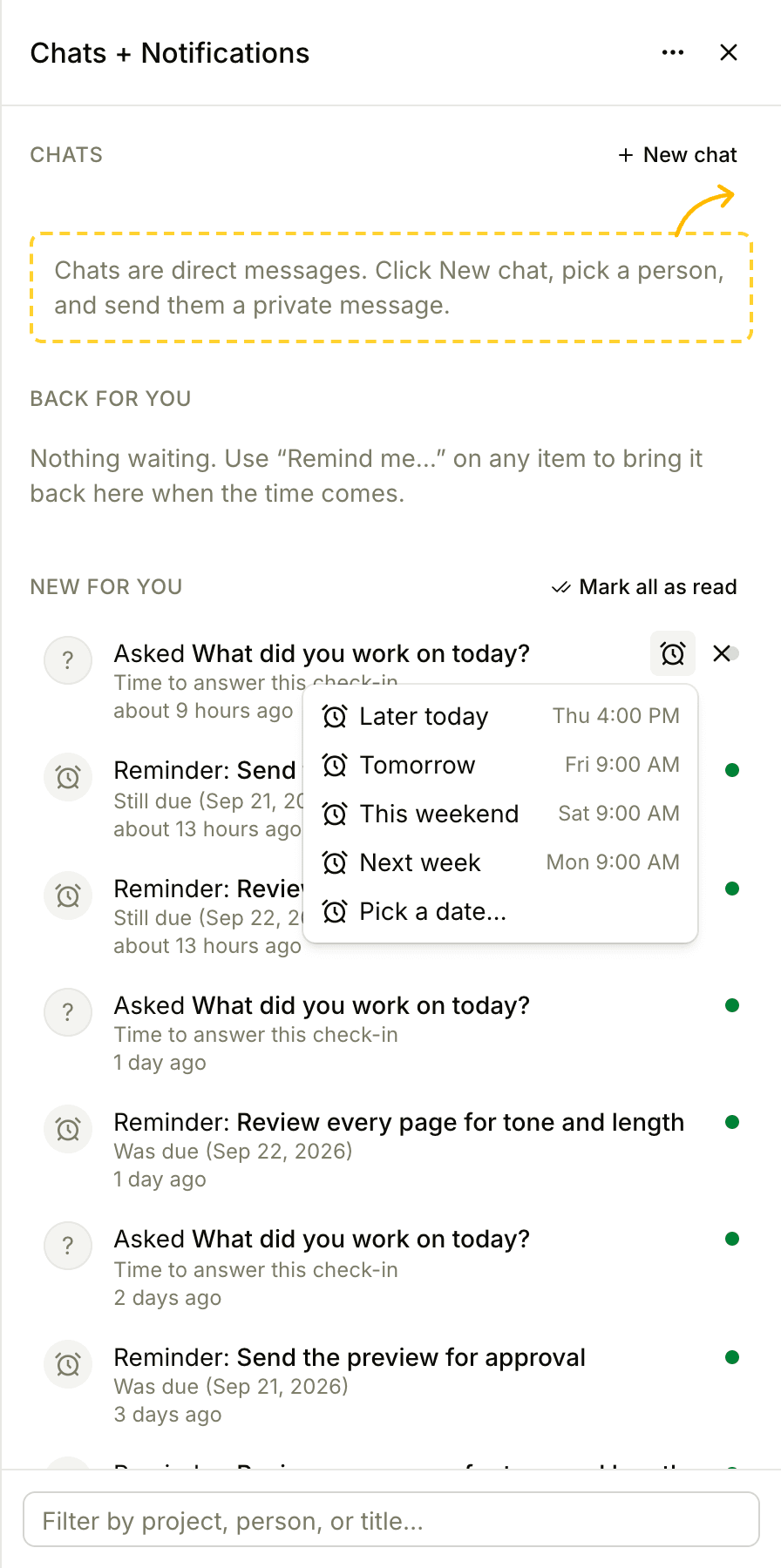
In the Chats + Notifications sidebar, hover over a notification and click the alarm clock that appears next to it. Pick a time from the same list. The notification stays where it is.
When a reminder comes back
When the time arrives, the item appears under Back for you in the sidebar, just below your chats, with the name of its project. Click it to open the item.
A reminder comes back quietly. It doesn't send an email or a push notification, and it doesn't add to the number on the Chats + Notifications button, so open the sidebar to see what's back.
An item stays in Back for you until you dismiss it. Hover over it and click the X to dismiss it, or click the alarm clock to send it away again until later. If the item is put in the trash, its reminder goes away with it.
Changing a reminder before it comes back
While you have reminders waiting, Back for you shows a button such as 2 waiting. Click it to see them under Waiting to come back, each with the date and time it's due. Hover over one and click the alarm clock to pick a new time, or choose Remove reminder to cancel it.
Each item can have one reminder from you at a time. Setting a new time on an item that already has one replaces the old time.